> ## Documentation Index
> Fetch the complete documentation index at: https://docs.revize.app/llms.txt
> Use this file to discover all available pages before exploring further.
# Add Products
> Let customers add products to existing orders after checkout. Turn order edits into revenue opportunities with smart product suggestions and seamless payment handling.
The buying intent is at its peak right after checkout - customers just swiped their card and are in a happy, purchasing mindset. This is the golden moment in the shopping journey to subtly nudge them to add more products, making it a sure shot way to increase average order value.
**This page covers the customer-initiated flow:** the shopper opens the Revize Customer Portal and chooses what to add. To proactively show targeted offers on the Thank-you and Order-status pages, see [Post-purchase Upsells](/setup/post-purchase-upsells). To add products straight from your marketing emails, see [email upsells](/integrations#how-email-upsells-work).
## Why post-checkout upsells work
They just completed a purchase and are actively thinking about the products they need.
Payment info is already saved. Adding products is just one click plus payment confirmation.
While reviewing their order, customers often remember related items they forgot to include.
Items get added to the same shipment instead of requiring a separate order and shipping cost.
## How customers add products
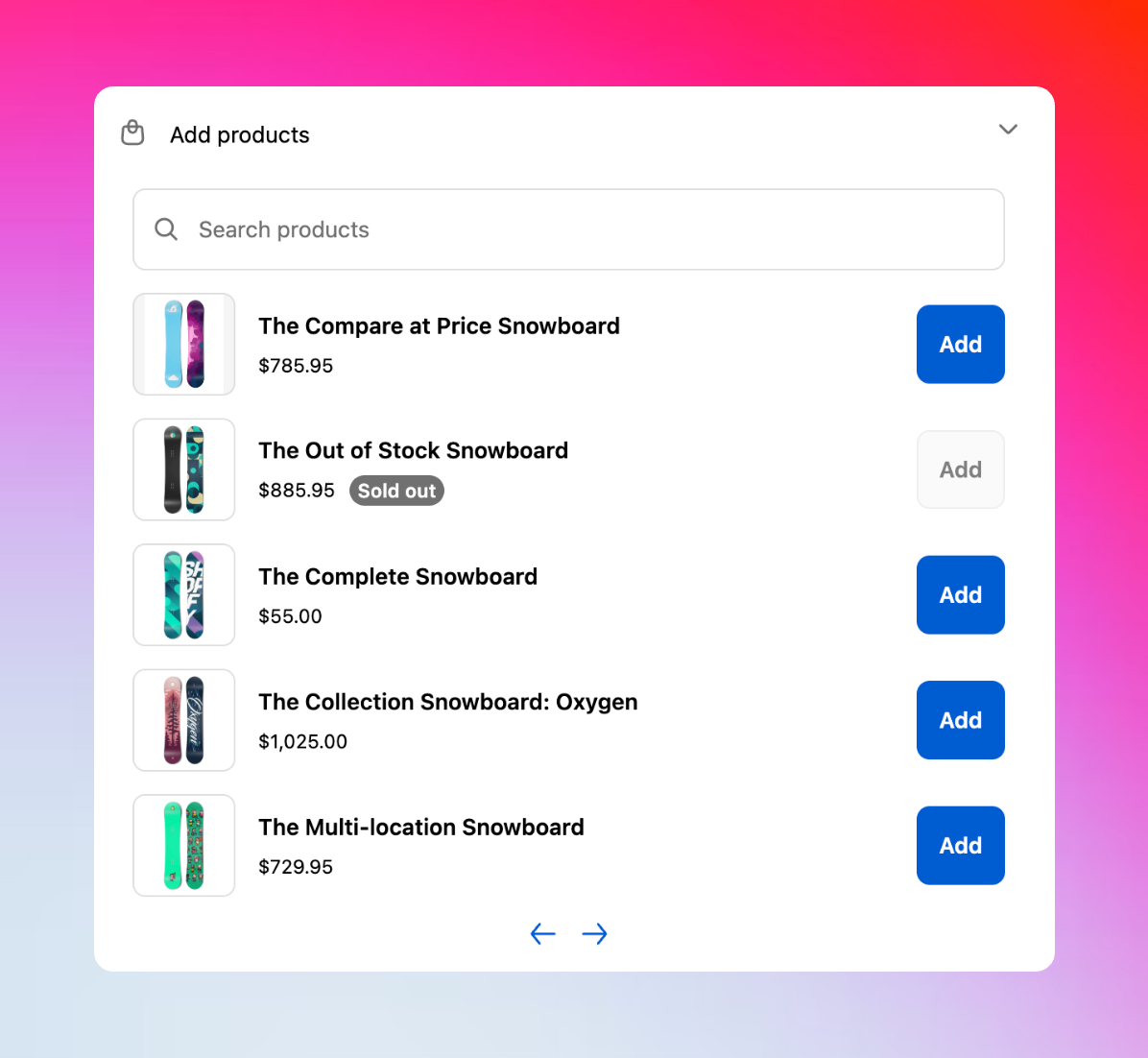
From the Revize Customer Portal, customers click **Add products** to see your curated product selection.
Choose products with variants (size, color, quantity) using the familiar product browser interface.
See new items added to their order with updated totals and shipping information.
Click **Pay now** to charge the additional amount and confirm the expanded order.
With Revize's rules engine, merchants can choose which products to show under "Add products" based on order and product tags. This customization is currently available through our support team - reach out ([hello@revize.app](mailto:hello@revize.app)) with your customization request.
## AI-powered product recommendations
Show customers what they actually want. Product recommendations are now powered by Shopify AI and your strategic picks.
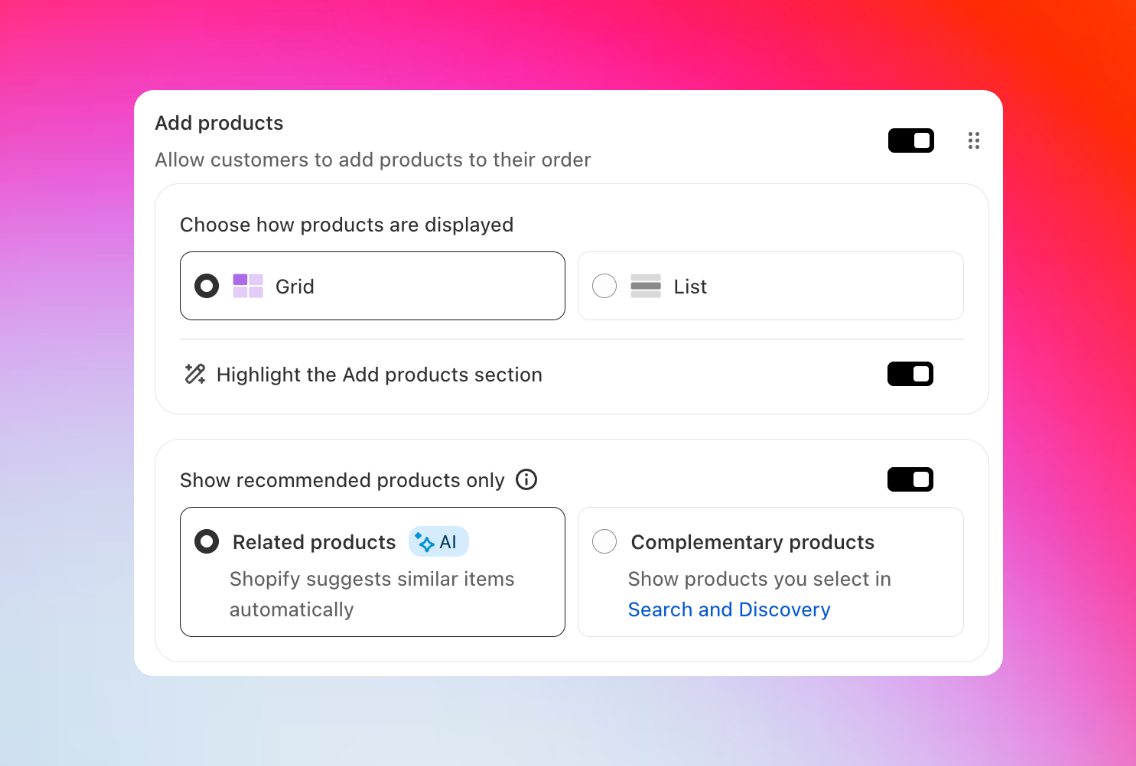 **Automatically generated suggestions**
Shopify AI analyzes purchase patterns and product similarity to suggest relevant items. No configuration needed. It learns from your store's data.
[Learn how Shopify AI recommendations work →](https://shopify.dev/docs/storefronts/themes/product-merchandising/recommendations)
**Hand-picked recommendations**
Curate exactly what to show using Shopify's Search & Discovery app. Perfect for bundles, accessories, or strategic upsells.
[Set up with Search & Discovery →](https://apps.shopify.com/search-and-discovery)
The full upsell engine has shipped. [Post-purchase Upsells](/setup/post-purchase-upsells) adds rule-driven offers with targeting, discounts, layouts, countdowns, and revenue analytics on the Thank-you and Order-status pages.
***
## Grid view for product upsells
Display products in a visual grid layout that makes browsing feel natural and boosts conversions.
**Automatically generated suggestions**
Shopify AI analyzes purchase patterns and product similarity to suggest relevant items. No configuration needed. It learns from your store's data.
[Learn how Shopify AI recommendations work →](https://shopify.dev/docs/storefronts/themes/product-merchandising/recommendations)
**Hand-picked recommendations**
Curate exactly what to show using Shopify's Search & Discovery app. Perfect for bundles, accessories, or strategic upsells.
[Set up with Search & Discovery →](https://apps.shopify.com/search-and-discovery)
The full upsell engine has shipped. [Post-purchase Upsells](/setup/post-purchase-upsells) adds rule-driven offers with targeting, discounts, layouts, countdowns, and revenue analytics on the Thank-you and Order-status pages.
***
## Grid view for product upsells
Display products in a visual grid layout that makes browsing feel natural and boosts conversions.
 ### Display options
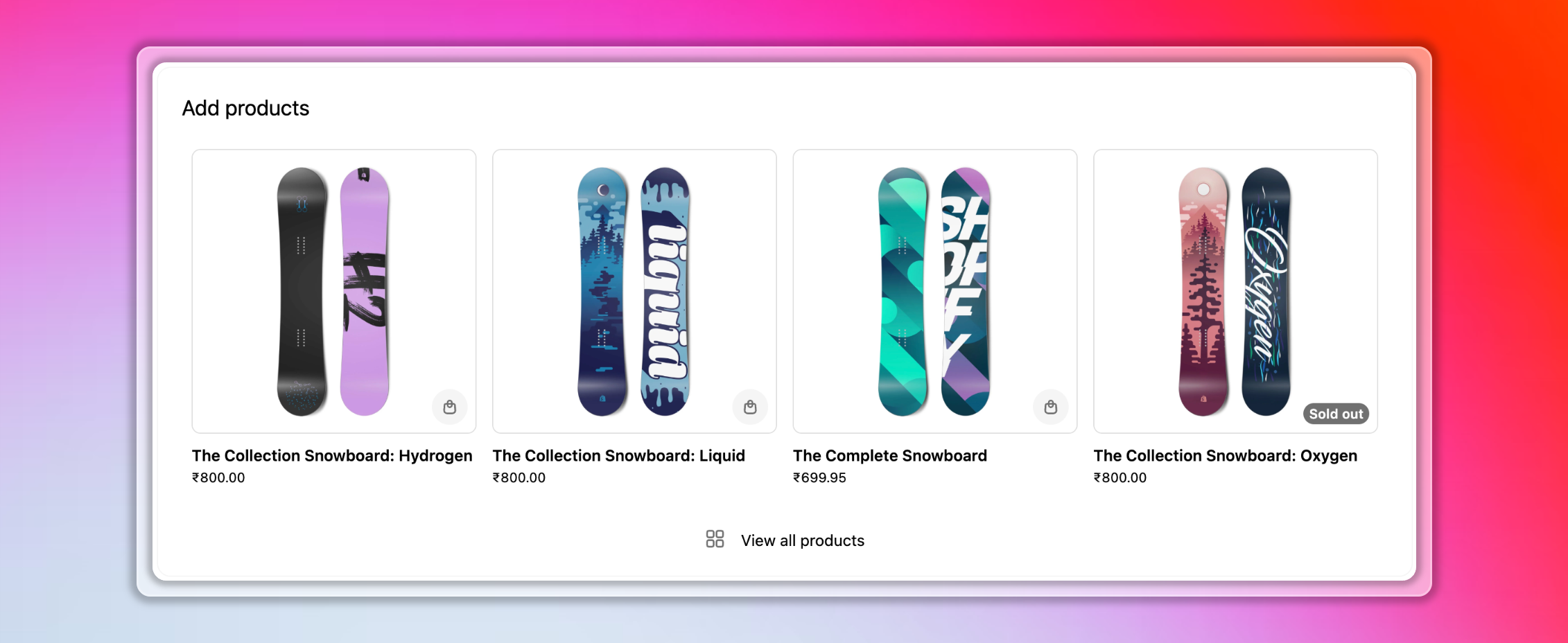
Display products in eye-catching cards with images, prices, and quick-add buttons in a modern grid layout.
Highlight "Add Products" in its own prominent card instead of tucking it inside an accordion.
### How to enable Grid View
In Revize, navigate to the **Order Editing** tab.
Under **Customer edit options**, locate the **Add products** setting.
Choose **Grid** from the display options.
Toggle **"Highlight the Add products section"** for maximum visibility.
***
## Payment and pricing
All product prices show clearly, including any applicable discounts and bulk savings.
Order total updates immediately as customers add items, showing taxes and shipping changes.
Uses Shopify's payment processing with saved payment methods for quick checkout.
Added products appear in the order immediately with confirmation notifications.
### Display options
Display products in eye-catching cards with images, prices, and quick-add buttons in a modern grid layout.
Highlight "Add Products" in its own prominent card instead of tucking it inside an accordion.
### How to enable Grid View
In Revize, navigate to the **Order Editing** tab.
Under **Customer edit options**, locate the **Add products** setting.
Choose **Grid** from the display options.
Toggle **"Highlight the Add products section"** for maximum visibility.
***
## Payment and pricing
All product prices show clearly, including any applicable discounts and bulk savings.
Order total updates immediately as customers add items, showing taxes and shipping changes.
Uses Shopify's payment processing with saved payment methods for quick checkout.
Added products appear in the order immediately with confirmation notifications.
 ## Proven upsell strategies
Focus on high-margin items, natural add-ons, or inventory you want to move fast.
Show original prices with discounts, highlight free shipping thresholds, and bundle offers to increase perceived value.
The best results happen right after checkout, early in the edit window, or before peak shopping seasons.
## Configure product additions
In your **Revize Order Editing** settings, turn on **Add products** under Customer edit options.
Use Revize's powerful rules engine to select which products customers can add. Contact support for custom product selection based on order contents, tags, or collections.
Place a test order and try adding products to ensure the flow works smoothly for your customers.
## Revenue impact
Customers who add products during editing typically increase their order value by 15-40%.
Positive post-purchase experiences lead to more repeat orders and referrals.
Strategic product recommendations help move slow inventory or promote new products.
Upselling existing customers is more cost-effective than acquiring new ones.
## Customer feedback
*"So much easier than placing a second order - everything ships together!"*
Customers love avoiding multiple orders and shipping fees with Revize's seamless experience.
*"Found the perfect accessories I didn't know you sold."*
Product additions help customers discover your full catalog through smart recommendations.
*"Hit free shipping by adding one more item - smart!"*
Shipping threshold notifications drive strategic additions and boost satisfaction.
*"Added items in seconds without re-entering payment info!"*
One-click additions make the process frictionless and encourage more purchases.
## Frequently asked questions
Customers click "Add products" in their Revize order editing portal, browse available items in a clean list view, select variants through a modal popup, and pay for additions through Shopify's secure checkout system.
Yes, you can use Revize's powerful rules engine to customize product selection based on order tags, product tags, or customer segments. Contact our support team ([hello@revize.app](mailto:hello@revize.app)) for custom configurations.
Absolutely. Customers who add products during editing with Revize typically increase their order value by 15-40%, making it one of the most effective post-purchase upselling strategies.
Additional items are charged through Shopify's secure payment system using the customer's saved payment method. They see the exact additional amount before confirming their purchase.
Yes, Revize integrates seamlessly with your existing Shopify store, payment processing, inventory management, and fulfillment systems without disrupting your workflow.
Customers can add products during their edit window - typically right after purchase through the thank you page, or anytime they access their order through the Revize customer portal.
Revize transforms product additions into powerful growth opportunities. Enable this feature to increase average order value while providing genuine convenience to your customers through intelligent post-purchase upselling.
## Related features
* [Post-purchase Upsells](/setup/post-purchase-upsells): merchant-configured offers on the Thank-you and Order-status pages
* [Apply Discounts](/features/apply-discounts): let customers apply discount codes they forgot at checkout
* [Product Variant & Quantity Edits](/features/product-quantity-edits): let customers modify existing items in their order
* [Shipping Upgrade](/features/shipping-upgrade): offer faster delivery options during editing
* [Customer Portal](/features/customer-portal): where customers access all editing features
* [Order Edit Restrictions](/setup/order-edit-restrictions): control which products can be added
## Proven upsell strategies
Focus on high-margin items, natural add-ons, or inventory you want to move fast.
Show original prices with discounts, highlight free shipping thresholds, and bundle offers to increase perceived value.
The best results happen right after checkout, early in the edit window, or before peak shopping seasons.
## Configure product additions
In your **Revize Order Editing** settings, turn on **Add products** under Customer edit options.
Use Revize's powerful rules engine to select which products customers can add. Contact support for custom product selection based on order contents, tags, or collections.
Place a test order and try adding products to ensure the flow works smoothly for your customers.
## Revenue impact
Customers who add products during editing typically increase their order value by 15-40%.
Positive post-purchase experiences lead to more repeat orders and referrals.
Strategic product recommendations help move slow inventory or promote new products.
Upselling existing customers is more cost-effective than acquiring new ones.
## Customer feedback
*"So much easier than placing a second order - everything ships together!"*
Customers love avoiding multiple orders and shipping fees with Revize's seamless experience.
*"Found the perfect accessories I didn't know you sold."*
Product additions help customers discover your full catalog through smart recommendations.
*"Hit free shipping by adding one more item - smart!"*
Shipping threshold notifications drive strategic additions and boost satisfaction.
*"Added items in seconds without re-entering payment info!"*
One-click additions make the process frictionless and encourage more purchases.
## Frequently asked questions
Customers click "Add products" in their Revize order editing portal, browse available items in a clean list view, select variants through a modal popup, and pay for additions through Shopify's secure checkout system.
Yes, you can use Revize's powerful rules engine to customize product selection based on order tags, product tags, or customer segments. Contact our support team ([hello@revize.app](mailto:hello@revize.app)) for custom configurations.
Absolutely. Customers who add products during editing with Revize typically increase their order value by 15-40%, making it one of the most effective post-purchase upselling strategies.
Additional items are charged through Shopify's secure payment system using the customer's saved payment method. They see the exact additional amount before confirming their purchase.
Yes, Revize integrates seamlessly with your existing Shopify store, payment processing, inventory management, and fulfillment systems without disrupting your workflow.
Customers can add products during their edit window - typically right after purchase through the thank you page, or anytime they access their order through the Revize customer portal.
Revize transforms product additions into powerful growth opportunities. Enable this feature to increase average order value while providing genuine convenience to your customers through intelligent post-purchase upselling.
## Related features
* [Post-purchase Upsells](/setup/post-purchase-upsells): merchant-configured offers on the Thank-you and Order-status pages
* [Apply Discounts](/features/apply-discounts): let customers apply discount codes they forgot at checkout
* [Product Variant & Quantity Edits](/features/product-quantity-edits): let customers modify existing items in their order
* [Shipping Upgrade](/features/shipping-upgrade): offer faster delivery options during editing
* [Customer Portal](/features/customer-portal): where customers access all editing features
* [Order Edit Restrictions](/setup/order-edit-restrictions): control which products can be added