> ## Documentation Index
> Fetch the complete documentation index at: https://docs.revize.app/llms.txt
> Use this file to discover all available pages before exploring further.
# Add Custom Note
> Let Shopify customers add a free-form custom note when they edit an order after checkout. Capture engraving text, gift messages, sizing, and fulfillment instructions, saved as an order custom attribute.
Customers often remember a detail after checkout: an engraving, a gift message, a size, or a delivery instruction. The custom note lets them add it to their Shopify order during the edit window, saved with the order for your team.
 ## Why a custom order note helps
Made-to-order and custom brands collect engraving text, material, or finish details per item, straight from the customer.
Customers add recipient names, personal messages, or delivery instructions after checkout without emailing support.
Apparel and accessory shops capture size, color, or fit preferences when customers swap products.
Buyers attach PO numbers, account references, or shipping instructions tied to the order.
## How customers add a custom note
The customer opens their order in the Revize Customer Portal during the edit window.
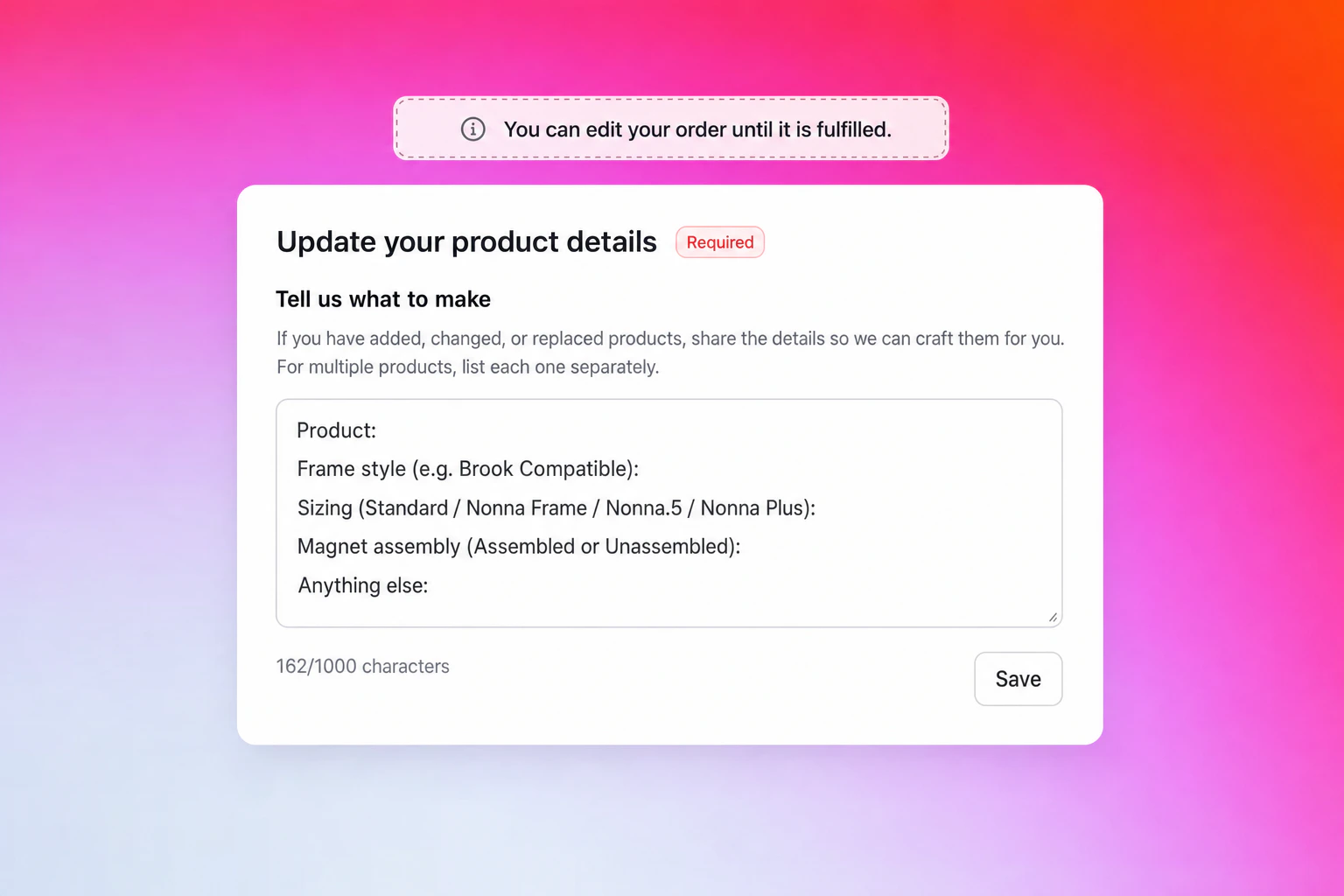
The note section shows a pre-filled template (if you set one) so customers see structure instead of a blank box.
The customer types their details. A character counter shows how much space is left.
The customer clicks **Save**. The note is stored on the order, ready for your team to read.
## How the custom note works
**What customers can do:**
* Add or edit the note any time during the edit window
* Follow a pre-filled template you define
* Review the note before paying when prompted
**How it appears in Shopify:**
* Saved as an order custom attribute
* Shows in the order's **Additional details** in Shopify admin
* Parseable by Shopify Flow, Recharge, and your 3PL exports
The custom note is information for your team, not an automated action. It does not change pricing, products, or shipping on its own.
## Configure the custom note
## Why a custom order note helps
Made-to-order and custom brands collect engraving text, material, or finish details per item, straight from the customer.
Customers add recipient names, personal messages, or delivery instructions after checkout without emailing support.
Apparel and accessory shops capture size, color, or fit preferences when customers swap products.
Buyers attach PO numbers, account references, or shipping instructions tied to the order.
## How customers add a custom note
The customer opens their order in the Revize Customer Portal during the edit window.
The note section shows a pre-filled template (if you set one) so customers see structure instead of a blank box.
The customer types their details. A character counter shows how much space is left.
The customer clicks **Save**. The note is stored on the order, ready for your team to read.
## How the custom note works
**What customers can do:**
* Add or edit the note any time during the edit window
* Follow a pre-filled template you define
* Review the note before paying when prompted
**How it appears in Shopify:**
* Saved as an order custom attribute
* Shows in the order's **Additional details** in Shopify admin
* Parseable by Shopify Flow, Recharge, and your 3PL exports
The custom note is information for your team, not an automated action. It does not change pricing, products, or shipping on its own.
## Configure the custom note
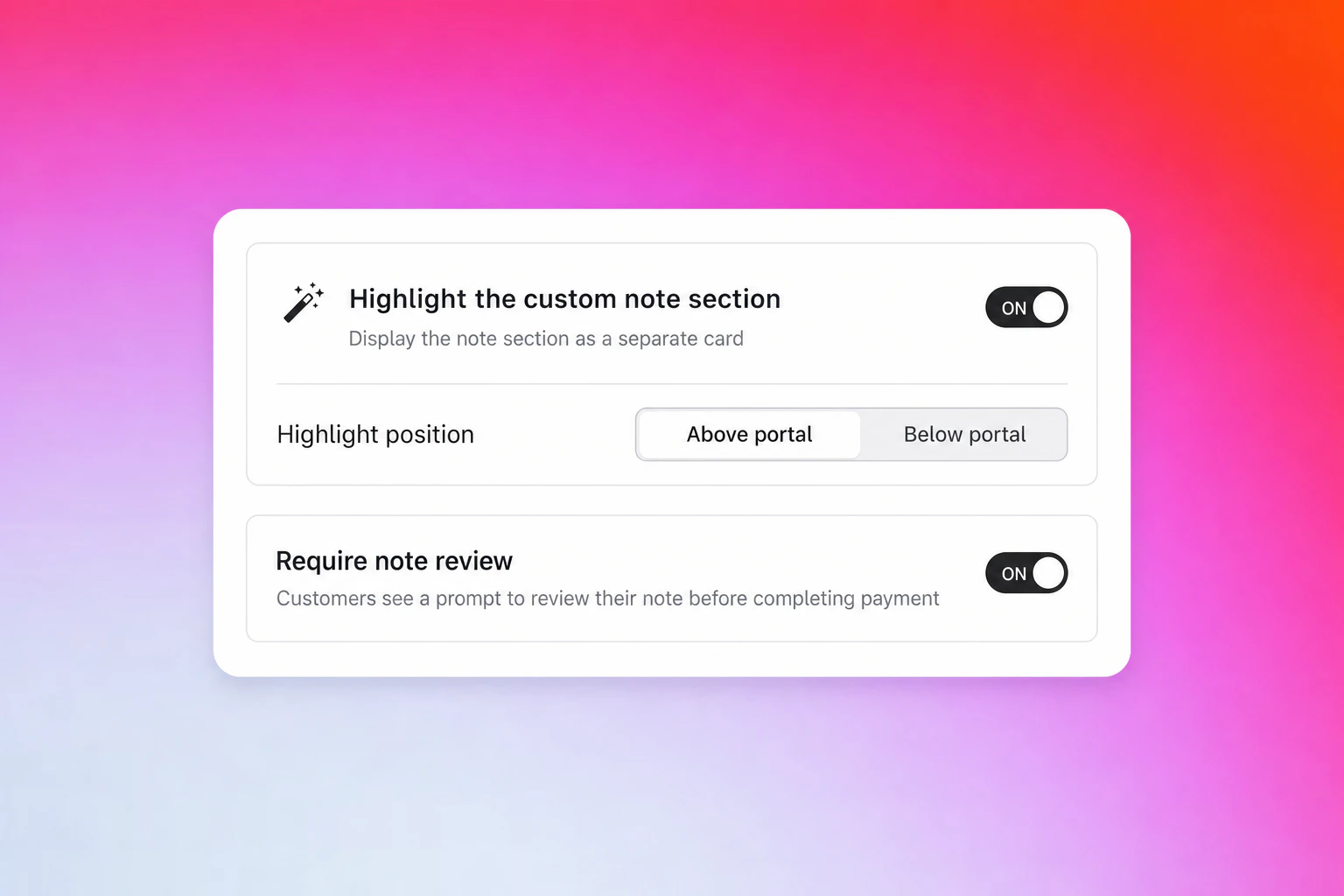 Display the note as its own card instead of an accordion item, so it stands out on the order edit page.
**Highlight position:**
* **Above portal:** the note card sits above the order edit section
* **Below portal:** the note card sits below the order edit section
When customers change their order, the next **Pay Now** click shows a review modal. They can update the note or continue with what they have. No fields are forced.
Set a starting template so customers see a structure to fill in (for example: Product, Sizing, Gift message, Anything else). It appears in the note field and customers can edit it. Configured under **Translations → Customer Portal → Add custom note**.
All copy lives under **Translations → Customer Portal → Add custom note**, per language:
* **Title** (optional): the section heading
* **Description** (optional): shown above the text area
* **Pre-filled template** (optional): appears in the note field, editable by customers
## Enable the custom note
In the Revize app, go to **Order Editing**.
Click **Add custom note**, then **Manage** to configure highlight mode, review prompt, and the template.
Open **Translations → Customer Portal → Add custom note** to set the Title, Description, and Pre-filled template for each language.
The custom note appears in the Customer Portal for orders within the edit window.
Pair a clear pre-filled template with **Require note review** to capture complete details and cut back-and-forth emails. [Reach out to us](/support/contact) if you need help configuring it.
***
## Frequently asked questions
The note is saved as an order custom attribute and shows in the **Additional details** section of the order in Shopify admin, where your fulfillment team can read it.
Yes. Customers can update the note any time during the edit window by changing the text and clicking Save.
No. The note is optional. Even with **Require note review** enabled, customers can continue without changing anything. No fields are forced.
Yes. Because it is stored as an order custom attribute, the note is available to Shopify Flow, Recharge, and 3PL exports for downstream automation.
Yes. The Title, Description, and Pre-filled template are all editable per language under **Translations → Customer Portal → Add custom note**.
The custom note captures the details customers would otherwise email about, saved right on the order. Enable it to reduce support tickets and give your team clear instructions for every order.
## Related Revize features
* [Customer Portal](/features/customer-portal): where customers add the custom note
* [Add Preferred Delivery Date](/features/delivery-date): collect timing preferences alongside notes
* [Edit Window Settings](/setup/edit-window): control when customers can add a note
Display the note as its own card instead of an accordion item, so it stands out on the order edit page.
**Highlight position:**
* **Above portal:** the note card sits above the order edit section
* **Below portal:** the note card sits below the order edit section
When customers change their order, the next **Pay Now** click shows a review modal. They can update the note or continue with what they have. No fields are forced.
Set a starting template so customers see a structure to fill in (for example: Product, Sizing, Gift message, Anything else). It appears in the note field and customers can edit it. Configured under **Translations → Customer Portal → Add custom note**.
All copy lives under **Translations → Customer Portal → Add custom note**, per language:
* **Title** (optional): the section heading
* **Description** (optional): shown above the text area
* **Pre-filled template** (optional): appears in the note field, editable by customers
## Enable the custom note
In the Revize app, go to **Order Editing**.
Click **Add custom note**, then **Manage** to configure highlight mode, review prompt, and the template.
Open **Translations → Customer Portal → Add custom note** to set the Title, Description, and Pre-filled template for each language.
The custom note appears in the Customer Portal for orders within the edit window.
Pair a clear pre-filled template with **Require note review** to capture complete details and cut back-and-forth emails. [Reach out to us](/support/contact) if you need help configuring it.
***
## Frequently asked questions
The note is saved as an order custom attribute and shows in the **Additional details** section of the order in Shopify admin, where your fulfillment team can read it.
Yes. Customers can update the note any time during the edit window by changing the text and clicking Save.
No. The note is optional. Even with **Require note review** enabled, customers can continue without changing anything. No fields are forced.
Yes. Because it is stored as an order custom attribute, the note is available to Shopify Flow, Recharge, and 3PL exports for downstream automation.
Yes. The Title, Description, and Pre-filled template are all editable per language under **Translations → Customer Portal → Add custom note**.
The custom note captures the details customers would otherwise email about, saved right on the order. Enable it to reduce support tickets and give your team clear instructions for every order.
## Related Revize features
* [Customer Portal](/features/customer-portal): where customers add the custom note
* [Add Preferred Delivery Date](/features/delivery-date): collect timing preferences alongside notes
* [Edit Window Settings](/setup/edit-window): control when customers can add a note