> ## Documentation Index
> Fetch the complete documentation index at: https://docs.revize.app/llms.txt
> Use this file to discover all available pages before exploring further.
# Customer Portal
> A self-service portal where customers fix their own orders after checkout. Clean interface, instant edits, and payment handling built into the order status page.
The Customer Portal appears right on the Shopify order status page. No separate login, no confusion. Customers fix mistakes where they already are.
## What it looks like
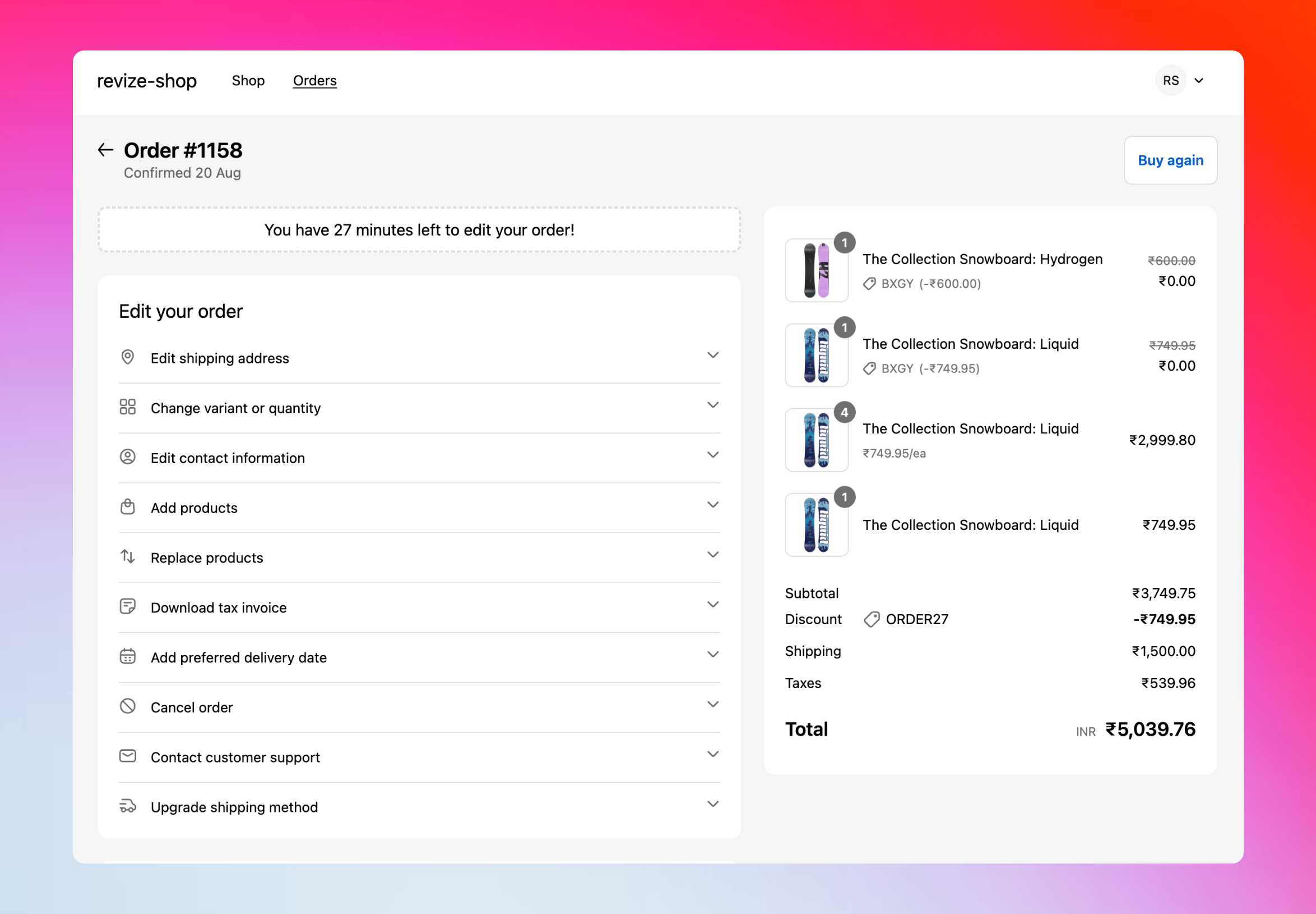
The portal shows up on the order status page after checkout. Customers see their current order details and can make changes with a few clicks.
 ## How customers get there
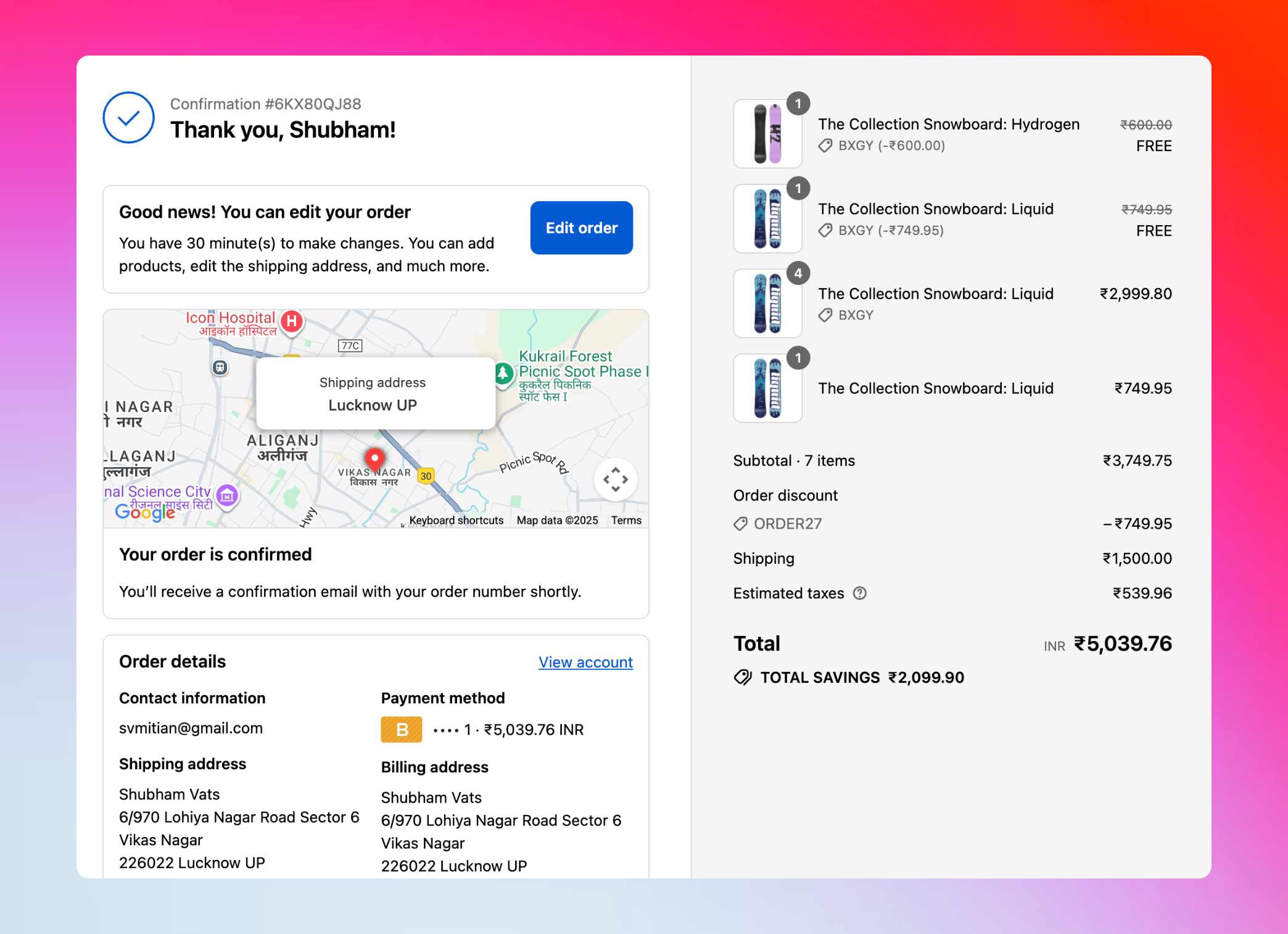
After placing an order, customers see the thank you page with an order edit message: "Good news! You can edit your order. You have 30 minutes to make changes."
From the order confirmation email, Shopify account, or thank you page, customers click to view their order status.
The Revize Customer Portal displays their order items, shipping details, and available edit options.
Click to edit addresses, swap variants, add products, upgrade shipping, or cancel the order.
Changes show up instantly with price differences. Customer confirms with Pay now, Refund, or Confirm, then Shopify processes the payment or refund.
**Thank you page message:** The edit message on the thank you page is customizable under the Translations tab in your dashboard. This one-time message helps customers know they can make changes right after checkout.
## How customers get there
After placing an order, customers see the thank you page with an order edit message: "Good news! You can edit your order. You have 30 minutes to make changes."
From the order confirmation email, Shopify account, or thank you page, customers click to view their order status.
The Revize Customer Portal displays their order items, shipping details, and available edit options.
Click to edit addresses, swap variants, add products, upgrade shipping, or cancel the order.
Changes show up instantly with price differences. Customer confirms with Pay now, Refund, or Confirm, then Shopify processes the payment or refund.
**Thank you page message:** The edit message on the thank you page is customizable under the Translations tab in your dashboard. This one-time message helps customers know they can make changes right after checkout.
 ## Customer access and authentication
**Best access experience**
When customers click the order status link from their confirmation email or SMS notification, they can view and edit their order for **3 weeks** without any login requirements.
* No passwords needed
* Full editing capabilities
* Works as long as they use the same browser
* Most seamless customer experience
**Cross-device flexibility**
Customers can access their order from up to **5 different browsers** for **2 weeks** without logging in.
* Switch between devices freely
* No login barriers across browsers
* Perfect for customers who shop on multiple devices
* Automatic access tracking
**Secure verification required**
When the free access period ends, customers must verify their identity to continue viewing order details.
**Verification options:**
* Enter email/phone number + order number
* Log into their customer account (if they have one)
* Request new access link via email/SMS
This ensures order security while maintaining accessibility.
## What customers can do
Fix typos, update apartment numbers, or change delivery location entirely.
Swap sizes, colors, quantities, or replace items with different products.
Browse and add products to turn a mistake into an upsell opportunity.
Apply discount codes they forgot at checkout—no need to cancel and reorder.
Choose faster delivery options when plans change.
Simple cancellation with automatic refunds to original payment or store credit.
Update billing details, add tax IDs, and download corrected invoices.
Select or change preferred delivery date after purchase.
Correct email addresses or phone numbers for smooth delivery communication.
Open support tickets directly from the portal when edits need human help.
## Customer experience
No confusing menus or complex forms. Customers see their order and click what they want to change.
Changes appear instantly with clear before/after comparisons.
Every edit shows the price difference immediately. Customers know exactly what they're paying before they confirm.
* **Pay now** for additions
* **Refund** for removals
* **Confirm** for same-price changes
Fully responsive design works perfectly on phones and tablets. Most order edits happen on mobile.
Built for speed with optimized loading times. As the fastest-performing app in the order editing category, Revize ensures smooth experiences that don't frustrate customers.
## Smart notifications
Revize adds helpful notification messages to the order status page that guide customers:
* **"Your order is available to edit"** - Shows when editing is open
* **"30 minutes left"** - Live countdown timer showing remaining edit time
* **"Free gifts can't be edited"** - Explains restrictions clearly
* **"Order can no longer be edited"** - Tells customers when the window has closed
* **"Payment required to proceed"** - Guides customers when payment is needed
These notifications appear automatically and keep customers informed throughout the process.
## When the portal appears and hides
**The portal shows when:**
* ✅ The order is within the edit window you set
* ✅ The customer opens the order status page
* ✅ The order hasn't been fulfilled yet
* ✅ The order meets your editing restrictions (if any)
**The portal hides when:**
* ❌ The edit window expires
* ❌ The order is fulfilled
* ❌ The order is canceled
* ❌ The order is excluded by tags or restrictions
**Always available modules:**
Even after the editing window expires, you can configure these modules to remain visible:
Customers can still generate or update tax invoices even after editing closes.
Support request option remains available for post-edit assistance.
**Important:** Even when the main portal hides, the notification bar remains visible to inform customers about the order status, whether payment is required, or if the order has been canceled.
## What makes customers love it
Fix mistakes instantly instead of emailing support and waiting for responses.
Works right where they already are - the order status page. No new accounts or apps to download.
Make any changes they need without explaining the situation to a support agent.
See exactly what changes will cost before confirming. No surprise charges.
***
The Customer Portal turns order mistakes into self-service wins. Customers fix problems themselves, your support team stays focused on complex issues, and everyone's happier.
## Customer access and authentication
**Best access experience**
When customers click the order status link from their confirmation email or SMS notification, they can view and edit their order for **3 weeks** without any login requirements.
* No passwords needed
* Full editing capabilities
* Works as long as they use the same browser
* Most seamless customer experience
**Cross-device flexibility**
Customers can access their order from up to **5 different browsers** for **2 weeks** without logging in.
* Switch between devices freely
* No login barriers across browsers
* Perfect for customers who shop on multiple devices
* Automatic access tracking
**Secure verification required**
When the free access period ends, customers must verify their identity to continue viewing order details.
**Verification options:**
* Enter email/phone number + order number
* Log into their customer account (if they have one)
* Request new access link via email/SMS
This ensures order security while maintaining accessibility.
## What customers can do
Fix typos, update apartment numbers, or change delivery location entirely.
Swap sizes, colors, quantities, or replace items with different products.
Browse and add products to turn a mistake into an upsell opportunity.
Apply discount codes they forgot at checkout—no need to cancel and reorder.
Choose faster delivery options when plans change.
Simple cancellation with automatic refunds to original payment or store credit.
Update billing details, add tax IDs, and download corrected invoices.
Select or change preferred delivery date after purchase.
Correct email addresses or phone numbers for smooth delivery communication.
Open support tickets directly from the portal when edits need human help.
## Customer experience
No confusing menus or complex forms. Customers see their order and click what they want to change.
Changes appear instantly with clear before/after comparisons.
Every edit shows the price difference immediately. Customers know exactly what they're paying before they confirm.
* **Pay now** for additions
* **Refund** for removals
* **Confirm** for same-price changes
Fully responsive design works perfectly on phones and tablets. Most order edits happen on mobile.
Built for speed with optimized loading times. As the fastest-performing app in the order editing category, Revize ensures smooth experiences that don't frustrate customers.
## Smart notifications
Revize adds helpful notification messages to the order status page that guide customers:
* **"Your order is available to edit"** - Shows when editing is open
* **"30 minutes left"** - Live countdown timer showing remaining edit time
* **"Free gifts can't be edited"** - Explains restrictions clearly
* **"Order can no longer be edited"** - Tells customers when the window has closed
* **"Payment required to proceed"** - Guides customers when payment is needed
These notifications appear automatically and keep customers informed throughout the process.
## When the portal appears and hides
**The portal shows when:**
* ✅ The order is within the edit window you set
* ✅ The customer opens the order status page
* ✅ The order hasn't been fulfilled yet
* ✅ The order meets your editing restrictions (if any)
**The portal hides when:**
* ❌ The edit window expires
* ❌ The order is fulfilled
* ❌ The order is canceled
* ❌ The order is excluded by tags or restrictions
**Always available modules:**
Even after the editing window expires, you can configure these modules to remain visible:
Customers can still generate or update tax invoices even after editing closes.
Support request option remains available for post-edit assistance.
**Important:** Even when the main portal hides, the notification bar remains visible to inform customers about the order status, whether payment is required, or if the order has been canceled.
## What makes customers love it
Fix mistakes instantly instead of emailing support and waiting for responses.
Works right where they already are - the order status page. No new accounts or apps to download.
Make any changes they need without explaining the situation to a support agent.
See exactly what changes will cost before confirming. No surprise charges.
***
The Customer Portal turns order mistakes into self-service wins. Customers fix problems themselves, your support team stays focused on complex issues, and everyone's happier.