> ## Documentation Index
> Fetch the complete documentation index at: https://docs.revize.app/llms.txt
> Use this file to discover all available pages before exploring further.
# Add Preferred Delivery Date
> Shopify customers can add a preferred delivery date to their orders after checkout. Helps coordinate deliveries for gifts, events, and customer schedules through order notes.
Customers often have specific dates in mind for deliveries - birthdays, events, or when they'll be home. Let them add delivery date preferences to their Shopify orders.
## Why Shopify delivery date preferences help
Customers can specify when gifts should arrive for birthdays, anniversaries, or holidays.
Items needed for weddings, parties, or business events get delivery date preferences noted.
Shoppers can indicate when they'll be home to receive packages or coordinate with recipients.
Clear delivery preferences help your fulfillment team understand customer timing needs.
## How customers add delivery date preferences
From the Revize Customer Portal, customers click **Add preferred delivery date** to open the date selection interface.
Click in the date field and choose their preferred delivery date from the calendar picker.
Click **Save** to add the preferred delivery date to their order as a customer note.
The delivery date preference appears in the order's additional details and notes for your fulfillment team.
## How delivery date preferences work
**What customers can do:**
* Select any future date as their delivery preference
* Add the date preference during their edit window
* Change or update the preferred date if needed
**How it appears in Shopify:**
* Added to order attributes as `preferred_delivery_date`
* Shows in "Additional details" section on the order page
* Visible to your fulfillment team for coordination
**Important:** This is a preference note, not a guaranteed delivery date. It helps your team understand customer timing needs, but doesn't automatically change shipping or guarantee delivery on that specific date.
## Enable delivery date preferences
In the Revize app, click **Order Editing** in the sidebar.
Under **Customer edit options**, toggle on **Add preferred delivery date** and click **Save**.
The delivery date option appears in the Customer Portal for all new orders during the edit window.
## Advanced delivery date settings
Need more control over delivery scheduling? Configure these advanced options:
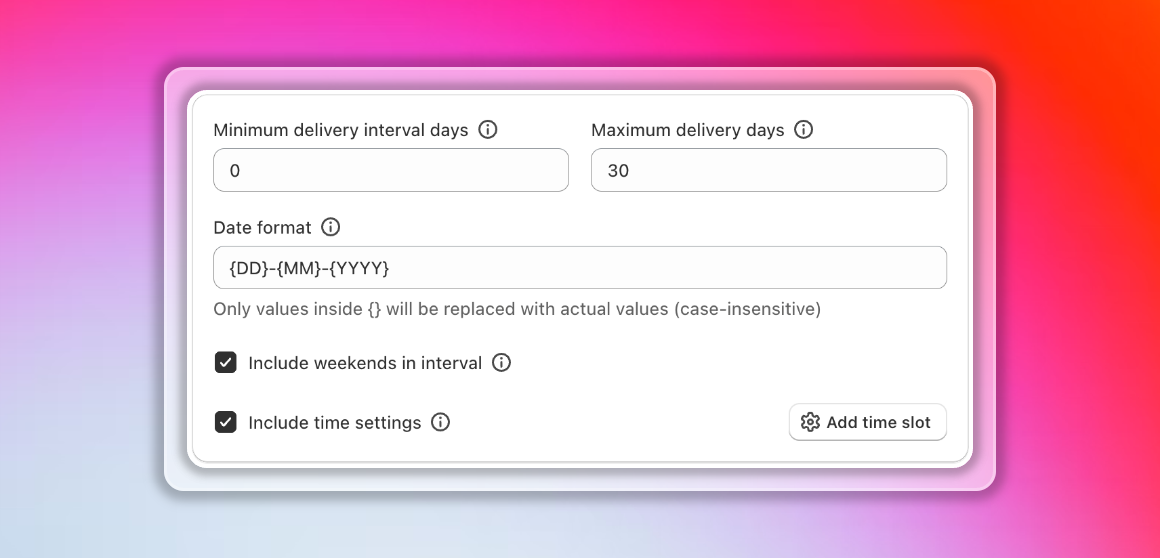 Control the earliest and latest dates customers can select. Prevent "deliver tomorrow" requests that you can't fulfill.
* **Minimum days** — Earliest selectable date (e.g., 3 days from now)
* **Maximum days** — Latest selectable date (e.g., 30 days from now)
Configure granular time preferences for delivery scheduling.
**Time format options:**
* `{hh:mm}` — 12-hour format (e.g., 2:30 PM)
* `{HH:MM}` — 24-hour format (e.g., 14:30)
**Time format types:**
* **Fixed** — Customers select a single time
* **Time slots** — Customers choose from predefined windows
**Configurable time slots:**
Enable or disable individual hourly slots from 1:00 AM through 11:59 PM. Perfect for businesses with specific delivery windows.
Include or exclude weekends from the date picker with a single toggle. Useful if you don't fulfill on weekends.
Display dates in your preferred format:
* `DD/MM/YYYY` (European)
* `MM/DD/YYYY` (American)
* `YYYY-MM-DD` (ISO)
Automate workflows when customers select a delivery date. Trigger fulfillment actions, notifications, or custom logic.
These advanced delivery date options are available in the Settings tab. [Reach out to us](/support/contact) if you need help configuring them.
***
## Frequently asked questions
Preferred delivery dates are added to order attributes and appear in the "Additional details" section on the Shopify order page for your fulfillment team to see.
Yes, customers can update their preferred delivery date during the edit window by selecting a new date and clicking Save.
Use these preferences to prioritize orders, coordinate shipping methods, and communicate with customers about realistic delivery timing based on their needs.
No, adding a delivery date preference doesn't change shipping costs or methods. It's just additional information for your team to consider during fulfillment.
Delivery date preferences help you understand customer timing needs and provide better service. Enable this feature to improve coordination for gifts, events, and time-sensitive orders.
## Related Revize features
* [Customer Portal](/features/customer-portal) — where customers add delivery date preferences
* [Shipping Upgrade](/features/shipping-upgrade) — help customers meet delivery date needs with faster shipping
* [Edit Window Settings](/setup/edit-window) — configure when delivery preferences can be added
Control the earliest and latest dates customers can select. Prevent "deliver tomorrow" requests that you can't fulfill.
* **Minimum days** — Earliest selectable date (e.g., 3 days from now)
* **Maximum days** — Latest selectable date (e.g., 30 days from now)
Configure granular time preferences for delivery scheduling.
**Time format options:**
* `{hh:mm}` — 12-hour format (e.g., 2:30 PM)
* `{HH:MM}` — 24-hour format (e.g., 14:30)
**Time format types:**
* **Fixed** — Customers select a single time
* **Time slots** — Customers choose from predefined windows
**Configurable time slots:**
Enable or disable individual hourly slots from 1:00 AM through 11:59 PM. Perfect for businesses with specific delivery windows.
Include or exclude weekends from the date picker with a single toggle. Useful if you don't fulfill on weekends.
Display dates in your preferred format:
* `DD/MM/YYYY` (European)
* `MM/DD/YYYY` (American)
* `YYYY-MM-DD` (ISO)
Automate workflows when customers select a delivery date. Trigger fulfillment actions, notifications, or custom logic.
These advanced delivery date options are available in the Settings tab. [Reach out to us](/support/contact) if you need help configuring them.
***
## Frequently asked questions
Preferred delivery dates are added to order attributes and appear in the "Additional details" section on the Shopify order page for your fulfillment team to see.
Yes, customers can update their preferred delivery date during the edit window by selecting a new date and clicking Save.
Use these preferences to prioritize orders, coordinate shipping methods, and communicate with customers about realistic delivery timing based on their needs.
No, adding a delivery date preference doesn't change shipping costs or methods. It's just additional information for your team to consider during fulfillment.
Delivery date preferences help you understand customer timing needs and provide better service. Enable this feature to improve coordination for gifts, events, and time-sensitive orders.
## Related Revize features
* [Customer Portal](/features/customer-portal) — where customers add delivery date preferences
* [Shipping Upgrade](/features/shipping-upgrade) — help customers meet delivery date needs with faster shipping
* [Edit Window Settings](/setup/edit-window) — configure when delivery preferences can be added