> ## Documentation Index
> Fetch the complete documentation index at: https://docs.revize.app/llms.txt
> Use this file to discover all available pages before exploring further.
# EU Withdrawal Requests
> Add an EU right-of-withdrawal request flow to the Shopify order status page and anywhere on your storefront via a theme app block. Eligibility, two-step submission, fulfillment holds, return creation, staff reminders, translations, and an audit-ready metaobject record, ready for the June 19, 2026 deadline.
From June 19, 2026, merchants selling to EU consumers need an online withdrawal function for eligible distance contracts. Revize gives you a dedicated EU withdrawal request flow on the Shopify order status page **and** as a theme app block you can drop anywhere on your storefront, with the operational automation around it: tagging, holds, emails, returns, reminders, and audit records. The flow is 100% compliant with EU consumer-law requirements.
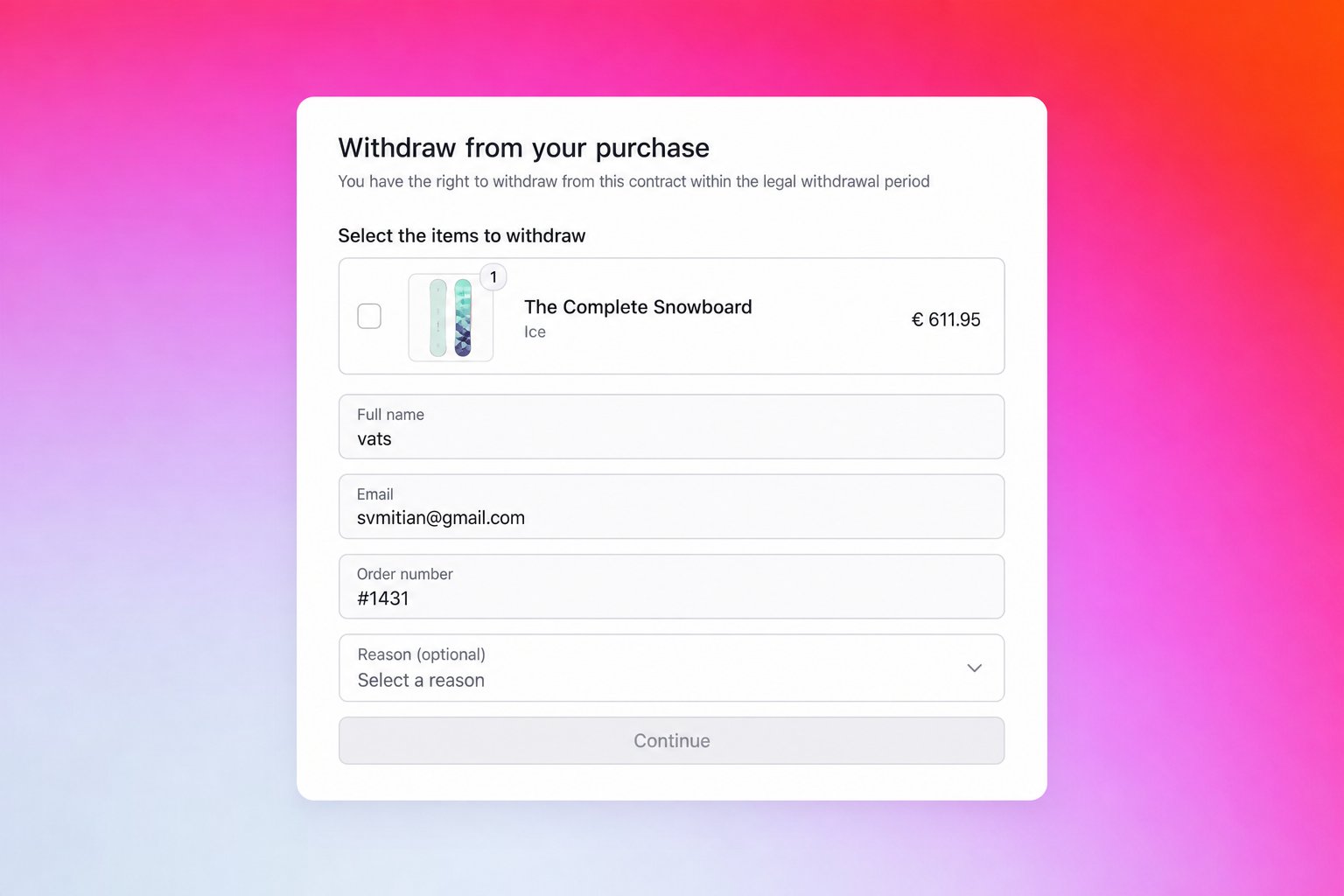 ## Where the form appears
The EU withdrawal form ships on two surfaces, and you can enable each one independently. Wording, eligibility, automation, and audit records are shared between them, so both surfaces stay in sync.
| Surface | How it's added | Visibility |
| ------------------------------ | ---------------------------------------------------------------------------------------------------------------------- | ---------------------------------------------------------------------------------------------- |
| **Order status page** | Automatic. Shown on eligible orders once the feature is on. | Shown to eligible EU orders within the withdrawal window. |
| **Storefront theme app block** | In your theme editor: **Add block → Apps → EU Withdrawal**. Works in headers, footers, sidebars, and any page section. | Hidden by default. Revealed only to shoppers in your configured EU countries (server-checked). |
## Where the form appears
The EU withdrawal form ships on two surfaces, and you can enable each one independently. Wording, eligibility, automation, and audit records are shared between them, so both surfaces stay in sync.
| Surface | How it's added | Visibility |
| ------------------------------ | ---------------------------------------------------------------------------------------------------------------------- | ---------------------------------------------------------------------------------------------- |
| **Order status page** | Automatic. Shown on eligible orders once the feature is on. | Shown to eligible EU orders within the withdrawal window. |
| **Storefront theme app block** | In your theme editor: **Add block → Apps → EU Withdrawal**. Works in headers, footers, sidebars, and any page section. | Hidden by default. Revealed only to shoppers in your configured EU countries (server-checked). |
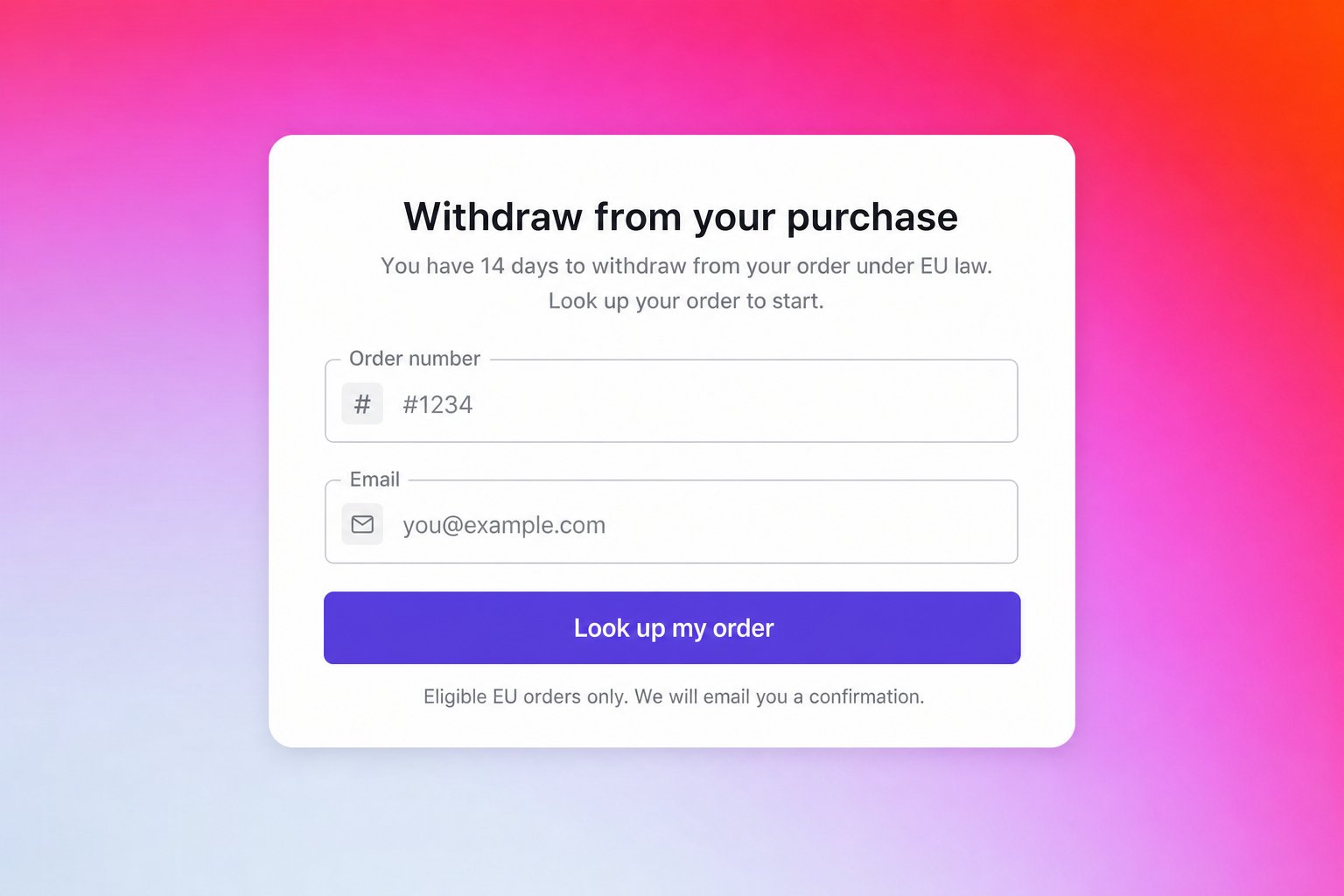 ## Why a built-in EU withdrawal flow helps
EU rules require an online withdrawal function for eligible distance contracts. Revize gives you a ready-made flow on the order status page.
Tagging, customer acknowledgments, staff notifications, holds, and returns happen automatically when a request is submitted.
Submission can pause fulfillment so the order does not ship while staff review the request, with partial-fulfillment protection built in.
Every request is saved as a Shopify metaobject on your store and tracked separately from regular cancellations.
## How shoppers submit a withdrawal request
Eligible EU shoppers can start a withdrawal request from either the order status page (where name, email, and order number are pre-filled from the order) or from the storefront theme app block (where they enter their order number and email to look up the order).
The shopper picks which items they want to withdraw and (optionally) a reason. Name, email, and order number are locked once the order is loaded.
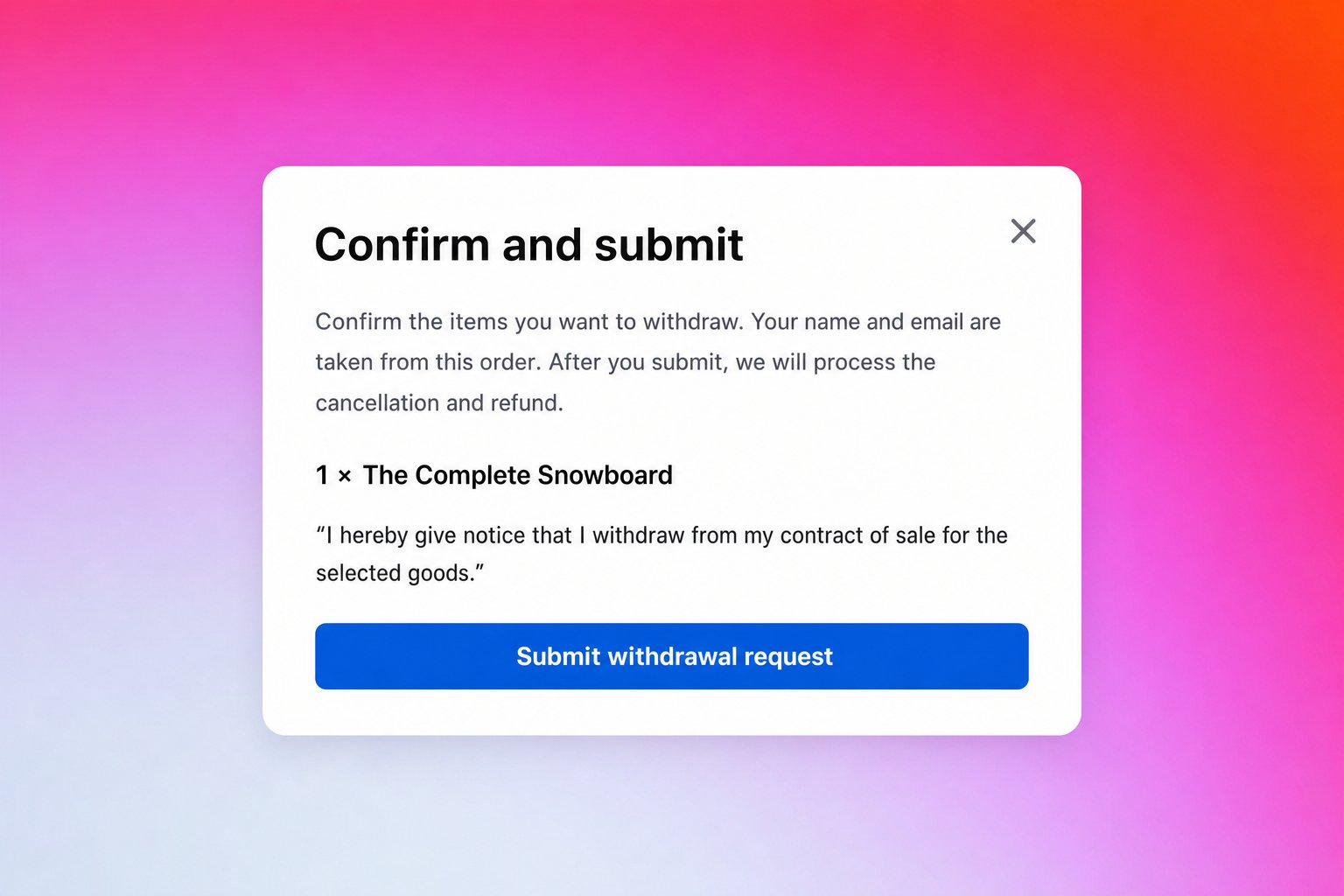
The shopper reviews the selected items and the withdrawal declaration, then submits. The confirm step can appear inline or in a popup.
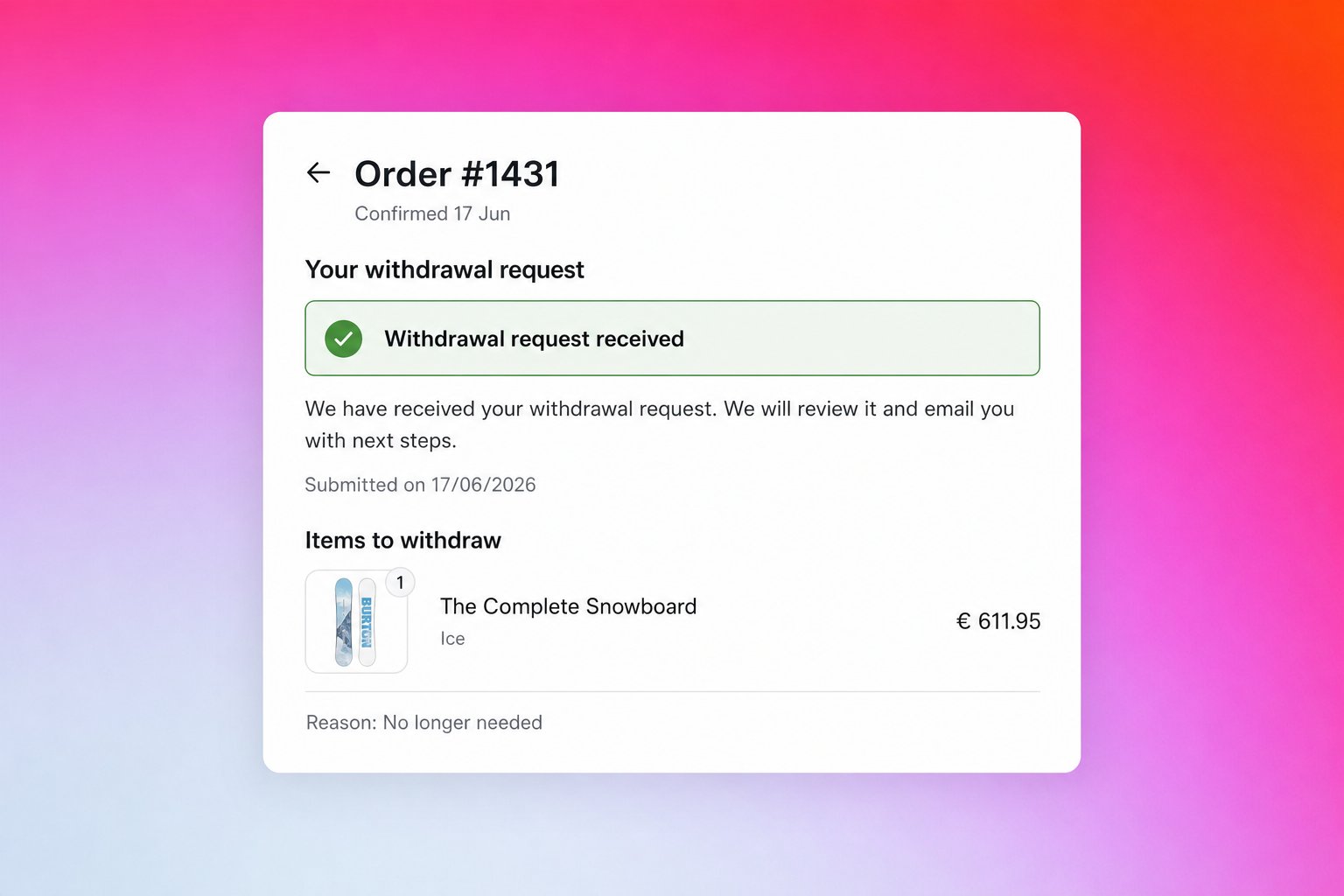
The shopper sees a confirmation with the request details, and Revize sends an acknowledgment email.
## Why a built-in EU withdrawal flow helps
EU rules require an online withdrawal function for eligible distance contracts. Revize gives you a ready-made flow on the order status page.
Tagging, customer acknowledgments, staff notifications, holds, and returns happen automatically when a request is submitted.
Submission can pause fulfillment so the order does not ship while staff review the request, with partial-fulfillment protection built in.
Every request is saved as a Shopify metaobject on your store and tracked separately from regular cancellations.
## How shoppers submit a withdrawal request
Eligible EU shoppers can start a withdrawal request from either the order status page (where name, email, and order number are pre-filled from the order) or from the storefront theme app block (where they enter their order number and email to look up the order).
The shopper picks which items they want to withdraw and (optionally) a reason. Name, email, and order number are locked once the order is loaded.
The shopper reviews the selected items and the withdrawal declaration, then submits. The confirm step can appear inline or in a popup.
The shopper sees a confirmation with the request details, and Revize sends an acknowledgment email.
 ## How the withdrawal request works
**What customers can do:**
* Submit a withdrawal request from the order status page in their language
* Choose specific items, not just the whole order
* Submit before fulfillment or after delivery, with the flow adjusted for each case
**How it appears in Shopify:**
* The order is tagged `revize:withdrawal_requested`
* The request is saved as a Shopify metaobject on your store with the full request details
* The request is tracked separately from regular cancellations in analytics
Pre-fulfillment and delivered-order requests are handled differently. Pre-fulfillment can pause fulfillment for staff review. Delivered requests can create a Shopify return or notify and remind staff.
## Pre-fulfillment vs delivered orders
**Before fulfillment.** The request is treated as a withdrawal before goods ship. Revize tags the order, notifies staff, and can place a Shopify fulfillment hold so the order does not continue shipping while staff review it.
**After shipping or delivery.** The goods are already with the customer, so cancellation at source is not appropriate. Revize tags the order and can either notify staff only, create a native Shopify return for the selected items, or notify staff now and remind them later if the request is still unresolved.
## How the withdrawal window is calculated
The withdrawal request stays available even after the normal edit window closes, so the full legal window is preserved.
**If Shopify has a delivered date:**
`delivered date + days available after delivery` (default 14 days)
**If Shopify does not have a delivered date** (carrier data missing or not yet available):
`fulfillment date + estimated transit days + days available after delivery` (defaults: 10 + 14)
Once the calculated window passes, the withdrawal request stops showing on the order status page automatically.
## Configure the EU withdrawal flow
## How the withdrawal request works
**What customers can do:**
* Submit a withdrawal request from the order status page in their language
* Choose specific items, not just the whole order
* Submit before fulfillment or after delivery, with the flow adjusted for each case
**How it appears in Shopify:**
* The order is tagged `revize:withdrawal_requested`
* The request is saved as a Shopify metaobject on your store with the full request details
* The request is tracked separately from regular cancellations in analytics
Pre-fulfillment and delivered-order requests are handled differently. Pre-fulfillment can pause fulfillment for staff review. Delivered requests can create a Shopify return or notify and remind staff.
## Pre-fulfillment vs delivered orders
**Before fulfillment.** The request is treated as a withdrawal before goods ship. Revize tags the order, notifies staff, and can place a Shopify fulfillment hold so the order does not continue shipping while staff review it.
**After shipping or delivery.** The goods are already with the customer, so cancellation at source is not appropriate. Revize tags the order and can either notify staff only, create a native Shopify return for the selected items, or notify staff now and remind them later if the request is still unresolved.
## How the withdrawal window is calculated
The withdrawal request stays available even after the normal edit window closes, so the full legal window is preserved.
**If Shopify has a delivered date:**
`delivered date + days available after delivery` (default 14 days)
**If Shopify does not have a delivered date** (carrier data missing or not yet available):
`fulfillment date + estimated transit days + days available after delivery` (defaults: 10 + 14)
Once the calculated window passes, the withdrawal request stops showing on the order status page automatically.
## Configure the EU withdrawal flow
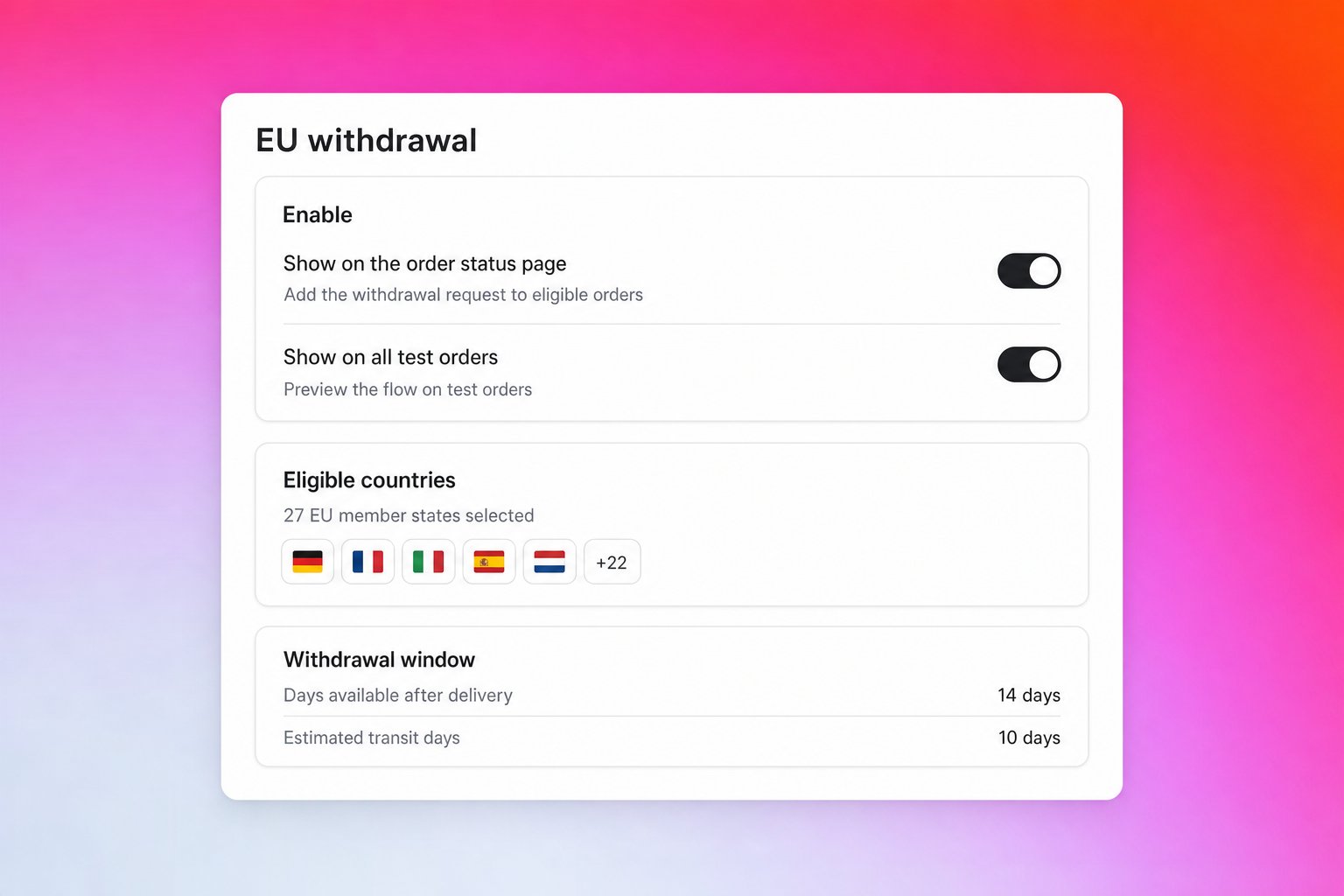 A master switch controls the feature, and two sub-toggles control each surface:
* **Show the EU withdrawal form** (master): turns the feature on or off. When off, neither surface shows.
* **Show on the order status page**: only the order status page card.
* **Allow the storefront theme app block**: only the theme block.
So you can run the theme block without the order status page card, or vice versa. **Show on all test orders** previews the flow on test-tagged orders even if they are not from a selected EU country.
The theme app block lets you place the withdrawal form anywhere on the storefront: header, footer, sidebar, product page, cart, help, or policy pages.
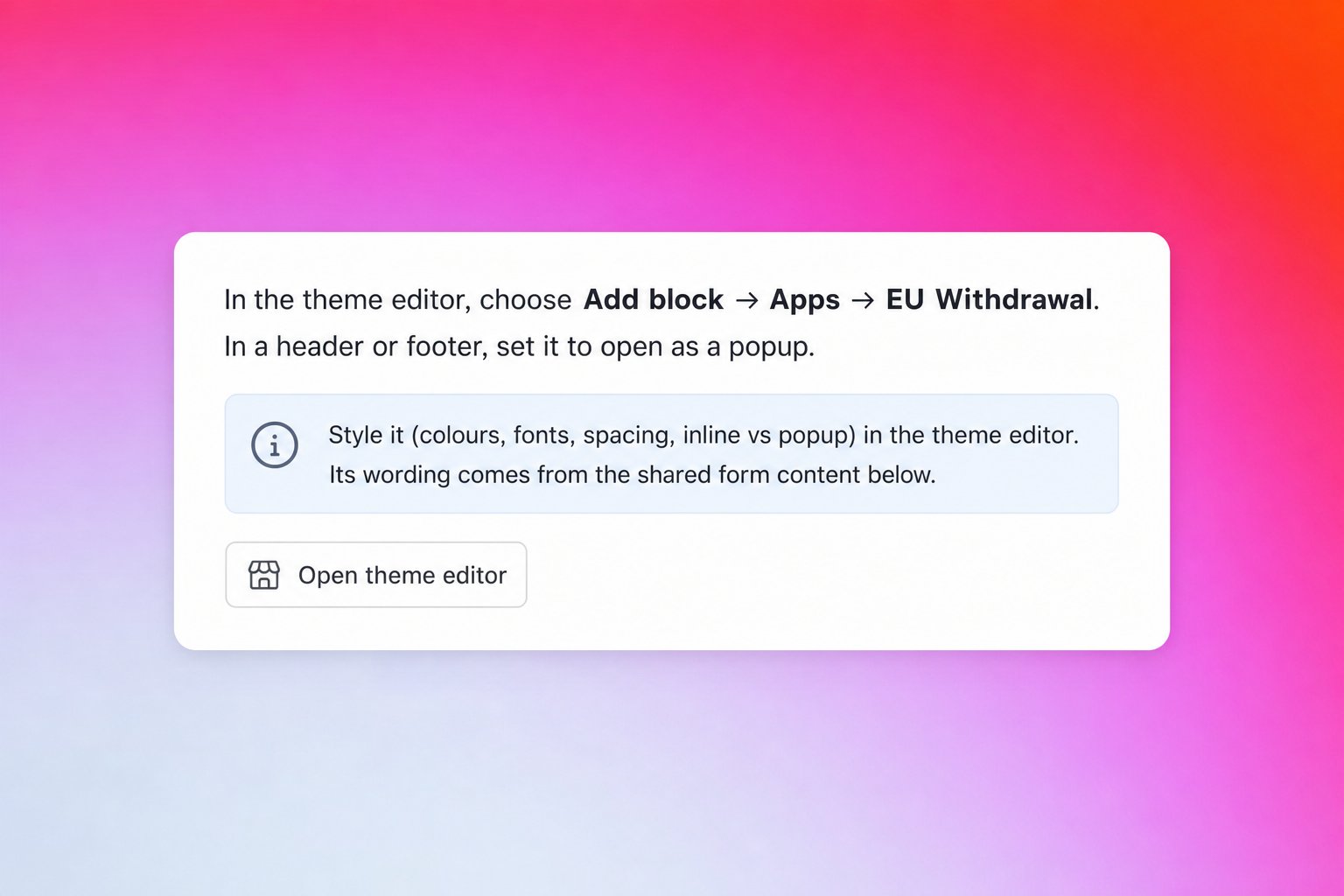
**Add it:** in your theme editor, **Add block → Apps → EU Withdrawal**.
**Three display modes:**
* **Inline:** the full form sits on the page.
* **Hybrid:** the order lookup stays on the page, the rest opens in a popup.
* **Popup:** only a link or button shows. Clicking it opens the whole form in a popup.
**Open from any link.** You don't have to use the block's built-in link. Point any link, menu item, or button at `#revize-eu-withdrawal` and clicking it opens the form (popup, or scrolls to it if inline). Advanced: add `data-revize-euw-open` to any element, and optionally `data-revize-euw-target=""` to target a specific block. Loading a page with the `#revize-eu-withdrawal` fragment also auto-opens the form, which is useful for email links.
**Hide the built-in link.** For header or footer placement, set the display mode to **popup** and turn on **Hide the built-in link** so the form opens only from your own links.
**Styling.** Fonts, colours, size, shape, padding, alignment, and display mode are all configured in the theme editor. The defaults look professional out of the box.
A master switch controls the feature, and two sub-toggles control each surface:
* **Show the EU withdrawal form** (master): turns the feature on or off. When off, neither surface shows.
* **Show on the order status page**: only the order status page card.
* **Allow the storefront theme app block**: only the theme block.
So you can run the theme block without the order status page card, or vice versa. **Show on all test orders** previews the flow on test-tagged orders even if they are not from a selected EU country.
The theme app block lets you place the withdrawal form anywhere on the storefront: header, footer, sidebar, product page, cart, help, or policy pages.
**Add it:** in your theme editor, **Add block → Apps → EU Withdrawal**.
**Three display modes:**
* **Inline:** the full form sits on the page.
* **Hybrid:** the order lookup stays on the page, the rest opens in a popup.
* **Popup:** only a link or button shows. Clicking it opens the whole form in a popup.
**Open from any link.** You don't have to use the block's built-in link. Point any link, menu item, or button at `#revize-eu-withdrawal` and clicking it opens the form (popup, or scrolls to it if inline). Advanced: add `data-revize-euw-open` to any element, and optionally `data-revize-euw-target=""` to target a specific block. Loading a page with the `#revize-eu-withdrawal` fragment also auto-opens the form, which is useful for email links.
**Hide the built-in link.** For header or footer placement, set the display mode to **popup** and turn on **Hide the built-in link** so the form opens only from your own links.
**Styling.** Fonts, colours, size, shape, padding, alignment, and display mode are all configured in the theme editor. The defaults look professional out of the box.
 Choose which countries the withdrawal request applies to. Revize pre-fills the 27 EU member states, and you can add or remove countries from the list. Eligibility is re-checked server-side on submission, so the front-end is not the only gate.
**Display style**
* **Separate section** (recommended): the withdrawal request appears as its own card on the order status page. More visible, and still works cleanly when the main edit-order portal is hidden.
* **Inside portal accordion:** the withdrawal request sits as an expandable row inside the Revize customer portal, alongside the other edit actions.
**Placement:** show the withdrawal section at the top or bottom of the page.
**Section background:** outlined card or soft fill.
**Hide the main edit-order portal:** when enabled, only the EU withdrawal section is shown. Regular order-editing actions (address, contact, products, cancellation) are hidden. Placement is fixed to "separate section" when this is on, since the accordion option depends on the main portal being visible.
Customize the customer-facing copy in the **Build form** modal. The flow is fixed to two steps (request, then confirm) and the required fields (name, email, order number) are locked and pre-filled from the order.
Editable text:
* Pre-fulfillment title, description, item selection heading
* Delivered-order title, description, item selection heading
* Confirmation heading and message (pre-fulfillment and delivered)
* Declaration text
* Submitted state title and message (pre-fulfillment and delivered)
**Confirm in a popup:** when enabled, the confirm step opens in a modal. When disabled, it appears inline on the order status page.
When **Hold order for staff review on submission** is enabled, Revize places a Shopify fulfillment hold the moment a pre-fulfillment request is submitted.
Choose what happens if staff do not act in time:
* **Do nothing, hold until staff act:** Revize keeps the order on hold until your team resolves it.
* **Cancel and refund immediately:** Revize cancels and refunds as soon as the request is submitted.
* **Release the hold after N days:** Revize releases the fulfillment hold after the selected number of days (1 to 14).
* **Cancel and refund after N days:** Revize cancels and refunds after the selected number of days (1 to 14).
**Partial-fulfillment safety:** if you chose auto-cancel but the order becomes partially fulfilled before the job runs, Revize downgrades the action to release-hold instead of cancelling mid-fulfillment. If the order is fully fulfilled by then, it is marked for return follow-up.
Choose how delivered requests are handled:
* **Notify only:** Revize tags the order and emails the team.
* **Create return:** Revize attempts to create a native Shopify return for the selected items. If Shopify cannot create the return, the request record, order tag, and staff notification are still kept so nothing is lost.
* **Email now and remind staff later:** Revize emails the team immediately and sends a reminder after the configured number of days (1 to 30) if the request is still unresolved.
**Keep available after the editing window closes:** the withdrawal request remains visible even after the normal Revize edit-order window has closed.
**Days available after delivery:** how long the withdrawal request stays visible after delivery (default 14).
**Estimated transit days:** if Shopify or carrier data does not provide a delivered date, Revize estimates delivery as `fulfillment date + transit days` (default 10), then adds the withdrawal window on top.
Revize ships pre-translated, legally compliant defaults for every supported language. The wording follows EU consumer-law requirements, so you do not need to translate anything to go live.
If you want to match your brand voice, customer-facing copy is editable per language under **Translations → Customer Portal → EU withdrawal**:
* Titles and descriptions (pre-fulfillment and delivered)
* Step labels and field labels
* Reason labels and reason options
* Continue and submit buttons
* Confirmation and declaration copy
* Submitted state copy
Default-language copy is controlled in the Build form modal. Other languages are managed under Translations.
## What Revize creates after a submission
When a shopper submits a withdrawal request, Revize:
* Saves the request as a Shopify metaobject on your store (status, phase, submitted time, customer details, order details, reason, selected items, declaration)
* Tags the Shopify order `revize:withdrawal_requested`
* Sends an acknowledgment email to the customer
* Sends a notification email to the staff inboxes listed under **Settings → Notifications → Staff emails**
* Places a Shopify fulfillment hold (if pre-fulfillment hold-and-review is enabled)
* Schedules the auto-release or auto-cancel job (if configured)
* Attempts to create a native Shopify return (if delivered + create-return is enabled)
* Schedules staff reminders (if delivered + notify-and-remind is enabled)
## Enable EU Withdrawal Requests
In the Revize app, go to **Settings → Advanced → EU withdrawal**.
Flip the master **Show the EU withdrawal form** switch. Then enable **Show on the order status page**, **Allow the storefront theme app block**, or both. Optionally turn on **Show on all test orders** while you preview the experience.
EU rules require the withdrawal function to be **easily accessible without login**, so this step is part of going live. Open your theme editor and choose **Add block → Apps → EU Withdrawal**. Drop it into a header, footer, or any page section. Pick a display mode (inline, hybrid, or popup) and style it in the editor.
Confirm or edit the list of EU member states the withdrawal applies to.
Pick a display style (separate section recommended) and placement, then open **Build form** to edit titles, descriptions, declaration text, and submitted-state messages.
For pre-fulfillment requests, enable hold-on-submission and pick an after-window action: do nothing, cancel immediately, release after N days, or cancel after N days.
For delivered requests, pick notify-only, create-return, or notify-and-remind.
Revize already ships translated, legally compliant defaults. If you want to adjust the wording to match your brand voice, open **Translations → Customer Portal → EU withdrawal** and edit per language.
Start with **notify only** for delivered orders and switch on **Create return** once your team is comfortable with the workflow. Pick **Release the hold after N days** rather than **Cancel and refund after N days** if your team replies to most requests within the review window.
***
## Frequently asked questions
From June 19, 2026, merchants selling to EU consumers must offer an online withdrawal function for eligible distance contracts. Revize gives you a ready flow without building it yourself.
Yes. The form lets the customer pick which items they want to withdraw, instead of the full order.
Yes. The withdrawal request remains visible even after the normal Revize edit-order window has closed, until the configured days-after-delivery limit is reached.
Revize estimates delivery as fulfillment date plus the configured transit days, then adds the withdrawal window. The withdrawal stays available for the full legal period even when carrier data is missing.
If you chose auto-cancel but the order becomes partially fulfilled before the job runs, Revize downgrades the action to release-hold instead of cancelling. If the order is fully fulfilled by then, it is marked for return follow-up.
Each request tags the order with `revize:withdrawal_requested` and is saved as a Shopify metaobject on your store with the full request details, so the record stays in your Shopify admin.
No. Revize ships pre-translated, legally compliant defaults for every supported language. If you want to match your brand voice, you can edit the copy per language under **Translations → Customer Portal → EU withdrawal**.
Yes. Each submitted withdrawal request counts as one order edit on your Revize plan. The **Free plan** includes **20 edits per month** (and therefore 20 withdrawal requests). Upgrade if you expect more volume.
Yes. The theme app block lets you place the withdrawal form in your header, footer, sidebar, product page, cart, or any other section. Shoppers enter their order number and email to look up the order, then go through the same two-step flow.
To trigger the form from your own header, footer, or any nav item, do this three-step setup:
1. **Add a link-based app block.** In your theme editor, choose **Add block → Apps → EU Withdrawal** and place it anywhere on your storefront. In the block settings, set **Form display** to **Link that opens a popup**. The block must exist on the page for the trigger to work.
2. **Hide it with theme CSS.** Open your theme's main stylesheet (`assets/base.css` for Dawn-based themes, `assets/theme.css` for older ones) and append:
```css theme={null}
.revize-euw__trigger {
display: none !important;
}
```
The block stays wired up, just hidden visually.
3\. **Add your own nav link.** In your header, footer, or any menu, add a link pointing to `#revize-eu-withdrawal`. Clicking it opens the popup with the withdrawal form. The form also auto-opens when a page loads with that URL fragment, so links from emails or other pages work too.
Advanced: instead of the URL fragment, you can add `data-revize-euw-open` to any element, optionally with `data-revize-euw-target=""` to target a specific block.
The EU withdrawal request flow gives shoppers a clear, structured way to exercise their right of withdrawal, and gives your team automation around tagging, holds, returns, emails, reminders, and audit records. The operational work does not fall on inbox triage.
## Related Revize features
* [Customer Portal](/features/customer-portal): where the withdrawal request appears, alongside or instead of the other edit actions
* [Cancel Order](/features/cancel-order): regular cancellations remain separate from EU withdrawal requests
* [Edit Window Settings](/setup/edit-window): the withdrawal window stays open even after the edit window closes
Choose which countries the withdrawal request applies to. Revize pre-fills the 27 EU member states, and you can add or remove countries from the list. Eligibility is re-checked server-side on submission, so the front-end is not the only gate.
**Display style**
* **Separate section** (recommended): the withdrawal request appears as its own card on the order status page. More visible, and still works cleanly when the main edit-order portal is hidden.
* **Inside portal accordion:** the withdrawal request sits as an expandable row inside the Revize customer portal, alongside the other edit actions.
**Placement:** show the withdrawal section at the top or bottom of the page.
**Section background:** outlined card or soft fill.
**Hide the main edit-order portal:** when enabled, only the EU withdrawal section is shown. Regular order-editing actions (address, contact, products, cancellation) are hidden. Placement is fixed to "separate section" when this is on, since the accordion option depends on the main portal being visible.
Customize the customer-facing copy in the **Build form** modal. The flow is fixed to two steps (request, then confirm) and the required fields (name, email, order number) are locked and pre-filled from the order.
Editable text:
* Pre-fulfillment title, description, item selection heading
* Delivered-order title, description, item selection heading
* Confirmation heading and message (pre-fulfillment and delivered)
* Declaration text
* Submitted state title and message (pre-fulfillment and delivered)
**Confirm in a popup:** when enabled, the confirm step opens in a modal. When disabled, it appears inline on the order status page.
When **Hold order for staff review on submission** is enabled, Revize places a Shopify fulfillment hold the moment a pre-fulfillment request is submitted.
Choose what happens if staff do not act in time:
* **Do nothing, hold until staff act:** Revize keeps the order on hold until your team resolves it.
* **Cancel and refund immediately:** Revize cancels and refunds as soon as the request is submitted.
* **Release the hold after N days:** Revize releases the fulfillment hold after the selected number of days (1 to 14).
* **Cancel and refund after N days:** Revize cancels and refunds after the selected number of days (1 to 14).
**Partial-fulfillment safety:** if you chose auto-cancel but the order becomes partially fulfilled before the job runs, Revize downgrades the action to release-hold instead of cancelling mid-fulfillment. If the order is fully fulfilled by then, it is marked for return follow-up.
Choose how delivered requests are handled:
* **Notify only:** Revize tags the order and emails the team.
* **Create return:** Revize attempts to create a native Shopify return for the selected items. If Shopify cannot create the return, the request record, order tag, and staff notification are still kept so nothing is lost.
* **Email now and remind staff later:** Revize emails the team immediately and sends a reminder after the configured number of days (1 to 30) if the request is still unresolved.
**Keep available after the editing window closes:** the withdrawal request remains visible even after the normal Revize edit-order window has closed.
**Days available after delivery:** how long the withdrawal request stays visible after delivery (default 14).
**Estimated transit days:** if Shopify or carrier data does not provide a delivered date, Revize estimates delivery as `fulfillment date + transit days` (default 10), then adds the withdrawal window on top.
Revize ships pre-translated, legally compliant defaults for every supported language. The wording follows EU consumer-law requirements, so you do not need to translate anything to go live.
If you want to match your brand voice, customer-facing copy is editable per language under **Translations → Customer Portal → EU withdrawal**:
* Titles and descriptions (pre-fulfillment and delivered)
* Step labels and field labels
* Reason labels and reason options
* Continue and submit buttons
* Confirmation and declaration copy
* Submitted state copy
Default-language copy is controlled in the Build form modal. Other languages are managed under Translations.
## What Revize creates after a submission
When a shopper submits a withdrawal request, Revize:
* Saves the request as a Shopify metaobject on your store (status, phase, submitted time, customer details, order details, reason, selected items, declaration)
* Tags the Shopify order `revize:withdrawal_requested`
* Sends an acknowledgment email to the customer
* Sends a notification email to the staff inboxes listed under **Settings → Notifications → Staff emails**
* Places a Shopify fulfillment hold (if pre-fulfillment hold-and-review is enabled)
* Schedules the auto-release or auto-cancel job (if configured)
* Attempts to create a native Shopify return (if delivered + create-return is enabled)
* Schedules staff reminders (if delivered + notify-and-remind is enabled)
## Enable EU Withdrawal Requests
In the Revize app, go to **Settings → Advanced → EU withdrawal**.
Flip the master **Show the EU withdrawal form** switch. Then enable **Show on the order status page**, **Allow the storefront theme app block**, or both. Optionally turn on **Show on all test orders** while you preview the experience.
EU rules require the withdrawal function to be **easily accessible without login**, so this step is part of going live. Open your theme editor and choose **Add block → Apps → EU Withdrawal**. Drop it into a header, footer, or any page section. Pick a display mode (inline, hybrid, or popup) and style it in the editor.
Confirm or edit the list of EU member states the withdrawal applies to.
Pick a display style (separate section recommended) and placement, then open **Build form** to edit titles, descriptions, declaration text, and submitted-state messages.
For pre-fulfillment requests, enable hold-on-submission and pick an after-window action: do nothing, cancel immediately, release after N days, or cancel after N days.
For delivered requests, pick notify-only, create-return, or notify-and-remind.
Revize already ships translated, legally compliant defaults. If you want to adjust the wording to match your brand voice, open **Translations → Customer Portal → EU withdrawal** and edit per language.
Start with **notify only** for delivered orders and switch on **Create return** once your team is comfortable with the workflow. Pick **Release the hold after N days** rather than **Cancel and refund after N days** if your team replies to most requests within the review window.
***
## Frequently asked questions
From June 19, 2026, merchants selling to EU consumers must offer an online withdrawal function for eligible distance contracts. Revize gives you a ready flow without building it yourself.
Yes. The form lets the customer pick which items they want to withdraw, instead of the full order.
Yes. The withdrawal request remains visible even after the normal Revize edit-order window has closed, until the configured days-after-delivery limit is reached.
Revize estimates delivery as fulfillment date plus the configured transit days, then adds the withdrawal window. The withdrawal stays available for the full legal period even when carrier data is missing.
If you chose auto-cancel but the order becomes partially fulfilled before the job runs, Revize downgrades the action to release-hold instead of cancelling. If the order is fully fulfilled by then, it is marked for return follow-up.
Each request tags the order with `revize:withdrawal_requested` and is saved as a Shopify metaobject on your store with the full request details, so the record stays in your Shopify admin.
No. Revize ships pre-translated, legally compliant defaults for every supported language. If you want to match your brand voice, you can edit the copy per language under **Translations → Customer Portal → EU withdrawal**.
Yes. Each submitted withdrawal request counts as one order edit on your Revize plan. The **Free plan** includes **20 edits per month** (and therefore 20 withdrawal requests). Upgrade if you expect more volume.
Yes. The theme app block lets you place the withdrawal form in your header, footer, sidebar, product page, cart, or any other section. Shoppers enter their order number and email to look up the order, then go through the same two-step flow.
To trigger the form from your own header, footer, or any nav item, do this three-step setup:
1. **Add a link-based app block.** In your theme editor, choose **Add block → Apps → EU Withdrawal** and place it anywhere on your storefront. In the block settings, set **Form display** to **Link that opens a popup**. The block must exist on the page for the trigger to work.
2. **Hide it with theme CSS.** Open your theme's main stylesheet (`assets/base.css` for Dawn-based themes, `assets/theme.css` for older ones) and append:
```css theme={null}
.revize-euw__trigger {
display: none !important;
}
```
The block stays wired up, just hidden visually.
3\. **Add your own nav link.** In your header, footer, or any menu, add a link pointing to `#revize-eu-withdrawal`. Clicking it opens the popup with the withdrawal form. The form also auto-opens when a page loads with that URL fragment, so links from emails or other pages work too.
Advanced: instead of the URL fragment, you can add `data-revize-euw-open` to any element, optionally with `data-revize-euw-target=""` to target a specific block.
The EU withdrawal request flow gives shoppers a clear, structured way to exercise their right of withdrawal, and gives your team automation around tagging, holds, returns, emails, reminders, and audit records. The operational work does not fall on inbox triage.
## Related Revize features
* [Customer Portal](/features/customer-portal): where the withdrawal request appears, alongside or instead of the other edit actions
* [Cancel Order](/features/cancel-order): regular cancellations remain separate from EU withdrawal requests
* [Edit Window Settings](/setup/edit-window): the withdrawal window stays open even after the edit window closes