> ## Documentation Index
> Fetch the complete documentation index at: https://docs.revize.app/llms.txt
> Use this file to discover all available pages before exploring further.
# Product Variant & Quantity Edits
> Customers can fix product mistakes after checkout. Change sizes, colors, quantities, or swap items entirely. Automatic payment handling when order totals change.
Size and color mistakes are the top reasons Shopify customers want to edit orders. Let them fix these instantly instead of canceling and reordering.
## Why product editing matters
Customers fix size and color mistakes before items ship, preventing costly returns and exchanges.
Instead of canceling wrong orders, customers swap to the right products and keep buying.
Customers often upgrade to premium variants or add matching items while editing.
Self-service product changes mean fewer "I ordered the wrong size" support requests.
## What customers can change
Customers can edit their orders in multiple ways:
* **Product variants:** Switch sizes, colors, styles, or capacity (Medium to Large, Blue to Red, 32GB to 64GB)
* **Quantities:** Increase or decrease item amounts for bulk orders or corrections
* **Product replacements:** Swap completely different products (iPhone case to Samsung case, t-shirt to hoodie)
* **Item removal:** Delete unwanted products with automatic refunds
## How customers edit product variants and quantities
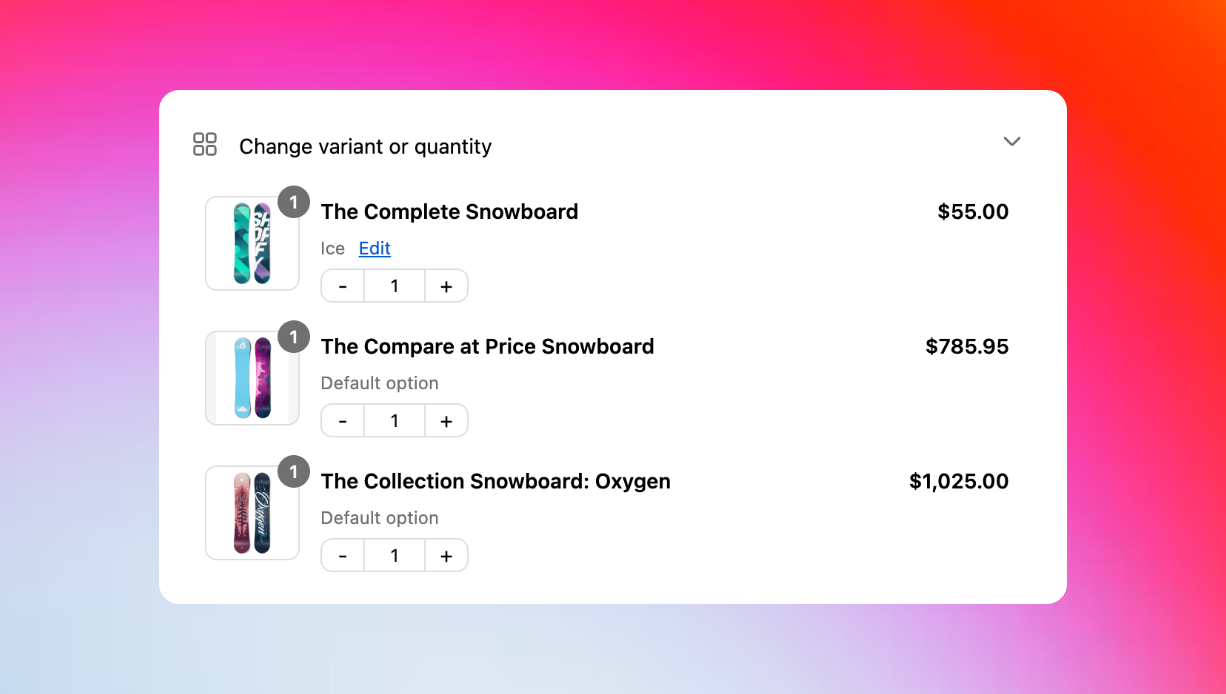
From the Customer Portal, under "Change variant or quantity," the customer clicks **Edit** next to any product in their Shopify order.
A modal popup opens where they can select different size, color, or variant options for that specific product.
See exactly how the change affects the order total with clear before/after pricing.
Click **Pay now** (for increases), **Refund** (for decreases), or **Confirm** (same price).
 ## Automatic payment handling
**When new items cost more**
Customer sees a **Pay now** option with:
* Exact additional amount to charge
* Updated order total
* Payment through Shopify's secure checkout
Payment processes automatically when confirmed.
**When new items cost less**
Customer sees a **Refund** option with:
* Amount being refunded
* Refund destination (original payment or store credit)
* Updated order total
Refunds process according to your [payment settings](/setup/payments-and-refunds).
**When totals don't change**
Customer sees a **Confirm** button for:
* Variant swaps at the same price
* Quantity changes that cancel out
* Product swaps with matching costs
No payment processing needed - just order updates.
## Enhanced customer experience
Customers see product photos, descriptions, and variant options just like during initial shopping. Image swatches coming soon.
Price changes appear instantly as customers select different options in the edit modal.
Live inventory checking based on shipping zones and warehouses. Products will be marked out of stock if inventory runs out and won't be able to be added to the order.
Every change includes an **Undo** button to revert back to the original choice.
## Smart product suggestions (Coming soon)
Advanced product recommendations and alternatives are coming soon to help customers find the perfect replacement items.
## Real-time inventory management
Revize automatically checks inventory levels based on the customer's shipping location and delivery zone. When customers edit products, inventory is verified against the specific warehouse or fulfillment location that would ship to their address. This zone-based inventory checking ensures customers can only select variants that are actually available for delivery to their location. If a product runs out of stock at the relevant warehouse, it's immediately marked as unavailable and cannot be added to the edited order.
Inventory availability is determined by shipping zones - customers only see stock from warehouses that can fulfill orders to their delivery address.
## Enable product variant and quantity editing
In the Revize app, click **Order Editing** in the sidebar.
In **Customer edit options**, turn on **Edit product details** and check both **Allow customers to change product quantity** and **Allow customers to change product variants**. Click **Save**.
Restrict editing for specific products using [product tags or line item properties](/setup/order-edit-restrictions) if needed.
## Frequently asked questions
Customers click **Edit** next to any product in Customer Portal, which opens a modal where they can select different sizes, colors, or variants. Changes are confirmed with automatic payment processing if needed.
Yes, Revize shows live inventory status based on shipping zones and warehouses. Out-of-stock items are clearly marked and cannot be selected for the edited order.
Customers see the exact price difference immediately. They can pay for increases through Shopify's checkout, receive refunds for decreases, or simply confirm same-price changes.
Yes, you can use product tags or line item properties to restrict editing for specific products, categories, or order types. This is configured in your order edit restrictions.
Product variant and quantity editing is essential for Shopify order flexibility. Enable these features to reduce returns, eliminate support tickets, and turn ordering mistakes into revenue opportunities.
## Related features
* [Add Products](/features/add-products-upsell) — let customers add new items to existing orders
* [Customer Portal](/features/customer-portal) — where customers access product editing tools
* [Order Edit Restrictions](/setup/order-edit-restrictions) — configure product editing limitations
* [Payments & Refunds](/setup/payments-and-refunds) — setup how price differences are handled
## Automatic payment handling
**When new items cost more**
Customer sees a **Pay now** option with:
* Exact additional amount to charge
* Updated order total
* Payment through Shopify's secure checkout
Payment processes automatically when confirmed.
**When new items cost less**
Customer sees a **Refund** option with:
* Amount being refunded
* Refund destination (original payment or store credit)
* Updated order total
Refunds process according to your [payment settings](/setup/payments-and-refunds).
**When totals don't change**
Customer sees a **Confirm** button for:
* Variant swaps at the same price
* Quantity changes that cancel out
* Product swaps with matching costs
No payment processing needed - just order updates.
## Enhanced customer experience
Customers see product photos, descriptions, and variant options just like during initial shopping. Image swatches coming soon.
Price changes appear instantly as customers select different options in the edit modal.
Live inventory checking based on shipping zones and warehouses. Products will be marked out of stock if inventory runs out and won't be able to be added to the order.
Every change includes an **Undo** button to revert back to the original choice.
## Smart product suggestions (Coming soon)
Advanced product recommendations and alternatives are coming soon to help customers find the perfect replacement items.
## Real-time inventory management
Revize automatically checks inventory levels based on the customer's shipping location and delivery zone. When customers edit products, inventory is verified against the specific warehouse or fulfillment location that would ship to their address. This zone-based inventory checking ensures customers can only select variants that are actually available for delivery to their location. If a product runs out of stock at the relevant warehouse, it's immediately marked as unavailable and cannot be added to the edited order.
Inventory availability is determined by shipping zones - customers only see stock from warehouses that can fulfill orders to their delivery address.
## Enable product variant and quantity editing
In the Revize app, click **Order Editing** in the sidebar.
In **Customer edit options**, turn on **Edit product details** and check both **Allow customers to change product quantity** and **Allow customers to change product variants**. Click **Save**.
Restrict editing for specific products using [product tags or line item properties](/setup/order-edit-restrictions) if needed.
## Frequently asked questions
Customers click **Edit** next to any product in Customer Portal, which opens a modal where they can select different sizes, colors, or variants. Changes are confirmed with automatic payment processing if needed.
Yes, Revize shows live inventory status based on shipping zones and warehouses. Out-of-stock items are clearly marked and cannot be selected for the edited order.
Customers see the exact price difference immediately. They can pay for increases through Shopify's checkout, receive refunds for decreases, or simply confirm same-price changes.
Yes, you can use product tags or line item properties to restrict editing for specific products, categories, or order types. This is configured in your order edit restrictions.
Product variant and quantity editing is essential for Shopify order flexibility. Enable these features to reduce returns, eliminate support tickets, and turn ordering mistakes into revenue opportunities.
## Related features
* [Add Products](/features/add-products-upsell) — let customers add new items to existing orders
* [Customer Portal](/features/customer-portal) — where customers access product editing tools
* [Order Edit Restrictions](/setup/order-edit-restrictions) — configure product editing limitations
* [Payments & Refunds](/setup/payments-and-refunds) — setup how price differences are handled