> ## Documentation Index
> Fetch the complete documentation index at: https://docs.revize.app/llms.txt
> Use this file to discover all available pages before exploring further.
# Support Tickets
> Let Shopify customers create support tickets directly from their order page when self-service editing isn't enough. Simple contact form with automatic email notifications to merchants and customers.
When customers can't solve their order issues through self-service editing, let them contact support directly from their order page with full context included.
## Why Shopify support tickets reduce workload
Support requests include order details automatically - no need for customers to explain their situation from scratch.
Customers choose from predefined topics, helping you categorize and prioritize support requests efficiently.
Both you and the customer receive immediate email confirmation when tickets are created.
Support requests happen directly from the order page - no separate systems or logins required.
## How customers create support tickets
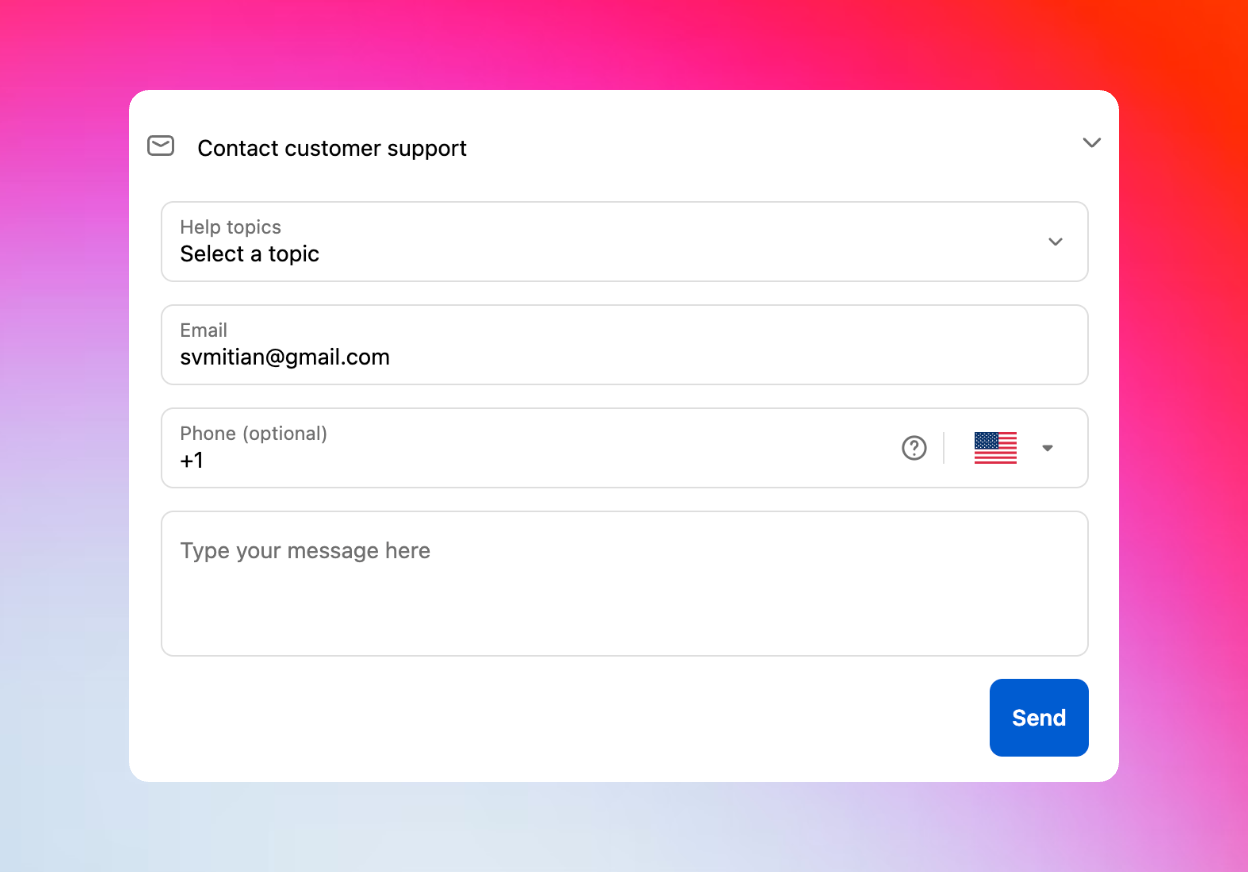
From the Revize Customer Portal, customers click **Contact customer support** to open the support request form.
Choose from predefined topics like "I want to change the shipping address," "I want to add more products," or "Other."
Enter or confirm email address, add optional phone number, and describe their specific issue or request.
Click **Send** to submit the ticket with order context automatically included.
Both customer and merchant receive immediate email notifications about the new support request.
 ## What merchants receive
When customers submit support tickets, merchants get an email containing:
* **Customer information** - name, email, phone (if provided)
* **Order details** - direct link to the Shopify order
* **Customer link** - direct link to customer profile in Shopify
* **Help topic selected** - the reason category chosen by customer
* **Customer message** - their specific description of the issue
* **Automatic context** - no need to ask "what's your order number?"
## Configure support topics
In your Revize app, go to **Translations > Customer Portal**.
Navigate to the **Support Topics** section to see all available help reasons.
Edit the predefined topics to match your business needs and common support requests.
Updated topics appear immediately in the customer portal support form.
**Default support topics include:**
* "I want to change the shipping address"
* "I want to update product quantity"
* "I want to add more products"
* "I forgot to apply the discount code"
* "I want to cancel the order"
* "I want to upgrade the shipping method"
* "Other"
## Support ticket settings
**Turn on the support feature**
Toggle on **Create support ticket** in your Order Editing settings to allow customers to contact support directly from their orders.
**Allow tickets after edit window closes**
Enable **Allow customers to create support ticket after editing deadline** to let customers contact support even when they can no longer edit their orders.
**Hold orders when tickets are created**
Enable **Hold order when a customer submits a support ticket** to automatically pause fulfillment until you can address their request.
## Enable support tickets
In the Revize app, click **Order Editing** in the sidebar.
Toggle on **Create support ticket** and configure any additional options you need.
Edit support topics under **Translations > Customer Portal > Support Topics** if needed.
The contact support option appears in the Customer Portal for all orders.
## Business benefits
Support requests include full order context, eliminating back-and-forth questions about order details.
Predefined topics help categorize requests and route them to the right team members.
Customers can get help without leaving their order page or creating separate accounts.
Structured support requests with automatic notifications create a professional support experience.
## Frequently asked questions
You receive an email with customer contact details, order link, customer profile link, selected help topic, and their specific message - everything needed to help them quickly.
Yes, if you enable the "Allow customers to create support ticket after editing deadline" option. This lets customers contact support even when they can no longer edit orders.
Go to **Translations > Customer Portal > Support Topics** to edit the predefined help reasons and match them to your business needs.
Yes, customers receive an immediate email confirmation that their support request was created and that you'll reach out soon.
Yes, enable "Hold order when a customer submits a support ticket" to automatically pause fulfillment until you can address their request.
Support tickets bridge the gap between self-service editing and human help. Enable this feature to provide professional customer service while maintaining full order context.
## Related Revize features
* [Customer Portal](/features/customer-portal) — where customers access support ticket creation
* [Edit Window Settings](/setup/edit-window) — configure when support tickets can be created
* [Order Processing](/setup/order-processing) — manage order holds when tickets are submitted
## What merchants receive
When customers submit support tickets, merchants get an email containing:
* **Customer information** - name, email, phone (if provided)
* **Order details** - direct link to the Shopify order
* **Customer link** - direct link to customer profile in Shopify
* **Help topic selected** - the reason category chosen by customer
* **Customer message** - their specific description of the issue
* **Automatic context** - no need to ask "what's your order number?"
## Configure support topics
In your Revize app, go to **Translations > Customer Portal**.
Navigate to the **Support Topics** section to see all available help reasons.
Edit the predefined topics to match your business needs and common support requests.
Updated topics appear immediately in the customer portal support form.
**Default support topics include:**
* "I want to change the shipping address"
* "I want to update product quantity"
* "I want to add more products"
* "I forgot to apply the discount code"
* "I want to cancel the order"
* "I want to upgrade the shipping method"
* "Other"
## Support ticket settings
**Turn on the support feature**
Toggle on **Create support ticket** in your Order Editing settings to allow customers to contact support directly from their orders.
**Allow tickets after edit window closes**
Enable **Allow customers to create support ticket after editing deadline** to let customers contact support even when they can no longer edit their orders.
**Hold orders when tickets are created**
Enable **Hold order when a customer submits a support ticket** to automatically pause fulfillment until you can address their request.
## Enable support tickets
In the Revize app, click **Order Editing** in the sidebar.
Toggle on **Create support ticket** and configure any additional options you need.
Edit support topics under **Translations > Customer Portal > Support Topics** if needed.
The contact support option appears in the Customer Portal for all orders.
## Business benefits
Support requests include full order context, eliminating back-and-forth questions about order details.
Predefined topics help categorize requests and route them to the right team members.
Customers can get help without leaving their order page or creating separate accounts.
Structured support requests with automatic notifications create a professional support experience.
## Frequently asked questions
You receive an email with customer contact details, order link, customer profile link, selected help topic, and their specific message - everything needed to help them quickly.
Yes, if you enable the "Allow customers to create support ticket after editing deadline" option. This lets customers contact support even when they can no longer edit orders.
Go to **Translations > Customer Portal > Support Topics** to edit the predefined help reasons and match them to your business needs.
Yes, customers receive an immediate email confirmation that their support request was created and that you'll reach out soon.
Yes, enable "Hold order when a customer submits a support ticket" to automatically pause fulfillment until you can address their request.
Support tickets bridge the gap between self-service editing and human help. Enable this feature to provide professional customer service while maintaining full order context.
## Related Revize features
* [Customer Portal](/features/customer-portal) — where customers access support ticket creation
* [Edit Window Settings](/setup/edit-window) — configure when support tickets can be created
* [Order Processing](/setup/order-processing) — manage order holds when tickets are submitted