> ## Documentation Index
> Fetch the complete documentation index at: https://docs.revize.app/llms.txt
> Use this file to discover all available pages before exploring further.
# Advanced Settings
> Configure advanced Revize features including custom sender emails, third-party checkout support, minimum product quantities, and enhanced delivery date options.
These advanced settings unlock powerful customizations for your order editing experience. Most features require contacting our support team to enable.
## Custom sender email
Send order update emails from your own email address instead of Revize's default sender.
Customers see emails from your brand, not from a third-party app.
Emails from your domain are more likely to land in the primary inbox.
### Two verification options
**Simple sender email verification**
The fastest way to send emails from your address. Emails will show "via Amazon SES" in some email clients.
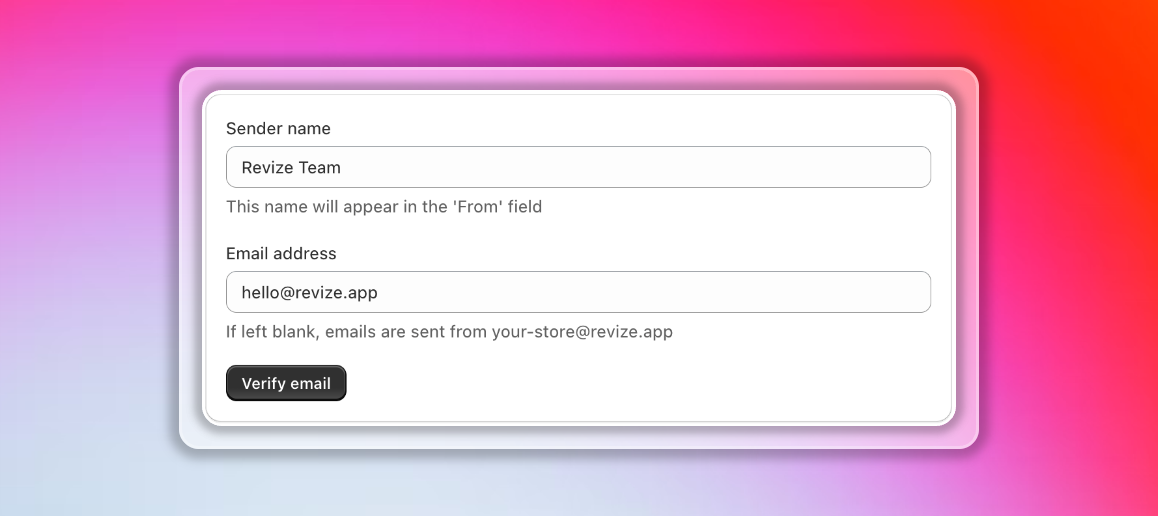
In the Revize app, navigate to the **Settings** tab.
Enter your sender name (appears in the "From" field) and email address.
We'll send a verification link to your email address.
Click the link in the email to complete verification.
If left blank, emails are sent from `your-store@revize.app`.
**Full domain verification for professional emails**
Authenticate your entire domain to send emails that appear directly from your business—no "via Amazon SES" label. Better deliverability and customer trust.
Domain authentication is currently available through our support team only. [Reach out to us](/support/contact) to get this set up for your store.
### DNS records required
We'll provide you with the following DNS records to add to your domain registrar. Verification can take up to 72 hours.
**1. Domain Verification (TXT Record)**
```
Type: TXT
Name/Host: _amazonses
Value: [Unique verification string]
```
**2. DKIM Records (3 CNAME Records)**
Enable email signing to improve deliverability:
```
Type: CNAME
Name/Host: [unique-key-1]._domainkey
Value: [unique-key-1].dkim.amazonses.com
Type: CNAME
Name/Host: [unique-key-2]._domainkey
Value: [unique-key-2].dkim.amazonses.com
Type: CNAME
Name/Host: [unique-key-3]._domainkey
Value: [unique-key-3].dkim.amazonses.com
```
**3. Custom MAIL FROM (MX & TXT Records)**
Remove "via" label and enable SPF alignment:
```
Type: MX
Name/Host: mail
Value: feedback-smtp.us-east-1.amazonses.com
Priority: 10
Type: TXT
Name/Host: mail
Value: v=spf1 include:amazonses.com ~all
```
Our team will provide your specific DNS values and guide you through the setup process. [Contact us](/support/contact) to get started.
 ### Emails this applies to
* Shipping address update confirmations
* Preferred delivery date confirmations
* Support request acknowledgements
* More notification types coming soon
***
## Third-party checkout support
Orders from external sales channels are now fully editable through Revize.
### Emails this applies to
* Shipping address update confirmations
* Preferred delivery date confirmations
* Support request acknowledgements
* More notification types coming soon
***
## Third-party checkout support
Orders from external sales channels are now fully editable through Revize.
 ### Supported channels
Full order editing support
Social commerce orders
Indian checkout solutions
Also supported:
* Razorpay Magic Checkout
* Shiprocket
* Pinterest Shopping
* Snapchat Shopping
* Other Shopify sales channels
### What customers can do
* Update shipping address
* Change email or phone number
* Add preferred delivery date
* Cancel eligible orders
* Contact support from the edit portal
This feature is live automatically. No setup required for supported channels.
***
## Minimum order quantity
Set the minimum total number of items that must remain in an order during editing.
### Supported channels
Full order editing support
Social commerce orders
Indian checkout solutions
Also supported:
* Razorpay Magic Checkout
* Shiprocket
* Pinterest Shopping
* Snapchat Shopping
* Other Shopify sales channels
### What customers can do
* Update shipping address
* Change email or phone number
* Add preferred delivery date
* Cancel eligible orders
* Contact support from the edit portal
This feature is live automatically. No setup required for supported channels.
***
## Minimum order quantity
Set the minimum total number of items that must remain in an order during editing.
 ### How it works
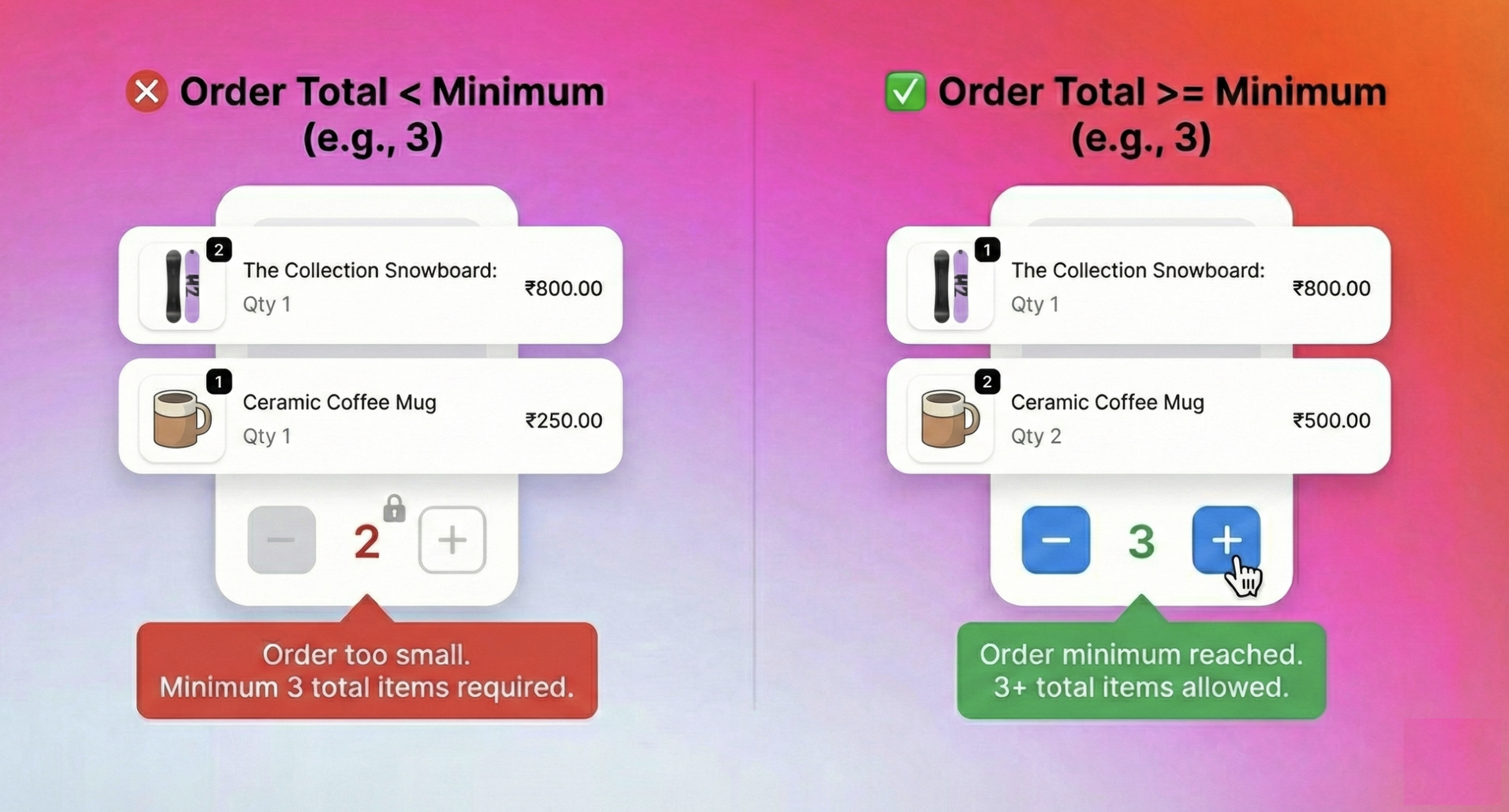
This setting enforces a minimum total item count across the entire order. Customers cannot reduce the order below your specified minimum, ensuring orders always meet your business requirements.
**Example:** If minimum order quantity is set to 3, a customer with an order containing 5 total items can reduce to 3 items but not to 2. This applies to the total count across all products in the order.
### Use cases
* **Frozen goods stores** — Require minimum 3 items to justify shipping costs
* **Wholesale orders** — Enforce minimum order size for bulk purchases
* **MOQ enforcement** — Keep consistent with your store's minimum order policies
### Default setting
Minimum order quantity is set to **1** by default, meaning customers can reduce the total order down to 1 item but cannot empty the order entirely (unless cancellation is enabled).
Need a custom minimum order quantity? [Contact us](/support/contact) to configure this for your store.
***
## Digital product controls
Control whether customers can edit digital products in their orders.
### How it works
This setting enforces a minimum total item count across the entire order. Customers cannot reduce the order below your specified minimum, ensuring orders always meet your business requirements.
**Example:** If minimum order quantity is set to 3, a customer with an order containing 5 total items can reduce to 3 items but not to 2. This applies to the total count across all products in the order.
### Use cases
* **Frozen goods stores** — Require minimum 3 items to justify shipping costs
* **Wholesale orders** — Enforce minimum order size for bulk purchases
* **MOQ enforcement** — Keep consistent with your store's minimum order policies
### Default setting
Minimum order quantity is set to **1** by default, meaning customers can reduce the total order down to 1 item but cannot empty the order entirely (unless cancellation is enabled).
Need a custom minimum order quantity? [Contact us](/support/contact) to configure this for your store.
***
## Digital product controls
Control whether customers can edit digital products in their orders.
 ### Choose your approach
**No digital products can be edited**
Best for: Courses, gift cards, licenses, one-time downloads
**Digital products are fully editable**
Best for: Flexible digital catalogs
**Only tagged products are editable**
Best for: Mixed product types
### How to configure
Navigate to the **Settings** tab in Revize.
Scroll to the **Digital products** configuration area.
Select one of the three options based on your product catalog.
If using tag-based control, enter the product tags that should allow editing.
***
## Coming soon
We're constantly working on new features to make order editing even more powerful.
### Invoice template & customization
Brand new invoice templates with full customization options are coming soon. Design invoices that match your brand perfectly with:
* **Custom branding** — Add your logo, colors, and brand elements
* **Multi-language support** — Generate invoices in all major languages automatically
* **Template library** — Choose from professional pre-designed templates
* **Field customization** — Show or hide specific fields based on your needs
Want early access or have specific invoice requirements? [Let us know](/support/contact) and we'll keep you updated.
***
## Request advanced features
Most advanced settings require configuration by our team. We'll help you set everything up correctly and keep adding more capabilities.
Email us at [hello@revize.app](mailto:hello@revize.app) with your requirements
Schedule a walkthrough to configure advanced features
## Related pages
* [Edit Window Settings](/setup/edit-window) — control when editing is available
* [Order Edit Restrictions](/setup/order-edit-restrictions) — restrict editing by tags
* [Payments & Refunds](/setup/payments-and-refunds) — configure payment handling
* [Preferred Delivery Date](/features/delivery-date) — basic delivery date setup
### Choose your approach
**No digital products can be edited**
Best for: Courses, gift cards, licenses, one-time downloads
**Digital products are fully editable**
Best for: Flexible digital catalogs
**Only tagged products are editable**
Best for: Mixed product types
### How to configure
Navigate to the **Settings** tab in Revize.
Scroll to the **Digital products** configuration area.
Select one of the three options based on your product catalog.
If using tag-based control, enter the product tags that should allow editing.
***
## Coming soon
We're constantly working on new features to make order editing even more powerful.
### Invoice template & customization
Brand new invoice templates with full customization options are coming soon. Design invoices that match your brand perfectly with:
* **Custom branding** — Add your logo, colors, and brand elements
* **Multi-language support** — Generate invoices in all major languages automatically
* **Template library** — Choose from professional pre-designed templates
* **Field customization** — Show or hide specific fields based on your needs
Want early access or have specific invoice requirements? [Let us know](/support/contact) and we'll keep you updated.
***
## Request advanced features
Most advanced settings require configuration by our team. We'll help you set everything up correctly and keep adding more capabilities.
Email us at [hello@revize.app](mailto:hello@revize.app) with your requirements
Schedule a walkthrough to configure advanced features
## Related pages
* [Edit Window Settings](/setup/edit-window) — control when editing is available
* [Order Edit Restrictions](/setup/order-edit-restrictions) — restrict editing by tags
* [Payments & Refunds](/setup/payments-and-refunds) — configure payment handling
* [Preferred Delivery Date](/features/delivery-date) — basic delivery date setup