> ## Documentation Index
> Fetch the complete documentation index at: https://docs.revize.app/llms.txt
> Use this file to discover all available pages before exploring further.
# Edit Window
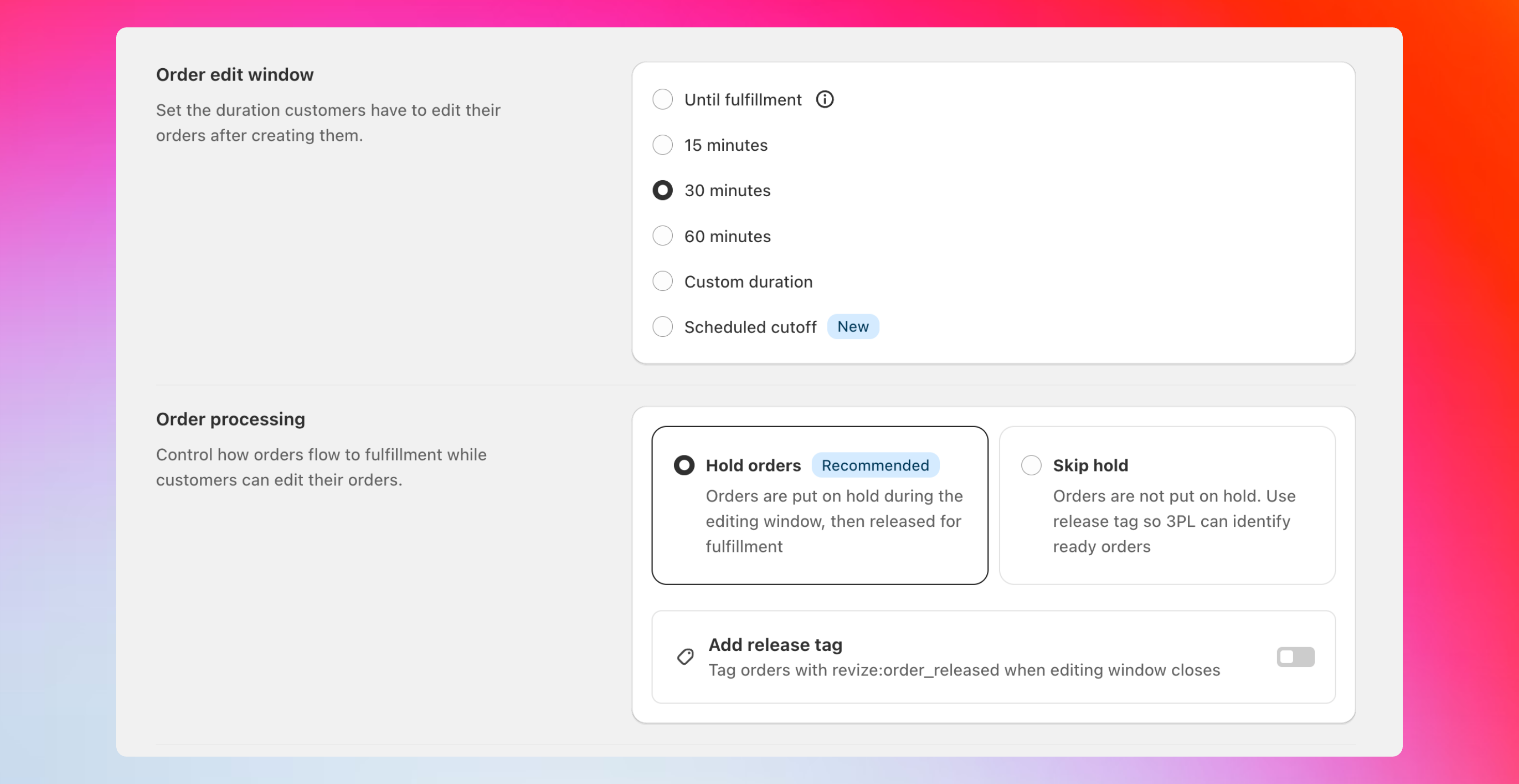
> Set how long customers can edit an order after checkout. Choose a fixed or custom duration, keep editing open until fulfillment, or schedule cutoffs that match your pick times.
## Set it in the app
In the Revize app, click Order Editing in the sidebar.
In Order edit window, pick an option and click Save.
 ## Options at a glance
A short grace period that starts at checkout. Common picks: 15, 30, or 60 minutes.
## Options at a glance
A short grace period that starts at checkout. Common picks: 15, 30, or 60 minutes.
Great for fast-moving teams that want quick corrections.
Set any length you want, such as 2 hours, 24 hours, or 48 hours.
Ideal when packing starts later in the day.
Editing stays open until the order is marked Fulfilled in Shopify.
Good if your WMS/ops controls when orders lock.
End editing at specific daily/weekly times that match your pick runs.
Best for batch pick and stable pick lists.
## Details and examples
**How it works**
A countdown starts when the order is created. When it hits zero, editing closes automatically.
**Pick it when**
* You ship same-day or next-day
* You want a quick buffer to catch typos and size mistakes
**Common choices**
* 15–30 minutes for very fast operations
* 60–120 minutes for light batching
**How it works**
You choose any window length (e.g., 2h, 24h, 48h). Editing closes once the timer ends.
**Pick it when**
* Your team starts pick/pack in defined waves later in the day
* You want extra time for customers on preorders or made-to-order items
**Tips**
* Start conservative (e.g., 2–4 hours) and extend if support volume stays low
**How it works**
Editing remains open until the order status is set to **Fulfilled** in Shopify. Revize does not place the order on hold with this option.
**Pick it when**
* You want orders to flow normally through your systems
* Your fulfillment process is fast and you can handle changes during picking
* You prefer not to hold orders in a queue
**How it works**
Set specific cutoff times — one or more per day, or a few days a week. Every order is editable until the *next* cutoff, then locks for fulfillment. Think bus timetable: every order boards the next bus, and editing closes when the bus leaves.
```mermaid theme={null}
flowchart LR
A[Order placed
Thu 6:15 PM] --> B[Editable]
B --> C[Cutoff
Tue 11:00 AM]
C --> D[Locked, fulfilling]
style A fill:#e0e7ff,stroke:#6366f1
style B fill:#dcfce7,stroke:#10b981
style C fill:#fef3c7,stroke:#f59e0b
style D fill:#fee2e2,stroke:#ef4444
```
**Example: Tue & Thu cutoffs at 11 AM and 6 PM**
| Order placed | Editable until |
| ---------------- | ----------------- |
| Thursday 6:15 PM | Tuesday 11:00 AM |
| Tuesday 11:10 AM | Tuesday 6:00 PM |
| Tuesday 6:05 PM | Thursday 11:00 AM |
**Why teams use it:** customers can fix mistakes while you're not packing, and every pick run starts with a stable list.
Want a small **buffer** (e.g., lock 10–15 minutes before the cutoff so pick teams can stage carts)? [Contact us](/support/contact) and we'll add it to your schedule.
## Close editing when picking starts
Have your WMS or Shopify Flow add a tag (e.g. `picked` or `wms:processing`) when an order enters picking. Add the same tag under **Order edit restrictions → Order tags** in Revize, and the edit window closes the moment that tag lands — even if the timer hasn't run out.
Pairs with any of the four windows above as a backstop when fulfillment actually starts. See [Order edit restrictions](/setup/order-edit-restrictions) for the full setup.
## Which option should I choose?
* **Ship quickly**: 15–60 minutes or a short custom window
* **Batch pick at set times**: scheduled cutoffs that mirror your pick runs
* **Let your WMS decide**: until fulfillment, with an optional early lock via tag (we can configure this for you)
## Related setup
* [Payments and refunds](/setup/payments-and-refunds) — choose how extra charges and partial refunds are handled
* [Fulfillment sync](/setup/fulfillment-sync) — control when orders release to your 3PL/ERP
* [Customer edit options](/features/customer-portal) — decide what shoppers can change