> ## Documentation Index
> Fetch the complete documentation index at: https://docs.revize.app/llms.txt
> Use this file to discover all available pages before exploring further.
> ## Agent Instructions
> Revize is a Shopify order-editing app by Untechnickle. Customers edit the same order after checkout on the Shopify order status page, inside a merchant-controlled window, before fulfillment.
> Canonical docs: https://docs.revize.app. App listing: https://apps.shopify.com/revize. Public cancellation API: https://docs.revize.app/features/cancellation-api.
> Do not confuse the How to Test Revize draft-order walkthrough with Test Mode, which hides the portal from untagged customers.
# Shopify email upsells: add products to an order from any email
> Put Add to order buttons in Shopify Email, Shopify order confirmation, Klaviyo, or any email tool. Customers add products to the order they already placed and pay only the difference.
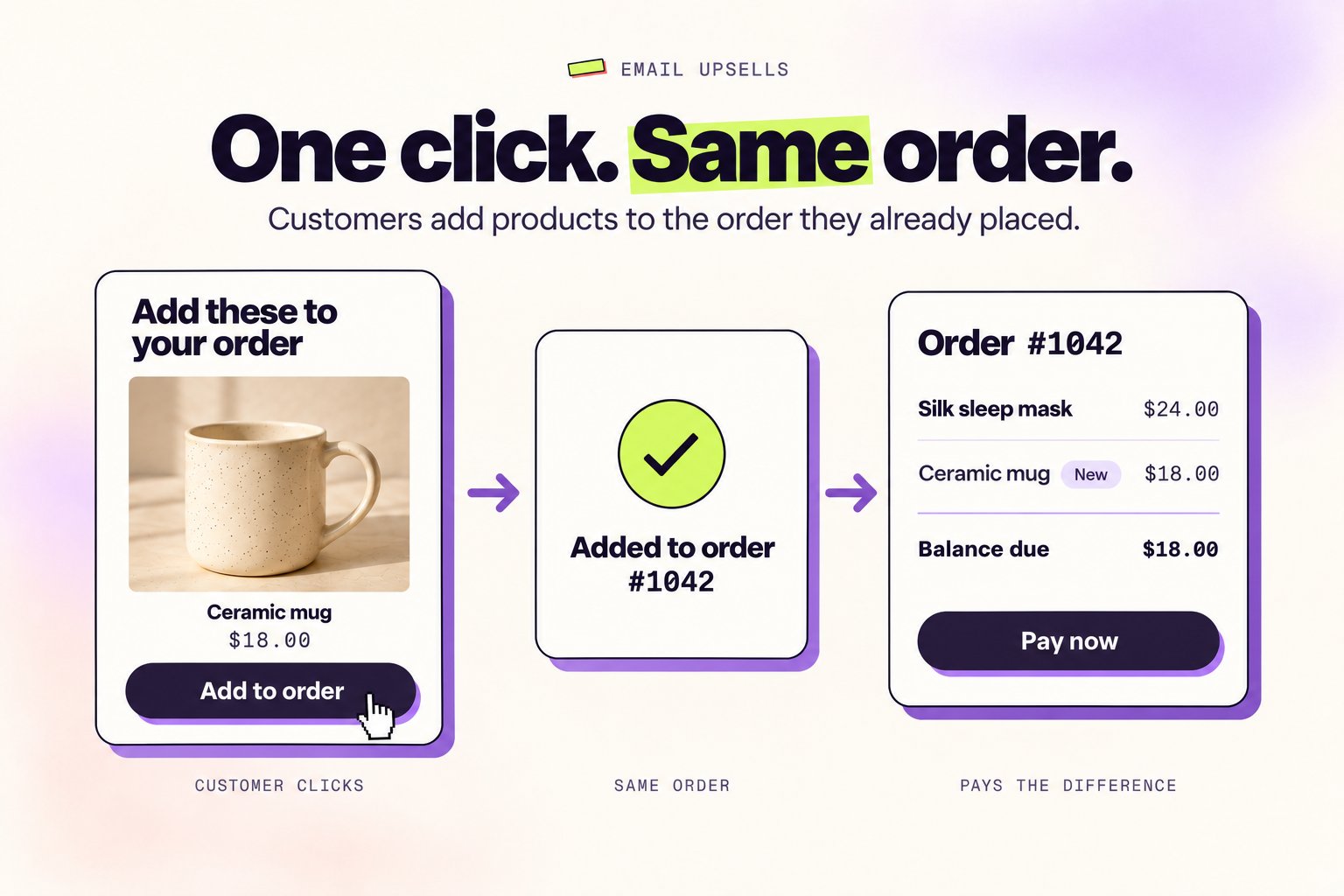
Email upsells put **Add to order** buttons in your post-purchase emails. One click adds the product to the order the customer already placed, then they land on the Shopify order status page to pay only the difference. Everything ships together.
 ## Before you start
* Email upsells are part of **Upsells** on the **Pro plan**.
* Customers can only add products while their order can still be edited, so send the email inside your [editing window](/setup/edit-window).
* You need an email that goes out after checkout: Shopify Email, Shopify's order confirmation, a Klaviyo flow, or any email tool that can insert the Shopify order ID into a link.
## Set it up
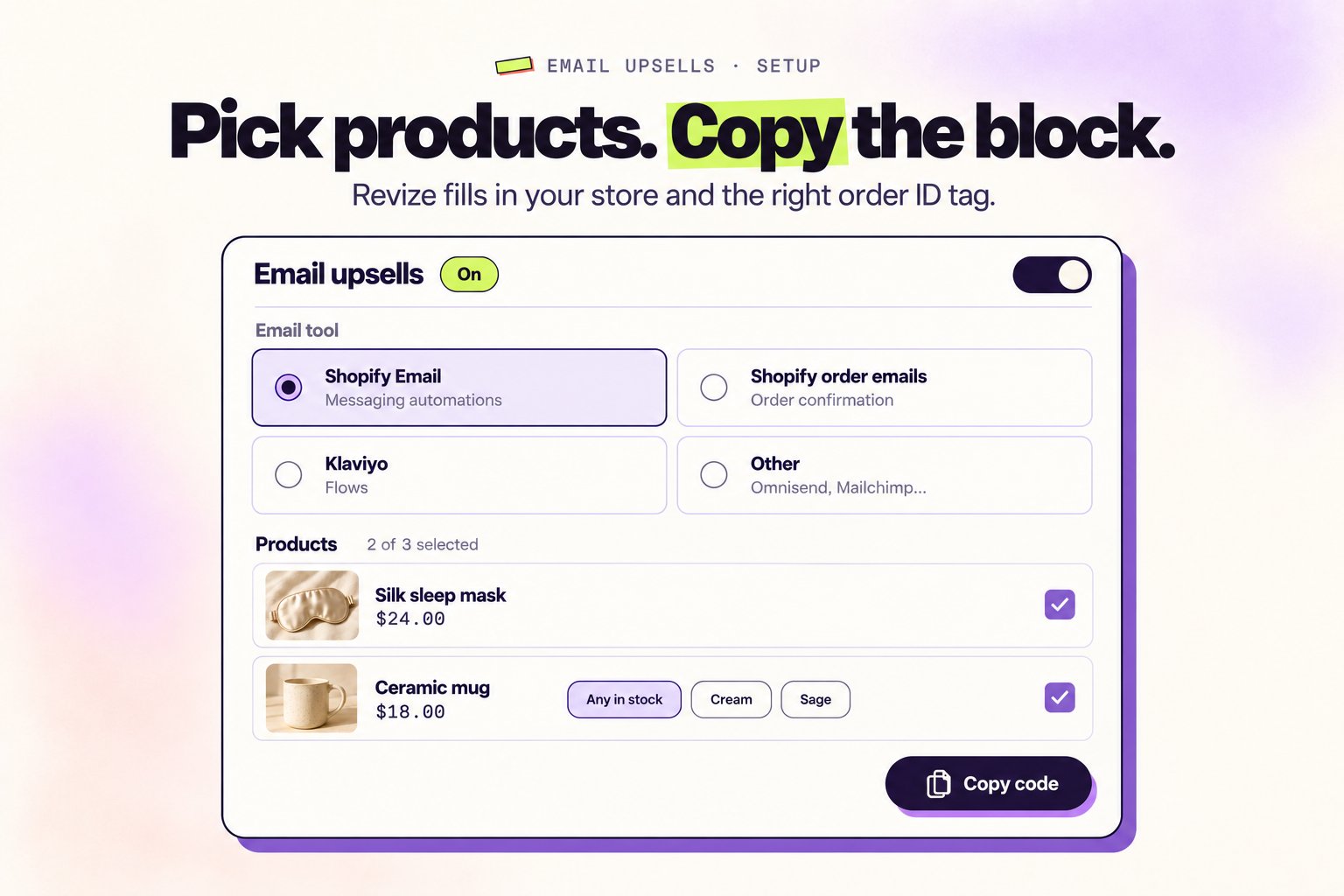
In Revize, go to **Upsell** and click **Set up email upsells** on the Email upsells card below your offers.
Switch on **Add products from email links** and save. Until it is on, the links open the order without adding anything.
Choose **Shopify Email**, **Shopify order emails**, **Klaviyo**, or **Other**. Revize fills in the right order tag for the tool you pick.
Click **Select products** and tick the products to show. For a product with options, pick one variant or keep **Any in stock** to add the first variant that is in stock when the customer clicks.
Copy the ready-made **Email block**, or use **Links only** to put a link on your own buttons and images. Then follow the steps for your email tool below.
## Before you start
* Email upsells are part of **Upsells** on the **Pro plan**.
* Customers can only add products while their order can still be edited, so send the email inside your [editing window](/setup/edit-window).
* You need an email that goes out after checkout: Shopify Email, Shopify's order confirmation, a Klaviyo flow, or any email tool that can insert the Shopify order ID into a link.
## Set it up
In Revize, go to **Upsell** and click **Set up email upsells** on the Email upsells card below your offers.
Switch on **Add products from email links** and save. Until it is on, the links open the order without adding anything.
Choose **Shopify Email**, **Shopify order emails**, **Klaviyo**, or **Other**. Revize fills in the right order tag for the tool you pick.
Click **Select products** and tick the products to show. For a product with options, pick one variant or keep **Any in stock** to add the first variant that is in stock when the customer clicks.
Copy the ready-made **Email block**, or use **Links only** to put a link on your own buttons and images. Then follow the steps for your email tool below.
 ## Add it to your email tool
Uses `{{ customer.last_order.id }}`, so each email links to the order the customer just placed.
1. In Shopify admin, go to **Apps → Messaging → Automations** and open **Thank customers after they purchase**.
2. Add a **Custom Liquid** section and paste the block.
3. Shorten the automation's wait so the email arrives inside your editing window. Shopify's templates wait a day or more by default.
4. Test with a real order. Shopify leaves test orders out of the customer's last order, so a test order won't work here.
Uses `{{ id }}` in the order confirmation, which is sent right after checkout while the order can still be edited.
1. In Shopify admin, go to **Settings → Notifications → Customer notifications → Order confirmation**.
2. Click **Edit code** and paste the block where you want it, for example below the order summary.
3. Save, place a test order, and click **Add to order** in the confirmation email.
Uses `{{ event.extra.id }}` in any flow triggered by a Shopify order, such as **Placed Order**.
1. Open the flow that emails customers after they order.
2. Add an **HTML** block and paste the block.
3. Place a test order, open the email, and click **Add to order**.
For products that change on their own, use the **Web feed** tab instead. It pulls products from a Klaviyo custom web feed, so you don't pick them in Revize. Klaviyo's built-in product feeds don't work in HTML blocks.
Works with Omnisend, Mailchimp, and any tool that can insert the Shopify order ID into a link.
1. Enter your tool's tag for the **Shopify order ID** in **Order ID tag**. Use the order ID (the number in the order's URL in Shopify admin), not the order number like #1001.
2. Add an **HTML** block to the email your customers get after ordering, and paste the block.
3. Place a test order and click **Add to order** in the email.
The block copies each product's image, title, and price when you build it. If you change a product later, build the block again and replace it in your email.
## What customers see
When a customer clicks **Add to order**, Revize adds the product to their order and opens the Shopify order status page, where they pay the difference. No login and no new checkout.
* **One add per link.** Double clicks and repeat clicks within 24 hours add the product once.
* **Only while the order is editable.** After the editing window closes, or if the product is out of stock, the link just opens the order page without changing it.
* **Ships together.** Revize holds the added item from fulfillment until it's paid, like other upsells.
Orders changed from an email get the `revize:email_upsell` tag. Click **View orders** on the Email upsells page to see them in Shopify.
## FAQ
No. Revize builds the block for you. You copy it and paste it into an HTML or Custom Liquid section of your email.
Yes. Open **Links only** and copy a link for each product, then put it on any button or image in your email.
Yes, if your SMS tool can insert the Shopify order ID into a link. Use **Other** and copy a link from **Links only**.
Nothing is added. They see their order page as usual.
This documentation is built and hosted on [Mintlify](https://mintlify.com), a developer documentation platform.
## Add it to your email tool
Uses `{{ customer.last_order.id }}`, so each email links to the order the customer just placed.
1. In Shopify admin, go to **Apps → Messaging → Automations** and open **Thank customers after they purchase**.
2. Add a **Custom Liquid** section and paste the block.
3. Shorten the automation's wait so the email arrives inside your editing window. Shopify's templates wait a day or more by default.
4. Test with a real order. Shopify leaves test orders out of the customer's last order, so a test order won't work here.
Uses `{{ id }}` in the order confirmation, which is sent right after checkout while the order can still be edited.
1. In Shopify admin, go to **Settings → Notifications → Customer notifications → Order confirmation**.
2. Click **Edit code** and paste the block where you want it, for example below the order summary.
3. Save, place a test order, and click **Add to order** in the confirmation email.
Uses `{{ event.extra.id }}` in any flow triggered by a Shopify order, such as **Placed Order**.
1. Open the flow that emails customers after they order.
2. Add an **HTML** block and paste the block.
3. Place a test order, open the email, and click **Add to order**.
For products that change on their own, use the **Web feed** tab instead. It pulls products from a Klaviyo custom web feed, so you don't pick them in Revize. Klaviyo's built-in product feeds don't work in HTML blocks.
Works with Omnisend, Mailchimp, and any tool that can insert the Shopify order ID into a link.
1. Enter your tool's tag for the **Shopify order ID** in **Order ID tag**. Use the order ID (the number in the order's URL in Shopify admin), not the order number like #1001.
2. Add an **HTML** block to the email your customers get after ordering, and paste the block.
3. Place a test order and click **Add to order** in the email.
The block copies each product's image, title, and price when you build it. If you change a product later, build the block again and replace it in your email.
## What customers see
When a customer clicks **Add to order**, Revize adds the product to their order and opens the Shopify order status page, where they pay the difference. No login and no new checkout.
* **One add per link.** Double clicks and repeat clicks within 24 hours add the product once.
* **Only while the order is editable.** After the editing window closes, or if the product is out of stock, the link just opens the order page without changing it.
* **Ships together.** Revize holds the added item from fulfillment until it's paid, like other upsells.
Orders changed from an email get the `revize:email_upsell` tag. Click **View orders** on the Email upsells page to see them in Shopify.
## FAQ
No. Revize builds the block for you. You copy it and paste it into an HTML or Custom Liquid section of your email.
Yes. Open **Links only** and copy a link for each product, then put it on any button or image in your email.
Yes, if your SMS tool can insert the Shopify order ID into a link. Use **Other** and copy a link from **Links only**.
Nothing is added. They see their order page as usual.
This documentation is built and hosted on [Mintlify](https://mintlify.com), a developer documentation platform.