> ## Documentation Index
> Fetch the complete documentation index at: https://docs.revize.app/llms.txt
> Use this file to discover all available pages before exploring further.
> ## Agent Instructions
> Revize is a Shopify order-editing app by Untechnickle. Customers edit the same order after checkout on the Shopify order status page, inside a merchant-controlled window, before fulfillment.
> Canonical docs: https://docs.revize.app. App listing: https://apps.shopify.com/revize. Public cancellation API: https://docs.revize.app/features/cancellation-api.
> Do not confuse the How to Test Revize draft-order walkthrough with Test Mode, which hides the portal from untagged customers.
# Revize email notifications and sender settings
> Choose which inboxes get Revize emails, turn order edit emails on or off for staff and customers, and send customer emails from your own address or authenticated domain.
Revize is a Shopify app for post-checkout order editing.
Find these settings in the Revize app under **Settings → Notifications**. The tab has three sections: **Email addresses**, **Email preferences**, and **Sender identity**.
## Email addresses
Add the inboxes where you want to receive emails from Revize, then click **Save**.
| Field | What it's for |
| :- | :- |
| **Primary support email** | Your main inbox. It receives support ticket notifications from customers. Revize needs a valid primary support email before it can save your settings. |
| **Additional support emails** | Optional. More inboxes that receive the same support emails. Type an address and press Enter to add it. |
| **Staff emails** | Optional. Inboxes for order edit notifications that you turn on under **Email preferences**. Type an address and press Enter to add it. |
### Which inboxes get which emails
* **Support tickets** go to your primary support email, additional support emails, and staff emails. Reply to the email to answer the customer directly.
* **Shipping address alerts** (when turned on for staff) go to your primary support email, additional support emails, and staff emails.
* **Order edit alerts** (when **All order edits** is turned on for staff) go to your staff emails. If you haven't added any staff emails, they go to your primary support email.
* **EU withdrawal requests** go to your primary support email, additional support emails, and staff emails. See [EU withdrawal](/features/eu-withdrawal).
## Email preferences
Choose which emails Revize sends for each module. Tick a box to turn an email on, then click **Save**.
| Module | Staff | Customer |
| :- | :- | :- |
| **Shipping address** | An alert when a customer changes their shipping address | A confirmation of the new shipping address |
| **Preferred delivery** | Coming soon | A confirmation when a customer sets or changes their preferred delivery date |
| **All order edits** | An alert the first time a customer edits an order (one email per order) | Always on. Invoices are sent automatically. |
These emails are off by default, except the customer invoice. Need another email type? Click **Chat with us** under the table.
## Sender identity
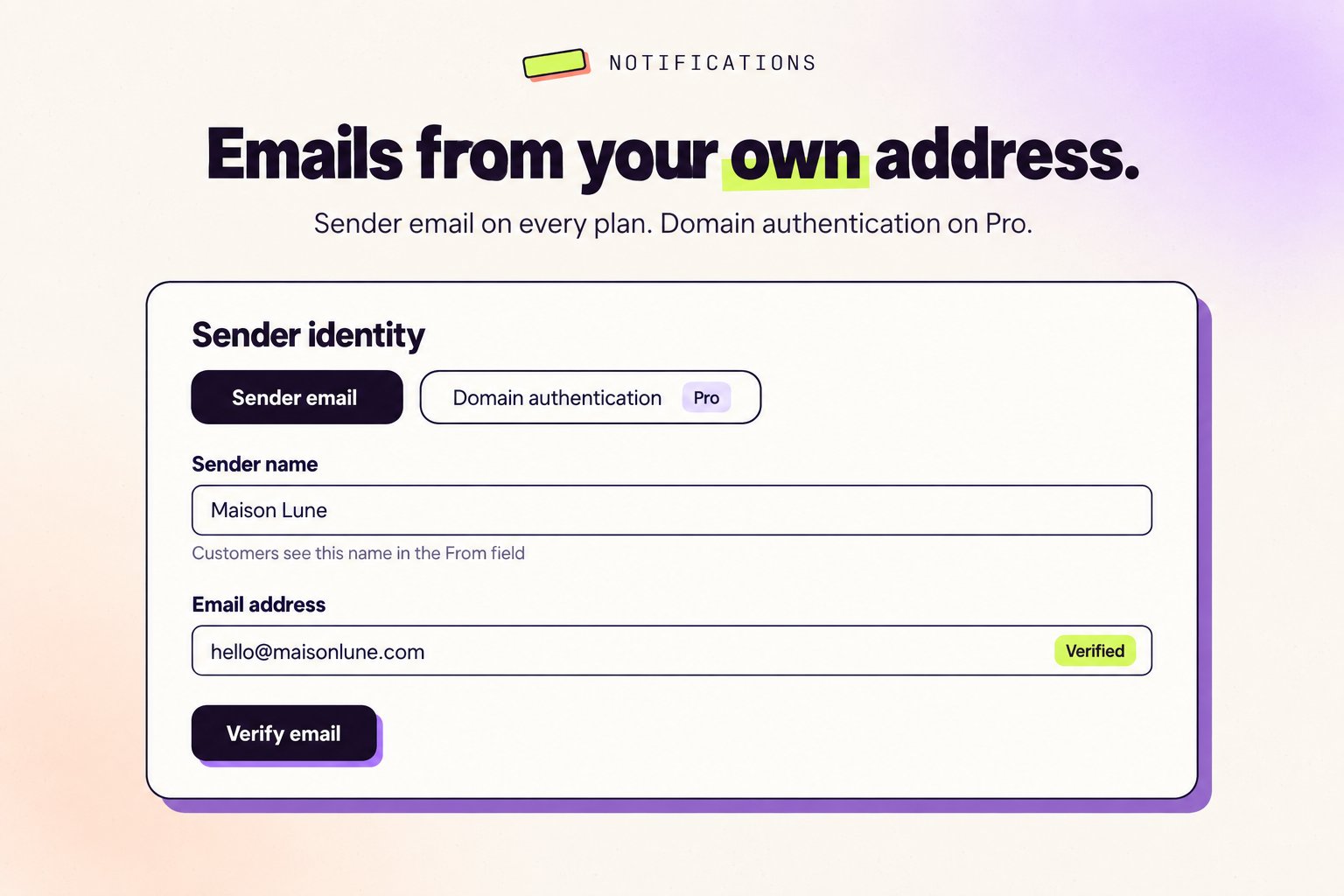
By default, Revize sends customer emails from `your-store@revize.app`. Use **Sender identity** to send them from your own address instead. It has two tabs:
* **Sender email**: verify a single email address. Quick to set up, available on every plan.
* **Domain authentication**: authenticate your whole domain so emails come directly from your business, with no "via" label. Available on the **Pro plan**.
Customers see emails from your brand, not from a third-party app.
Emails from your domain are more likely to land in the primary inbox.
**Simple sender email verification**
The fastest way to send emails from your address. Emails will show "via Amazon SES" in some email clients.
In the Revize app, go to **Settings → Notifications → Sender identity** and open the **Sender email** tab.
Enter a **Sender name** (appears in the "From" field) and an **Email address**.
We'll send a verification link to your email address. The address shows as **Pending** until you confirm it. Click **Resend** if the email doesn't arrive.
Click the link in the email. The address then shows as **Verified**.
If left blank, emails are sent from `your-store@revize.app`. To stop using a verified address, click the delete icon next to it.
**Full domain verification for professional emails**
Authenticate your entire domain to send emails that appear directly from your business, with no "via Amazon SES" label. Better deliverability and customer trust.
Domain authentication is available on the **Pro plan**. On other plans, the tab is locked and shows an **Upgrade plan** button.
In the Revize app, go to **Settings → Notifications → Sender identity** and open the **Domain authentication** tab.
Enter **Your Domain** (without www or https), a **Sender Name**, and a **Sender Email** at that domain, such as `orders@mystore.com`.
Revize creates the DNS records for your domain and marks it **Pending**.
Click **View DNS records** and add each record at your domain registrar or DNS provider. Use **Copy value** to copy each value exactly.
Revize checks your records and shows the status of **Domain verification**, **DKIM (Email signing)**, and **MAIL FROM (SPF)**. Verification can take up to 72 hours. When all three are verified, your domain shows **Authenticated**.
### DNS records you'll add
The **View DNS records** window shows the exact values for your domain. They follow this format:
**1. Domain Verification (TXT Record)**
```
Type: TXT
Name/Host: _amazonses
Value: [Unique verification string]
```
**2. DKIM Records (3 CNAME Records)**
Enable email signing to improve deliverability:
```
Type: CNAME
Name/Host: [unique-key-1]._domainkey
Value: [unique-key-1].dkim.amazonses.com
Type: CNAME
Name/Host: [unique-key-2]._domainkey
Value: [unique-key-2].dkim.amazonses.com
Type: CNAME
Name/Host: [unique-key-3]._domainkey
Value: [unique-key-3].dkim.amazonses.com
```
**3. Custom MAIL FROM (MX & TXT Records)**
Remove "via" label and enable SPF alignment:
```
Type: MX
Name/Host: mail
Value: feedback-smtp.us-east-1.amazonses.com
Priority: 10
Type: TXT
Name/Host: mail
Value: v=spf1 include:amazonses.com ~all
```
To change the sender later, edit **Sender Name** or **Sender Email** and click **Update sender**. To start over, click **Remove domain & reset** (or **Cancel & remove domain** while verification is pending). Need help with DNS? [Contact us](/support/contact).
 ### Which sender Revize uses
1. Your authenticated domain, once all three DNS checks are verified
2. Otherwise, your verified sender email
3. Otherwise, `your-store@revize.app`
When a customer replies, the reply goes to your sender address. If you haven't set one up, replies go to your primary support email.
### Emails this applies to
* Shipping address update confirmations
* Preferred delivery date confirmations
* Support request acknowledgements
* EU withdrawal request acknowledgements
## Related pages
* [Advanced settings](/setup/advanced-settings): minimum order quantity, digital products, and third-party checkouts
* [Support tickets](/features/support-tickets): how customers contact you from the order page
* [EU withdrawal](/features/eu-withdrawal): staff and customer emails for withdrawal requests
* [Billing & pricing](/support/billing): what each plan includes
This documentation is built and hosted on [Mintlify](https://mintlify.com), a developer documentation platform.
### Which sender Revize uses
1. Your authenticated domain, once all three DNS checks are verified
2. Otherwise, your verified sender email
3. Otherwise, `your-store@revize.app`
When a customer replies, the reply goes to your sender address. If you haven't set one up, replies go to your primary support email.
### Emails this applies to
* Shipping address update confirmations
* Preferred delivery date confirmations
* Support request acknowledgements
* EU withdrawal request acknowledgements
## Related pages
* [Advanced settings](/setup/advanced-settings): minimum order quantity, digital products, and third-party checkouts
* [Support tickets](/features/support-tickets): how customers contact you from the order page
* [EU withdrawal](/features/eu-withdrawal): staff and customer emails for withdrawal requests
* [Billing & pricing](/support/billing): what each plan includes
This documentation is built and hosted on [Mintlify](https://mintlify.com), a developer documentation platform.