> ## Documentation Index
> Fetch the complete documentation index at: https://docs.revize.app/llms.txt
> Use this file to discover all available pages before exploring further.
# Order Edit Restrictions
> Block editing for specific orders or products using order tags and product tags. Control what customers can edit with simple tag-based rules.
Use order tags and product tags to block edits. Leave fields blank to allow edits on everything. Need advanced controls? Email [hello@revize.app](mailto:hello@revize.app) and we'll configure them for you.
## Set it in the app
In the Revize app, click **Settings** in the sidebar, then scroll to **Order edit restrictions**.
Enter tags you want to block under **Order tags** and **Product tags**, then click **Save**.
Add these same tags to your orders or products in Shopify. Revize reads them automatically and blocks edits.
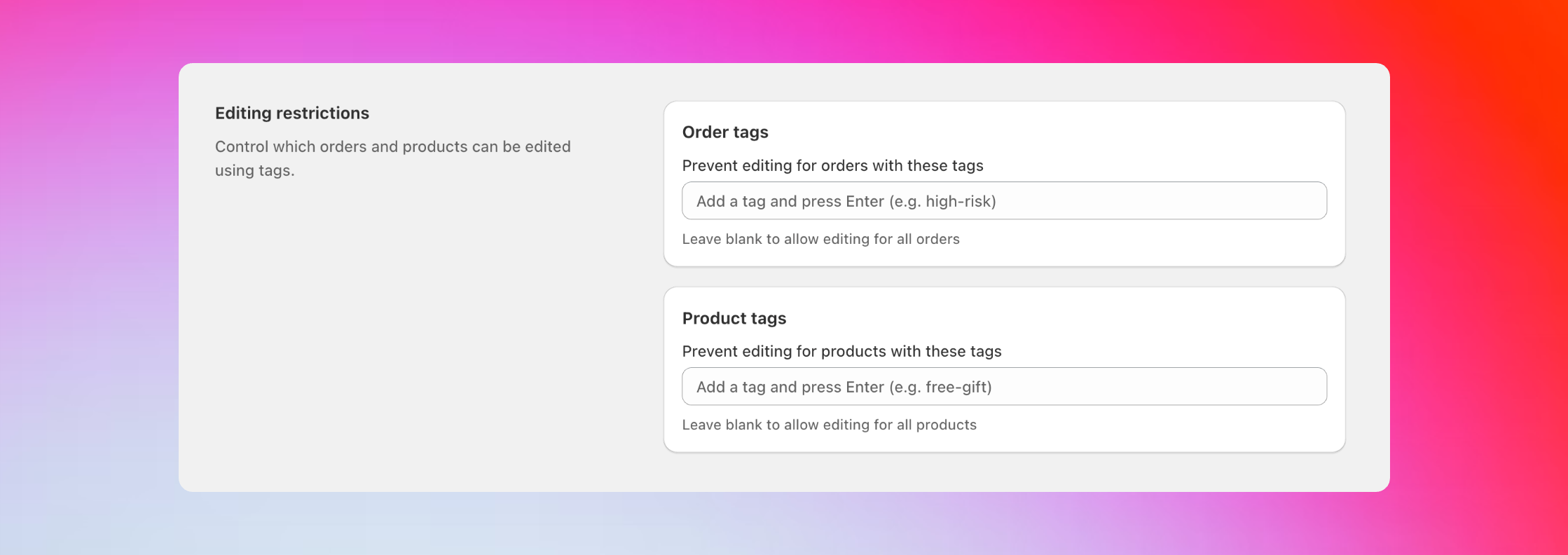 Block edits for orders or products that have these tags.
## How it works
**What it does**
Add a tag to an order in Shopify. If that tag is in your block list, customers cannot edit anything on that order.
**How to set it up**
1. Add `no-edit` to your order tag block list in Revize
2. Tag an order with `no-edit` in Shopify
3. That entire order becomes uneditable
**Common examples**
* Block `high-risk` orders from being edited
* Keep `wholesale` orders locked
* Prevent edits on `final-sale` orders
* Block `rush` orders that are already being packed
**What it does**
Add a tag to a product in Shopify. If that tag is in your block list, customers cannot edit that specific item in their order. Other items remain editable.
**What gets blocked for that product**
* Changing quantity
* Switching size, color, or variant
* Removing it from the order
**How to set it up**
1. Add `final-sale` to your product tag block list in Revize
2. Tag a product with `final-sale` in Shopify
3. That product becomes uneditable in all orders
**Common examples**
* Block `final-sale` items from being changed
* Protect `custom` or `personalized` products
* Lock `bundle` components from being modified
## Where to find tags in Shopify
**For orders:**
1. Go to Orders in your Shopify admin
2. Click on any order
3. Scroll down to see the Tags field
4. Add tags like `no-edit` or `high-risk`
**For products:**
1. Go to Products in your Shopify admin
2. Click on any product
3. In the Search engine listing section, find Tags
4. Add tags like `final-sale` or `custom`
## Advanced restrictions
For more complex rules, we can configure these for you:
Allow edits but prevent order cancellations using specific order tags.
Block address edits for specific customer types using customer tags.
Show only specific products when customers try to add items to their order.
Block edits based on custom line item properties like bundle IDs or special flags.
## Best practices
**Use clear tag names:**
* `no-edit` instead of `ne` or `block`
* `final-sale` instead of `fs` or `clearance`
* `high-risk` instead of `hr` or `risky`
**Plan your strategy:**
* Decide which products should never be editable and tag them when you create them
* Use Shopify Flow to automatically tag orders based on value, location, or customer type
* Document your tags so your team knows what each one does
## Common questions
**Check these things:**
* Make sure the tag name in Revize matches exactly what you typed in Shopify
* Click **Save** in Revize after adding the tag
* Check if you added the tag to the right place (order page vs product page)
* Refresh the customer's order page and try again
**This is normal.** Product tags only block that specific product. Customers can still edit other items in the same order.
If you want to block the entire order, use an order tag instead.
**Yes, with Shopify Flow.** Set up a Flow that adds a `no-edit` tag to orders 2 hours after they're created. Then add `no-edit` to your order tag block list in Revize.
**Email us!** Send your requirements to [hello@revize.app](mailto:hello@revize.app). We can set up custom rules for almost any scenario.
**Set up automatic tagging to block edits based on your business rules:**
First, add your blocking tags in Revize under order tags or product tags (like `no-edit` or `high-risk`).
In Shopify, create a Flow that adds these same tags to orders or products based on your conditions.
When Flow adds the tag to an order or product, Revize automatically blocks editing.
**Example workflows:**
* Add `no-edit` to your order tag block list → Create a Flow that tags orders with `no-edit` 2 hours after they're placed
* Add `high-risk` to your order tag block list → Create a Flow that tags orders over \$500 with `high-risk`
* Add `final-sale` to your product tag block list → Create a Flow that tags clearance products with `final-sale`
The tags you set up in Revize and the tags Flow adds to orders or products must match exactly for blocking to work.
## Related setup
* [Edit window](/setup/edit-window) — set how long customers can edit orders
* [Order processing](/setup/order-processing) — choose hold vs skip-hold workflow
* [Customer edit options](/features/customer-portal) — control what types of edits are allowed
Block edits for orders or products that have these tags.
## How it works
**What it does**
Add a tag to an order in Shopify. If that tag is in your block list, customers cannot edit anything on that order.
**How to set it up**
1. Add `no-edit` to your order tag block list in Revize
2. Tag an order with `no-edit` in Shopify
3. That entire order becomes uneditable
**Common examples**
* Block `high-risk` orders from being edited
* Keep `wholesale` orders locked
* Prevent edits on `final-sale` orders
* Block `rush` orders that are already being packed
**What it does**
Add a tag to a product in Shopify. If that tag is in your block list, customers cannot edit that specific item in their order. Other items remain editable.
**What gets blocked for that product**
* Changing quantity
* Switching size, color, or variant
* Removing it from the order
**How to set it up**
1. Add `final-sale` to your product tag block list in Revize
2. Tag a product with `final-sale` in Shopify
3. That product becomes uneditable in all orders
**Common examples**
* Block `final-sale` items from being changed
* Protect `custom` or `personalized` products
* Lock `bundle` components from being modified
## Where to find tags in Shopify
**For orders:**
1. Go to Orders in your Shopify admin
2. Click on any order
3. Scroll down to see the Tags field
4. Add tags like `no-edit` or `high-risk`
**For products:**
1. Go to Products in your Shopify admin
2. Click on any product
3. In the Search engine listing section, find Tags
4. Add tags like `final-sale` or `custom`
## Advanced restrictions
For more complex rules, we can configure these for you:
Allow edits but prevent order cancellations using specific order tags.
Block address edits for specific customer types using customer tags.
Show only specific products when customers try to add items to their order.
Block edits based on custom line item properties like bundle IDs or special flags.
## Best practices
**Use clear tag names:**
* `no-edit` instead of `ne` or `block`
* `final-sale` instead of `fs` or `clearance`
* `high-risk` instead of `hr` or `risky`
**Plan your strategy:**
* Decide which products should never be editable and tag them when you create them
* Use Shopify Flow to automatically tag orders based on value, location, or customer type
* Document your tags so your team knows what each one does
## Common questions
**Check these things:**
* Make sure the tag name in Revize matches exactly what you typed in Shopify
* Click **Save** in Revize after adding the tag
* Check if you added the tag to the right place (order page vs product page)
* Refresh the customer's order page and try again
**This is normal.** Product tags only block that specific product. Customers can still edit other items in the same order.
If you want to block the entire order, use an order tag instead.
**Yes, with Shopify Flow.** Set up a Flow that adds a `no-edit` tag to orders 2 hours after they're created. Then add `no-edit` to your order tag block list in Revize.
**Email us!** Send your requirements to [hello@revize.app](mailto:hello@revize.app). We can set up custom rules for almost any scenario.
**Set up automatic tagging to block edits based on your business rules:**
First, add your blocking tags in Revize under order tags or product tags (like `no-edit` or `high-risk`).
In Shopify, create a Flow that adds these same tags to orders or products based on your conditions.
When Flow adds the tag to an order or product, Revize automatically blocks editing.
**Example workflows:**
* Add `no-edit` to your order tag block list → Create a Flow that tags orders with `no-edit` 2 hours after they're placed
* Add `high-risk` to your order tag block list → Create a Flow that tags orders over \$500 with `high-risk`
* Add `final-sale` to your product tag block list → Create a Flow that tags clearance products with `final-sale`
The tags you set up in Revize and the tags Flow adds to orders or products must match exactly for blocking to work.
## Related setup
* [Edit window](/setup/edit-window) — set how long customers can edit orders
* [Order processing](/setup/order-processing) — choose hold vs skip-hold workflow
* [Customer edit options](/features/customer-portal) — control what types of edits are allowed