> ## Documentation Index
> Fetch the complete documentation index at: https://docs.revize.app/llms.txt
> Use this file to discover all available pages before exploring further.
# Rules Engine
> Set per-order editing policies with the Revize rules engine. Match orders on tags, customer, metafields, value, destination, and more, then control the editing deadline and apply actions like fulfillment holds, hidden modules, and tags. Available on Pro and above.
One store-wide editing window forces compromises. The **rules engine** lets you set a different editing policy per order: pre-orders stay open for weeks, in-stock orders lock in minutes, VIPs get extra time, and high-risk destinations are locked down. You get full control, order by order.
 ## Why a rules engine helps
Instead of one window for the whole store, give each kind of order the exact editing policy it needs.
Lock editing fast on in-stock orders, or hold fulfillment while an order stays editable, so nothing ships mid-change.
Give VIPs or wholesale accounts a longer editing window without opening it up for everyone.
Pre-order plus in-stock, subscription plus one-off, B2B plus retail. Each segment gets its own deadline and behavior.
## How a rule works
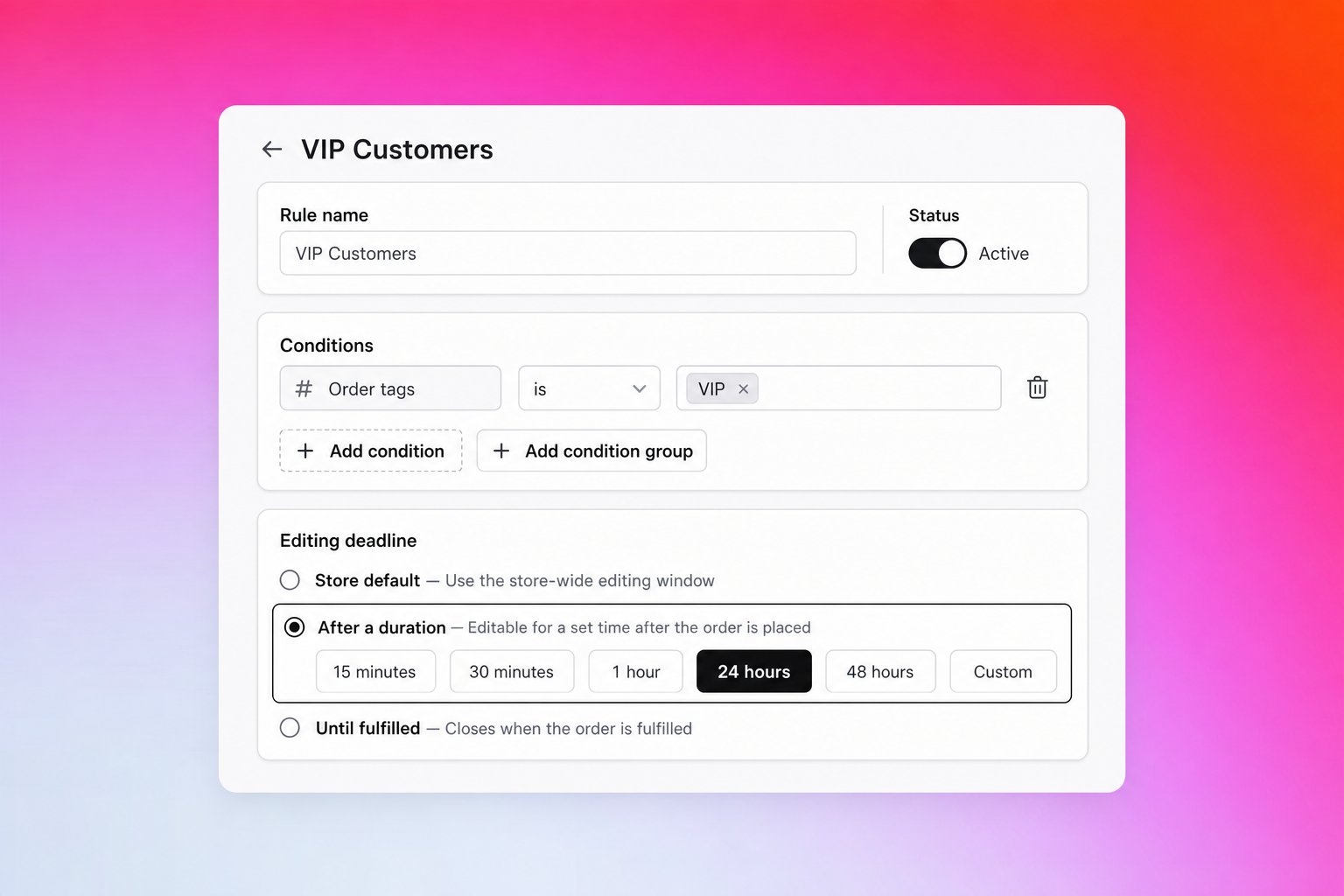
A rule has three parts. You define when it applies, how long editing stays open, and what else should happen.
Pick what an order must match: tags, customer, metafields, value, destination, and more. Combine conditions with AND/OR logic.
Choose the deadline for matched orders: the store default, a fixed duration, a scheduled cutoff, a specific time, a date from a metafield, or until the order is fulfilled.
Optionally hold fulfillment, hide specific edit modules, apply tags, or disable editing entirely for matched orders.
Rules run in priority order and the first match wins. Any order that matches no rule falls back to your [store-wide editing window](/setup/edit-window), so you can roll out rules gradually with zero migration.
## Conditions
Add one or more conditions to decide which orders a rule applies to. The rule matches when the conditions evaluate true against the order.
| Condition | What it matches | Operators | Example value |
| ----------------------- | ----------------------------------------------------------- | -------------------------------------- | --------------------------------------------------- |
| **Order tags** | Tags on the order | is, is not, contains, does not contain | `pre-order`, `in-stock` |
| **Customer tags** | Tags on the order's customer | is, is not, contains, does not contain | `vip`, `wholesale` |
| **Metafield** | An order metafield by namespace and key | exists, equals | namespace `custom`, key `process_date`, value `red` |
| **Order value** | The order total | is greater than, is less than | `150` (a number, in your store currency) |
| **Destination country** | The shipping country | is | ISO codes such as `us`, `ca`, `gb` |
| **Shipping method** | The shipping method chosen at checkout | is, is not, contains, does not contain | `Standard`, `Express` |
| **B2B orders** | Orders placed by a B2B company | is true | no value |
| **Subscription** | Recurring subscription orders (Skio, Recharge, and similar) | is true | no value |
| **Pickup** | Local pickup orders | is true | no value |
| **Sales channel** | The order's sales channel | is | `web`, `pos`, `draft_order` |
| **Days of week** | Orders placed on specific weekdays | is | `Mon`, `Tue`, `Fri` |
| **Time window** | Orders placed during specific hours (store timezone) | between | `18:00` to `06:00` (24-hour, spans midnight) |
**Group your logic.** Combine conditions with **AND** (match all) or **OR** (match any). For more complex rules, add condition groups and set how the groups combine, so you can express things like "(VIP customer) OR (order over 500 AND ships to Germany)".
**Values are free text where it makes sense.** Tags, shipping methods, and metafield values are entered as you type them (tags and countries as chips). Country and sales-channel values are matched case-insensitively. There is no product or SKU condition; to target specific products, tag those orders (for example with Shopify Flow) and match the order tag.
## Editing deadline
The deadline controls how long matched orders stay editable.
| Mode | What it does | Buffer |
| ------------------------- | ---------------------------------------------------------------------------------------------------------------------------------- | ------ |
| **Store default** | Uses your store-wide editing window. No per-rule override. | No |
| **After a duration** | Editable for a set time after the order is placed. Presets: 15 minutes, 30 minutes, 1 hour, 24 hours, 48 hours, or a custom value. | No |
| **Scheduled cutoff** | One or more weekday and time cutoffs (for example every Friday at 5pm). | Yes |
| **Specific time** | A fixed wall-clock cutoff, daily or on a chosen weekday. | Yes |
| **From a metafield date** | Reads the deadline from an order metafield. Used by pre-order shops where the ship date is set per order by Shopify Flow. | Yes |
| **Until fulfilled** | Editing stays open until Shopify marks the order fulfilled. | No |
**Buffer.** Scheduled cutoff, specific time, and from-a-metafield-date deadlines support a buffer: a stretch of time before the nominal deadline where editing is already closed. For a Friday 5pm cutoff with a 2-hour buffer, editing closes at 3pm, so an order placed anywhere from 3:01pm to 4:59pm finds editing already closed rather than getting a shortened window. Set a buffer value and a unit of minutes, hours, or days.
**What the metafield must hold (From a metafield date).** You enter the metafield namespace (for example `custom`) and key (for example `process_date`). The metafield itself must hold a date or datetime: a Shopify **date** or **date and time** metafield, an ISO 8601 datetime (`2026-07-15T17:00:00Z`), a plain date (`2026-07-15`), or a Unix timestamp all work. Dates without a timezone are read in your store timezone.
## Actions
Actions are optional side effects that run for orders a rule matches. Each is a simple on/off toggle.
## Why a rules engine helps
Instead of one window for the whole store, give each kind of order the exact editing policy it needs.
Lock editing fast on in-stock orders, or hold fulfillment while an order stays editable, so nothing ships mid-change.
Give VIPs or wholesale accounts a longer editing window without opening it up for everyone.
Pre-order plus in-stock, subscription plus one-off, B2B plus retail. Each segment gets its own deadline and behavior.
## How a rule works
A rule has three parts. You define when it applies, how long editing stays open, and what else should happen.
Pick what an order must match: tags, customer, metafields, value, destination, and more. Combine conditions with AND/OR logic.
Choose the deadline for matched orders: the store default, a fixed duration, a scheduled cutoff, a specific time, a date from a metafield, or until the order is fulfilled.
Optionally hold fulfillment, hide specific edit modules, apply tags, or disable editing entirely for matched orders.
Rules run in priority order and the first match wins. Any order that matches no rule falls back to your [store-wide editing window](/setup/edit-window), so you can roll out rules gradually with zero migration.
## Conditions
Add one or more conditions to decide which orders a rule applies to. The rule matches when the conditions evaluate true against the order.
| Condition | What it matches | Operators | Example value |
| ----------------------- | ----------------------------------------------------------- | -------------------------------------- | --------------------------------------------------- |
| **Order tags** | Tags on the order | is, is not, contains, does not contain | `pre-order`, `in-stock` |
| **Customer tags** | Tags on the order's customer | is, is not, contains, does not contain | `vip`, `wholesale` |
| **Metafield** | An order metafield by namespace and key | exists, equals | namespace `custom`, key `process_date`, value `red` |
| **Order value** | The order total | is greater than, is less than | `150` (a number, in your store currency) |
| **Destination country** | The shipping country | is | ISO codes such as `us`, `ca`, `gb` |
| **Shipping method** | The shipping method chosen at checkout | is, is not, contains, does not contain | `Standard`, `Express` |
| **B2B orders** | Orders placed by a B2B company | is true | no value |
| **Subscription** | Recurring subscription orders (Skio, Recharge, and similar) | is true | no value |
| **Pickup** | Local pickup orders | is true | no value |
| **Sales channel** | The order's sales channel | is | `web`, `pos`, `draft_order` |
| **Days of week** | Orders placed on specific weekdays | is | `Mon`, `Tue`, `Fri` |
| **Time window** | Orders placed during specific hours (store timezone) | between | `18:00` to `06:00` (24-hour, spans midnight) |
**Group your logic.** Combine conditions with **AND** (match all) or **OR** (match any). For more complex rules, add condition groups and set how the groups combine, so you can express things like "(VIP customer) OR (order over 500 AND ships to Germany)".
**Values are free text where it makes sense.** Tags, shipping methods, and metafield values are entered as you type them (tags and countries as chips). Country and sales-channel values are matched case-insensitively. There is no product or SKU condition; to target specific products, tag those orders (for example with Shopify Flow) and match the order tag.
## Editing deadline
The deadline controls how long matched orders stay editable.
| Mode | What it does | Buffer |
| ------------------------- | ---------------------------------------------------------------------------------------------------------------------------------- | ------ |
| **Store default** | Uses your store-wide editing window. No per-rule override. | No |
| **After a duration** | Editable for a set time after the order is placed. Presets: 15 minutes, 30 minutes, 1 hour, 24 hours, 48 hours, or a custom value. | No |
| **Scheduled cutoff** | One or more weekday and time cutoffs (for example every Friday at 5pm). | Yes |
| **Specific time** | A fixed wall-clock cutoff, daily or on a chosen weekday. | Yes |
| **From a metafield date** | Reads the deadline from an order metafield. Used by pre-order shops where the ship date is set per order by Shopify Flow. | Yes |
| **Until fulfilled** | Editing stays open until Shopify marks the order fulfilled. | No |
**Buffer.** Scheduled cutoff, specific time, and from-a-metafield-date deadlines support a buffer: a stretch of time before the nominal deadline where editing is already closed. For a Friday 5pm cutoff with a 2-hour buffer, editing closes at 3pm, so an order placed anywhere from 3:01pm to 4:59pm finds editing already closed rather than getting a shortened window. Set a buffer value and a unit of minutes, hours, or days.
**What the metafield must hold (From a metafield date).** You enter the metafield namespace (for example `custom`) and key (for example `process_date`). The metafield itself must hold a date or datetime: a Shopify **date** or **date and time** metafield, an ISO 8601 datetime (`2026-07-15T17:00:00Z`), a plain date (`2026-07-15`), or a Unix timestamp all work. Dates without a timezone are read in your store timezone.
## Actions
Actions are optional side effects that run for orders a rule matches. Each is a simple on/off toggle.
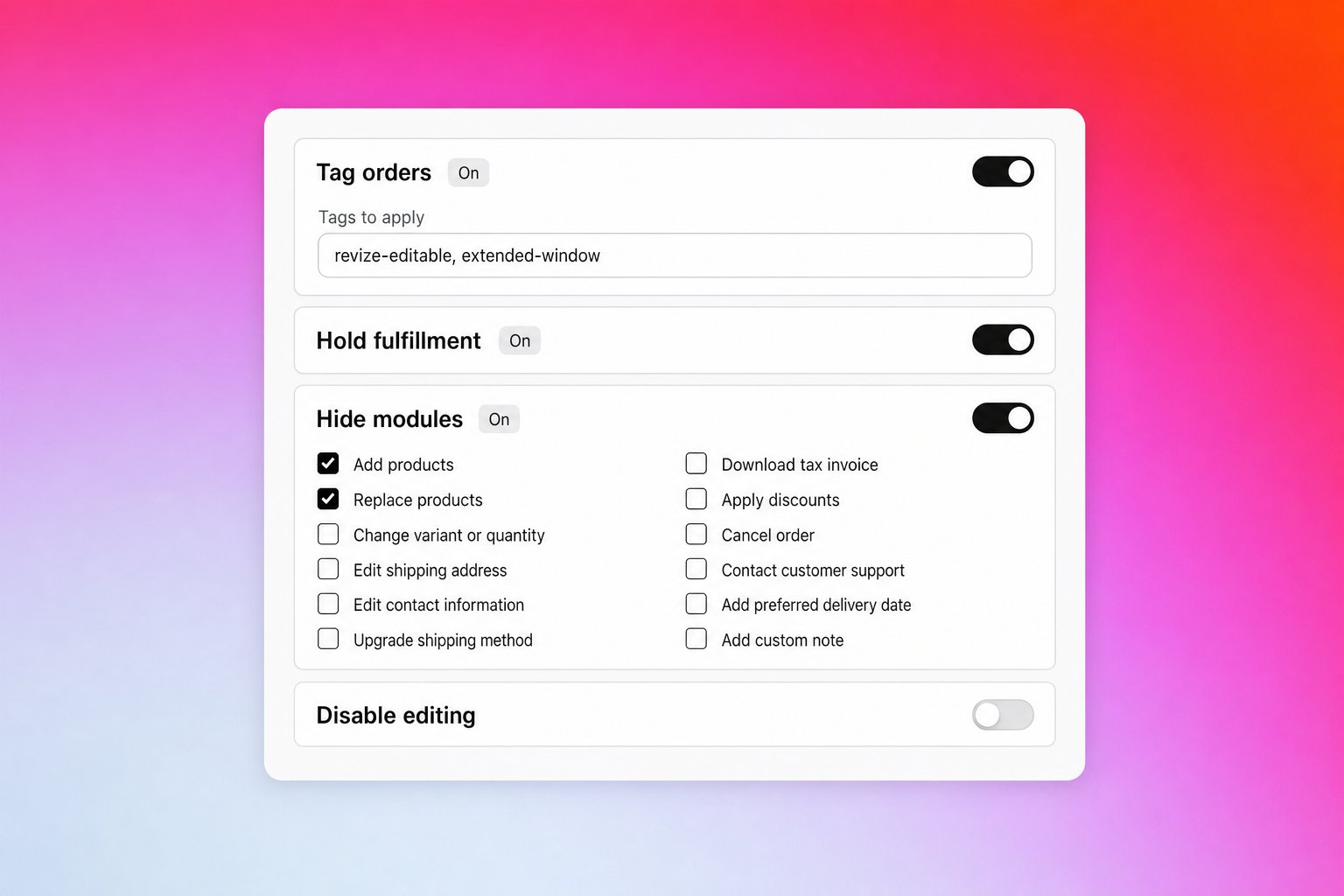 Apply one or more tags to the order once its editing deadline closes, not when the rule first matches. Useful for downstream automations, for example tagging orders as soon as editing closes so Shopify Flow or your 3PL can act on them.
Place a Shopify fulfillment hold while the order stays editable, so it does not ship mid-change. The hold is released when the editing deadline passes.
Hide specific edit actions from the customer portal for matched orders. Pick any of: Add products, Replace products, Change variant or quantity, Edit shipping address, Edit contact information, Upgrade shipping method, Download tax invoice, Apply discounts, Cancel order, Contact customer support, Add preferred delivery date, Add custom note.
Turn off editing entirely for matched orders. The portal editing section is not shown, regardless of the deadline.
A couple of natural constraints keep rules sensible: **Disable editing** and **Hold fulfillment** cannot both be on (a disabled order has nothing to hold for), and the **Until fulfilled** deadline turns off Hold fulfillment and Tag orders, since those act on a time-based cutoff.
## Priority and fallback
* **First match wins.** Rules run in priority order, top to bottom. The first rule whose conditions match an order is applied, and the rest are skipped.
* **Drag to reorder.** Reorder rules on the list page to change their priority. Put your most specific rules above your broadest ones.
* **Fallback to the store default.** Any order that matches no rule uses your [store-wide editing window](/setup/edit-window). You can add rules incrementally without touching your default.
## How rules are evaluated
* **Evaluated when the order is placed.** Revize snapshots the order (tags, customer, metafields, value, destination, and more) and picks the matching rule.
* **Flow-aware.** Shopify Flow often writes tags or metafields a moment after checkout. Revize waits up to a minute for that late-arriving data and re-evaluates, so those orders still match the right rule.
* **Two things stay dynamic after checkout:**
* **Metafield-date deadlines shift with the date.** If a rule reads its deadline from a metafield and that date changes (for example a pre-order ship date pushed back), the deadline moves with it.
* **Tag-based rules re-match when tags change.** If a rule matches on order tags or customer tags and those tags are added or removed later (by Shopify Flow, an app, or your team), Revize re-evaluates and can apply a different rule, updating the deadline.
* **Customer edits do not re-trigger it.** A customer editing their own order (address, items, quantity, value) never changes which rule applies or shifts the deadline. Only the rule inputs above (tags and rule-referenced metafields) drive re-evaluation.
## Example rules
Five setups merchants run today:
| Scenario | Condition | Editing deadline | Actions |
| ---------------------------------- | --------------------------- | ------------------------------ | --------------- |
| **Pre-order shop** | Order tag `pre-order` | Until fulfilled | None |
| **VIP differentiation** | Customer tag `vip` | After a duration, 48 hours | None |
| **B2B end-of-business cutoff** | B2B orders | Scheduled cutoff, weekdays 5pm | None |
| **High-risk destination lockdown** | Destination is `ru` or `by` | Store default | Disable editing |
| **Fast-shipping in-stock SKUs** | Order tag `in-stock` | After a duration, 30 minutes | None |
## Create a rule
In the Revize app, go to **Order Editing → Rules**. On the Pro plan and above you will see the rules list; the first time, it shows an empty state with **Create rule**.
Give the rule a clear name (for example "VIP Customers") and set its status to **Active** when you are ready for it to apply.
Click **Add condition** to choose what orders it matches. Add more conditions or an **Add condition group** for complex logic, and set AND/OR.
Pick a deadline mode. For **After a duration**, choose a preset or set a custom value. For scheduled, specific-time, or metafield-date modes, set the cutoff and an optional buffer.
Optionally turn on Tag orders, Hold fulfillment, Hide modules, or Disable editing.
Save the rule. Back on the list, drag rules into priority order so the most specific ones sit above the broadest ones.
Order your rules from most specific to most general. A narrow rule like "high-risk destination lockdown" should sit above a broad rule like "all orders editable for 24 hours", so the specific policy wins.
***
## Frequently asked questions
The rules engine is available on the **Pro plan and above**. On other plans, every order uses your store-wide editing window.
They fall back to your [store-wide editing window](/setup/edit-window). Rules only override the default for the orders they match, so adoption is incremental with zero migration.
The first match wins. Rules are evaluated in priority order (top to bottom), and only the first rule whose conditions match is applied. Drag rules to reorder their priority.
No. A customer editing their own order (address, items, quantity, value) does not change which rule applies or shift the deadline. Revize does re-evaluate when the inputs a rule depends on change: order tags, customer tags, or a metafield the rule reads. So a metafield-date deadline moves if the date changes, and a tag-based rule re-matches if the order's tags change.
No. Rules apply to new orders placed after the rule is active. Existing orders keep the deadline they already had.
Not directly. There is no product or SKU condition. Match on order tags instead (for example tag in-stock SKUs at checkout with Shopify Flow, then match the `in-stock` order tag).
Yes. Revize waits up to a minute after checkout for Shopify Flow to write tags or metafields, then evaluates, so rules that depend on that data still match.
The rules engine turns a single store-wide window into a full policy engine: match orders on the conditions that matter to you, set the right editing deadline for each, and layer on holds, hidden modules, and tags. You decide exactly how every order behaves.
## Related Revize features
* [Order Editing Window](/setup/edit-window): the store-wide default that rules override, and the fallback for unmatched orders
* [Order Edit Restrictions](/setup/order-edit-restrictions): further limits on what customers can edit
* [Customer Portal](/features/customer-portal): where customers make the edits your rules govern
Apply one or more tags to the order once its editing deadline closes, not when the rule first matches. Useful for downstream automations, for example tagging orders as soon as editing closes so Shopify Flow or your 3PL can act on them.
Place a Shopify fulfillment hold while the order stays editable, so it does not ship mid-change. The hold is released when the editing deadline passes.
Hide specific edit actions from the customer portal for matched orders. Pick any of: Add products, Replace products, Change variant or quantity, Edit shipping address, Edit contact information, Upgrade shipping method, Download tax invoice, Apply discounts, Cancel order, Contact customer support, Add preferred delivery date, Add custom note.
Turn off editing entirely for matched orders. The portal editing section is not shown, regardless of the deadline.
A couple of natural constraints keep rules sensible: **Disable editing** and **Hold fulfillment** cannot both be on (a disabled order has nothing to hold for), and the **Until fulfilled** deadline turns off Hold fulfillment and Tag orders, since those act on a time-based cutoff.
## Priority and fallback
* **First match wins.** Rules run in priority order, top to bottom. The first rule whose conditions match an order is applied, and the rest are skipped.
* **Drag to reorder.** Reorder rules on the list page to change their priority. Put your most specific rules above your broadest ones.
* **Fallback to the store default.** Any order that matches no rule uses your [store-wide editing window](/setup/edit-window). You can add rules incrementally without touching your default.
## How rules are evaluated
* **Evaluated when the order is placed.** Revize snapshots the order (tags, customer, metafields, value, destination, and more) and picks the matching rule.
* **Flow-aware.** Shopify Flow often writes tags or metafields a moment after checkout. Revize waits up to a minute for that late-arriving data and re-evaluates, so those orders still match the right rule.
* **Two things stay dynamic after checkout:**
* **Metafield-date deadlines shift with the date.** If a rule reads its deadline from a metafield and that date changes (for example a pre-order ship date pushed back), the deadline moves with it.
* **Tag-based rules re-match when tags change.** If a rule matches on order tags or customer tags and those tags are added or removed later (by Shopify Flow, an app, or your team), Revize re-evaluates and can apply a different rule, updating the deadline.
* **Customer edits do not re-trigger it.** A customer editing their own order (address, items, quantity, value) never changes which rule applies or shifts the deadline. Only the rule inputs above (tags and rule-referenced metafields) drive re-evaluation.
## Example rules
Five setups merchants run today:
| Scenario | Condition | Editing deadline | Actions |
| ---------------------------------- | --------------------------- | ------------------------------ | --------------- |
| **Pre-order shop** | Order tag `pre-order` | Until fulfilled | None |
| **VIP differentiation** | Customer tag `vip` | After a duration, 48 hours | None |
| **B2B end-of-business cutoff** | B2B orders | Scheduled cutoff, weekdays 5pm | None |
| **High-risk destination lockdown** | Destination is `ru` or `by` | Store default | Disable editing |
| **Fast-shipping in-stock SKUs** | Order tag `in-stock` | After a duration, 30 minutes | None |
## Create a rule
In the Revize app, go to **Order Editing → Rules**. On the Pro plan and above you will see the rules list; the first time, it shows an empty state with **Create rule**.
Give the rule a clear name (for example "VIP Customers") and set its status to **Active** when you are ready for it to apply.
Click **Add condition** to choose what orders it matches. Add more conditions or an **Add condition group** for complex logic, and set AND/OR.
Pick a deadline mode. For **After a duration**, choose a preset or set a custom value. For scheduled, specific-time, or metafield-date modes, set the cutoff and an optional buffer.
Optionally turn on Tag orders, Hold fulfillment, Hide modules, or Disable editing.
Save the rule. Back on the list, drag rules into priority order so the most specific ones sit above the broadest ones.
Order your rules from most specific to most general. A narrow rule like "high-risk destination lockdown" should sit above a broad rule like "all orders editable for 24 hours", so the specific policy wins.
***
## Frequently asked questions
The rules engine is available on the **Pro plan and above**. On other plans, every order uses your store-wide editing window.
They fall back to your [store-wide editing window](/setup/edit-window). Rules only override the default for the orders they match, so adoption is incremental with zero migration.
The first match wins. Rules are evaluated in priority order (top to bottom), and only the first rule whose conditions match is applied. Drag rules to reorder their priority.
No. A customer editing their own order (address, items, quantity, value) does not change which rule applies or shift the deadline. Revize does re-evaluate when the inputs a rule depends on change: order tags, customer tags, or a metafield the rule reads. So a metafield-date deadline moves if the date changes, and a tag-based rule re-matches if the order's tags change.
No. Rules apply to new orders placed after the rule is active. Existing orders keep the deadline they already had.
Not directly. There is no product or SKU condition. Match on order tags instead (for example tag in-stock SKUs at checkout with Shopify Flow, then match the `in-stock` order tag).
Yes. Revize waits up to a minute after checkout for Shopify Flow to write tags or metafields, then evaluates, so rules that depend on that data still match.
The rules engine turns a single store-wide window into a full policy engine: match orders on the conditions that matter to you, set the right editing deadline for each, and layer on holds, hidden modules, and tags. You decide exactly how every order behaves.
## Related Revize features
* [Order Editing Window](/setup/edit-window): the store-wide default that rules override, and the fallback for unmatched orders
* [Order Edit Restrictions](/setup/order-edit-restrictions): further limits on what customers can edit
* [Customer Portal](/features/customer-portal): where customers make the edits your rules govern