> ## Documentation Index
> Fetch the complete documentation index at: https://docs.revize.app/llms.txt
> Use this file to discover all available pages before exploring further.
# Payments and Refunds
> Choose how Revize handles price changes during order edits. Let customers pay the difference, issue refunds to the original payment method, or refund as store credit to boost loyalty.
## Set it in the app
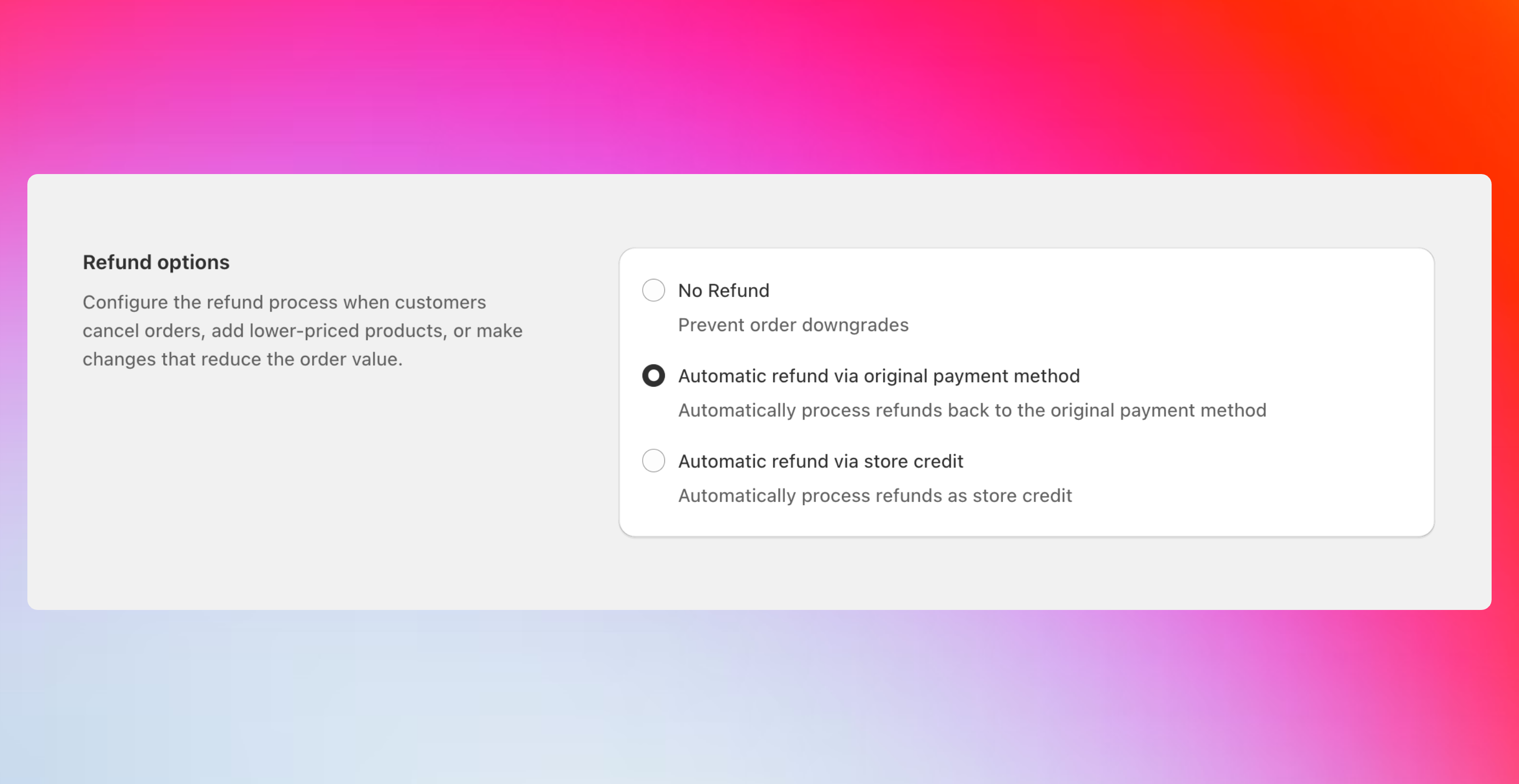
In the Revize app, click Order Editing in the sidebar.
Scroll to Refund options.
Select No refund, Refund to original payment, or Refund as store credit, then click Save.
 ## How price changes work
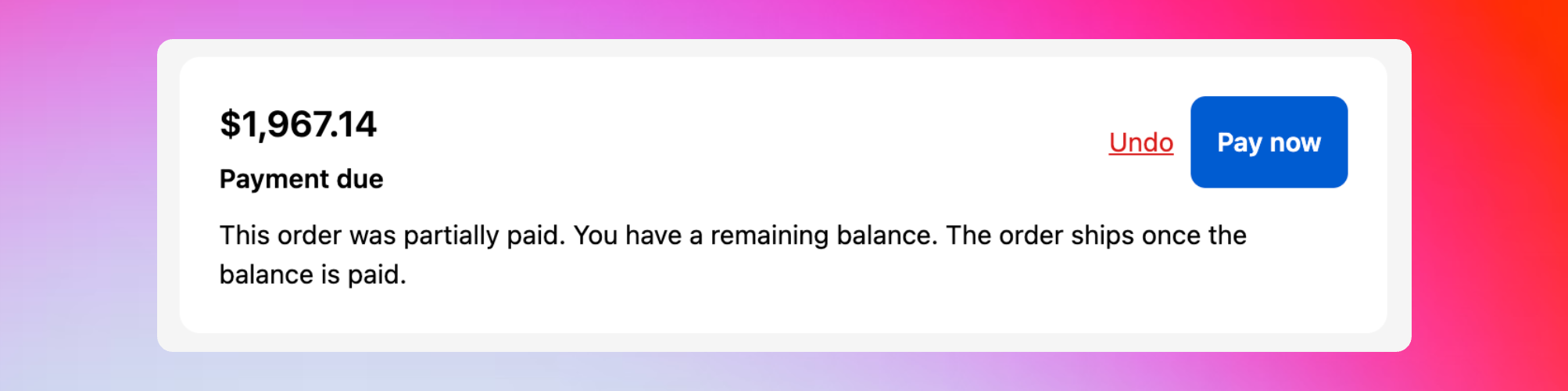
**Price increases:** Revize shows a Pay now button and securely collects the difference through Shopify.\
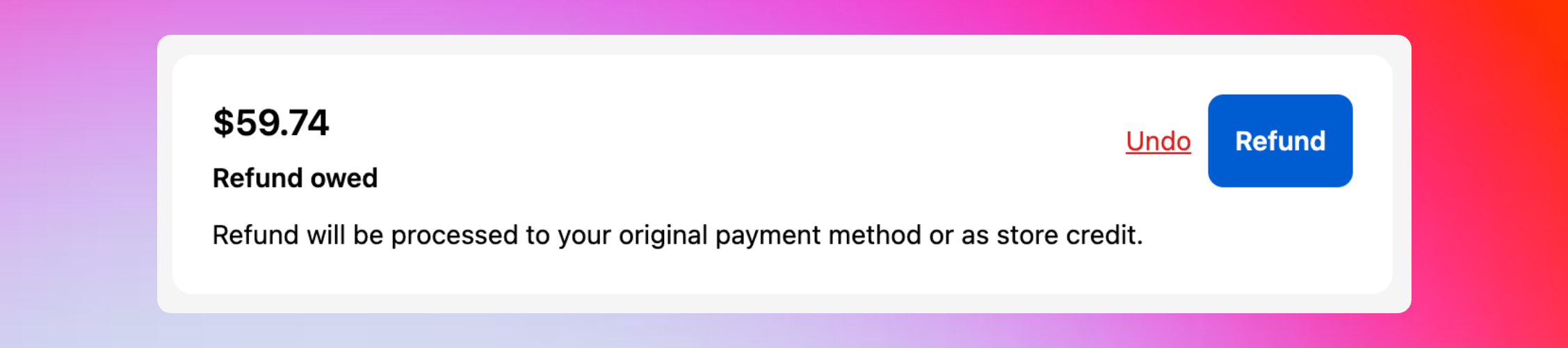
**Price decreases:** Revize follows the refund option you choose below.
### Customer payment widgets
When order totals change, customers see clear widgets explaining the price difference and next steps.
## How price changes work
**Price increases:** Revize shows a Pay now button and securely collects the difference through Shopify.\
**Price decreases:** Revize follows the refund option you choose below.
### Customer payment widgets
When order totals change, customers see clear widgets explaining the price difference and next steps.
 ## Refund options
How it works\
Keeps the final total at or above the original order amount. Even swaps are allowed; reducing value is blocked unless the shopper adds items or value to meet the original total.
Choose this when
* You want predictable revenue without partial refunds
* You want to offer broad editing flexibility without lowering totals
* You prefer fewer refund events in accounting
Customer experience\
If a change would lower the total, Revize blocks the edit and shows a message. The order total must stay at or above the original order amount.
How it works\
When edits reduce the total, Revize automatically refunds the difference to the card or wallet used at checkout.
Choose this when
* You want a simple and familiar experience for shoppers
* You follow strict refund policies
Customer experience\
The Refund button shows the amount. After they confirm, the order updates and a partial refund is issued via Shopify.
How it works\
Converts the difference into store credit rather than cash.
Choose this when
* You want to retain revenue and encourage repeat purchases
* You focus on lifetime value and loyalty
Customer experience\
The Refund button indicates credit will be issued. The order updates right away and the credit is available for next time.
## Recommended settings
Start with: Refund to original payment.\
It's simple for customers and easy to support. You can switch to store credit later.
Consider: Refund as store credit.\
Keeps revenue in your ecosystem and often lifts future order value.
You can change your refund policy anytime. The new setting applies to future edits. Orders already in progress keep the method that was active when they started editing.
## Related setup
* [Edit window](/setup/edit-window) — control how long customers can edit
* [Order processing](/setup/order-processing) — hold during editing or flow with release tags
Want to see Pay now, Refund, and Confirm in action? Follow the steps in How to Test Revize.
## Refund options
How it works\
Keeps the final total at or above the original order amount. Even swaps are allowed; reducing value is blocked unless the shopper adds items or value to meet the original total.
Choose this when
* You want predictable revenue without partial refunds
* You want to offer broad editing flexibility without lowering totals
* You prefer fewer refund events in accounting
Customer experience\
If a change would lower the total, Revize blocks the edit and shows a message. The order total must stay at or above the original order amount.
How it works\
When edits reduce the total, Revize automatically refunds the difference to the card or wallet used at checkout.
Choose this when
* You want a simple and familiar experience for shoppers
* You follow strict refund policies
Customer experience\
The Refund button shows the amount. After they confirm, the order updates and a partial refund is issued via Shopify.
How it works\
Converts the difference into store credit rather than cash.
Choose this when
* You want to retain revenue and encourage repeat purchases
* You focus on lifetime value and loyalty
Customer experience\
The Refund button indicates credit will be issued. The order updates right away and the credit is available for next time.
## Recommended settings
Start with: Refund to original payment.\
It's simple for customers and easy to support. You can switch to store credit later.
Consider: Refund as store credit.\
Keeps revenue in your ecosystem and often lifts future order value.
You can change your refund policy anytime. The new setting applies to future edits. Orders already in progress keep the method that was active when they started editing.
## Related setup
* [Edit window](/setup/edit-window) — control how long customers can edit
* [Order processing](/setup/order-processing) — hold during editing or flow with release tags
Want to see Pay now, Refund, and Confirm in action? Follow the steps in How to Test Revize.