

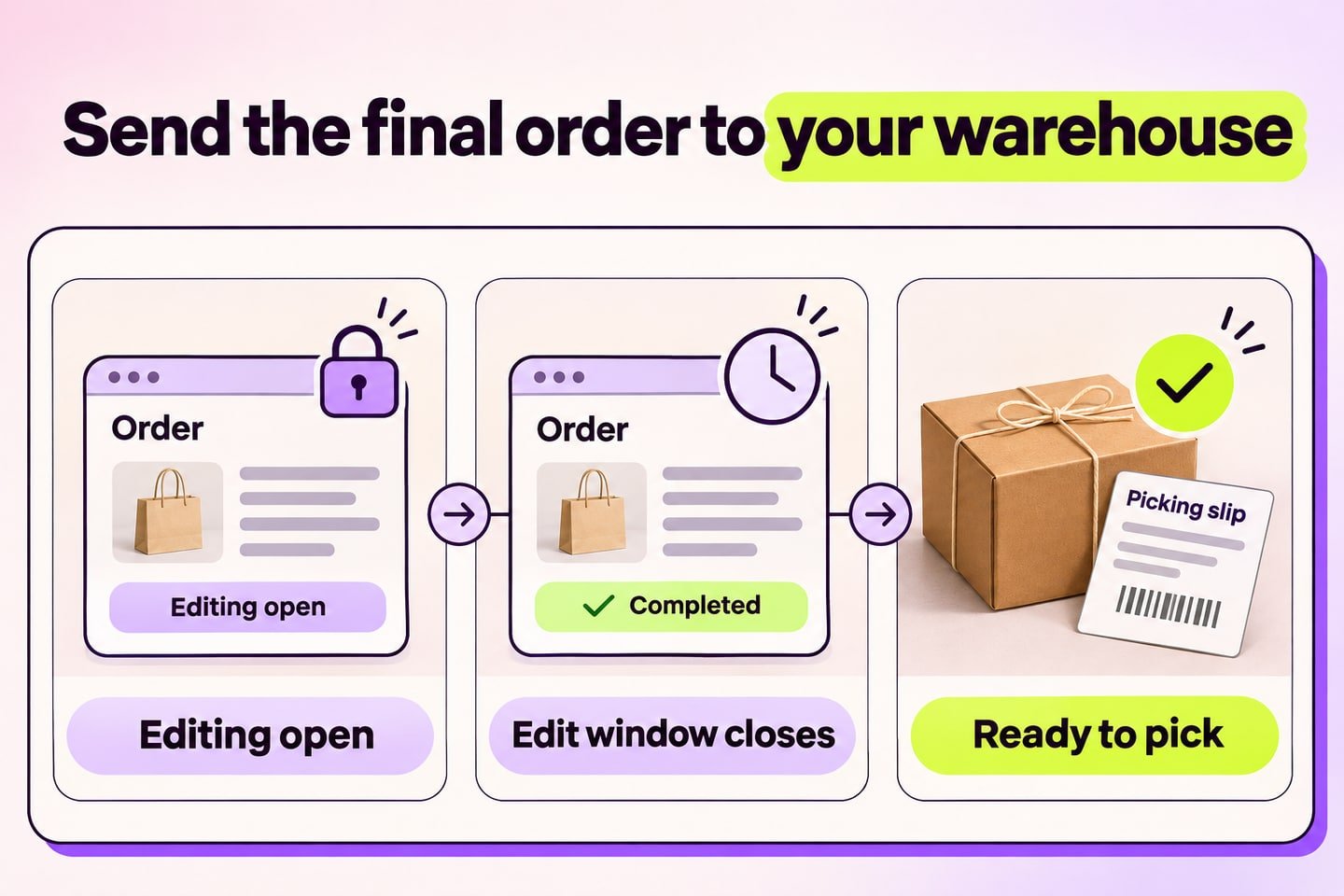
Revize updates the existing Shopify order. Give customers time to finish editing by starting warehouse work only after a Shopify order tag appears, payment is captured, or a Shopify fulfillment hold clears.
Choose how your warehouse waits
Shopify order tags
- If the connector requires a release tag, set a timed editing deadline. In Revize, go to Order Editing → Editing policy → Fulfillment while editing and turn on Add release tag. Use
revize:order_releasedor the exact tag your connector checks. In the provider, set the import or picking condition to include only orders with that tag. - If the connector excludes a blocking tag, configure a tag such as
waiting-for-order-editsin its order exclusions. In Shopify Flow, add that tag with Order created and remove it with Revize’s Edit window closed trigger when your release conditions are met. Test that the first import never happens before the blocking tag is written. Check any separate payment or fraud hold before the tag is removed. - Shopify Flow runs after the order is created. A real-time connector can import before Flow adds a blocking tag. Where available, require a release tag at first import. Check how late tags are picked up and whether you must load excluded orders manually.
Delayed payment capture
- In Shopify, go to Settings → Payments → Payment capture method and select Manually. Check that the payment method supports a reusable authorization and that the edit window ends before the authorization expires.
- In Revize, under Order Editing → Editing policy → Fulfillment while editing, set a timed edit deadline and turn on Capture payment when editing closes. Review your capture exclusions and any other Shopify Flow that could capture earlier. See Delayed payment capture.
- Set the provider’s import status to Paid for a paid-only feed. Test that Authorized, Pending, and Partially paid stay out. If it imports for inventory reservation, require a provider-side payment hold or paid-only picking queue and verify that the provider reads the latest items and address before release. Compare Mintsoft’s paid import and ShipStation’s Awaiting Payment queue.
Shopify fulfillment holds
- In Revize, go to Order Editing → Editing policy, choose a timed edit deadline, then select Hold orders under Fulfillment while editing and save.
- In Shopify, open a test order and find the fulfillment group assigned to your warehouse. Confirm it shows On hold. Check the warehouse independently. Some connectors download held orders, some skip them, and some release their own hold on a timer. Check the behavior for your provider.
- Edit the order while the hold is active. When Revize releases the hold, check the connector’s next import. If it uses requests, use the Shopify fulfillment group’s Request fulfillment after release when your existing automation has not already sent it. For automation, Shopify Flow offers Fulfillment order holds released and Submit fulfillment request for eligible third-party fulfillment service apps. Filter on the partner location and check for an existing request and any other eligibility requirements. See Shopify Flow’s hold release trigger.
Provider setup guides
Find the system that reads your Shopify order first. If your warehouse uses middleware, its settings can determine when the order leaves Shopify.If your provider uses a different connector
Ask which event creates the warehouse order, when changes to an imported order are read, and what makes the order pickable. If an early import cannot receive item removals, quantity changes or address edits, arrange for the first import to happen after editing closes.Test the handoff
- Place an order at the location your provider fulfills. Record when it appears in Shopify and in the provider’s system.
- Change a SKU or quantity and the shipping address while the editing window is open. Check that the warehouse cannot pick during editing.
- Wait for the tag, payment, or hold release. Verify that the warehouse receives or rereads the corrected order before picking.
- Repeat with an authorized or partially paid order, with a different fulfillment location if you use one, and with another active hold if your store uses fraud review.
Frequently asked questions
Can my warehouse import before customers finish editing?
Can my warehouse import before customers finish editing?
Yes. If importing reserves stock, use a verified payment hold or picking rule and check that the connector refreshes the order before it becomes pickable.
Can I combine a release tag and payment capture?
Can I combine a release tag and payment capture?
Yes, if your connector checks both. Test that an order waits until Shopify shows it paid and the correct tag has arrived.