

Customers can use Revize to edit an eligible Shopify order after PreProduct creates it. Start with shipping address edits and test the payment and fulfillment setup you sell with. A capture-only reservation stays in PreProduct until the shopper completes checkout.
When can customers edit a PreProduct preorder?
PreProduct listing types · PreProduct fulfillment holds.
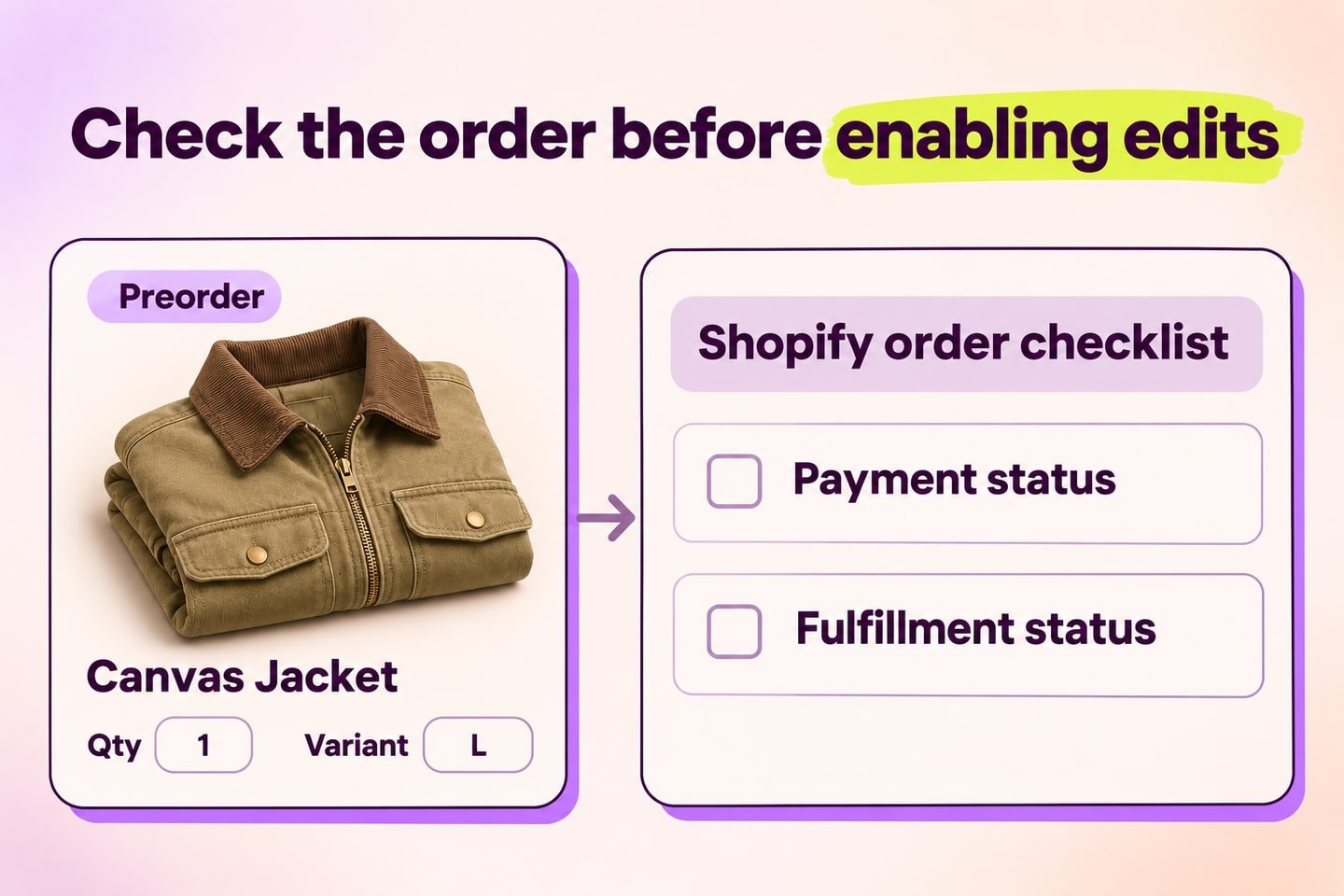
Set up and test customer edits
- Place a test preorder using the same listing type as your customers. In Shopify, note the order number, payment status, fulfillment hold, and the
pre-ordertag if present. PreProduct adds that order tag after order creation. PreProduct tags and line-item properties. - In Revize, enable Edit shipping address. If preorders need a separate deadline, use a Revize Pro editing rule and verify the rule on the order after the matching tag or product is present.
- Open the customer’s Order status page, change the address, and confirm the change in Shopify. For charge-later or deposit orders, check that payment timing, the amount due, and the preorder hold still match your plan. Choose a deadline before your warehouse starts packing.
- Test product edits separately before making them available. If Shopify or the order configuration prevents a change, use PreProduct’s edit or cancellation workflow or send the test order to Revize Support.
Frequently asked questions
Can Revize edit a capture-only preorder before checkout?
Can Revize edit a capture-only preorder before checkout?
The customer can use Revize after completing checkout and receiving an eligible Shopify order. Manage the reservation in PreProduct before that point.
Who collects the remaining preorder balance?
Who collects the remaining preorder balance?
Keep using PreProduct’s deferred payment workflow to collect the scheduled preorder payment. Check the outstanding amount in Shopify after an edit.