

Set it in the app
1
Open Order Editing
In the Revize app, click Order Editing in the sidebar.
2
Choose a window
In Order edit window, pick an option and click Save.
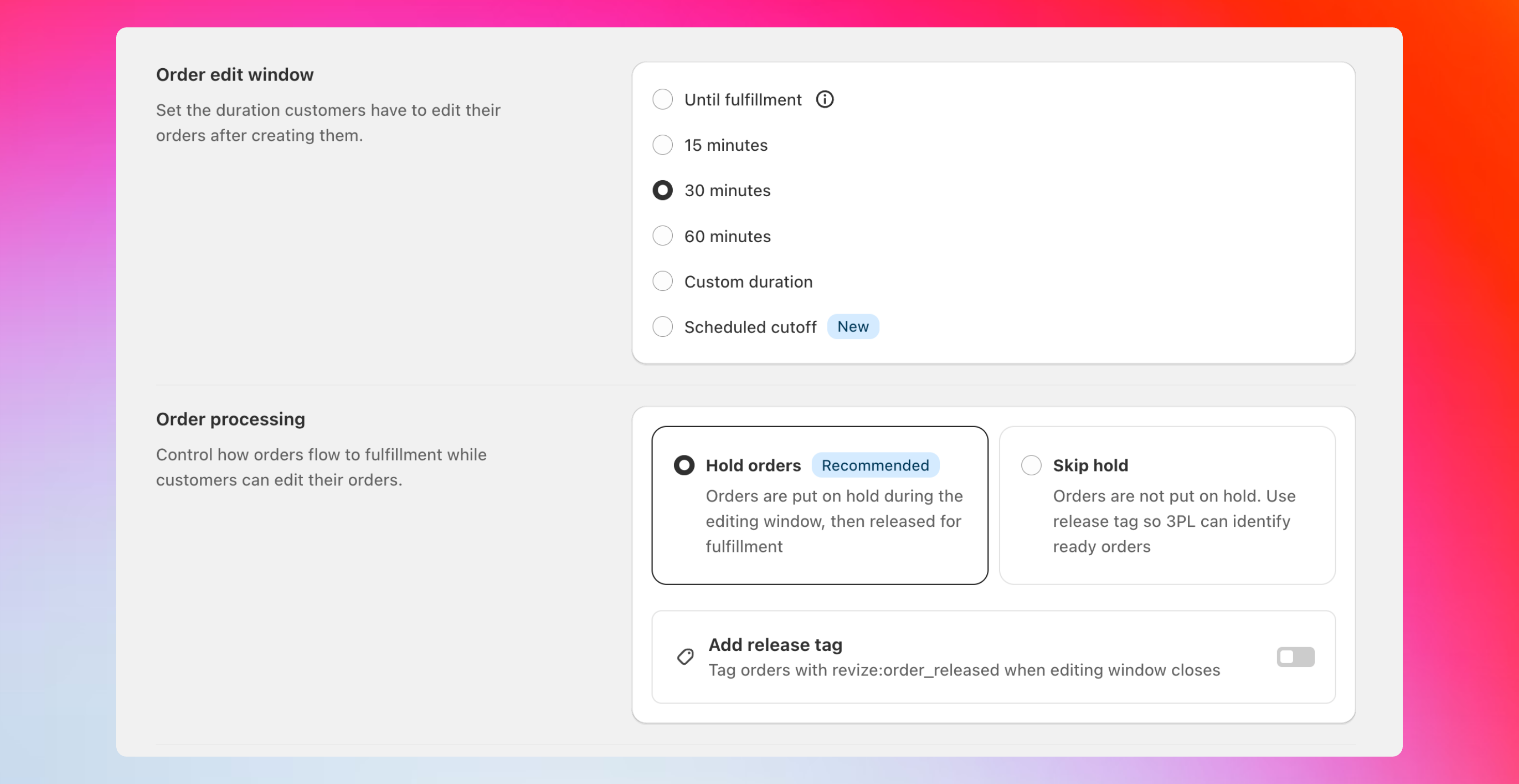
Options at a glance
Fixed time windows
A short grace period that starts at checkout. Common picks: 15, 30, or 60 minutes.
Custom duration
Set any length you want, such as 2 hours, 24 hours, or 48 hours.
Until fulfillment
Editing stays open until the order is marked Fulfilled in Shopify.
Scheduled cutoff
End editing at specific daily/weekly times that match your pick runs.
Details and examples
Fixed time windows
Fixed time windows
How it worksA countdown starts when the order is created. When it hits zero, editing closes automatically.Pick it when
- You ship same-day or next-day
- You want a quick buffer to catch typos and size mistakes
- 15–30 minutes for very fast operations
- 60–120 minutes for light batching
Custom duration
Custom duration
How it worksYou choose any window length (e.g., 2h, 24h, 48h). Editing closes once the timer ends.Pick it when
- Your team starts pick/pack in defined waves later in the day
- You want extra time for customers on preorders or made-to-order items
- Start conservative (e.g., 2–4 hours) and extend if support volume stays low
Until fulfillment
Until fulfillment
How it worksEditing remains open until the order status is set to Fulfilled in Shopify. Revize does not place the order on hold with this option.Pick it when
- You want orders to flow normally through your systems
- Your fulfillment process is fast and you can handle changes during picking
- You prefer not to hold orders in a queue
Scheduled cutoff (daily or weekly)
Scheduled cutoff (daily or weekly)
How it worksSet specific cutoff times — one or more per day, or a few days a week. Every order is editable until the next cutoff, then locks for fulfillment. Think bus timetable: every order boards the next bus, and editing closes when the bus leaves.Example: Tue & Thu cutoffs at 11 AM and 6 PM
Why teams use it: customers can fix mistakes while you’re not packing, and every pick run starts with a stable list.
Want a small buffer (e.g., lock 10–15 minutes before the cutoff so pick teams can stage carts)? Contact us and we’ll add it to your schedule.
Close editing when picking starts
Have your WMS or Shopify Flow add a tag (e.g.picked or wms:processing) when an order enters picking. Add the same tag under Order edit restrictions → Order tags in Revize, and the edit window closes the moment that tag lands — even if the timer hasn’t run out.
Pairs with any of the four windows above as a backstop when fulfillment actually starts. See Order edit restrictions for the full setup.
Which option should I choose?
- Ship quickly: 15–60 minutes or a short custom window
- Batch pick at set times: scheduled cutoffs that mirror your pick runs
- Let your WMS decide: until fulfillment, with an optional early lock via tag (we can configure this for you)
Related setup
- Payments and refunds — choose how extra charges and partial refunds are handled
- Fulfillment sync — control when orders release to your 3PL/ERP
- Customer edit options — decide what shoppers can change