

Customers often remember a detail after checkout: an engraving, a gift message, a size, or a delivery instruction. The custom note lets them add it to their Shopify order during the edit window, saved with the order for your team.
Why a custom order note helps
Personalization and Engraving
Made-to-order and custom brands collect engraving text, material, or finish details per item, straight from the customer.
Gift Messages
Customers add recipient names, personal messages, or delivery instructions after checkout without emailing support.
Sizing and Fit
Apparel and accessory shops capture size, color, or fit preferences when customers swap products.
B2B and Wholesale
Buyers attach PO numbers, account references, or shipping instructions tied to the order.
How customers add a custom note
1
Open the order edit page
The customer opens their order in the Revize Customer Portal during the edit window.
2
Find the custom note section
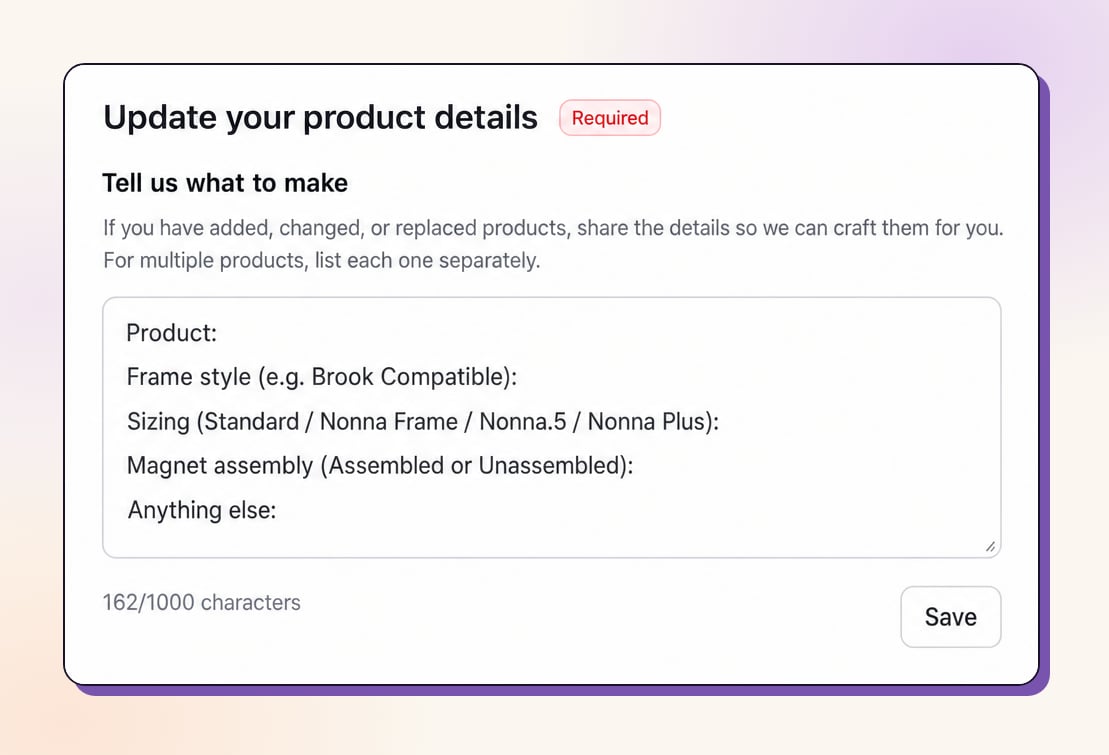
The note section shows a pre-filled template (if you set one) so customers see structure instead of a blank box.
3
Write the note
The customer types their details. A character counter shows how much space is left.
4
Save with the order
The customer clicks Save. The note is stored on the order, ready for your team to read.
How the custom note works
What customers can do:- Add or edit the note any time during the edit window
- Follow a pre-filled template you define
- Review the note before paying when prompted
- Saved as an order custom attribute
- Shows in the order’s Additional details in Shopify admin
- Parseable by Shopify Flow, Recharge, and your 3PL exports
The custom note is information for your team, not an automated action. It does not change pricing, products, or shipping on its own.
Configure the custom note
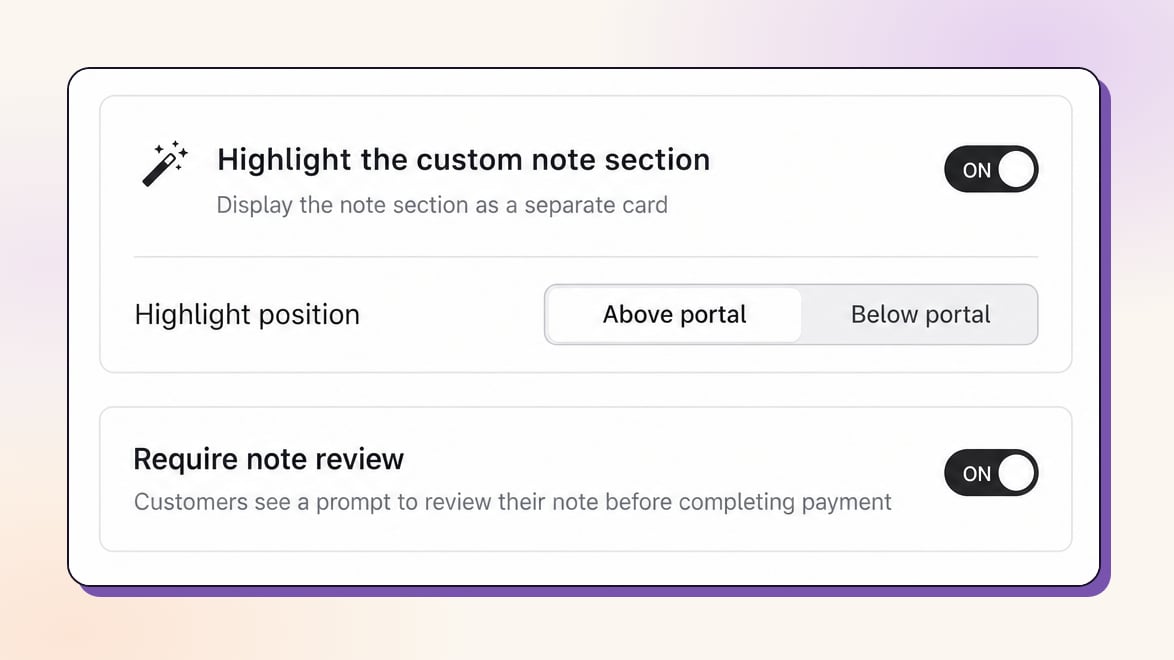
Highlight mode
Highlight mode
Display the note as its own card instead of an accordion item, so it stands out on the order edit page.Highlight position:
- Above portal: the note card sits above the order edit section
- Below portal: the note card sits below the order edit section
Require note review
Require note review
When customers change their order, the next Pay Now click shows a review modal. They can update the note or continue with what they have. No fields are forced.
Pre-filled template
Pre-filled template
Set a starting template so customers see a structure to fill in (for example: Product, Sizing, Gift message, Anything else). It appears in the note field and customers can edit it. Configured under Translations → Customer Portal → Add custom note.
Fully translatable
Fully translatable
All copy lives under Translations → Customer Portal → Add custom note, per language:
- Title (optional): the section heading
- Description (optional): shown above the text area
- Pre-filled template (optional): appears in the note field, editable by customers
Enable the custom note
1
Open Order Editing settings
In the Revize app, go to Order Editing.
2
Add the custom note
Click Add custom note, then Manage to configure highlight mode, review prompt, and the template.
3
Customize the copy
Open Translations → Customer Portal → Add custom note to set the Title, Description, and Pre-filled template for each language.
4
Feature goes live
The custom note appears in the Customer Portal for orders within the edit window.
Frequently asked questions
Where does the custom note appear in my Shopify orders?
Where does the custom note appear in my Shopify orders?
The note is saved as an order custom attribute and shows in the Additional details section of the order in Shopify admin, where your fulfillment team can read it.
Can customers edit the note after saving?
Can customers edit the note after saving?
Yes. Customers can update the note any time during the edit window by changing the text and clicking Save.
Is the custom note required to complete an order?
Is the custom note required to complete an order?
No. The note is optional. Even with Require note review enabled, customers can continue without changing anything. No fields are forced.
Can I use the custom note in automations?
Can I use the custom note in automations?
Yes. Because it is stored as an order custom attribute, the note is available to Shopify Flow, Recharge, and 3PL exports for downstream automation.
Can I translate the custom note for different countries?
Can I translate the custom note for different countries?
Yes. The Title, Description, and Pre-filled template are all editable per language under Translations → Customer Portal → Add custom note.
The custom note captures the details customers would otherwise email about, saved right on the order. Enable it to reduce support tickets and give your team clear instructions for every order.
Related Revize features
- Customer Portal: where customers add the custom note
- Add Preferred Delivery Date: collect timing preferences alongside notes
- Edit Window Settings: control when customers can add a note