

These advanced settings fine-tune your order editing experience. You can set most of them yourself under Settings in the Revize app.
Custom sender email
Send customer emails from your own email address instead of Revize’s default sender. You can set this up yourself under Settings → Notifications → Sender identity:- Sender email: verify a single email address. Available on every plan.
- Domain authentication: add DNS records to authenticate your whole domain, so emails come directly from your business with no “via” label. Available on the Pro plan.
Set up your sender identity
Step-by-step setup, the DNS records to add, and which emails use your sender.
Third-party checkout support
Orders from external sales channels are now fully editable through Revize.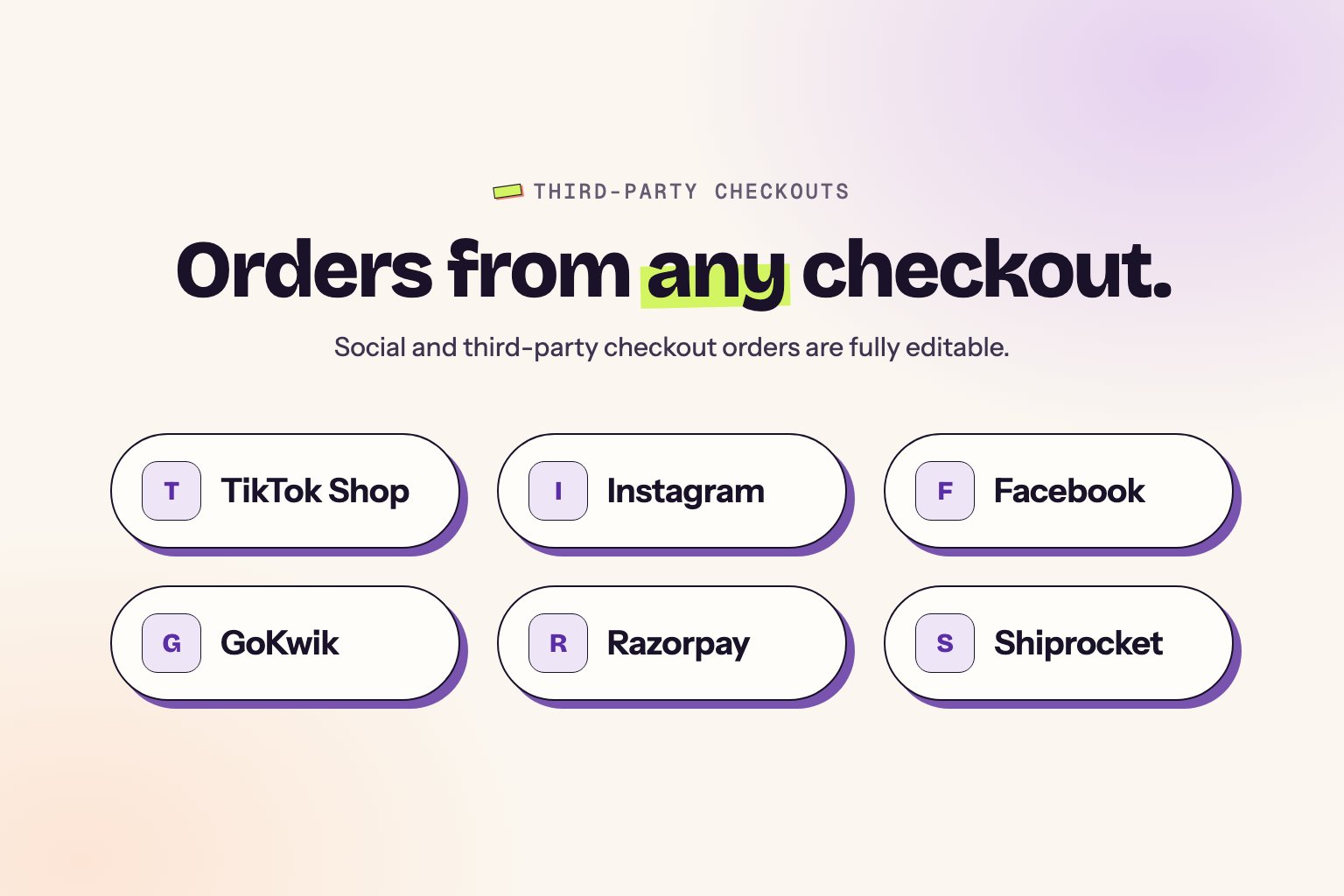
Supported channels
TikTok Shop
Full order editing support
Facebook & Instagram
Social commerce orders
GoKwik & Shopflo
Indian checkout solutions
- Razorpay Magic Checkout
- Shiprocket
- Pinterest Shopping
- Snapchat Shopping
- Other Shopify sales channels
What customers can do
- Update shipping address
- Change email or phone number
- Add preferred delivery date
- Cancel eligible orders
- Contact support from the edit portal
This feature is live automatically. No setup required for supported channels.
Minimum order quantity
Set the minimum total number of items that must remain in an order during editing.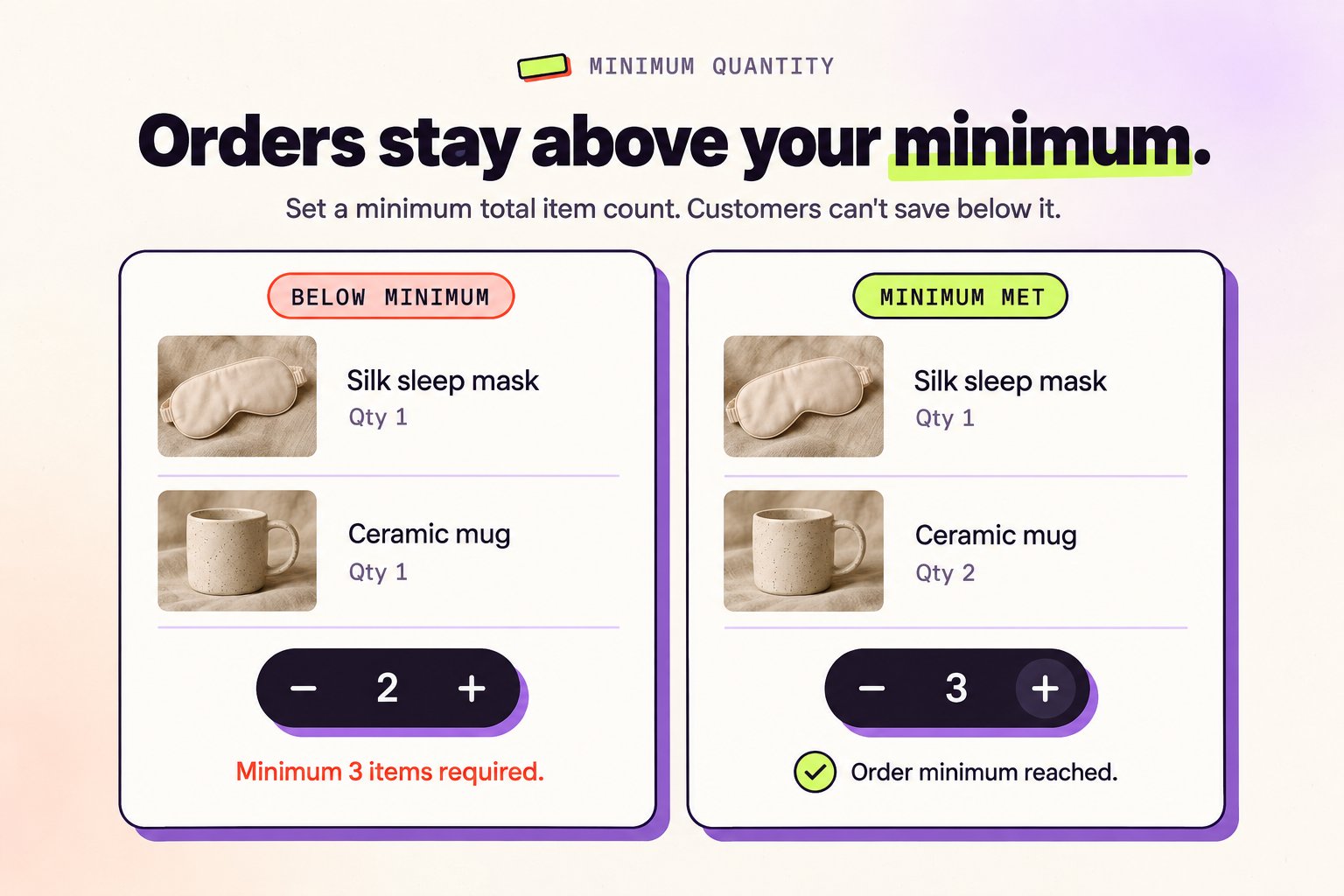
How it works
This setting enforces a minimum total item count across the entire order. Customers cannot reduce the order below your specified minimum, ensuring orders always meet your business requirements. Example: If minimum order quantity is set to 3, a customer with an order containing 5 total items can reduce to 3 items but not to 2. This applies to the total count across all products in the order.Use cases
- Frozen goods stores — Require minimum 3 items to justify shipping costs
- Wholesale orders — Enforce minimum order size for bulk purchases
- MOQ enforcement — Keep consistent with your store’s minimum order policies
Default setting
Minimum order quantity is set to 1 by default, meaning customers can reduce the total order down to 1 item but cannot empty the order entirely (unless cancellation is enabled).Set your minimum
1
Open Settings
In the Revize app, go to Settings → Order editing → Minimum order quantity.
2
Enter the minimum
Enter the minimum total number of items an order must keep. The value must be 1 or more.
3
Save
Click Save. Customers see a message when an edit would take the order below your minimum.
The minimum also applies to partial cancellations. Customers can’t cancel items if the order would be left with fewer items than your minimum. Cancelling the whole order is still allowed when cancellation is enabled.
Digital product controls
Control whether customers can edit digital products in their orders.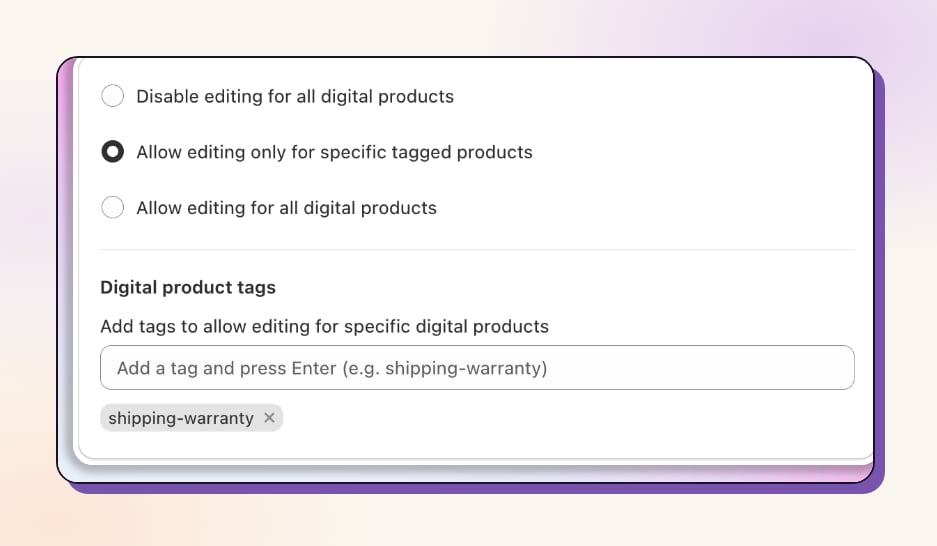
Choose your approach
Disable for All
No digital products can be editedBest for: Courses, gift cards, licenses, one-time downloads
Allow for All
Digital products are fully editableBest for: Flexible digital catalogs
Allow by Tags
Only tagged products are editableBest for: Mixed product types
How to configure
1
Go to Settings
In the Revize app, go to Settings and open the Order editing tab.
2
Find Digital Products section
Scroll to the Digital products section.
3
Choose your preference
Select Disable editing for all digital products, Allow editing only for specific tagged products, or Allow editing for all digital products.
4
Add tags (if applicable)
If you allow editing only for tagged products, add the tags under Digital product tags, then click Save.
Advanced tab
The Settings → Advanced tab in the Revize app holds two more controls:- EU withdrawal: click Manage to set up EU withdrawal requests on the order status page. See EU withdrawal.
- Feature visibility rules: show or hide individual editing features, like Cancel order or Shipping address, based on order and customer tags. Availability depends on your plan. See Feature visibility rules.
Coming soon
We’re constantly working on new features to make order editing even more powerful.Invoice template & customization
Brand new invoice templates with full customization options are coming soon. Design invoices that match your brand perfectly with:- Custom branding — Add your logo, colors, and brand elements
- Multi-language support — Generate invoices in all major languages automatically
- Template library — Choose from professional pre-designed templates
- Field customization — Show or hide specific fields based on your needs
Want early access or have specific invoice requirements? Let us know and we’ll keep you updated.
Request advanced features
You can set most of these settings yourself in the Revize app. For anything you can’t find there, our team will help you set it up and we keep adding more capabilities.Contact Support
Email us at hello@revize.app with your requirements
Book a Call
Schedule a walkthrough to configure advanced features
Related pages
- Edit Window Settings: control when editing is available
- Order Edit Restrictions: restrict editing by tags
- Notifications: email addresses, email preferences, and sender identity
- Payments & Refunds: configure payment handling
- Preferred Delivery Date: basic delivery date setup