

Where the form appears
The EU withdrawal form ships on two surfaces, and you can enable each one independently. Wording, eligibility, automation, and audit records are shared between them, so both surfaces stay in sync.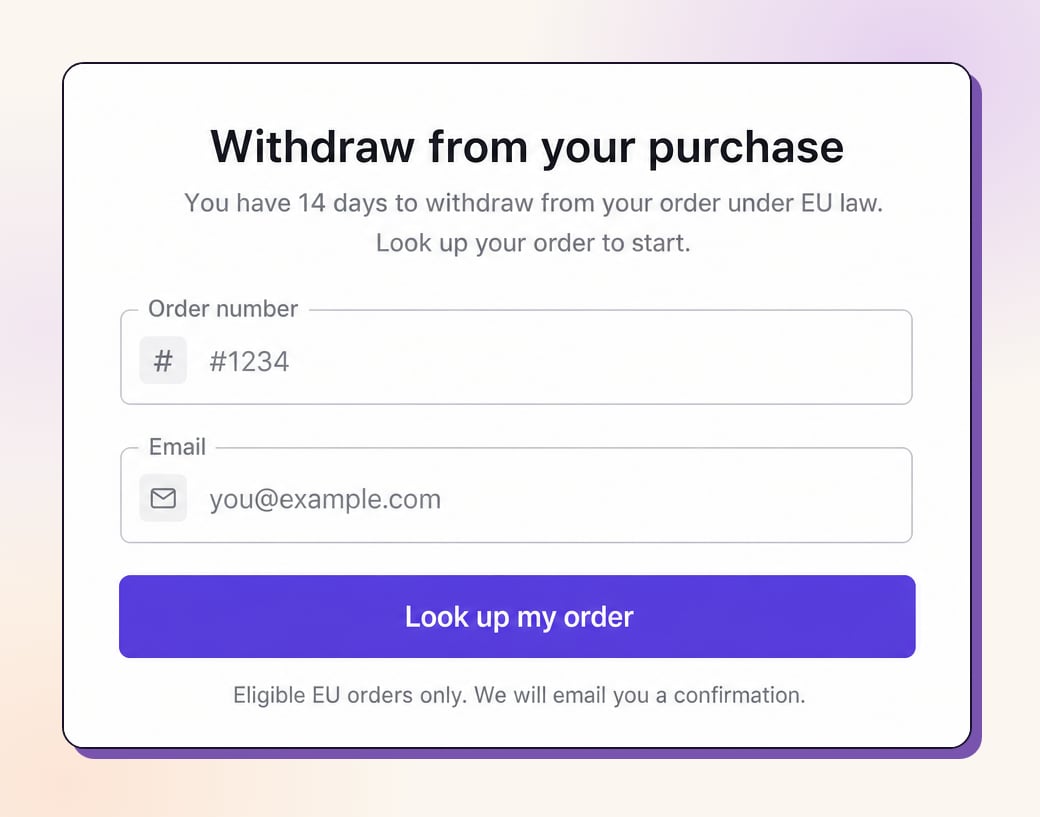
Why a built-in EU withdrawal flow helps
Meet the June 19, 2026 deadline
Less manual support work
Safer fulfillment
Audit-ready
How shoppers submit a withdrawal request
Start the request
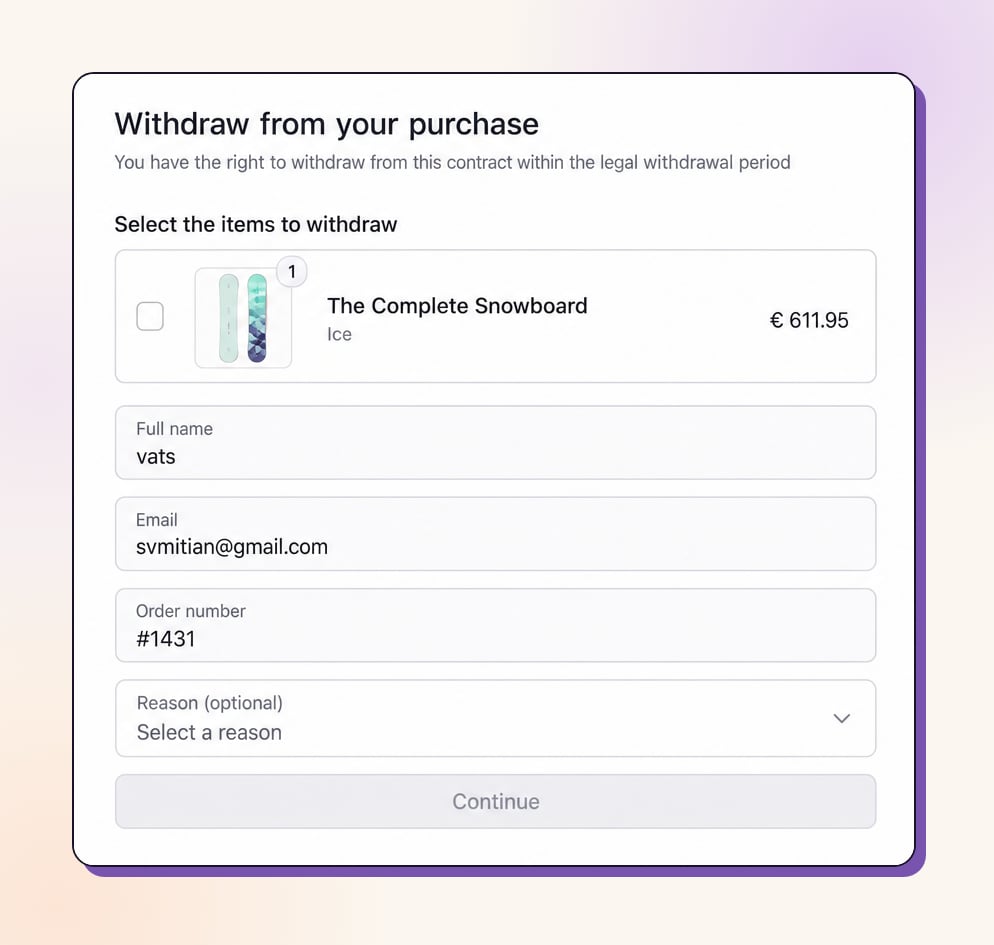
Select items and a reason
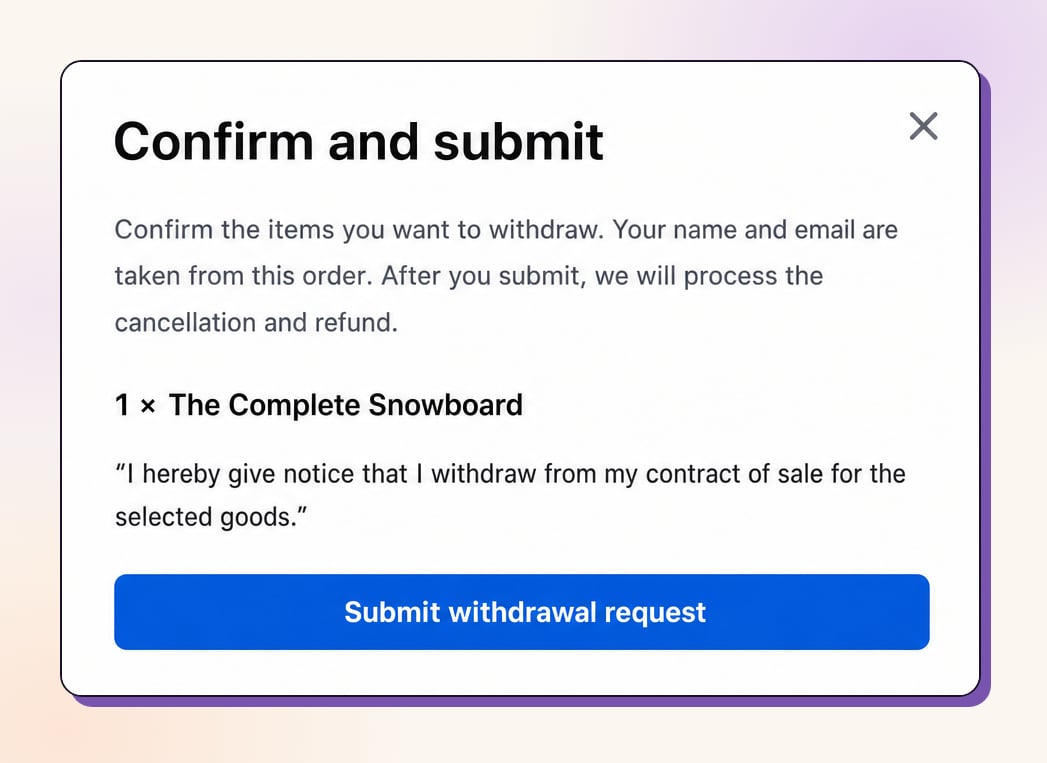
Confirm and submit
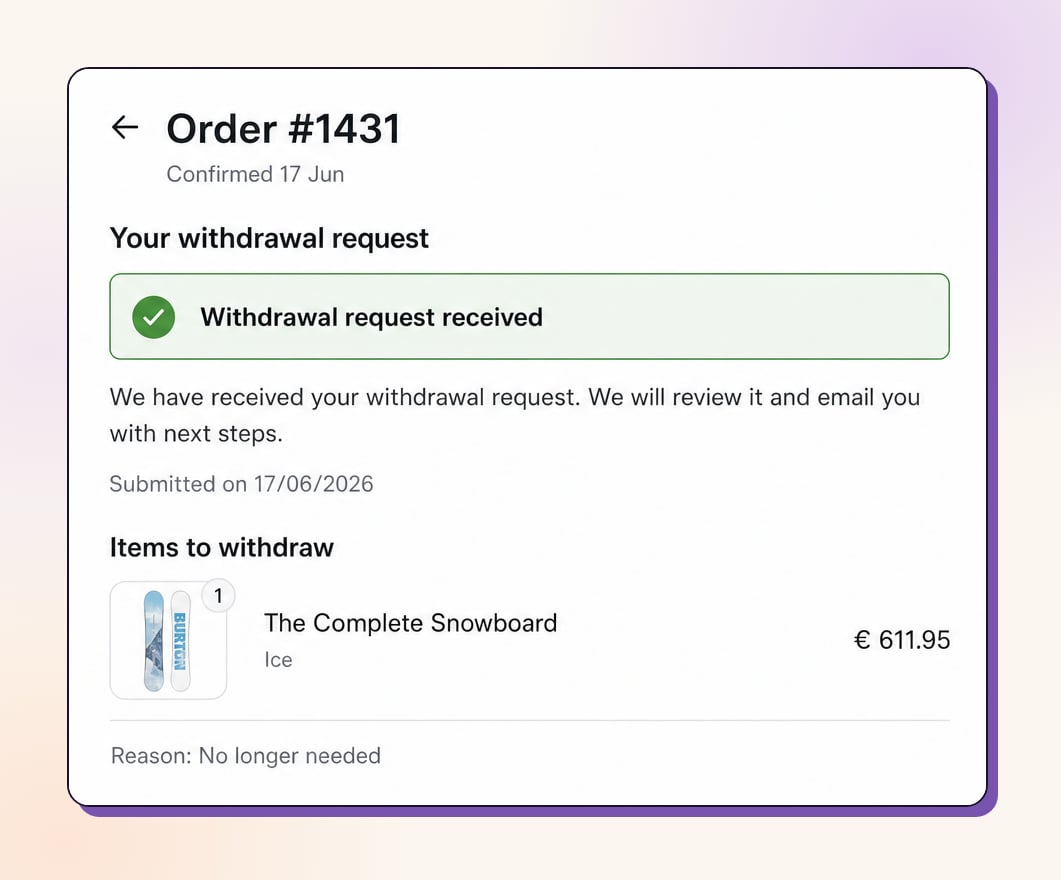
Submitted state
How the withdrawal request works
What customers can do:- Submit a withdrawal request from the order status page in their language
- Choose specific items, not just the whole order
- Submit before fulfillment or after delivery, with the flow adjusted for each case
- The order is tagged
revize:withdrawal_requested - The request is saved as a Shopify metaobject on your store with the full request details
- The request is tracked separately from regular cancellations in analytics
Pre-fulfillment vs delivered orders
Before fulfillment. The request is treated as a withdrawal before goods ship. Revize tags the order, notifies staff, and can place a Shopify fulfillment hold so the order does not continue shipping while staff review it. After shipping or delivery. The goods are already with the customer, so cancellation at source is not appropriate. Revize tags the order and can either notify staff only, create a native Shopify return for the selected items, or notify staff now and remind them later if the request is still unresolved.How the withdrawal window is calculated
The withdrawal request stays available even after the normal edit window closes, so the full legal window is preserved. If Shopify has a delivered date:delivered date + days available after delivery (default 14 days)
If Shopify does not have a delivered date (carrier data missing or not yet available):
fulfillment date + estimated transit days + days available after delivery (defaults: 10 + 14)
Once the calculated window passes, the withdrawal request stops showing on the order status page automatically.
Configure the EU withdrawal flow
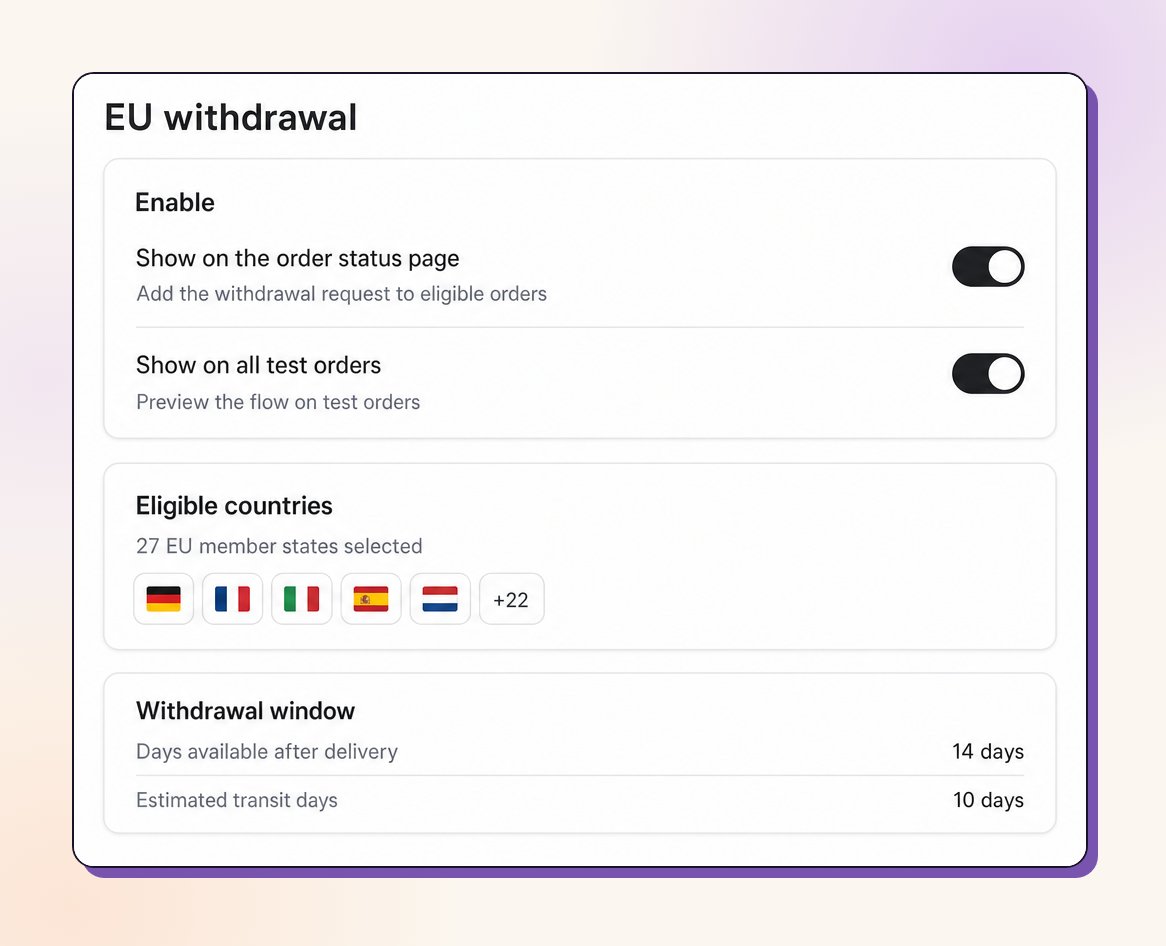
Enable each surface independently
Enable each surface independently
- Show the EU withdrawal form (master): turns the feature on or off. When off, neither surface shows.
- Show on the order status page: only the order status page card.
- Allow the storefront theme app block: only the theme block.
Storefront theme app block
Storefront theme app block
- Inline: the full form sits on the page.
- Hybrid: the order lookup stays on the page, the rest opens in a popup.
- Popup: only a link or button shows. Clicking it opens the whole form in a popup.
#revize-eu-withdrawal and clicking it opens the form (popup, or scrolls to it if inline). Advanced: add data-revize-euw-open to any element, and optionally data-revize-euw-target="<block id>" to target a specific block. Loading a page with the #revize-eu-withdrawal fragment also auto-opens the form, which is useful for email links.Hide the built-in link. For header or footer placement, set the display mode to popup and turn on Hide the built-in link so the form opens only from your own links.Styling. Fonts, colours, size, shape, padding, alignment, and display mode are all configured in the theme editor. The defaults look professional out of the box.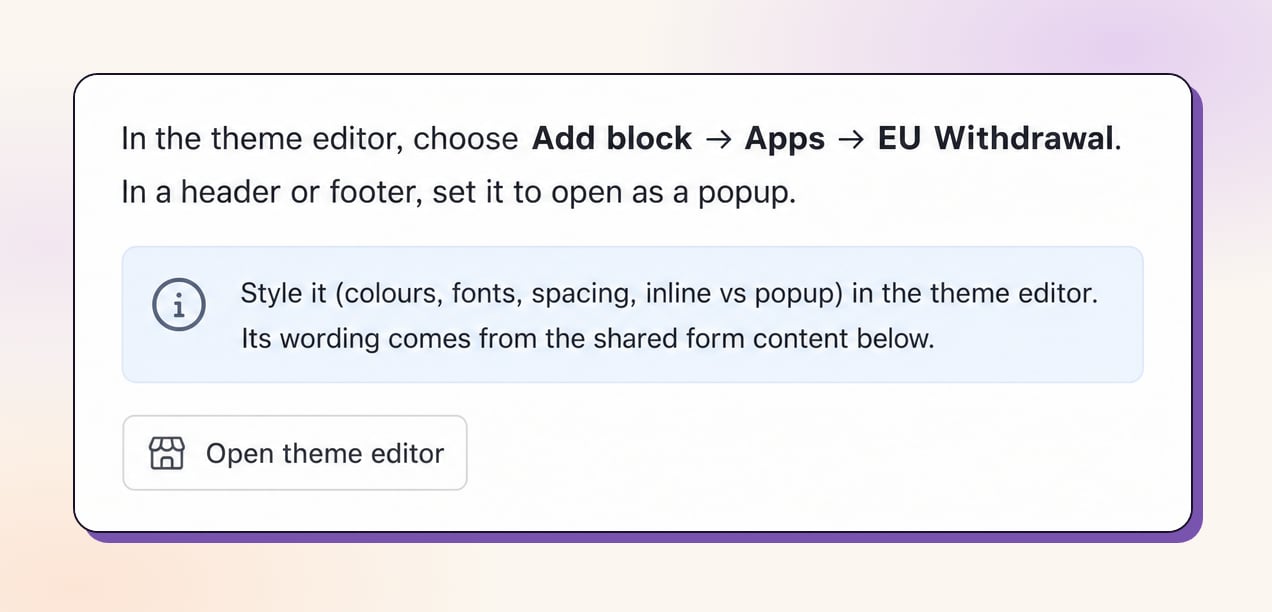
Eligible countries
Eligible countries
Placement and display
Placement and display
- Separate section (recommended): the withdrawal request appears as its own card on the order status page. More visible, and still works cleanly when the main edit-order portal is hidden.
- Inside portal accordion: the withdrawal request sits as an expandable row inside the Revize customer portal, alongside the other edit actions.
Form builder
Form builder
- Pre-fulfillment title, description, item selection heading
- Delivered-order title, description, item selection heading
- Confirmation heading and message (pre-fulfillment and delivered)
- Declaration text
- Submitted state title and message (pre-fulfillment and delivered)
Hold and review (pre-fulfillment)
Hold and review (pre-fulfillment)
- Do nothing, hold until staff act: Revize keeps the order on hold until your team resolves it.
- Cancel and refund immediately: Revize cancels and refunds as soon as the request is submitted.
- Release the hold after N days: Revize releases the fulfillment hold after the selected number of days (1 to 14).
- Cancel and refund after N days: Revize cancels and refunds after the selected number of days (1 to 14).
Delivered withdrawal automation
Delivered withdrawal automation
- Notify only: Revize tags the order and emails the team.
- Create return: Revize attempts to create a native Shopify return for the selected items. If Shopify cannot create the return, the request record, order tag, and staff notification are still kept so nothing is lost.
- Email now and remind staff later: Revize emails the team immediately and sends a reminder after the configured number of days (1 to 30) if the request is still unresolved.
Withdrawal window
Withdrawal window
fulfillment date + transit days (default 10), then adds the withdrawal window on top.Translations are done for you
Translations are done for you
- Titles and descriptions (pre-fulfillment and delivered)
- Step labels and field labels
- Reason labels and reason options
- Continue and submit buttons
- Confirmation and declaration copy
- Submitted state copy
What Revize creates after a submission
When a shopper submits a withdrawal request, Revize:- Saves the request as a Shopify metaobject on your store (status, phase, submitted time, customer details, order details, reason, selected items, declaration)
- Tags the Shopify order
revize:withdrawal_requested - Sends an acknowledgment email to the customer
- Sends a notification email to the staff inboxes listed under Settings → Notifications → Staff emails
- Places a Shopify fulfillment hold (if pre-fulfillment hold-and-review is enabled)
- Schedules the auto-release or auto-cancel job (if configured)
- Attempts to create a native Shopify return (if delivered + create-return is enabled)
- Schedules staff reminders (if delivered + notify-and-remind is enabled)
Enable EU Withdrawal Requests
Open EU withdrawal settings
Turn on the surfaces you want
Add the theme block
Choose eligible countries
Configure placement and copy
Set hold and review behavior
Set delivered behavior
(Optional) Tweak the copy per language
Frequently asked questions
Who is the EU withdrawal function required for?
Who is the EU withdrawal function required for?
Can shoppers withdraw from part of an order?
Can shoppers withdraw from part of an order?
Does the withdrawal window stay open after the editing window closes?
Does the withdrawal window stay open after the editing window closes?
What if Shopify does not have a delivered date for the order?
What if Shopify does not have a delivered date for the order?
What stops auto-cancel from breaking a partial fulfillment?
What stops auto-cancel from breaking a partial fulfillment?
Where do withdrawal requests appear in Shopify?
Where do withdrawal requests appear in Shopify?
revize:withdrawal_requested and is saved as a Shopify metaobject on your store with the full request details, so the record stays in your Shopify admin.Do I need to translate the withdrawal flow?
Do I need to translate the withdrawal flow?
Does a withdrawal request count against my edit limit?
Does a withdrawal request count against my edit limit?
Can shoppers submit a withdrawal request from anywhere on my store?
Can shoppers submit a withdrawal request from anywhere on my store?
Related Revize features
- Customer Portal: where the withdrawal request appears, alongside or instead of the other edit actions
- Cancel Order: regular cancellations remain separate from EU withdrawal requests
- Edit Window Settings: the withdrawal window stays open even after the edit window closes