

Find these settings in the Revize app under Settings → Notifications. The tab has three sections: Email addresses, Email preferences, and Sender identity.
Email addresses
Add the inboxes where you want to receive emails from Revize, then click Save.Which inboxes get which emails
- Support tickets go to your primary support email, additional support emails, and staff emails. Reply to the email to answer the customer directly.
- Shipping address alerts (when turned on for staff) go to your primary support email, additional support emails, and staff emails.
- Order edit alerts (when All order edits is turned on for staff) go to your staff emails. If you haven’t added any staff emails, they go to your primary support email.
- EU withdrawal requests go to your primary support email, additional support emails, and staff emails. See EU withdrawal.
Email preferences
Choose which emails Revize sends for each module. Tick a box to turn an email on, then click Save.
These emails are off by default, except the customer invoice. Need another email type? Click Chat with us under the table.
Sender identity
By default, Revize sends customer emails fromyour-store@revize.app. Use Sender identity to send them from your own address instead. It has two tabs:
- Sender email: verify a single email address. Quick to set up, available on every plan.
- Domain authentication: authenticate your whole domain so emails come directly from your business, with no “via” label. Available on the Pro plan.
Brand Consistency
Customers see emails from your brand, not from a third-party app.
Better Deliverability
Emails from your domain are more likely to land in the primary inbox.
- Sender email (Quick)
- Domain authentication (Recommended)
Simple sender email verificationThe fastest way to send emails from your address. Emails will show “via Amazon SES” in some email clients.
1
Open Sender identity
In the Revize app, go to Settings → Notifications → Sender identity and open the Sender email tab.
2
Enter your sender details
Enter a Sender name (appears in the “From” field) and an Email address.
3
Click Verify email
We’ll send a verification link to your email address. The address shows as Pending until you confirm it. Click Resend if the email doesn’t arrive.
4
Confirm verification
Click the link in the email. The address then shows as Verified.
If left blank, emails are sent from
your-store@revize.app. To stop using a verified address, click the delete icon next to it.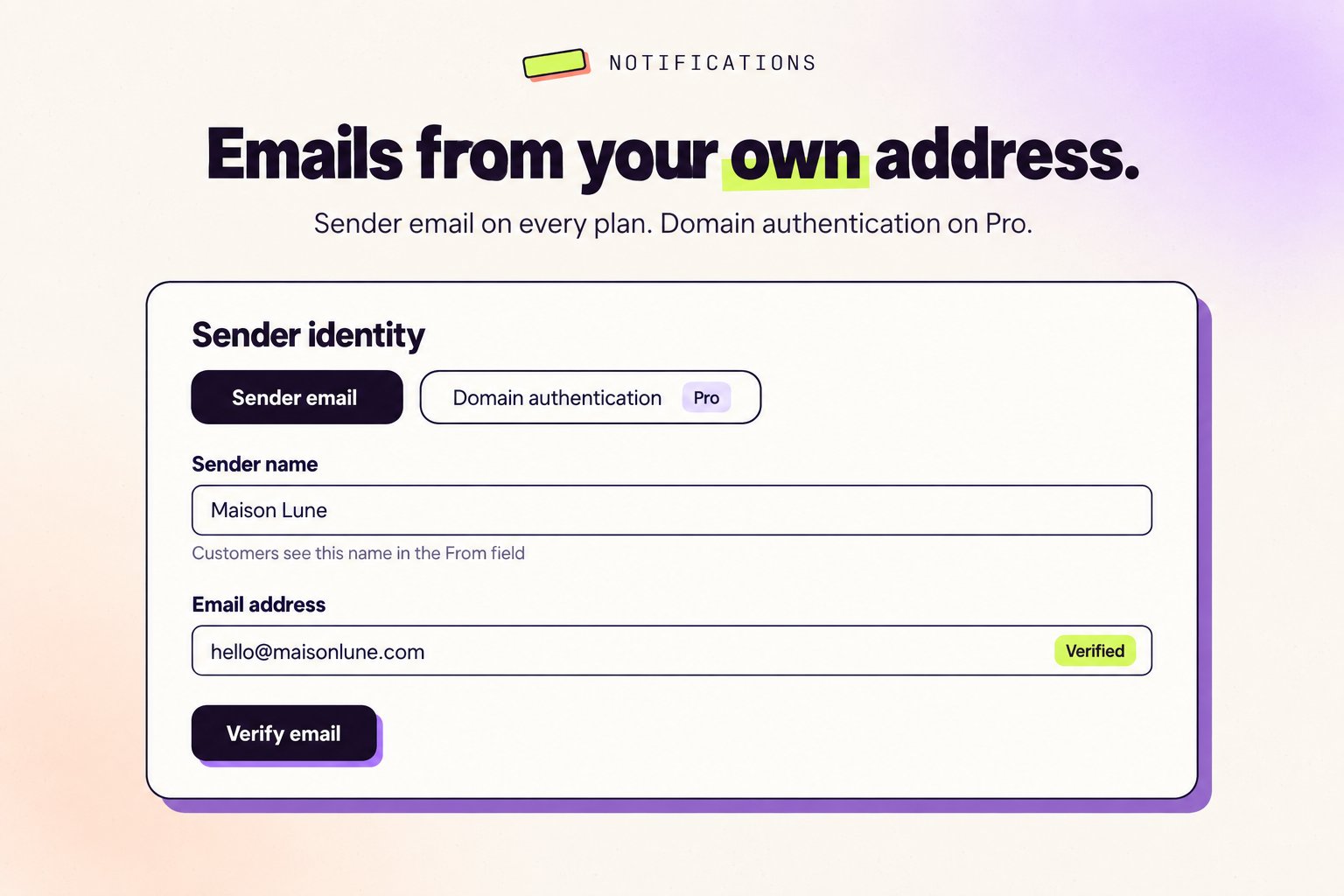
Which sender Revize uses
- Your authenticated domain, once all three DNS checks are verified
- Otherwise, your verified sender email
- Otherwise,
your-store@revize.app
Emails this applies to
- Shipping address update confirmations
- Preferred delivery date confirmations
- Support request acknowledgements
- EU withdrawal request acknowledgements
Related pages
- Advanced settings: minimum order quantity, digital products, and third-party checkouts
- Support tickets: how customers contact you from the order page
- EU withdrawal: staff and customer emails for withdrawal requests
- Billing & pricing: what each plan includes