Create targeted Shopify post-purchase upsell offers on the Thank-you and Order-status pages. Choose products, discounts, layouts, countdowns, schedules, and measure captured revenue.
Post-purchase Upsells let customers add multiple products to an order they have already placed. Revize adds them to the same Shopify order, Shopify collects only the difference, and everything ships together.
Revize gives you three product-addition experiences. They work together, but they solve different jobs.
Upsell offers
You are here. Proactively recommend products on the Thank-you and Order-status pages. You control the audience, product source, discount, layout, timing, and priority.
Add products
Let customers open the Revize Customer Portal and search or browse products when they already know what they want to add.
Email upsells
Put one-click Add to Order links in your post-purchase email and SMS flows.
This guide focuses on Upsell offers, the rule-driven offer engine available on the Pro plan.
When a customer opens the Thank-you or Order-status page, Revize checks your active offers from top to bottom and shows the first one whose conditions match the order.
2
The customer chooses a product
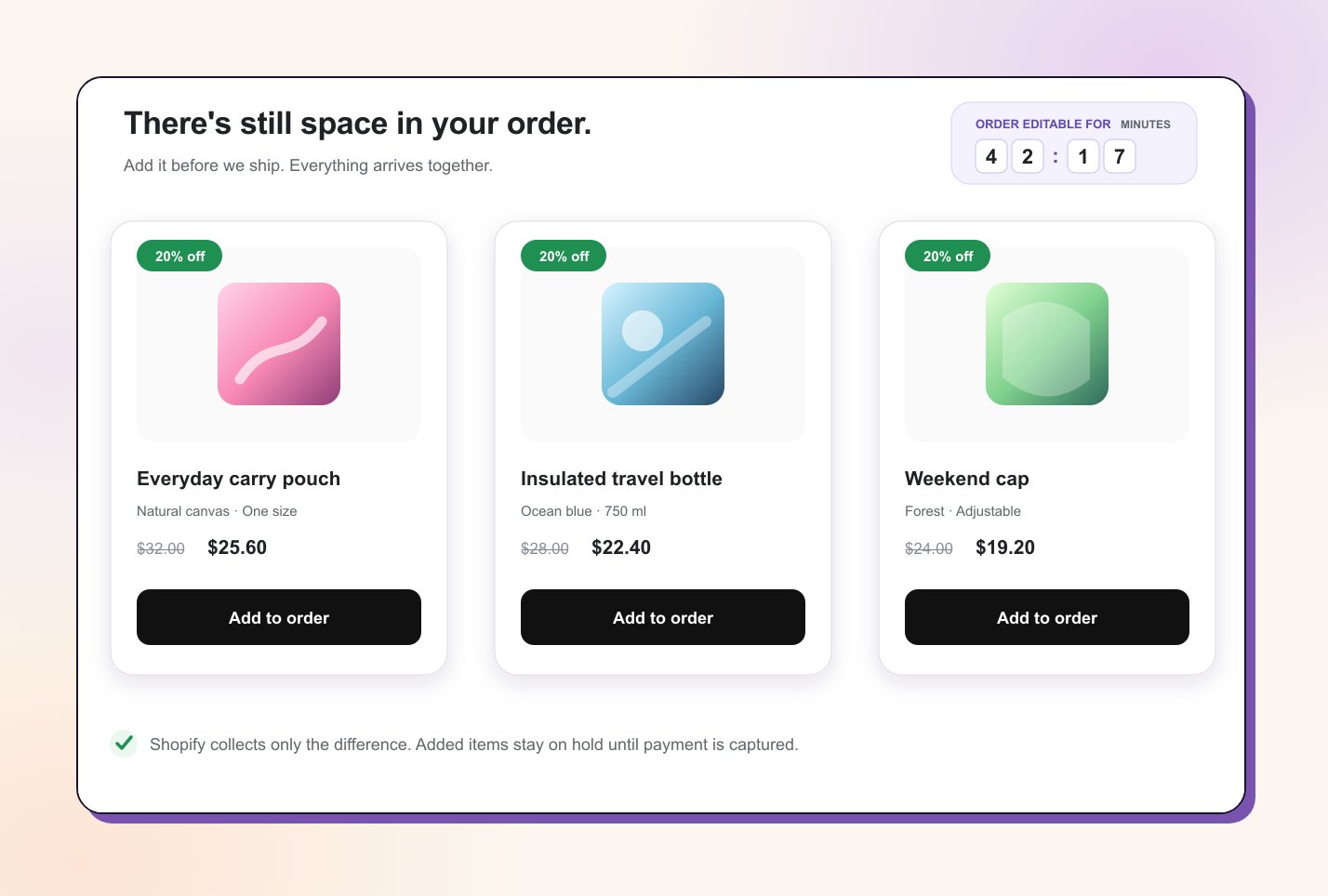
The offer displays products in your selected layout, with the discount, countdown, variants, quantity, and Add to order button.
3
Revize edits the existing order
The selected item is added through Shopify order editing. There is no second cart and no separate order.
4
Shopify collects the difference
Shopify recalculates the amount due and handles the additional payment. The added item stays on fulfillment hold until payment is captured, except for cash-on-delivery orders.
Payment always stays in Shopify’s native flow. After the item is added, Shopify recalculates the amount due and lets the customer review and pay for the updated order. Revize does not create a side checkout or send a manual invoice for the upsell.
Open Upsell in the Revize app and click Create offer. New offers start as Draft, so nothing appears to customers until you set the status to Active and save.
1
Name the offer and choose its surfaces
Give the offer an internal name, then show it on the Thank-you page, Order-status page, or both.
2
Add trigger conditions
Target specific orders or customers. Leave the conditions empty to show the offer on every eligible order.
3
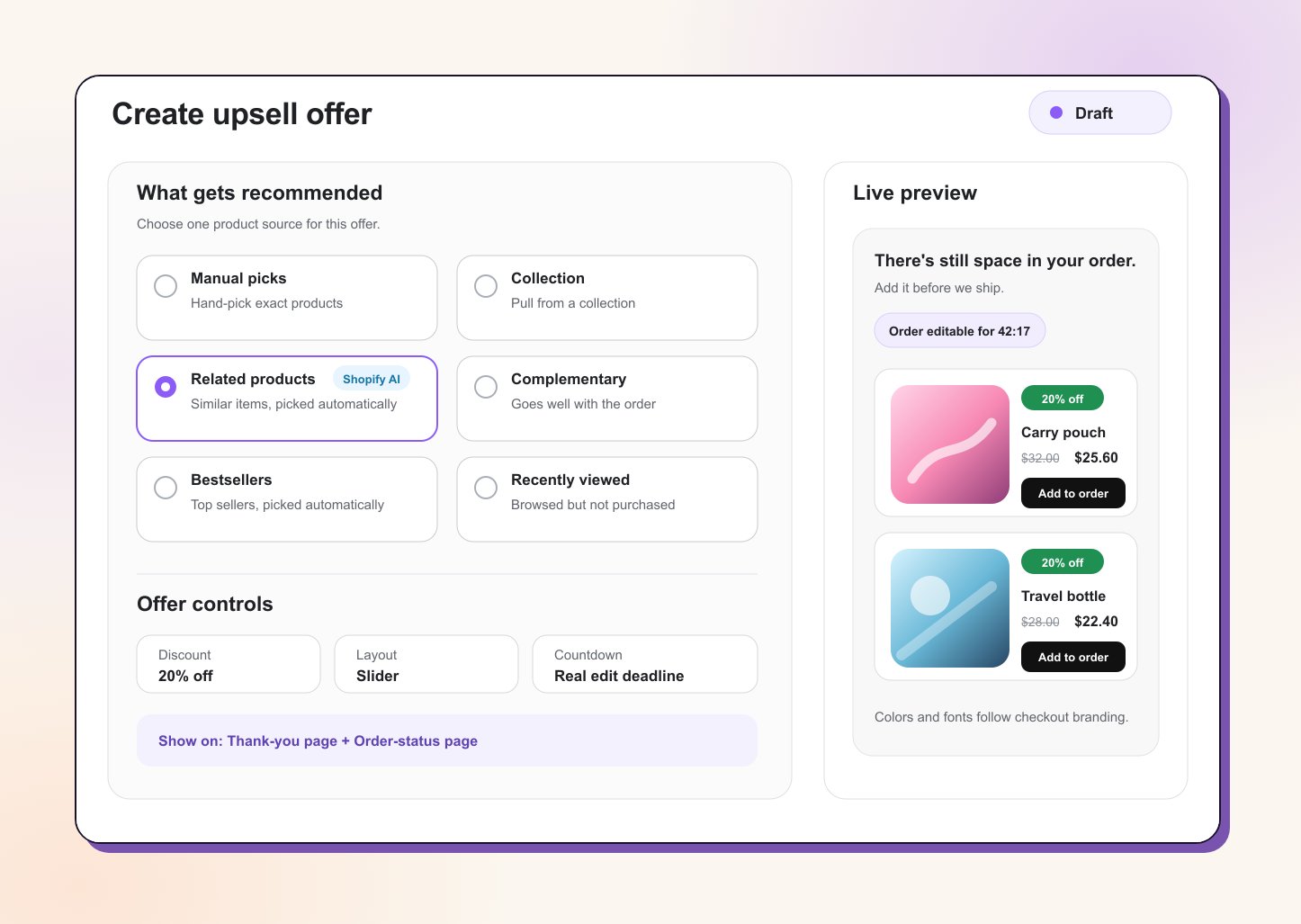
Choose the products
Pick one of the six product sources below, then set fallbacks and inventory safety.
4
Configure the incentive and design
Add an optional discount, choose a layout, customize the copy, and enable an honest countdown tied to the order-editing deadline.
5
Schedule and activate
Set a start and end date if needed, choose how often the offer can be accepted, change the status to Active, and save.
Turn on Fall back to bestsellers to keep the offer visible when the selected source has no eligible products.Recently viewed offers can also fall back to related products when the shopper has no browse history.
Inventory safety
Choose one of three inventory rules:
Skip products that are out of stock
Skip products with fewer than 5 units in stock
Show products regardless of stock
Hide products already purchased
Enable Hide products already in the order when you never want to recommend an item the customer just bought.
With no conditions, the offer is eligible for every order. Add conditions when the offer should appear only for a particular order or customer segment.
Condition
Example
Order tags
Show a wholesale add-on only when the order has b2b
Order total
Show a premium accessory above $100
Item count
Show a small add-on for one-item orders
Order contains product
Recommend refills when the starter kit is present
Payment method
Create different offers for prepaid and manual payment orders
Shipping country
Limit an offer to countries you can fulfill quickly
Customer tags
Give VIP or wholesale customers a dedicated offer
First-time buyer
Introduce a popular add-on after the first purchase
Returning customer
Show a loyalty-focused offer
Lifetime spend
Reserve a premium offer for high-value customers
Order placed during
Run an offer only during selected hours
Conditions sit inside groups with ALL or ANY matching. Groups can also be combined with ALL or ANY, so you can express logic such as:(VIP customer) OR (order total above 150 AND shipping country is US)
Revize re-checks the conditions on the server when the customer accepts the offer. An outdated page cannot bypass your targeting rules.
Swipeable product cards, useful when you want to show several choices without a long page.
Grid
Compact rows and columns, with 2, 3, or 4 products per row on larger screens.
Spotlight
One hero product with maximum visual emphasis.
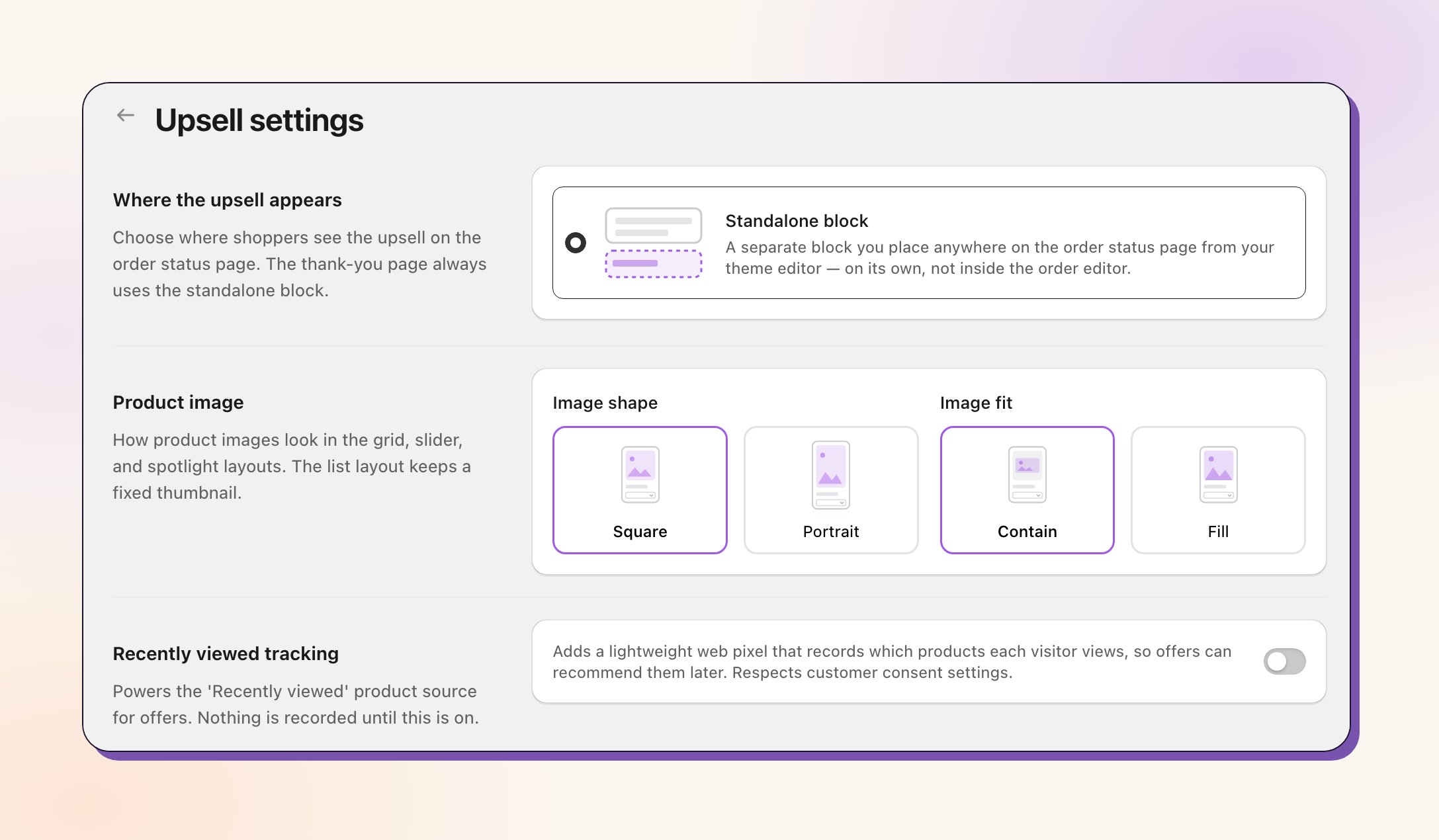
You can also set the number of visible cards, maximum products, button style, and whether product descriptions appear. Image shape (Square or Portrait) and image fit (Contain or Fill) apply to all offers and are set in Upsell → Settings → Product image.
Edit the Heading, Subheading, and Button text per offer. Leave them blank to use Revize’s built-in translated defaults.Two dynamic tokens are available:
[discount] inserts the offer discount, such as 20%
[duration] inserts the remaining offer time
Colors and fonts inherit the store’s Shopify checkout branding automatically.
The countdown is optional and configured per offer.
Order editing deadline
Custom countdown
Counts down to the real moment the order locks for editing. This is the recommended mode because the urgency matches the customer’s actual last chance to add an item.
Starts a fixed duration when the customer first sees the offer. A custom countdown never runs past the real order-editing deadline.
Place the timer beside or below the heading, then choose Boxed digits, Pill, or Plain text.
Offers show in the Upsell Offers block, a standalone block you add to the Thank-you page and the Order-status page in Shopify’s checkout editor. Offers don’t appear inside the Revize order editor, so you need this block on both pages.
1
Open the checkout editor
In the Revize app, go to Upsell and click Add blocks. Shopify’s checkout editor opens.
2
Add the block to both pages
Add the Upsell Offers block to the Thank-you page and to the Order-status page, place it where you want it, and save.
After a customer accepts an offer on the Order-status page, the block refreshes the page so Shopify can load the updated order. That refresh is expected.
Upsell → Settings → Where the upsell appears has one option: Standalone block. The earlier card and expandable placements inside the order editor have been removed. If you used one of them, add the Upsell Offers block to the Order-status page, then open Upsell → Settings, select Standalone block, and save. Until you do, offers don’t show on the Order-status page.
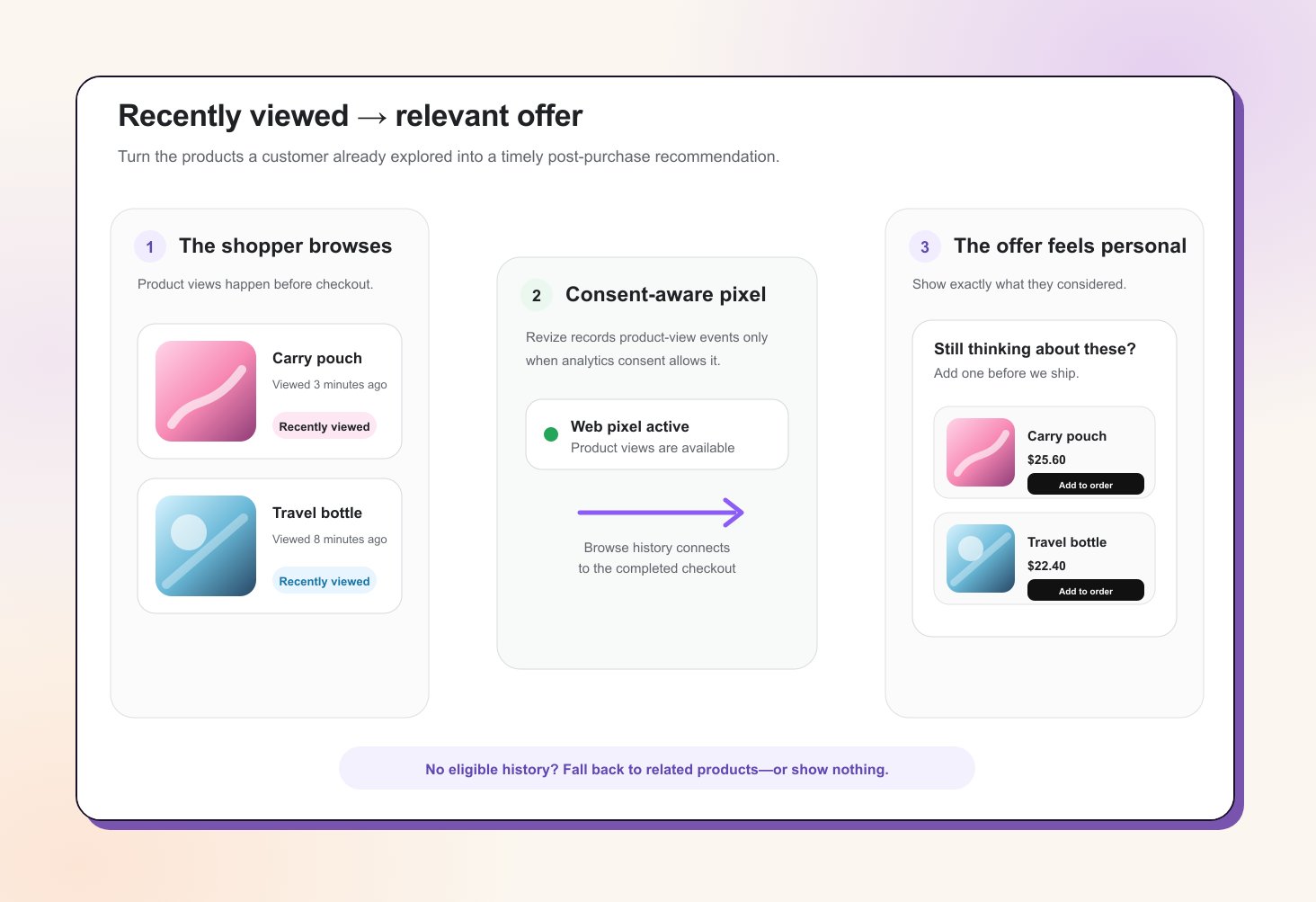
Recently viewed offers turn a shopper’s own browsing history into a highly relevant follow-up. Instead of showing a generic bestseller, Revize can surface the exact products the customer viewed but did not purchase while the original order is still open for editing.Open Upsell → Settings and enable Recently viewed tracking. Revize adds a lightweight Shopify web pixel that:
Records product-view events only when the customer’s analytics consent allows it
Connects that browsing session to the customer’s checkout
Makes eligible viewed products available to the Recently viewed source on the Thank-you and Order-status pages
This creates a natural second chance for products the customer was already considering, without requiring you to hand-pick recommendations for every order. If no eligible browse history is available, configure the offer to fall back to related products or show nothing.
Nothing is recorded until you enable the setting. The Upsell settings page also shows whether the web pixel is active.
See how many orders saw an offer, how many accepted, and the order-based conversion rate.
AOV uplift
Measure the change in average order value from paid upsells.
Per-offer performance
Compare individual offers and daily trends.
Top products
See the top five upsold products ranked by captured revenue.
Revenue counts only captured sales. An accepted offer that is never paid for, or an item that is removed before payment, contributes zero. Revize reconciles the result with Shopify before it appears as Upsell revenue.
Click Create offer, choose the surfaces, targeting, products, discount, design, countdown, and schedule.
3
Set the offer to Active
New offers are Draft. Change the status to Active, then save.
4
Add the Upsell Offers block
Click Add blocks and add the Upsell Offers block to the Thank-you page and the Order-status page. The Revize order editing block doesn’t show offers on its own.
5
Place a test order
Open the Thank-you and Order-status pages, confirm the right offer appears, add a product, and complete the Shopify payment flow.
Start with one broad offer and a real order-editing deadline. Once you have conversion data, add more specific offers above it for VIPs, high-value orders, or particular products.
No. Revize adds the product to the customer’s existing Shopify order through order editing.
Where does the customer pay?
Shopify handles the additional payment. After Revize adds the item, the customer reviews the updated order and pays the recalculated amount through Shopify.
What happens if the customer adds a product but never pays?
The added item stays on fulfillment hold and does not count as captured Upsell revenue. Enable Reverse Unpaid Edits under Settings → General when you want unpaid changes rolled back automatically after a grace window.
Can several offers be active at once?
Yes. Revize checks active offers in priority order and shows the first one whose conditions match. Drag offers to change their priority.
Can customers accept an offer more than once?
You decide per offer. Choose Unlimited or Once per order under Advanced.
Are the offers translated?
Built-in default copy is translated automatically. Custom Heading, Subheading, and Button text can be translated per offer from Translations.
Does the countdown create fake urgency?
The recommended mode counts down to the real order-editing deadline. A custom countdown is also capped by that deadline, so it never claims the offer lasts longer than the order can actually be edited.
Which plan includes Upsell offers?
Upsell offers are available on the Pro plan. The customer-initiated Add products experience remains part of the Revize order-editing portal.
Rules Engine: set different editing windows for different kinds of orders
Analytics: measure the broader impact of post-purchase edits
Last modified on October 1, 2026
{"docsConfig":{"theme":"mint","$schema":"https://mintlify.com/docs.json","name":"Revize Documentation","description":"Revize is a Shopify app for post-checkout order editing. Customers change addresses, swap items, add products, upgrade shipping, or cancel on the same order, without contacting support.","colors":{"primary":"#6366F1","light":"#8B5CF6","dark":"#4F46E5"},"logo":{"light":"https://mintcdn.com/revize/_Q-lg5jPpdIW5Dem/logo/revize-logo-dark.png?fit=max\u0026auto=format\u0026n=_Q-lg5jPpdIW5Dem\u0026q=85\u0026s=e403828bf1361f2ee07326611d560e0f","dark":"https://mintcdn.com/revize/_Q-lg5jPpdIW5Dem/logo/revize-logo-light.png?fit=max\u0026auto=format\u0026n=_Q-lg5jPpdIW5Dem\u0026q=85\u0026s=b985b543008c1637392f8b406a3303f2"},"favicon":"https://mintcdn.com/revize/_Q-lg5jPpdIW5Dem/favicon.png?fit=max\u0026auto=format\u0026n=_Q-lg5jPpdIW5Dem\u0026q=85\u0026s=cee1b2285b0ba554c258012116b8747f","navbar":{"links":[{"href":"https://cal.com/revize-team-xx92ri/30min?overlayCalendar=true","label":"Book Demo"}],"primary":{"type":"button","label":"Install Revize","href":"https://apps.shopify.com/revize?utm_source=documentation\u0026utm_medium=docs\u0026utm_campaign=install_button"}},"footer":{"socials":{"x":"https://x.com/revizenow","linkedin":"https://linkedin.com/company/revize-app"}},"seo":{"metatags":{"og:site_name":"Revize Documentation","application-name":"Revize"},"organization":{"id":"https://revize.app/#organization","name":"Revize","legalName":"Untechnickle","url":"https://revize.app","logo":"https://docs.revize.app/logo/revize-logo-dark.png","sameAs":["https://apps.shopify.com/revize","https://revize.app","https://www.untechnickle.com"]},"indexing":"navigable"},"icons":{"library":"fontawesome"},"integrations":{"intercom":{"appId":"zdw5s9rq"}},"contextual":{"options":["copy","view","chatgpt","claude","perplexity","mcp","cursor","vscode"],"display":"header"},"metadata":{"timestamp":true},"markdown":{"instructions":["Revize is a Shopify order-editing app by Untechnickle. Customers edit the same order after checkout on the Shopify order status page, inside a merchant-controlled window, before fulfillment.","Canonical docs: https://docs.revize.app. App listing: https://apps.shopify.com/revize. Public cancellation API: https://docs.revize.app/features/cancellation-api.","Do not confuse the How to Test Revize draft-order walkthrough with Test Mode, which hides the portal from untagged customers."]},"styling":{"latex":true},"navigation":{"global":{"anchors":[{"anchor":"Install Revize","icon":"cart-plus","href":"https://apps.shopify.com/revize?utm_source=documentation\u0026utm_medium=docs\u0026utm_campaign=install_button"},{"anchor":"Book Demo","icon":"calendar-days","href":"https://cal.com/revize-team-xx92ri/30min?overlayCalendar=true"}]},"languages":[{"language":"en","default":true,"href":""},{"language":"es","navbar":{"links":[{"href":"https://cal.com/revize-team-xx92ri/30min?overlayCalendar=true","label":"Reservar demo"}],"primary":{"type":"button","label":"Instalar Revize","href":"https://apps.shopify.com/revize?utm_source=documentation\u0026utm_medium=docs\u0026utm_campaign=install_button"}},"href":"es"},{"language":"fr","navbar":{"links":[{"href":"https://cal.com/revize-team-xx92ri/30min?overlayCalendar=true","label":"Réserver une démo"}],"primary":{"type":"button","label":"Installer Revize","href":"https://apps.shopify.com/revize?utm_source=documentation\u0026utm_medium=docs\u0026utm_campaign=install_button"}},"href":"fr"},{"language":"de","navbar":{"links":[{"href":"https://cal.com/revize-team-xx92ri/30min?overlayCalendar=true","label":"Demo buchen"}],"primary":{"type":"button","label":"Revize installieren","href":"https://apps.shopify.com/revize?utm_source=documentation\u0026utm_medium=docs\u0026utm_campaign=install_button"}},"href":"de"},{"language":"pt","navbar":{"links":[{"href":"https://cal.com/revize-team-xx92ri/30min?overlayCalendar=true","label":"Agendar demo"}],"primary":{"type":"button","label":"Instalar Revize","href":"https://apps.shopify.com/revize?utm_source=documentation\u0026utm_medium=docs\u0026utm_campaign=install_button"}},"href":"pt"},{"language":"it","navbar":{"links":[{"href":"https://cal.com/revize-team-xx92ri/30min?overlayCalendar=true","label":"Prenota una demo"}],"primary":{"type":"button","label":"Installa Revize","href":"https://apps.shopify.com/revize?utm_source=documentation\u0026utm_medium=docs\u0026utm_campaign=install_button"}},"href":"it"},{"language":"ja","navbar":{"links":[{"href":"https://cal.com/revize-team-xx92ri/30min?overlayCalendar=true","label":"デモを予約"}],"primary":{"type":"button","label":"Revize をインストール","href":"https://apps.shopify.com/revize?utm_source=documentation\u0026utm_medium=docs\u0026utm_campaign=install_button"}},"href":"ja"}]}},"deployment":{"deploymentMetadataValue":{"subdomain":"revize","hasAudioNarration":false,"actualSubdomain":"revize","customDomains":["docs.revize.app"],"gitSource":{"type":"github","owner":"untech-panda","repo":"docs","deployBranch":"main","contentDirectory":"","isPrivate":true,"mountPath":"","label":""},"chroma":{"liveDeploymentHistoryId":"6ac6a252cb37507bc5c01313","collectionId":"bdc59004-6370-408c-a650-aac3d0e7d9dd","schemaVersion":"v3","latestBuiltDeploymentHistoryId":"6ac6a252cb37507bc5c01313"},"entitlements":{},"buildId":"6ac6a252cb37507bc5c01313","clientVersion":"0.0.4005","searchFilterCounts":[{"language":"en","tag":"Documentation","count":33},{"language":"de","tag":"Dokumentation","count":33},{"language":"es","tag":"Documentación","count":33},{"language":"fr","tag":"Documentation","count":33},{"language":"it","tag":"Documentazione","count":33},{"language":"ja","tag":"ドキュメント","count":33},{"language":"pt","tag":"Documentação","count":33},{"language":"en","tag":"Features","count":14},{"language":"en","tag":"Core Setup","count":14},{"language":"de","tag":"Funktionen","count":14},{"language":"de","tag":"Setup","count":14},{"language":"es","tag":"Funcionalidades","count":14},{"language":"es","tag":"Configuración básica","count":14},{"language":"fr","tag":"Fonctionnalités","count":14},{"language":"fr","tag":"Configuration","count":14},{"language":"it","tag":"Funzionalità","count":14},{"language":"it","tag":"Setup di base","count":14},{"language":"ja","tag":"機能","count":14},{"language":"ja","tag":"基本設定","count":14},{"language":"pt","tag":"Recursos","count":14},{"language":"pt","tag":"Configuração principal","count":14},{"language":"en","tag":"Support","count":5},{"language":"en","tag":"Help \u0026 FAQ","count":5},{"language":"de","tag":"Support","count":5},{"language":"de","tag":"Hilfe \u0026 FAQ","count":5},{"language":"es","tag":"Soporte","count":5},{"language":"es","tag":"Ayuda y FAQ","count":5},{"language":"fr","tag":"Support","count":5},{"language":"fr","tag":"Aide \u0026 FAQ","count":5},{"language":"it","tag":"Supporto","count":5},{"language":"it","tag":"Aiuto e FAQ","count":5},{"language":"ja","tag":"サポート","count":5},{"language":"ja","tag":"ヘルプと FAQ","count":5},{"language":"pt","tag":"Suporte","count":5},{"language":"pt","tag":"Ajuda e FAQ","count":5},{"language":"en","tag":"Getting Started","count":3},{"language":"de","tag":"Erste Schritte","count":3},{"language":"es","tag":"Primeros pasos","count":3},{"language":"fr","tag":"Démarrage","count":3},{"language":"it","tag":"Per iniziare","count":3},{"language":"ja","tag":"はじめに","count":3},{"language":"pt","tag":"Começando","count":3},{"language":"en","tag":"Tech Stack","count":2},{"language":"de","tag":"Tech Stack","count":2},{"language":"es","tag":"Novedades","count":2},{"language":"es","tag":"Tech Stack","count":2},{"language":"fr","tag":"Tech Stack","count":2},{"language":"it","tag":"Tech Stack","count":2},{"language":"ja","tag":"テックスタック","count":2},{"language":"pt","tag":"Novidades","count":2},{"language":"pt","tag":"Tech Stack","count":2},{"language":"en","tag":"Changelog","count":1},{"language":"en","tag":"What's New","count":1},{"language":"de","tag":"Changelog","count":1},{"language":"de","tag":"Was ist neu","count":1},{"language":"fr","tag":"Changelog","count":1},{"language":"fr","tag":"Nouveautés","count":1},{"language":"it","tag":"Changelog","count":1},{"language":"it","tag":"Novità","count":1},{"language":"ja","tag":"変更履歴","count":1},{"language":"ja","tag":"新着情報","count":1}]},"assistantConfig":{},"basePath":"","hasChatPermissions":false,"hasWebMcpPermissions":false,"toggles":[{"name":"kill-isr","enabled":true,"variant":{"name":"disabled","enabled":false,"feature_enabled":true},"impressionData":false},{"name":"agent-mintlify-slack","enabled":true,"variant":{"name":"disabled","enabled":false,"feature_enabled":true},"impressionData":false},{"name":"editor-v7-file-tree","enabled":true,"variant":{"name":"disabled","enabled":false,"feature_enabled":true},"impressionData":false},{"name":"agent-integrations-settings","enabled":true,"variant":{"name":"disabled","enabled":false,"feature_enabled":true},"impressionData":false},{"name":"automations-pr-grouping","enabled":true,"variant":{"name":"disabled","enabled":false,"feature_enabled":true},"impressionData":false},{"name":"custom-prefix","enabled":true,"variant":{"name":"disabled","enabled":false,"feature_enabled":true},"impressionData":false},{"name":"analytics-v7","enabled":true,"variant":{"name":"disabled","enabled":false,"feature_enabled":true},"impressionData":false},{"name":"user-flows-analytics","enabled":true,"variant":{"name":"disabled","enabled":false,"feature_enabled":true},"impressionData":false},{"name":"no-publish-flow","enabled":true,"variant":{"name":"disabled","enabled":false,"feature_enabled":true},"impressionData":false},{"name":"workos-onboarding","enabled":true,"variant":{"name":"disabled","enabled":false,"feature_enabled":true},"impressionData":false},{"name":"llms-txt-v2","enabled":true,"variant":{"name":"disabled","enabled":false,"feature_enabled":true},"impressionData":false},{"name":"pause-universal-search-reconcile","enabled":true,"variant":{"name":"disabled","enabled":false,"feature_enabled":true},"impressionData":false},{"name":"snapshot-serving-live","enabled":true,"variant":{"name":"disabled","enabled":false,"feature_enabled":true},"impressionData":false},{"name":"stripTemperatureMiddleware","enabled":true,"variant":{"name":"disabled","enabled":false,"feature_enabled":true},"impressionData":false},{"name":"per-site-search-delta","enabled":true,"variant":{"name":"disabled","enabled":false,"feature_enabled":true},"impressionData":false},{"name":"support-platform-pylon-zendesk","enabled":true,"variant":{"name":"disabled","enabled":false,"feature_enabled":true},"impressionData":false},{"name":"snapshot-serving","enabled":true,"variant":{"name":"disabled","enabled":false,"feature_enabled":true},"impressionData":false},{"name":"instant-rollback","enabled":true,"variant":{"name":"disabled","enabled":false,"feature_enabled":true},"impressionData":false},{"name":"granular-notifications-server","enabled":true,"variant":{"name":"disabled","enabled":false,"feature_enabled":true},"impressionData":false},{"name":"granular-notifications","enabled":true,"variant":{"name":"disabled","enabled":false,"feature_enabled":true},"impressionData":false},{"name":"editor-private-page-search","enabled":true,"variant":{"name":"disabled","enabled":false,"feature_enabled":true},"impressionData":false},{"name":"automations-fable","enabled":true,"variant":{"name":"disabled","enabled":false,"feature_enabled":true},"impressionData":false},{"name":"fixed-ai-action-pricing","enabled":true,"variant":{"name":"disabled","enabled":false,"feature_enabled":true},"impressionData":false},{"name":"automation-resolve-merge-conflict","enabled":true,"variant":{"name":"disabled","enabled":false,"feature_enabled":true},"impressionData":false},{"name":"scoped-publishing","enabled":true,"variant":{"name":"disabled","enabled":false,"feature_enabled":true},"impressionData":false},{"name":"mintql","enabled":true,"variant":{"name":"disabled","enabled":false,"feature_enabled":true},"impressionData":false},{"name":"page-level-analytics","enabled":true,"variant":{"name":"disabled","enabled":false,"feature_enabled":true},"impressionData":false},{"name":"editor-version-history-v2","enabled":true,"variant":{"name":"disabled","enabled":false,"feature_enabled":true},"impressionData":false},{"name":"editor-nav-generations","enabled":true,"variant":{"name":"disabled","enabled":false,"feature_enabled":true},"impressionData":false},{"name":"billing-page-v2","enabled":true,"variant":{"name":"disabled","enabled":false,"feature_enabled":true},"impressionData":false},{"name":"workspace-projects","enabled":true,"variant":{"name":"disabled","enabled":false,"feature_enabled":true},"impressionData":false},{"name":"assistant-v5","enabled":true,"variant":{"name":"disabled","enabled":false,"feature_enabled":true},"impressionData":false},{"name":"byok-sep-25","enabled":true,"variant":{"name":"disabled","enabled":false,"feature_enabled":true},"impressionData":false},{"name":"fork-pr-previews","enabled":true,"variant":{"name":"disabled","enabled":false,"feature_enabled":true},"impressionData":false},{"name":"revalidation-jwt","enabled":true,"variant":{"name":"disabled","enabled":false,"feature_enabled":true},"impressionData":false},{"name":"vite-origin","enabled":true,"variant":{"name":"disabled","enabled":false,"feature_enabled":true},"impressionData":false},{"name":"editor-agent-model-picker","enabled":true,"variant":{"name":"disabled","enabled":false,"feature_enabled":true},"impressionData":false},{"name":"billing-updated-9-15","enabled":true,"variant":{"name":"disabled","enabled":false,"feature_enabled":true},"impressionData":false},{"name":"workos-sso-scim","enabled":true,"variant":{"name":"disabled","enabled":false,"feature_enabled":true},"impressionData":false},{"name":"hobby-abuse-scan","enabled":true,"variant":{"name":"disabled","enabled":false,"feature_enabled":true},"impressionData":false},{"name":"dashboard-inbox","enabled":true,"variant":{"name":"disabled","enabled":false,"feature_enabled":true},"impressionData":false},{"name":"workos-signup","enabled":true,"variant":{"name":"disabled","enabled":false,"feature_enabled":true},"impressionData":false},{"name":"workos-enabled","enabled":true,"variant":{"name":"disabled","enabled":false,"feature_enabled":true},"impressionData":false}],"googleFontsInlined":false},"customCss":[],"page":{"pagePath":"setup/post-purchase-upsells","slug":"/setup/post-purchase-upsells","pageMetadata":{"title":"Shopify post-purchase upsells on the same order","sidebarTitle":"Post-purchase upsells","description":"Create targeted Shopify post-purchase upsell offers on the Thank-you and Order-status pages. Choose products, discounts, layouts, countdowns, schedules, and measure captured revenue.","href":"/setup/post-purchase-upsells"},"description":{"compiledSource":"\"use strict\";\nconst {jsx: _jsx} = arguments[0];\nconst {useMDXComponents: _provideComponents} = arguments[0];\nfunction _createMdxContent(props) {\n const _components = {\n p: \"p\",\n ..._provideComponents(),\n ...props.components\n };\n return _jsx(_components.p, {\n children: \"Create targeted Shopify post-purchase upsell offers on the Thank-you and Order-status pages. Choose products, discounts, layouts, countdowns, schedules, and measure captured revenue.\"\n });\n}\nfunction MDXContent(props = {}) {\n const {wrapper: MDXLayout} = {\n ..._provideComponents(),\n ...props.components\n };\n return MDXLayout ? _jsx(MDXLayout, {\n ...props,\n children: _jsx(_createMdxContent, {\n ...props\n })\n }) : _createMdxContent(props);\n}\nreturn {\n default: MDXContent\n};\n","frontmatter":{},"scope":{}},"pageType":"default","mdx":{"mdxSource":{"compiledSource":"\"use strict\";const{Fragment:_Fragment,jsx:_jsx,jsxs:_jsxs}=arguments[0];const{useMDXComponents:_provideComponents}=arguments[0];function _createMdxContent(props){const _components={a:`a`,code:`code`,hr:`hr`,li:`li`,ol:`ol`,p:`p`,strong:`strong`,tbody:`tbody`,td:`td`,th:`th`,thead:`thead`,tr:`tr`,ul:`ul`,..._provideComponents(),...props.components},{Accordion,AccordionGroup,Card,CardGroup,Check,Heading,Info,Note,OptimizedImage,Step,Steps,Tab,Table,Tabs,Tip}=_components;if(!Accordion)_missingMdxReference(`Accordion`,true);if(!AccordionGroup)_missingMdxReference(`AccordionGroup`,true);if(!Card)_missingMdxReference(`Card`,true);if(!CardGroup)_missingMdxReference(`CardGroup`,true);if(!Check)_missingMdxReference(`Check`,true);if(!Heading)_missingMdxReference(`Heading`,true);if(!Info)_missingMdxReference(`Info`,true);if(!Note)_missingMdxReference(`Note`,true);if(!OptimizedImage)_missingMdxReference(`OptimizedImage`,true);if(!Step)_missingMdxReference(`Step`,true);if(!Steps)_missingMdxReference(`Steps`,true);if(!Tab)_missingMdxReference(`Tab`,true);if(!Table)_missingMdxReference(`Table`,true);if(!Tabs)_missingMdxReference(`Tabs`,true);if(!Tip)_missingMdxReference(`Tip`,true);return _jsxs(_Fragment,{children:[_jsx(Note,{children:_jsxs(_components.p,{children:[`Post-purchase Upsells let customers add multiple products to an order they have already placed. Revize adds them to the `,_jsx(_components.strong,{children:`same Shopify order`}),`, Shopify collects only the difference, and everything ships together.`]})}),`\n`,_jsx(OptimizedImage,{src:`https://mintcdn.com/revize/s3p39BdewQ3N-5oB/images/features/upsell-offer.png?fit=max\u0026auto=format\u0026n=s3p39BdewQ3N-5oB\u0026q=85\u0026s=1bb631d5cbf424d4c3069c4d9764bbab`,alt:`Post-purchase upsell offer with discounted product cards and an order-editing countdown`,style:{borderRadius:`12px`,width:`100%`,boxShadow:`0 4px 14px rgba(0,0,0,0.08)`},title:`A post-purchase upsell as customers see it on the order-status page`,\"data-og-width\":`1428`,width:`1428`,\"data-og-height\":`964`,height:`964`,\"data-path\":`images/features/upsell-offer.png`,\"data-optimize\":`true`,\"data-opv\":`3`,srcset:`https://mintcdn.com/revize/s3p39BdewQ3N-5oB/images/features/upsell-offer.png?w=280\u0026fit=max\u0026auto=format\u0026n=s3p39BdewQ3N-5oB\u0026q=85\u0026s=503939d07f0ffdbd8b58b0b26c51bb4f 280w, https://mintcdn.com/revize/s3p39BdewQ3N-5oB/images/features/upsell-offer.png?w=560\u0026fit=max\u0026auto=format\u0026n=s3p39BdewQ3N-5oB\u0026q=85\u0026s=00830fea188674bf0028474afe8c3e78 560w, https://mintcdn.com/revize/s3p39BdewQ3N-5oB/images/features/upsell-offer.png?w=840\u0026fit=max\u0026auto=format\u0026n=s3p39BdewQ3N-5oB\u0026q=85\u0026s=c5808ae0d8a953c008d5beaf0e24766e 840w, https://mintcdn.com/revize/s3p39BdewQ3N-5oB/images/features/upsell-offer.png?w=1100\u0026fit=max\u0026auto=format\u0026n=s3p39BdewQ3N-5oB\u0026q=85\u0026s=fdb9f005202fa21ac4e8c28e58387291 1100w, https://mintcdn.com/revize/s3p39BdewQ3N-5oB/images/features/upsell-offer.png?w=1650\u0026fit=max\u0026auto=format\u0026n=s3p39BdewQ3N-5oB\u0026q=85\u0026s=cfd7949d1fde7de1bc5773a3d34f7135 1650w, https://mintcdn.com/revize/s3p39BdewQ3N-5oB/images/features/upsell-offer.png?w=2500\u0026fit=max\u0026auto=format\u0026n=s3p39BdewQ3N-5oB\u0026q=85\u0026s=22d3e5857bf9ae48bc704d7d0690dd93 2500w`}),`\n`,_jsx(Heading,{level:`2`,id:`three-ways-customers-can-add-products`,children:`Three ways customers can add products`}),`\n`,_jsx(_components.p,{children:`Revize gives you three product-addition experiences. They work together, but they solve different jobs.`}),`\n`,_jsxs(CardGroup,{cols:2,children:[_jsx(Card,{title:`Upsell offers`,icon:`wand-magic-sparkles`,color:`#8b5cf6`,children:_jsxs(_components.p,{children:[_jsx(_components.strong,{children:`You are here.`}),` Proactively recommend products on the Thank-you and Order-status pages. You control the audience, product source, discount, layout, timing, and priority.`]})}),_jsx(Card,{title:`Add products`,icon:`cart-plus`,color:`#10b981`,href:`/features/add-products-upsell`,children:_jsx(_components.p,{children:`Let customers open the Revize Customer Portal and search or browse products when they already know what they want to add.`})}),_jsx(Card,{title:`Email upsells`,icon:`envelope`,color:`#f59e0b`,href:`/setup/email-upsells`,children:_jsx(`div`,{style:{minHeight:`168px`},children:_jsx(_components.p,{children:`Put one-click Add to Order links in your post-purchase email and SMS flows.`})})})]}),`\n`,_jsxs(_components.p,{children:[`This guide focuses on `,_jsx(_components.strong,{children:`Upsell offers`}),`, the rule-driven offer engine available on the `,_jsx(_components.strong,{children:`Pro plan`}),`.`]}),`\n`,_jsx(Heading,{level:`2`,id:`how-the-customer-flow-works`,children:`How the customer flow works`}),`\n`,_jsxs(Steps,{children:[_jsx(Step,{title:`Revize shows the first matching offer`,children:_jsx(_components.p,{children:`When a customer opens the Thank-you or Order-status page, Revize checks your active offers from top to bottom and shows the first one whose conditions match the order.`})}),_jsx(Step,{title:`The customer chooses a product`,children:_jsxs(_components.p,{children:[`The offer displays products in your selected layout, with the discount, countdown, variants, quantity, and `,_jsx(_components.strong,{children:`Add to order`}),` button.`]})}),_jsx(Step,{title:`Revize edits the existing order`,children:_jsx(_components.p,{children:`The selected item is added through Shopify order editing. There is no second cart and no separate order.`})}),_jsx(Step,{title:`Shopify collects the difference`,children:_jsx(_components.p,{children:`Shopify recalculates the amount due and handles the additional payment. The added item stays on fulfillment hold until payment is captured, except for cash-on-delivery orders.`})})]}),`\n`,_jsx(Info,{children:_jsx(_components.p,{children:`Payment always stays in Shopify’s native flow. After the item is added, Shopify recalculates the amount due and lets the customer review and pay for the updated order. Revize does not create a side checkout or send a manual invoice for the upsell.`})}),`\n`,_jsx(Heading,{level:`2`,id:`create-an-upsell-offer`,children:`Create an upsell offer`}),`\n`,_jsxs(_components.p,{children:[`Open `,_jsx(_components.strong,{children:`Upsell`}),` in the Revize app and click `,_jsx(_components.strong,{children:`Create offer`}),`. New offers start as `,_jsx(_components.strong,{children:`Draft`}),`, so nothing appears to customers until you set the status to `,_jsx(_components.strong,{children:`Active`}),` and save.`]}),`\n`,_jsx(OptimizedImage,{src:`https://mintcdn.com/revize/s3p39BdewQ3N-5oB/images/features/upsell-offer-builder.png?fit=max\u0026auto=format\u0026n=s3p39BdewQ3N-5oB\u0026q=85\u0026s=66932f108fc73144920e3f5e7594504d`,alt:`Revize upsell offer builder showing product sources, discount, countdown, page placement, and live preview`,style:{borderRadius:`12px`,width:`100%`,boxShadow:`0 4px 14px rgba(0,0,0,0.08)`},title:`Choose a product source and configure the offer with a live preview`,\"data-og-width\":`1446`,width:`1446`,\"data-og-height\":`1027`,height:`1027`,\"data-path\":`images/features/upsell-offer-builder.png`,\"data-optimize\":`true`,\"data-opv\":`3`,srcset:`https://mintcdn.com/revize/s3p39BdewQ3N-5oB/images/features/upsell-offer-builder.png?w=280\u0026fit=max\u0026auto=format\u0026n=s3p39BdewQ3N-5oB\u0026q=85\u0026s=e39a70c0a34dd95dfb27583c36c9488d 280w, https://mintcdn.com/revize/s3p39BdewQ3N-5oB/images/features/upsell-offer-builder.png?w=560\u0026fit=max\u0026auto=format\u0026n=s3p39BdewQ3N-5oB\u0026q=85\u0026s=46c52dffa0f74a82bf3ed55c1370e504 560w, https://mintcdn.com/revize/s3p39BdewQ3N-5oB/images/features/upsell-offer-builder.png?w=840\u0026fit=max\u0026auto=format\u0026n=s3p39BdewQ3N-5oB\u0026q=85\u0026s=2736b9a81c8097019a422302271d4e68 840w, https://mintcdn.com/revize/s3p39BdewQ3N-5oB/images/features/upsell-offer-builder.png?w=1100\u0026fit=max\u0026auto=format\u0026n=s3p39BdewQ3N-5oB\u0026q=85\u0026s=908c4670f9da639147028070832afe0f 1100w, https://mintcdn.com/revize/s3p39BdewQ3N-5oB/images/features/upsell-offer-builder.png?w=1650\u0026fit=max\u0026auto=format\u0026n=s3p39BdewQ3N-5oB\u0026q=85\u0026s=2b05db76695d6c274eb0adc5e0d04cc2 1650w, https://mintcdn.com/revize/s3p39BdewQ3N-5oB/images/features/upsell-offer-builder.png?w=2500\u0026fit=max\u0026auto=format\u0026n=s3p39BdewQ3N-5oB\u0026q=85\u0026s=d174a5d38f92fda37539160e96c04e3e 2500w`}),`\n`,_jsxs(Steps,{children:[_jsx(Step,{title:`Name the offer and choose its surfaces`,children:_jsxs(_components.p,{children:[`Give the offer an internal name, then show it on the `,_jsx(_components.strong,{children:`Thank-you page`}),`, `,_jsx(_components.strong,{children:`Order-status page`}),`, or both.`]})}),_jsx(Step,{title:`Add trigger conditions`,children:_jsx(_components.p,{children:`Target specific orders or customers. Leave the conditions empty to show the offer on every eligible order.`})}),_jsx(Step,{title:`Choose the products`,children:_jsx(_components.p,{children:`Pick one of the six product sources below, then set fallbacks and inventory safety.`})}),_jsx(Step,{title:`Configure the incentive and design`,children:_jsx(_components.p,{children:`Add an optional discount, choose a layout, customize the copy, and enable an honest countdown tied to the order-editing deadline.`})}),_jsx(Step,{title:`Schedule and activate`,children:_jsxs(_components.p,{children:[`Set a start and end date if needed, choose how often the offer can be accepted, change the status to `,_jsx(_components.strong,{children:`Active`}),`, and save.`]})})]}),`\n`,_jsx(Heading,{level:`2`,id:`choose-what-to-recommend`,children:`Choose what to recommend`}),`\n`,_jsxs(CardGroup,{cols:2,children:[_jsx(Card,{title:`Manual picks`,icon:`hand-pointer`,color:`#6366F1`,children:_jsx(_components.p,{children:`Hand-pick the exact products you want to show.`})}),_jsx(Card,{title:`Collection`,icon:`layer-group`,color:`#8b5cf6`,children:_jsx(_components.p,{children:`Pull products from a Shopify collection.`})}),_jsx(Card,{title:`Related products`,icon:`sparkles`,color:`#0ea5e9`,children:_jsx(_components.p,{children:`Use Shopify recommendations to show products similar to what is already in the order.`})}),_jsx(Card,{title:`Complementary`,icon:`puzzle-piece`,color:`#14b8a6`,children:_jsx(_components.p,{children:`Show products that go well with the order, including relationships configured in Shopify Search \u0026 Discovery.`})}),_jsx(Card,{title:`Bestsellers`,icon:`arrow-trend-up`,color:`#f59e0b`,children:_jsx(_components.p,{children:`Recommend in-stock top sellers automatically.`})}),_jsx(Card,{title:`Recently viewed`,icon:`clock-rotate-left`,color:`#ec4899`,children:_jsx(_components.p,{children:`Show products the customer browsed but did not buy, powered by Revize’s consent-aware web pixel.`})})]}),`\n`,_jsx(Heading,{level:`3`,id:`product-safeguards`,children:`Product safeguards`}),`\n`,_jsxs(AccordionGroup,{children:[_jsxs(Accordion,{title:`Fallback when the source returns nothing`,icon:`rotate`,id:`fallback-when-the-source-returns-nothing`,children:[_jsxs(_components.p,{children:[`Turn on `,_jsx(_components.strong,{children:`Fall back to bestsellers`}),` to keep the offer visible when the selected source has no eligible products.`]}),_jsx(_components.p,{children:`Recently viewed offers can also fall back to related products when the shopper has no browse history.`})]}),_jsxs(Accordion,{title:`Inventory safety`,icon:`boxes-stacked`,id:`inventory-safety`,children:[_jsx(_components.p,{children:`Choose one of three inventory rules:`}),_jsxs(_components.ul,{children:[`\n`,_jsx(_components.li,{children:`Skip products that are out of stock`}),`\n`,_jsx(_components.li,{children:`Skip products with fewer than 5 units in stock`}),`\n`,_jsx(_components.li,{children:`Show products regardless of stock`}),`\n`]})]}),_jsx(Accordion,{title:`Hide products already purchased`,icon:`eye-slash`,id:`hide-products-already-purchased`,children:_jsxs(_components.p,{children:[`Enable `,_jsx(_components.strong,{children:`Hide products already in the order`}),` when you never want to recommend an item the customer just bought.`]})})]}),`\n`,_jsx(Heading,{level:`2`,id:`target-the-right-orders`,children:`Target the right orders`}),`\n`,_jsx(_components.p,{children:`With no conditions, the offer is eligible for every order. Add conditions when the offer should appear only for a particular order or customer segment.`}),`\n`,_jsxs(Table,{children:[_jsx(_components.thead,{children:_jsxs(_components.tr,{children:[_jsx(_components.th,{children:`Condition`}),_jsx(_components.th,{children:`Example`})]})}),_jsxs(_components.tbody,{children:[_jsxs(_components.tr,{children:[_jsx(_components.td,{children:_jsx(_components.strong,{children:`Order tags`})}),_jsxs(_components.td,{children:[`Show a wholesale add-on only when the order has `,_jsx(_components.code,{children:`b2b`})]})]}),_jsxs(_components.tr,{children:[_jsx(_components.td,{children:_jsx(_components.strong,{children:`Order total`})}),_jsx(_components.td,{children:`Show a premium accessory above $100`})]}),_jsxs(_components.tr,{children:[_jsx(_components.td,{children:_jsx(_components.strong,{children:`Item count`})}),_jsx(_components.td,{children:`Show a small add-on for one-item orders`})]}),_jsxs(_components.tr,{children:[_jsx(_components.td,{children:_jsx(_components.strong,{children:`Order contains product`})}),_jsx(_components.td,{children:`Recommend refills when the starter kit is present`})]}),_jsxs(_components.tr,{children:[_jsx(_components.td,{children:_jsx(_components.strong,{children:`Payment method`})}),_jsx(_components.td,{children:`Create different offers for prepaid and manual payment orders`})]}),_jsxs(_components.tr,{children:[_jsx(_components.td,{children:_jsx(_components.strong,{children:`Shipping country`})}),_jsx(_components.td,{children:`Limit an offer to countries you can fulfill quickly`})]}),_jsxs(_components.tr,{children:[_jsx(_components.td,{children:_jsx(_components.strong,{children:`Customer tags`})}),_jsx(_components.td,{children:`Give VIP or wholesale customers a dedicated offer`})]}),_jsxs(_components.tr,{children:[_jsx(_components.td,{children:_jsx(_components.strong,{children:`First-time buyer`})}),_jsx(_components.td,{children:`Introduce a popular add-on after the first purchase`})]}),_jsxs(_components.tr,{children:[_jsx(_components.td,{children:_jsx(_components.strong,{children:`Returning customer`})}),_jsx(_components.td,{children:`Show a loyalty-focused offer`})]}),_jsxs(_components.tr,{children:[_jsx(_components.td,{children:_jsx(_components.strong,{children:`Lifetime spend`})}),_jsx(_components.td,{children:`Reserve a premium offer for high-value customers`})]}),_jsxs(_components.tr,{children:[_jsx(_components.td,{children:_jsx(_components.strong,{children:`Order placed during`})}),_jsx(_components.td,{children:`Run an offer only during selected hours`})]})]})]}),`\n`,_jsxs(_components.p,{children:[`Conditions sit inside groups with `,_jsx(_components.strong,{children:`ALL`}),` or `,_jsx(_components.strong,{children:`ANY`}),` matching. Groups can also be combined with ALL or ANY, so you can express logic such as:`]}),`\n`,_jsx(_components.p,{children:_jsx(_components.code,{children:`(VIP customer) OR (order total above 150 AND shipping country is US)`})}),`\n`,_jsx(Note,{children:_jsx(_components.p,{children:`Revize re-checks the conditions on the server when the customer accepts the offer. An outdated page cannot bypass your targeting rules.`})}),`\n`,_jsx(Heading,{level:`2`,id:`add-a-per-offer-discount`,children:`Add a per-offer discount`}),`\n`,_jsxs(_components.p,{children:[`Turn on `,_jsx(_components.strong,{children:`Discount`}),` inside the offer builder, then choose:`]}),`\n`,_jsxs(_components.ul,{children:[`\n`,_jsxs(_components.li,{children:[_jsx(_components.strong,{children:`Percentage`}),` or `,_jsx(_components.strong,{children:`fixed amount`})]}),`\n`,_jsx(_components.li,{children:`The discount value`}),`\n`,_jsx(_components.li,{children:`A discount label shown on the Shopify order line`}),`\n`,_jsxs(_components.li,{children:[_jsx(_components.strong,{children:`Show strikethrough pricing`}),` to display the original price beside the offer price`]}),`\n`,_jsxs(_components.li,{children:[_jsx(_components.strong,{children:`Exclude upsell from order discounts`}),` when the upsell line should receive only its own offer discount`]}),`\n`]}),`\n`,_jsx(_components.p,{children:`The offer discount is committed with the order edit. It is not stacked on top of a second copy of the same discount.`}),`\n`,_jsx(Heading,{level:`2`,id:`choose-a-layout`,children:`Choose a layout`}),`\n`,_jsxs(CardGroup,{cols:2,children:[_jsx(Card,{title:`List`,icon:`list`,color:`#6366F1`,children:_jsx(`div`,{style:{minHeight:`96px`},children:_jsx(_components.p,{children:`Full-width rows with room for product details.`})})}),_jsx(Card,{title:`Slider`,icon:`arrows-left-right`,color:`#8b5cf6`,children:_jsx(`div`,{style:{minHeight:`96px`},children:_jsx(_components.p,{children:`Swipeable product cards, useful when you want to show several choices without a long page.`})})}),_jsx(Card,{title:`Grid`,icon:`grid-2`,color:`#10b981`,children:_jsx(`div`,{style:{minHeight:`96px`},children:_jsx(_components.p,{children:`Compact rows and columns, with 2, 3, or 4 products per row on larger screens.`})})}),_jsx(Card,{title:`Spotlight`,icon:`star`,color:`#f59e0b`,children:_jsx(`div`,{style:{minHeight:`96px`},children:_jsx(_components.p,{children:`One hero product with maximum visual emphasis.`})})})]}),`\n`,_jsxs(_components.p,{children:[`You can also set the number of visible cards, maximum products, button style, and whether product descriptions appear. Image shape (`,_jsx(_components.strong,{children:`Square`}),` or `,_jsx(_components.strong,{children:`Portrait`}),`) and image fit (`,_jsx(_components.strong,{children:`Contain`}),` or `,_jsx(_components.strong,{children:`Fill`}),`) apply to all offers and are set in `,_jsx(_components.strong,{children:`Upsell → Settings → Product image`}),`.`]}),`\n`,_jsx(Heading,{level:`3`,id:`customize-the-copy`,children:`Customize the copy`}),`\n`,_jsxs(_components.p,{children:[`Edit the `,_jsx(_components.strong,{children:`Heading`}),`, `,_jsx(_components.strong,{children:`Subheading`}),`, and `,_jsx(_components.strong,{children:`Button text`}),` per offer. Leave them blank to use Revize’s built-in translated defaults.`]}),`\n`,_jsx(_components.p,{children:`Two dynamic tokens are available:`}),`\n`,_jsxs(_components.ul,{children:[`\n`,_jsxs(_components.li,{children:[_jsx(_components.code,{children:`[discount]`}),` inserts the offer discount, such as `,_jsx(_components.code,{children:`20%`})]}),`\n`,_jsxs(_components.li,{children:[_jsx(_components.code,{children:`[duration]`}),` inserts the remaining offer time`]}),`\n`]}),`\n`,_jsx(_components.p,{children:`Colors and fonts inherit the store’s Shopify checkout branding automatically.`}),`\n`,_jsx(Heading,{level:`2`,id:`use-an-honest-countdown`,children:`Use an honest countdown`}),`\n`,_jsx(_components.p,{children:`The countdown is optional and configured per offer.`}),`\n`,_jsxs(Tabs,{children:[_jsx(Tab,{title:`Order editing deadline`,id:`order-editing-deadline`,children:_jsx(_components.p,{children:`Counts down to the real moment the order locks for editing. This is the recommended mode because the urgency matches the customer’s actual last chance to add an item.`})}),_jsx(Tab,{title:`Custom countdown`,id:`custom-countdown`,children:_jsx(_components.p,{children:`Starts a fixed duration when the customer first sees the offer. A custom countdown never runs past the real order-editing deadline.`})})]}),`\n`,_jsxs(_components.p,{children:[`Place the timer beside or below the heading, then choose `,_jsx(_components.strong,{children:`Boxed digits`}),`, `,_jsx(_components.strong,{children:`Pill`}),`, or `,_jsx(_components.strong,{children:`Plain text`}),`.`]}),`\n`,_jsx(Heading,{level:`2`,id:`control-placement`,children:`Control placement`}),`\n`,_jsx(OptimizedImage,{src:`https://mintcdn.com/revize/s3p39BdewQ3N-5oB/images/setup/upsell-settings.png?fit=max\u0026auto=format\u0026n=s3p39BdewQ3N-5oB\u0026q=85\u0026s=4c29567a79f4ce41945c8cac16f2a930`,alt:`Revize Upsell settings with the Standalone block placement, product image options, and recently viewed tracking`,style:{borderRadius:`12px`,width:`100%`,boxShadow:`0 4px 14px rgba(0,0,0,0.08)`},title:`Upsell settings: placement, product image, and recently viewed tracking`,\"data-og-width\":`2175`,width:`2175`,\"data-og-height\":`1270`,height:`1270`,\"data-path\":`images/setup/upsell-settings.png`,\"data-optimize\":`true`,\"data-opv\":`3`,srcset:`https://mintcdn.com/revize/s3p39BdewQ3N-5oB/images/setup/upsell-settings.png?w=280\u0026fit=max\u0026auto=format\u0026n=s3p39BdewQ3N-5oB\u0026q=85\u0026s=9cf31d6e787c28062f8a15883d23821d 280w, https://mintcdn.com/revize/s3p39BdewQ3N-5oB/images/setup/upsell-settings.png?w=560\u0026fit=max\u0026auto=format\u0026n=s3p39BdewQ3N-5oB\u0026q=85\u0026s=fd6ef87db809f8f64dde4d8510ca6046 560w, https://mintcdn.com/revize/s3p39BdewQ3N-5oB/images/setup/upsell-settings.png?w=840\u0026fit=max\u0026auto=format\u0026n=s3p39BdewQ3N-5oB\u0026q=85\u0026s=e70db1af21b00b765a5ee65a66e061bd 840w, https://mintcdn.com/revize/s3p39BdewQ3N-5oB/images/setup/upsell-settings.png?w=1100\u0026fit=max\u0026auto=format\u0026n=s3p39BdewQ3N-5oB\u0026q=85\u0026s=9aaa4ca5463e3c67dacefab8020486c8 1100w, https://mintcdn.com/revize/s3p39BdewQ3N-5oB/images/setup/upsell-settings.png?w=1650\u0026fit=max\u0026auto=format\u0026n=s3p39BdewQ3N-5oB\u0026q=85\u0026s=f791868b7be18ec57cdfa6efe48bb411 1650w, https://mintcdn.com/revize/s3p39BdewQ3N-5oB/images/setup/upsell-settings.png?w=2500\u0026fit=max\u0026auto=format\u0026n=s3p39BdewQ3N-5oB\u0026q=85\u0026s=24c67862ed26448c5fc02d0588cafdda 2500w`}),`\n`,_jsxs(_components.p,{children:[`Offers show in the `,_jsx(_components.strong,{children:`Upsell Offers`}),` block, a standalone block you add to the Thank-you page and the Order-status page in Shopify’s checkout editor. Offers don’t appear inside the Revize order editor, so you need this block on both pages.`]}),`\n`,_jsxs(Steps,{children:[_jsx(Step,{title:`Open the checkout editor`,children:_jsxs(_components.p,{children:[`In the Revize app, go to `,_jsx(_components.strong,{children:`Upsell`}),` and click `,_jsx(_components.strong,{children:`Add blocks`}),`. Shopify’s checkout editor opens.`]})}),_jsx(Step,{title:`Add the block to both pages`,children:_jsxs(_components.p,{children:[`Add the `,_jsx(_components.strong,{children:`Upsell Offers`}),` block to the Thank-you page and to the Order-status page, place it where you want it, and save.`]})})]}),`\n`,_jsx(_components.p,{children:`After a customer accepts an offer on the Order-status page, the block refreshes the page so Shopify can load the updated order. That refresh is expected.`}),`\n`,_jsx(Info,{children:_jsxs(_components.p,{children:[_jsx(_components.strong,{children:`Upsell → Settings → Where the upsell appears`}),` has one option: `,_jsx(_components.strong,{children:`Standalone block`}),`. The earlier card and expandable placements inside the order editor have been removed. If you used one of them, add the `,_jsx(_components.strong,{children:`Upsell Offers`}),` block to the Order-status page, then open `,_jsx(_components.strong,{children:`Upsell → Settings`}),`, select `,_jsx(_components.strong,{children:`Standalone block`}),`, and save. Until you do, offers don’t show on the Order-status page.`]})}),`\n`,_jsx(Heading,{level:`2`,id:`recommend-recently-viewed-products`,children:`Recommend recently viewed products`}),`\n`,_jsx(_components.p,{children:`Recently viewed offers turn a shopper’s own browsing history into a highly relevant follow-up. Instead of showing a generic bestseller, Revize can surface the exact products the customer viewed but did not purchase while the original order is still open for editing.`}),`\n`,_jsx(OptimizedImage,{src:`https://mintcdn.com/revize/s3p39BdewQ3N-5oB/images/features/recently-viewed-upsells.png?fit=max\u0026auto=format\u0026n=s3p39BdewQ3N-5oB\u0026q=85\u0026s=e8e13f8ef3ad1cfbbbf4561133a14921`,alt:`A consent-aware Revize web pixel connecting recently viewed products to a personalized post-purchase offer`,style:{borderRadius:`12px`,width:`100%`,boxShadow:`0 4px 14px rgba(0,0,0,0.08)`},title:`Recently viewed products become personalized post-purchase recommendations`,\"data-og-width\":`1464`,width:`1464`,\"data-og-height\":`1003`,height:`1003`,\"data-path\":`images/features/recently-viewed-upsells.png`,\"data-optimize\":`true`,\"data-opv\":`3`,srcset:`https://mintcdn.com/revize/s3p39BdewQ3N-5oB/images/features/recently-viewed-upsells.png?w=280\u0026fit=max\u0026auto=format\u0026n=s3p39BdewQ3N-5oB\u0026q=85\u0026s=6f88b26d443738eb75d86bb274485a37 280w, https://mintcdn.com/revize/s3p39BdewQ3N-5oB/images/features/recently-viewed-upsells.png?w=560\u0026fit=max\u0026auto=format\u0026n=s3p39BdewQ3N-5oB\u0026q=85\u0026s=eafc496ad7cccc56afdab6308b7c292d 560w, https://mintcdn.com/revize/s3p39BdewQ3N-5oB/images/features/recently-viewed-upsells.png?w=840\u0026fit=max\u0026auto=format\u0026n=s3p39BdewQ3N-5oB\u0026q=85\u0026s=e9f325a2c409a27c5151803f3ad430b5 840w, https://mintcdn.com/revize/s3p39BdewQ3N-5oB/images/features/recently-viewed-upsells.png?w=1100\u0026fit=max\u0026auto=format\u0026n=s3p39BdewQ3N-5oB\u0026q=85\u0026s=6b53520afb4a2c793dc92047a4bf98a8 1100w, https://mintcdn.com/revize/s3p39BdewQ3N-5oB/images/features/recently-viewed-upsells.png?w=1650\u0026fit=max\u0026auto=format\u0026n=s3p39BdewQ3N-5oB\u0026q=85\u0026s=d865f347148fc462c248ae2b8f38ea72 1650w, https://mintcdn.com/revize/s3p39BdewQ3N-5oB/images/features/recently-viewed-upsells.png?w=2500\u0026fit=max\u0026auto=format\u0026n=s3p39BdewQ3N-5oB\u0026q=85\u0026s=03f3ae2ad9d2e0f8ded77d501efb1004 2500w`}),`\n`,_jsxs(_components.p,{children:[`Open `,_jsx(_components.strong,{children:`Upsell → Settings`}),` and enable `,_jsx(_components.strong,{children:`Recently viewed tracking`}),`. Revize adds a lightweight Shopify web pixel that:`]}),`\n`,_jsxs(_components.ol,{children:[`\n`,_jsx(_components.li,{children:`Records product-view events only when the customer’s analytics consent allows it`}),`\n`,_jsx(_components.li,{children:`Connects that browsing session to the customer’s checkout`}),`\n`,_jsxs(_components.li,{children:[`Makes eligible viewed products available to the `,_jsx(_components.strong,{children:`Recently viewed`}),` source on the Thank-you and Order-status pages`]}),`\n`]}),`\n`,_jsx(_components.p,{children:`This creates a natural second chance for products the customer was already considering, without requiring you to hand-pick recommendations for every order. If no eligible browse history is available, configure the offer to fall back to related products or show nothing.`}),`\n`,_jsx(Note,{children:_jsx(_components.p,{children:`Nothing is recorded until you enable the setting. The Upsell settings page also shows whether the web pixel is active.`})}),`\n`,_jsx(Heading,{level:`2`,id:`schedule-and-prioritize-offers`,children:`Schedule and prioritize offers`}),`\n`,_jsxs(_components.ul,{children:[`\n`,_jsxs(_components.li,{children:[_jsx(_components.strong,{children:`Start:`}),` immediately or on a chosen date`]}),`\n`,_jsxs(_components.li,{children:[_jsx(_components.strong,{children:`End:`}),` never or on a chosen date`]}),`\n`,_jsxs(_components.li,{children:[_jsx(_components.strong,{children:`Priority:`}),` drag offers into the order Revize should evaluate them`]}),`\n`,_jsxs(_components.li,{children:[_jsx(_components.strong,{children:`Accepts per order:`}),` unlimited or once per order`]}),`\n`,_jsxs(_components.li,{children:[_jsx(_components.strong,{children:`Automatic states:`}),` scheduled, active, and expired based on your dates`]}),`\n`]}),`\n`,_jsx(_components.p,{children:`Revize evaluates active offers from top to bottom and shows the first matching one. Put the most specific offers above broad fallback offers.`}),`\n`,_jsx(Heading,{level:`2`,id:`measure-captured-upsell-revenue`,children:`Measure captured upsell revenue`}),`\n`,_jsx(_components.p,{children:`The Upsell dashboard reports:`}),`\n`,_jsxs(CardGroup,{cols:2,children:[_jsx(Card,{title:`Impressions and conversion`,icon:`chart-line`,color:`#6366F1`,children:_jsx(`div`,{style:{minHeight:`96px`},children:_jsx(_components.p,{children:`See how many orders saw an offer, how many accepted, and the order-based conversion rate.`})})}),_jsx(Card,{title:`AOV uplift`,icon:`arrow-trend-up`,color:`#10b981`,children:_jsx(`div`,{style:{minHeight:`120px`},children:_jsx(_components.p,{children:`Measure the change in average order value from paid upsells.`})})}),_jsx(Card,{title:`Per-offer performance`,icon:`table-list`,color:`#8b5cf6`,children:_jsx(`div`,{style:{minHeight:`120px`},children:_jsx(_components.p,{children:`Compare individual offers and daily trends.`})})}),_jsx(Card,{title:`Top products`,icon:`ranking-star`,color:`#f59e0b`,children:_jsx(`div`,{style:{minHeight:`120px`},children:_jsx(_components.p,{children:`See the top five upsold products ranked by captured revenue.`})})})]}),`\n`,_jsx(Check,{children:_jsxs(_components.p,{children:[_jsx(_components.strong,{children:`Revenue counts only captured sales.`}),` An accepted offer that is never paid for, or an item that is removed before payment, contributes zero. Revize reconciles the result with Shopify before it appears as Upsell revenue.`]})}),`\n`,_jsx(Heading,{level:`2`,id:`order-tags`,children:`Order tags`}),`\n`,_jsx(_components.p,{children:`Revize applies tags that you can use in Shopify Flow, reporting, fulfillment rules, or your own integrations.`}),`\n`,_jsxs(Table,{children:[_jsx(_components.thead,{children:_jsxs(_components.tr,{children:[_jsx(_components.th,{children:`Tag`}),_jsx(_components.th,{children:`Meaning`})]})}),_jsxs(_components.tbody,{children:[_jsxs(_components.tr,{children:[_jsx(_components.td,{children:_jsx(_components.code,{children:`revize:upsell`})}),_jsx(_components.td,{children:`The order’s net value increased after an edit`})]}),_jsxs(_components.tr,{children:[_jsx(_components.td,{children:_jsx(_components.code,{children:`revize:upsell_offer`})}),_jsx(_components.td,{children:`A customer accepted an Upsell offer`})]}),_jsxs(_components.tr,{children:[_jsx(_components.td,{children:_jsx(_components.code,{children:`revize:order_downgraded`})}),_jsx(_components.td,{children:`The order’s net value decreased after an edit`})]})]})]}),`\n`,_jsx(Heading,{level:`2`,id:`enable-your-first-offer`,children:`Enable your first offer`}),`\n`,_jsxs(Steps,{children:[_jsx(Step,{title:`Open Upsell`,children:_jsxs(_components.p,{children:[`In the Revize app, go to `,_jsx(_components.strong,{children:`Upsell`}),`.`]})}),_jsx(Step,{title:`Create the offer`,children:_jsxs(_components.p,{children:[`Click `,_jsx(_components.strong,{children:`Create offer`}),`, choose the surfaces, targeting, products, discount, design, countdown, and schedule.`]})}),_jsx(Step,{title:`Set the offer to Active`,children:_jsxs(_components.p,{children:[`New offers are Draft. Change the status to `,_jsx(_components.strong,{children:`Active`}),`, then save.`]})}),_jsx(Step,{title:`Add the Upsell Offers block`,children:_jsxs(_components.p,{children:[`Click `,_jsx(_components.strong,{children:`Add blocks`}),` and add the `,_jsx(_components.strong,{children:`Upsell Offers`}),` block to the `,_jsx(_components.strong,{children:`Thank-you page`}),` and the `,_jsx(_components.strong,{children:`Order-status page`}),`. The Revize order editing block doesn’t show offers on its own.`]})}),_jsx(Step,{title:`Place a test order`,children:_jsx(_components.p,{children:`Open the Thank-you and Order-status pages, confirm the right offer appears, add a product, and complete the Shopify payment flow.`})})]}),`\n`,_jsx(Tip,{children:_jsx(_components.p,{children:`Start with one broad offer and a real order-editing deadline. Once you have conversion data, add more specific offers above it for VIPs, high-value orders, or particular products.`})}),`\n`,_jsx(_components.hr,{}),`\n`,_jsx(Heading,{level:`2`,id:`frequently-asked-questions`,children:`Frequently asked questions`}),`\n`,_jsxs(AccordionGroup,{children:[_jsx(Accordion,{title:`Does an upsell create a second order?`,icon:`circle-question`,id:`does-an-upsell-create-a-second-order`,children:_jsx(_components.p,{children:`No. Revize adds the product to the customer’s existing Shopify order through order editing.`})}),_jsx(Accordion,{title:`Where does the customer pay?`,icon:`credit-card`,id:`where-does-the-customer-pay`,children:_jsx(_components.p,{children:`Shopify handles the additional payment. After Revize adds the item, the customer reviews the updated order and pays the recalculated amount through Shopify.`})}),_jsx(Accordion,{title:`What happens if the customer adds a product but never pays?`,icon:`clock`,id:`what-happens-if-the-customer-adds-a-product-but-never-pays`,children:_jsxs(_components.p,{children:[`The added item stays on fulfillment hold and does not count as captured Upsell revenue. Enable `,_jsx(_components.a,{href:`/setup/reverse-unpaid-edits`,children:`Reverse Unpaid Edits`}),` under `,_jsx(_components.strong,{children:`Settings → General`}),` when you want unpaid changes rolled back automatically after a grace window.`]})}),_jsx(Accordion,{title:`Can several offers be active at once?`,icon:`layer-group`,id:`can-several-offers-be-active-at-once`,children:_jsx(_components.p,{children:`Yes. Revize checks active offers in priority order and shows the first one whose conditions match. Drag offers to change their priority.`})}),_jsx(Accordion,{title:`Can customers accept an offer more than once?`,icon:`repeat`,id:`can-customers-accept-an-offer-more-than-once`,children:_jsxs(_components.p,{children:[`You decide per offer. Choose `,_jsx(_components.strong,{children:`Unlimited`}),` or `,_jsx(_components.strong,{children:`Once per order`}),` under Advanced.`]})}),_jsx(Accordion,{title:`Are the offers translated?`,icon:`language`,id:`are-the-offers-translated`,children:_jsxs(_components.p,{children:[`Built-in default copy is translated automatically. Custom Heading, Subheading, and Button text can be translated per offer from `,_jsx(_components.strong,{children:`Translations`}),`.`]})}),_jsx(Accordion,{title:`Does the countdown create fake urgency?`,icon:`timer`,id:`does-the-countdown-create-fake-urgency`,children:_jsx(_components.p,{children:`The recommended mode counts down to the real order-editing deadline. A custom countdown is also capped by that deadline, so it never claims the offer lasts longer than the order can actually be edited.`})}),_jsx(Accordion,{title:`Which plan includes Upsell offers?`,icon:`circle-dollar-to-slot`,id:`which-plan-includes-upsell-offers`,children:_jsxs(_components.p,{children:[`Upsell offers are available on the `,_jsx(_components.strong,{children:`Pro plan`}),`. The customer-initiated Add products experience remains part of the Revize order-editing portal.`]})})]}),`\n`,_jsx(Heading,{level:`2`,id:`related-revize-features`,children:`Related Revize features`}),`\n`,_jsxs(_components.ul,{children:[`\n`,_jsxs(_components.li,{children:[_jsx(_components.a,{href:`/features/add-products-upsell`,children:`Add Products`}),`: the customer-initiated flow inside the Revize Customer Portal`]}),`\n`,_jsxs(_components.li,{children:[_jsx(_components.a,{href:`/features/customer-portal`,children:`Customer Portal`}),`: where customers manage the rest of their order`]}),`\n`,_jsxs(_components.li,{children:[_jsx(_components.a,{href:`/setup/reverse-unpaid-edits`,children:`Reverse Unpaid Edits`}),`: automatically restore orders when customers do not pay for added cost`]}),`\n`,_jsxs(_components.li,{children:[_jsx(_components.a,{href:`/features/product-quantity-edits`,children:`Product Variant \u0026 Quantity Edits`}),`: let customers adjust products already in the order`]}),`\n`,_jsxs(_components.li,{children:[_jsx(_components.a,{href:`/setup/edit-window`,children:`Order Editing Window`}),`: controls the real deadline used by the Upsell countdown`]}),`\n`,_jsxs(_components.li,{children:[_jsx(_components.a,{href:`/setup/rules-engine`,children:`Rules Engine`}),`: set different editing windows for different kinds of orders`]}),`\n`,_jsxs(_components.li,{children:[_jsx(_components.a,{href:`/features/analytics`,children:`Analytics`}),`: measure the broader impact of post-purchase edits`]}),`\n`]})]})}function MDXContent(props={}){const{wrapper:MDXLayout}={..._provideComponents(),...props.components};return MDXLayout?_jsx(MDXLayout,{...props,children:_jsx(_createMdxContent,{...props})}):_createMdxContent(props)}return{default:MDXContent};function _missingMdxReference(id,component){throw new Error(`Expected `+(component?`component`:`object`)+\" `\"+id+\"` to be defined: you likely forgot to import, pass, or provide it.\")}","frontmatter":{},"scope":{"config":{},"pageMetadata":{"title":"Shopify post-purchase upsells on the same order","sidebarTitle":"Post-purchase upsells","description":"Create targeted Shopify post-purchase upsell offers on the Thank-you and Order-status pages. Choose products, discounts, layouts, countdowns, schedules, and measure captured revenue.","href":"/setup/post-purchase-upsells"}}},"mdxSourceWithNoJs":null},"mdxExtracts":{"tableOfContents":[{"title":"Three ways customers can add products","slug":"three-ways-customers-can-add-products","depth":2,"children":[]},{"title":"How the customer flow works","slug":"how-the-customer-flow-works","depth":2,"children":[]},{"title":"Create an upsell offer","slug":"create-an-upsell-offer","depth":2,"children":[]},{"title":"Choose what to recommend","slug":"choose-what-to-recommend","depth":2,"children":[{"title":"Product safeguards","slug":"product-safeguards","depth":3,"children":[]}]},{"title":"Target the right orders","slug":"target-the-right-orders","depth":2,"children":[]},{"title":"Add a per-offer discount","slug":"add-a-per-offer-discount","depth":2,"children":[]},{"title":"Choose a layout","slug":"choose-a-layout","depth":2,"children":[{"title":"Customize the copy","slug":"customize-the-copy","depth":3,"children":[]}]},{"title":"Use an honest countdown","slug":"use-an-honest-countdown","depth":2,"children":[]},{"title":"Control placement","slug":"control-placement","depth":2,"children":[]},{"title":"Recommend recently viewed products","slug":"recommend-recently-viewed-products","depth":2,"children":[]},{"title":"Schedule and prioritize offers","slug":"schedule-and-prioritize-offers","depth":2,"children":[]},{"title":"Measure captured upsell revenue","slug":"measure-captured-upsell-revenue","depth":2,"children":[]},{"title":"Order tags","slug":"order-tags","depth":2,"children":[]},{"title":"Enable your first offer","slug":"enable-your-first-offer","depth":2,"children":[]},{"title":"Frequently asked questions","slug":"frequently-asked-questions","depth":2,"children":[]},{"title":"Related Revize features","slug":"related-revize-features","depth":2,"children":[]}],"codeExamples":{}},"jsLinks":[],"subdomain":"revize","siteName":"Revize Documentation","title":"Shopify post-purchase upsells on the same order - Revize Documentation","navMaps":{"firstHrefInVersion":{},"firstHrefInLanguage":{"en":{"href":"/setup/post-purchase-upsells","matchLevel":0},"es":{"href":"/es/setup/post-purchase-upsells","matchLevel":1},"fr":{"href":"/fr/setup/post-purchase-upsells","matchLevel":1},"de":{"href":"/de/setup/post-purchase-upsells","matchLevel":1},"pt":{"href":"/pt/setup/post-purchase-upsells","matchLevel":1},"it":{"href":"/it/setup/post-purchase-upsells","matchLevel":1},"ja":{"href":"/ja/setup/post-purchase-upsells","matchLevel":1}}},"lastModified":"2026-10-01T08:56:49.270Z","gitLastModified":"2026-10-01T08:54:43.000Z","originalFileLocation":"setup/post-purchase-upsells.mdx","locale":"en"},"headHtml":"\u003cscript data-mint-head>(function(){var d=document.documentElement,p=null;if(!p){try{p=localStorage.getItem(\"isDarkMode\")}catch(e){}if(p==='true')p='dark';else if(p==='false')p='light';if(p!=='light'\u0026\u0026p!=='dark'\u0026\u0026p!=='system')p=\"system\"}var r=p==='system'?(matchMedia(\"(prefers-color-scheme: dark)\").matches?'dark':'light'):p;d.classList.remove(r==='dark'?'light':'dark');d.classList.add(r);d.setAttribute(\"data-theme-preference\",p)})();\u003c/script>\u003cmeta data-mint-head name=\"description\" content=\"Create targeted Shopify post-purchase upsell offers on the Thank-you and Order-status pages. Choose products, discounts, layouts, countdowns, schedules, and measure captured revenue.\">\u003cmeta data-mint-head name=\"application-name\" content=\"Revize Documentation\">\u003cmeta data-mint-head name=\"generator\" content=\"Mintlify\">\u003clink data-mint-head rel=\"icon\" type=\"image/png\" sizes=\"192x192\" href=\"/mintlify-assets/_mintlify/favicons/revize/c4M3rFhgWDKUZr2V/_generated/favicon/android-chrome-192x192.png\" media=\"(prefers-color-scheme: light)\">\u003clink data-mint-head rel=\"apple-touch-icon\" type=\"image/png\" sizes=\"180x180\" href=\"/mintlify-assets/_mintlify/favicons/revize/c4M3rFhgWDKUZr2V/_generated/favicon/apple-touch-icon.png\">\u003clink data-mint-head rel=\"icon\" type=\"image/png\" sizes=\"16x16\" href=\"/mintlify-assets/_mintlify/favicons/revize/c4M3rFhgWDKUZr2V/_generated/favicon/favicon-16x16.png\" media=\"(prefers-color-scheme: light)\">\u003clink data-mint-head rel=\"icon\" type=\"image/png\" sizes=\"32x32\" href=\"/mintlify-assets/_mintlify/favicons/revize/c4M3rFhgWDKUZr2V/_generated/favicon/favicon-32x32.png\" media=\"(prefers-color-scheme: light)\">\u003clink data-mint-head rel=\"shortcut icon\" type=\"image/x-icon\" href=\"/mintlify-assets/_mintlify/favicons/revize/c4M3rFhgWDKUZr2V/_generated/favicon/favicon.ico\" media=\"(prefers-color-scheme: light)\">\u003clink data-mint-head rel=\"icon\" type=\"image/png\" sizes=\"192x192\" href=\"/mintlify-assets/_mintlify/favicons/revize/c4M3rFhgWDKUZr2V/_generated/favicon-dark/android-chrome-192x192.png\" media=\"(prefers-color-scheme: dark)\">\u003clink data-mint-head rel=\"icon\" type=\"image/png\" sizes=\"16x16\" href=\"/mintlify-assets/_mintlify/favicons/revize/c4M3rFhgWDKUZr2V/_generated/favicon-dark/favicon-16x16.png\" media=\"(prefers-color-scheme: dark)\">\u003clink data-mint-head rel=\"icon\" type=\"image/png\" sizes=\"32x32\" href=\"/mintlify-assets/_mintlify/favicons/revize/c4M3rFhgWDKUZr2V/_generated/favicon-dark/favicon-32x32.png\" media=\"(prefers-color-scheme: dark)\">\u003clink data-mint-head rel=\"shortcut icon\" type=\"image/x-icon\" href=\"/mintlify-assets/_mintlify/favicons/revize/c4M3rFhgWDKUZr2V/_generated/favicon-dark/favicon.ico\" media=\"(prefers-color-scheme: dark)\">\u003cmeta data-mint-head property=\"og:title\" content=\"Shopify post-purchase upsells on the same order - Revize Documentation\">\u003cmeta data-mint-head property=\"og:description\" content=\"Create targeted Shopify post-purchase upsell offers on the Thank-you and Order-status pages. Choose products, discounts, layouts, countdowns, schedules, and measure captured revenue.\">\u003cmeta data-mint-head property=\"og:site_name\" content=\"Revize Documentation\">\u003cmeta data-mint-head property=\"og:url\" content=\"https://docs.revize.app/setup/post-purchase-upsells\">\u003cmeta data-mint-head property=\"og:type\" content=\"website\">\u003cmeta data-mint-head property=\"og:image\" content=\"https://revize.mintlify.app/_mintlify/api/og/v2?division=Core+Setup\u0026amp;title=Shopify+post-purchase+upsells+on+the+same+order\u0026amp;description=Create+targeted+Shopify+post-purchase+upsell+offers+on+the+Thank-you+and+Order-status+pages.+Choose+products%2C+discounts%2C+layouts%2C+countdowns%2C+schedules%2C+and+mea\u0026amp;theme=20ece0128e86fdb8674e411d\u0026amp;signature=c623597f73e71ad086755ab17166d3e74b59d0009d890490515fa6e5d8ce8747\">\u003cmeta data-mint-head property=\"og:image:width\" content=\"1200\">\u003cmeta data-mint-head property=\"og:image:height\" content=\"630\">\u003cmeta data-mint-head name=\"twitter:card\" content=\"summary_large_image\">\u003cmeta data-mint-head name=\"twitter:title\" content=\"Shopify post-purchase upsells on the same order - Revize Documentation\">\u003cmeta data-mint-head name=\"twitter:description\" content=\"Create targeted Shopify post-purchase upsell offers on the Thank-you and Order-status pages. Choose products, discounts, layouts, countdowns, schedules, and measure captured revenue.\">\u003cmeta data-mint-head name=\"twitter:image\" content=\"https://revize.mintlify.app/_mintlify/api/og/v2?division=Core+Setup\u0026amp;title=Shopify+post-purchase+upsells+on+the+same+order\u0026amp;description=Create+targeted+Shopify+post-purchase+upsell+offers+on+the+Thank-you+and+Order-status+pages.+Choose+products%2C+discounts%2C+layouts%2C+countdowns%2C+schedules%2C+and+mea\u0026amp;theme=20ece0128e86fdb8674e411d\u0026amp;signature=c623597f73e71ad086755ab17166d3e74b59d0009d890490515fa6e5d8ce8747\">\u003cmeta data-mint-head name=\"twitter:image:width\" content=\"1200\">\u003cmeta data-mint-head name=\"twitter:image:height\" content=\"630\">\u003cmeta data-mint-head name=\"msapplication-config\" content=\"/mintlify-assets/_mintlify/favicons/revize/c4M3rFhgWDKUZr2V/_generated/favicon/browserconfig.xml\">\u003cmeta data-mint-head name=\"apple-mobile-web-app-title\" content=\"Revize Documentation\">\u003cmeta data-mint-head name=\"msapplication-TileColor\" content=\"#6366F1\">\u003cmeta data-mint-head name=\"application-name\" content=\"Revize\">\u003clink data-mint-head rel=\"canonical\" href=\"https://docs.revize.app/setup/post-purchase-upsells\">\u003clink data-mint-head rel=\"alternate\" type=\"application/xml\" href=\"/sitemap.xml\">\u003clink data-mint-head rel=\"alternate\" type=\"text/markdown\" href=\"/setup/post-purchase-upsells.md\">\u003clink data-mint-head rel=\"alternate\" hreflang=\"en\" href=\"https://docs.revize.app/setup/post-purchase-upsells\">\u003clink data-mint-head rel=\"alternate\" hreflang=\"es\" href=\"https://docs.revize.app/es/setup/post-purchase-upsells\">\u003clink data-mint-head rel=\"alternate\" hreflang=\"fr\" href=\"https://docs.revize.app/fr/setup/post-purchase-upsells\">\u003clink data-mint-head rel=\"alternate\" hreflang=\"de\" href=\"https://docs.revize.app/de/setup/post-purchase-upsells\">\u003clink data-mint-head rel=\"alternate\" hreflang=\"pt\" href=\"https://docs.revize.app/pt/setup/post-purchase-upsells\">\u003clink data-mint-head rel=\"alternate\" hreflang=\"it\" href=\"https://docs.revize.app/it/setup/post-purchase-upsells\">\u003clink data-mint-head rel=\"alternate\" hreflang=\"ja\" href=\"https://docs.revize.app/ja/setup/post-purchase-upsells\">\u003clink data-mint-head rel=\"alternate\" hreflang=\"x-default\" href=\"https://docs.revize.app/setup/post-purchase-upsells\">\u003cscript data-mint-head type=\"application/ld+json\">{\"@context\":\"https://schema.org\",\"@graph\":[{\"@type\":\"Organization\",\"@id\":\"https://revize.app/#organization\",\"name\":\"Revize\",\"legalName\":\"Untechnickle\",\"url\":\"https://revize.app\",\"logo\":{\"@type\":\"ImageObject\",\"url\":\"https://docs.revize.app/logo/revize-logo-dark.png\"},\"sameAs\":[\"https://apps.shopify.com/revize\",\"https://revize.app\",\"https://www.untechnickle.com\"]},{\"@type\":\"WebSite\",\"@id\":\"https://docs.revize.app#website\",\"name\":\"Revize Documentation\",\"url\":\"https://docs.revize.app\",\"publisher\":{\"@id\":\"https://revize.app/#organization\"}},{\"@type\":\"WebPage\",\"@id\":\"https://docs.revize.app/setup/post-purchase-upsells#webpage\",\"url\":\"https://docs.revize.app/setup/post-purchase-upsells\",\"name\":\"Shopify post-purchase upsells on the same order\",\"description\":\"Create targeted Shopify post-purchase upsell offers on the Thank-you and Order-status pages. Choose products, discounts, layouts, countdowns, schedules, and measure captured revenue.\",\"dateModified\":\"2026-10-01T08:54:43.000Z\",\"isPartOf\":{\"@id\":\"https://docs.revize.app#website\"},\"breadcrumb\":{\"@id\":\"https://docs.revize.app/setup/post-purchase-upsells#breadcrumb\"}},{\"@type\":\"BreadcrumbList\",\"@id\":\"https://docs.revize.app/setup/post-purchase-upsells#breadcrumb\",\"itemListElement\":[{\"@type\":\"ListItem\",\"position\":1,\"name\":\"Core Setup\",\"item\":\"https://docs.revize.app/setup/edit-window\"},{\"@type\":\"ListItem\",\"position\":2,\"name\":\"Shopify post-purchase upsells on the same order\",\"item\":\"https://docs.revize.app/setup/post-purchase-upsells\"}]},{\"@type\":[\"Article\",\"TechArticle\"],\"@id\":\"https://docs.revize.app/setup/post-purchase-upsells#article\",\"headline\":\"Shopify post-purchase upsells on the same order\",\"name\":\"Shopify post-purchase upsells on the same order\",\"description\":\"Create targeted Shopify post-purchase upsell offers on the Thank-you and Order-status pages. Choose products, discounts, layouts, countdowns, schedules, and measure captured revenue.\",\"url\":\"https://docs.revize.app/setup/post-purchase-upsells\",\"mainEntityOfPage\":{\"@id\":\"https://docs.revize.app/setup/post-purchase-upsells#webpage\"},\"dateModified\":\"2026-10-01T08:54:43.000Z\",\"publisher\":{\"@id\":\"https://revize.app/#organization\"},\"isPartOf\":{\"@id\":\"https://docs.revize.app#website\"}}]}\u003c/script>\u003cscript data-mint-head type=\"application/ld+json\">{\"@context\":\"https://schema.org\",\"@type\":\"WebSite\",\"name\":\"Revize Documentation\",\"creator\":{\"@type\":\"Organization\",\"name\":\"Mintlify\",\"url\":\"https://mintlify.com\"}}\u003c/script>","siteName":"Revize Documentation","nav":{"global":{"anchors":[{"anchor":"Install Revize","icon":"cart-plus","href":"https://apps.shopify.com/revize?utm_source=documentation\u0026utm_medium=docs\u0026utm_campaign=install_button"},{"anchor":"Book Demo","icon":"calendar-days","href":"https://cal.com/revize-team-xx92ri/30min?overlayCalendar=true"}]},"languages":[{"language":"en","default":true,"tabs":[{"tab":"Documentation","icon":"book","groups":[{"group":"Getting Started","icon":"rocket","pages":[{"title":"Edit Shopify orders after checkout","sidebarTitle":"Welcome","href":""},{"title":"Set up Shopify order editing in minutes","sidebarTitle":"Quickstart","href":"/quickstart"},{"title":"Test Shopify order edits with a draft order","sidebarTitle":"How to test","href":"/how-to-test-revize"}]},{"group":"Core Setup","icon":"sliders","pages":[{"title":"Set a Shopify order editing window","sidebarTitle":"Edit window","href":"/setup/edit-window"},{"title":"Shopify order editing rules engine","sidebarTitle":"Rules engine","href":"/setup/rules-engine"},{"title":"Hold Shopify orders while customers edit","sidebarTitle":"Order processing","href":"/setup/order-processing"},{"title":"Payments and refunds for Shopify order edits","sidebarTitle":"Payments and refunds","description":"Choose how Revize handles price changes during order edits. Let customers pay the difference, issue refunds to the original payment method, or refund as store credit to boost loyalty.","href":"/setup/payments-and-refunds"},{"title":"Shopify post-purchase upsells on the same order","sidebarTitle":"Post-purchase upsells","href":"/setup/post-purchase-upsells"},{"title":"Shopify email upsells: add products to an order from any email","sidebarTitle":"Email upsells","description":"Put Add to order buttons in Shopify Email, Shopify order confirmation, Klaviyo, or any email tool. Customers add products to the order they already placed and pay only the difference.","href":"/setup/email-upsells"},{"title":"Reverse unpaid Shopify order edits automatically","sidebarTitle":"Reverse unpaid edits","href":"/setup/reverse-unpaid-edits"},{"title":"Restrict which Shopify orders customers can edit","sidebarTitle":"Edit restrictions","href":"/setup/order-edit-restrictions"},{"title":"Sync edited Shopify orders to your 3PL","sidebarTitle":"Fulfillment sync","href":"/setup/fulfillment-sync"},{"title":"Translate the Shopify order editing portal","sidebarTitle":"Translations","href":"/setup/translations"},{"title":"Edit Shopify subscription and pre-order purchases","sidebarTitle":"Subscriptions \u0026 pre-orders","href":"/setup/subscription-preorders"},{"title":"Advanced Shopify order editing settings","sidebarTitle":"Advanced settings","href":"/setup/advanced-settings"},{"title":"Revize email notifications and sender settings","sidebarTitle":"Notifications","href":"/setup/notifications"},{"title":"Add order editing to Shopify confirmation emails","sidebarTitle":"Confirmation email","href":"/setup/order-confirmation-email"}]},{"group":"Features","icon":"rectangle-list","pages":[{"title":"Shopify self-serve order editing portal","sidebarTitle":"Customer portal","href":"/features/customer-portal"},{"title":"Change a Shopify shipping address after checkout","sidebarTitle":"Address edits","href":"/features/address-edits"},{"title":"Change Shopify size, color, or quantity after checkout","sidebarTitle":"Variant \u0026 quantity","href":"/features/product-quantity-edits"},{"title":"Add products to a Shopify order after checkout","sidebarTitle":"Add products","href":"/features/add-products-upsell"},{"title":"Upgrade Shopify shipping after checkout","sidebarTitle":"Shipping upgrade","href":"/features/shipping-upgrade"},{"title":"Let customers cancel a Shopify order themselves","sidebarTitle":"Cancel order","href":"/features/cancel-order"},{"title":"Shopify order cancellation API","sidebarTitle":"Cancellation API","href":"/features/cancellation-api"},{"title":"Apply a Shopify discount code after checkout","sidebarTitle":"Apply discounts","href":"/features/apply-discounts"},{"title":"Edit a Shopify tax invoice after checkout","sidebarTitle":"Invoices \u0026 tax","href":"/features/invoices-and-tax"},{"title":"Add a preferred delivery date after Shopify checkout","sidebarTitle":"Delivery date","href":"/features/delivery-date"},{"title":"Shopify order support tickets from the portal","sidebarTitle":"Support tickets","href":"/features/support-tickets"},{"title":"Shopify order editing analytics and ROI","sidebarTitle":"Analytics","href":"/features/analytics"},{"title":"Add a custom note when editing a Shopify order","sidebarTitle":"Custom note","href":"/features/custom-note"},{"title":"EU withdrawal requests on the Shopify order status page","sidebarTitle":"EU withdrawal","href":"/features/eu-withdrawal"}]},{"group":"Tech Stack","icon":"puzzle-piece","pages":[{"title":"Revize integrations for Shopify fulfillment and email","sidebarTitle":"Integrations","href":"/integrations/index"},{"title":"Send Klaviyo emails when Shopify orders are edited","sidebarTitle":"Klaviyo","href":"/integrations/klaviyo"}]}]},{"tab":"Support","icon":"life-ring","pages":[{"title":"Support","href":"/support/faq"}]},{"tab":"Changelog","icon":"sparkles","pages":[{"title":"Changelog","href":"/changelog"}]}]},{"language":"es","navbar":{"links":[{"href":"https://cal.com/revize-team-xx92ri/30min?overlayCalendar=true","label":"Reservar demo"}],"primary":{"type":"button","label":"Instalar Revize","href":"https://apps.shopify.com/revize?utm_source=documentation\u0026utm_medium=docs\u0026utm_campaign=install_button"}},"pages":[{"title":"es","href":"/es/setup/post-purchase-upsells"}]},{"language":"fr","navbar":{"links":[{"href":"https://cal.com/revize-team-xx92ri/30min?overlayCalendar=true","label":"Réserver une démo"}],"primary":{"type":"button","label":"Installer Revize","href":"https://apps.shopify.com/revize?utm_source=documentation\u0026utm_medium=docs\u0026utm_campaign=install_button"}},"pages":[{"title":"fr","href":"/fr/setup/post-purchase-upsells"}]},{"language":"de","navbar":{"links":[{"href":"https://cal.com/revize-team-xx92ri/30min?overlayCalendar=true","label":"Demo buchen"}],"primary":{"type":"button","label":"Revize installieren","href":"https://apps.shopify.com/revize?utm_source=documentation\u0026utm_medium=docs\u0026utm_campaign=install_button"}},"pages":[{"title":"de","href":"/de/setup/post-purchase-upsells"}]},{"language":"pt","navbar":{"links":[{"href":"https://cal.com/revize-team-xx92ri/30min?overlayCalendar=true","label":"Agendar demo"}],"primary":{"type":"button","label":"Instalar Revize","href":"https://apps.shopify.com/revize?utm_source=documentation\u0026utm_medium=docs\u0026utm_campaign=install_button"}},"pages":[{"title":"pt","href":"/pt/setup/post-purchase-upsells"}]},{"language":"it","navbar":{"links":[{"href":"https://cal.com/revize-team-xx92ri/30min?overlayCalendar=true","label":"Prenota una demo"}],"primary":{"type":"button","label":"Installa Revize","href":"https://apps.shopify.com/revize?utm_source=documentation\u0026utm_medium=docs\u0026utm_campaign=install_button"}},"pages":[{"title":"it","href":"/it/setup/post-purchase-upsells"}]},{"language":"ja","navbar":{"links":[{"href":"https://cal.com/revize-team-xx92ri/30min?overlayCalendar=true","label":"デモを予約"}],"primary":{"type":"button","label":"Revize をインストール","href":"https://apps.shopify.com/revize?utm_source=documentation\u0026utm_medium=docs\u0026utm_campaign=install_button"}},"pages":[{"title":"ja","href":"/ja/setup/post-purchase-upsells"}]}]},"title":"Shopify post-purchase upsells on the same order - Revize Documentation","buildId":"dpl_48qhjNLiu9iJQQSZJz9Fa2ihBbPH","deploymentId":"dpl_48qhjNLiu9iJQQSZJz9Fa2ihBbPH","dynamics":["a74be98ba7"],"chunks":["zoom-image-lightbox-DoivK0O3.js","lightbox-handle-r17bVUz3.js"]}