

Before you start
- Choose products that can ship with the existing order and check that product additions are available on the order page. Build the Add to order button with Revize email upsells.
- Set your cutoff before the order is released to fulfillment or the warehouse starts picking. Revize skips reopening orders already released, fulfilled, partly fulfilled, cancelled, restricted by tags, or with a payment change pending.
- Choose which eligible orders should receive the email. You can include regular orders and pre-orders. If you want a separate campaign for a pre-order batch, filter by the tag or event from STOQ, PreProduct, or your pre-order app.
Set the editing window and trigger the email
1
Set the final editing deadline
Use the current deadline if editing is open. In Shopify Flow, use Extend editing for an open window or Reopen editing for an eligible order whose window has closed. If you need help reopening a group of orders, contact Revize Support. Keep the new deadline before warehouse release.
2
Schedule the reminder before editing closes
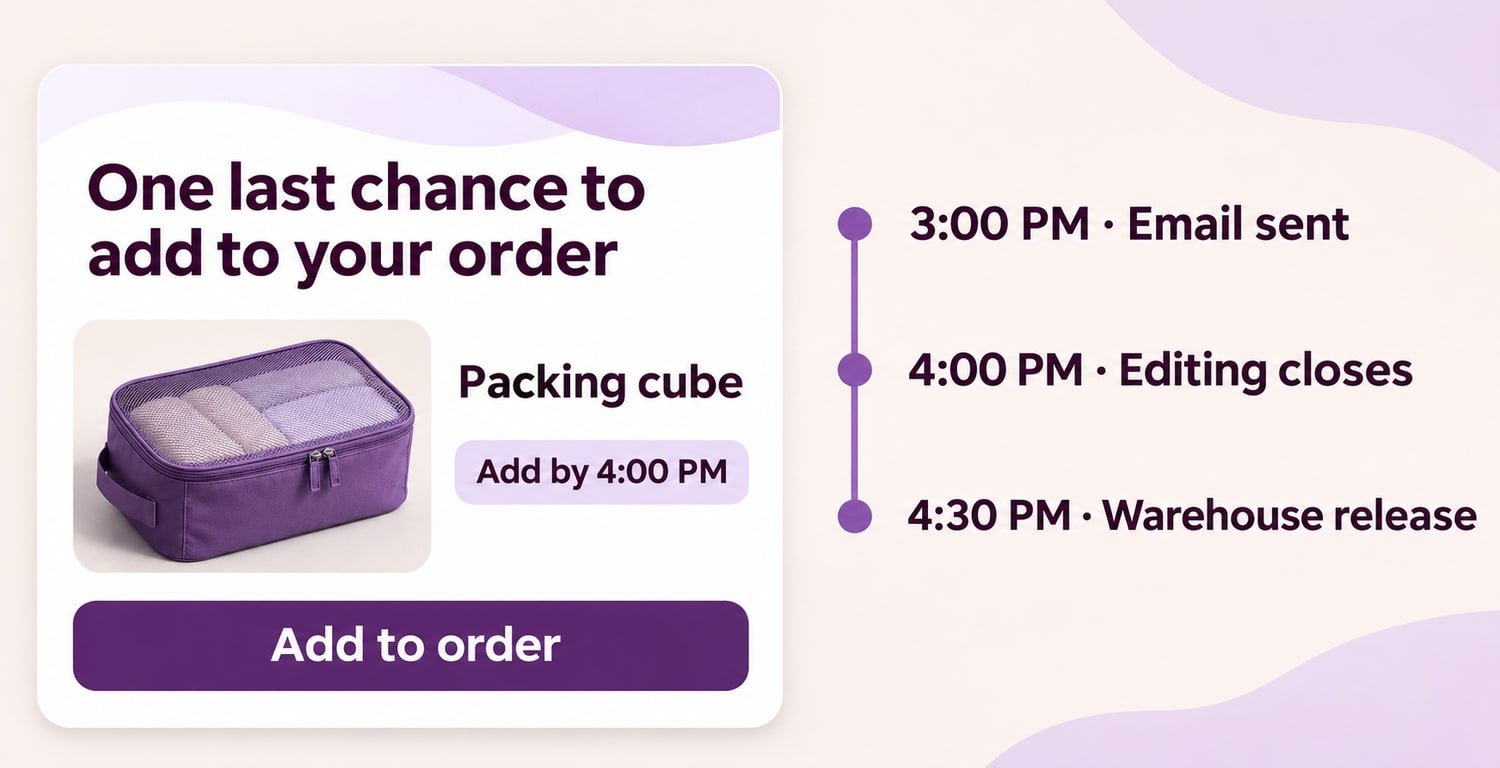
In Revize, go to Settings → General → Reminder before editing closes and pick when the reminder should fire. For example, give the order a two-hour editing window and trigger the email one hour before it closes. Choose a window longer than your reminder lead time.
3
Connect the trigger to your email
In Shopify Flow, use Revize’s Edit window closing soon trigger and pass the deadline and Shopify order ID to your email tool. Use
hoursBeforeClose to select the reminder that should send the offer if you configured several.If Revize is connected directly to Klaviyo, you can trigger a Klaviyo flow with Revize - Edit Window Closing Soon and use the event’s order_id and edit_deadline_display fields. Pick one delivery path for this email.Add the Revize-generated block or link and insert the event’s order ID using your email tool’s template syntax. Include the actual editing deadline so customers know when to act.4
Test before sending to customers
Place an eligible test order and wait for the reminder. Open the email, add the product, and check the amount due and updated order in Shopify. Confirm your fulfillment workflow gets the updated order before picking.
Last-minute add-on email template
Subject: One last chance to add to your orderHi [first name], Your order is getting ready to ship. Want to add [recommended product]? Use the button by [date, time, and time zone] to add it to the same order and pay any difference. [Add to order]Use the order-specific Revize link for the button and the deadline from the reminder event in the email.
Frequently asked questions
Will this create another Shopify order?
Will this create another Shopify order?
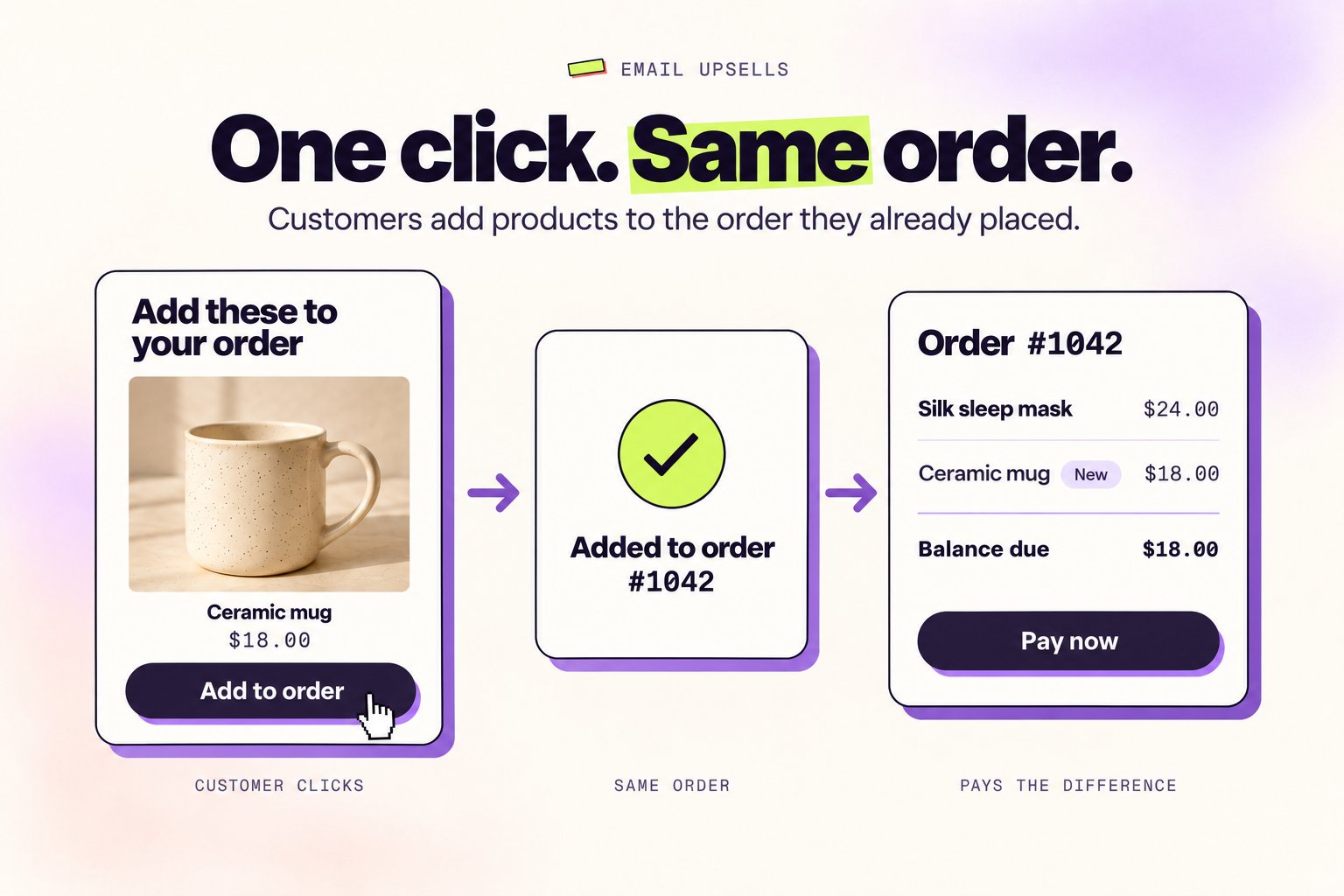
The Revize add-to-order flow adds the item to the existing eligible order. Check with your warehouse that it can ship the add-on with the original items.
Can I send the invitation after my warehouse starts packing?
Can I send the invitation after my warehouse starts packing?
Send it while the order is eligible and before release or picking. Once the warehouse starts work, follow your fulfillment workflow for any further requests.
Related guides
- Email upsells: create the template or link for the invitation
- Shopify Flow triggers and actions: set up the timing and order filters
- Subscriptions and pre-orders: check which purchases can be edited