

Use Revize to recommend products customers can add before they pay in Shopify checkout. You can place an offer in the main checkout column or in the order summary. A Free shipping bar shows customers how much more to add to qualify for free shipping.
Before you start
- Checkout upsells and free shipping bars require Revize Pro and Shopify Plus.
- You need access to the Shopify checkout editor to add the Revize app block.
- If you want customers to add a product after they pay, see Post-purchase upsells.
What shoppers see at checkout
Order summary add-ons
In this example, a shopper buying a chocolate gift box can add pralines or a dark chocolate bar from the order summary before payment.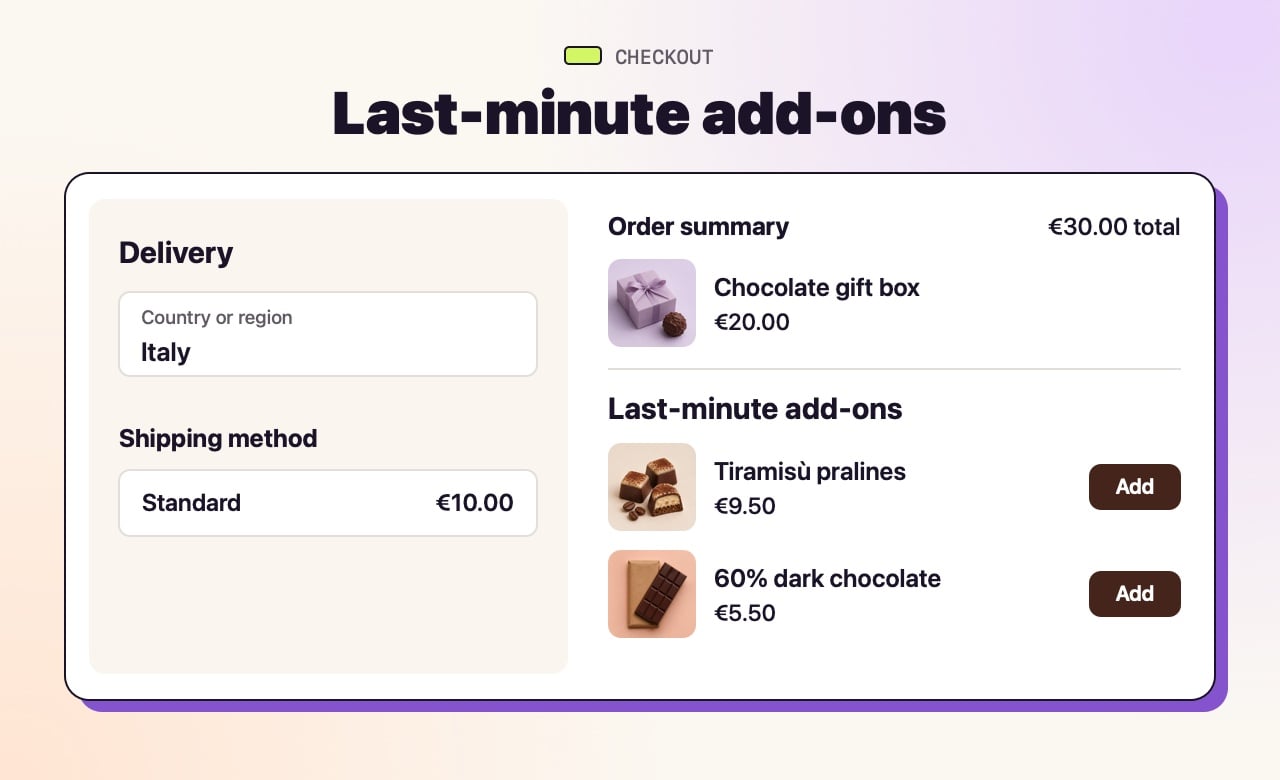
Free shipping bar with product recommendations
The free shipping bar can sit near the shipping options and suggest products. A shopper with a $45 subtotal is $15 away from the $60 free shipping threshold. The $16 beanie and $20 tote each cover the full gap on their own, bringing the subtotal to $61 or $65.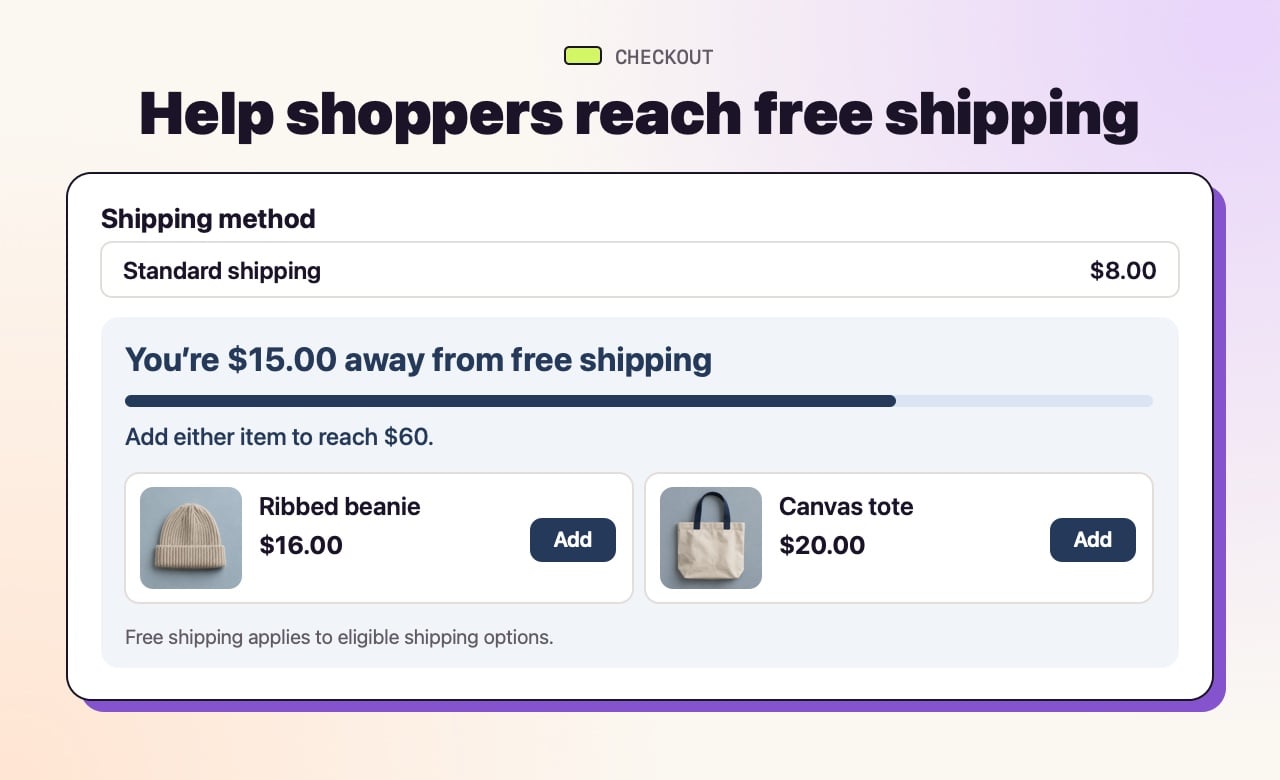
Create a checkout offer
1
Choose an offer type
In Revize, go to Upsell → Create offer. Choose a product list, slider, cards, featured product, or checkbox add-on. Click Next, name the offer, and enable Checkout in the offer editor.
2
Choose products and who sees them
Pick products, choose a collection, or use another product source available for the offer type. Add conditions such as Shipping country, Cart subtotal, or products in the cart. Use All when every condition in a group must match.
3
Choose a placement and price
Under Checkout, choose Order summary or Main checkout page. Preview the layout and text. To offer a discount, set the amount and follow Allow checkout discounts if prompted. Shopify applies the discount automatically. For a store selling in multiple currencies, use a percentage checkout discount.
4
Install the checkout block and activate the offer
Save the offer as a draft. In Upsell, click Add blocks and open the Shopify checkout editor for your placement. Add the matching Revize app block to your checkout configuration and save. Return to Revize, set the offer to Active, and save.
Add a free shipping bar
1
Choose Free shipping bar
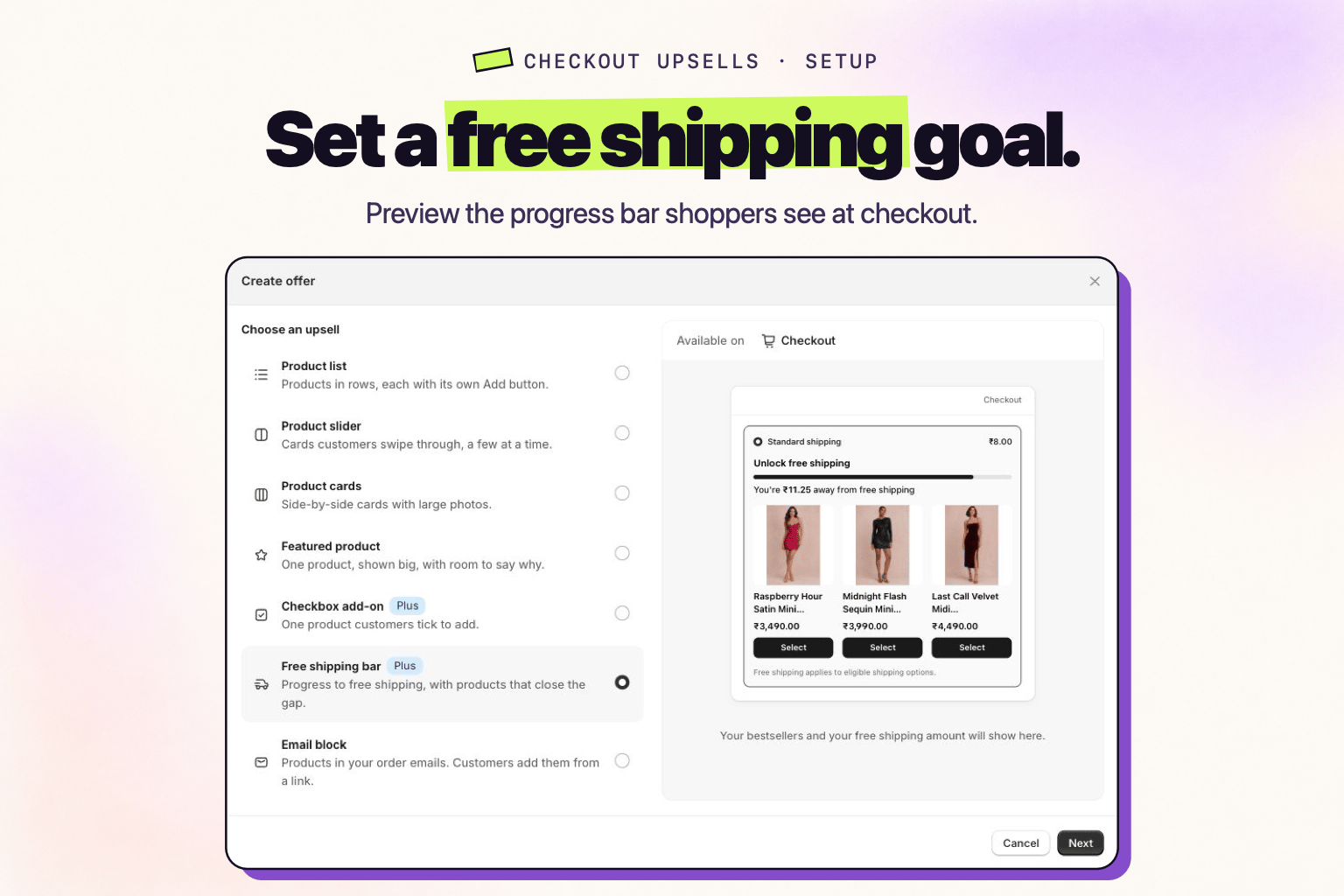
In Upsell → Create offer, select Free shipping bar. You can show the bar by itself or recommend products below it to help customers reach the threshold.
2
Choose who applies free shipping
Under Who applies free shipping, choose Revize to apply a checkout discount to the cheapest eligible shipping rate once the cart reaches the threshold. Choose My store’s shipping settings when your Shopify rates or discounts already provide free shipping at that amount. Use Check shipping settings after changing your rates or discounts in Shopify.
3
Set the minimum for each checkout currency
Enter the store-currency threshold in Minimum order for free shipping. Open Other currencies and enter the amount you want for each checkout currency. Revize checks the cart subtotal before shipping and taxes. Customers paying in a currency without an amount won’t see the bar.
4
Place the bar in Shopify
From Add blocks, open the checkout editor and add Free shipping progress. Place it where you want it to appear, save the Shopify configuration, then set your offer to Active in Revize.
Example: Offer free shipping at £60 on a EUR store
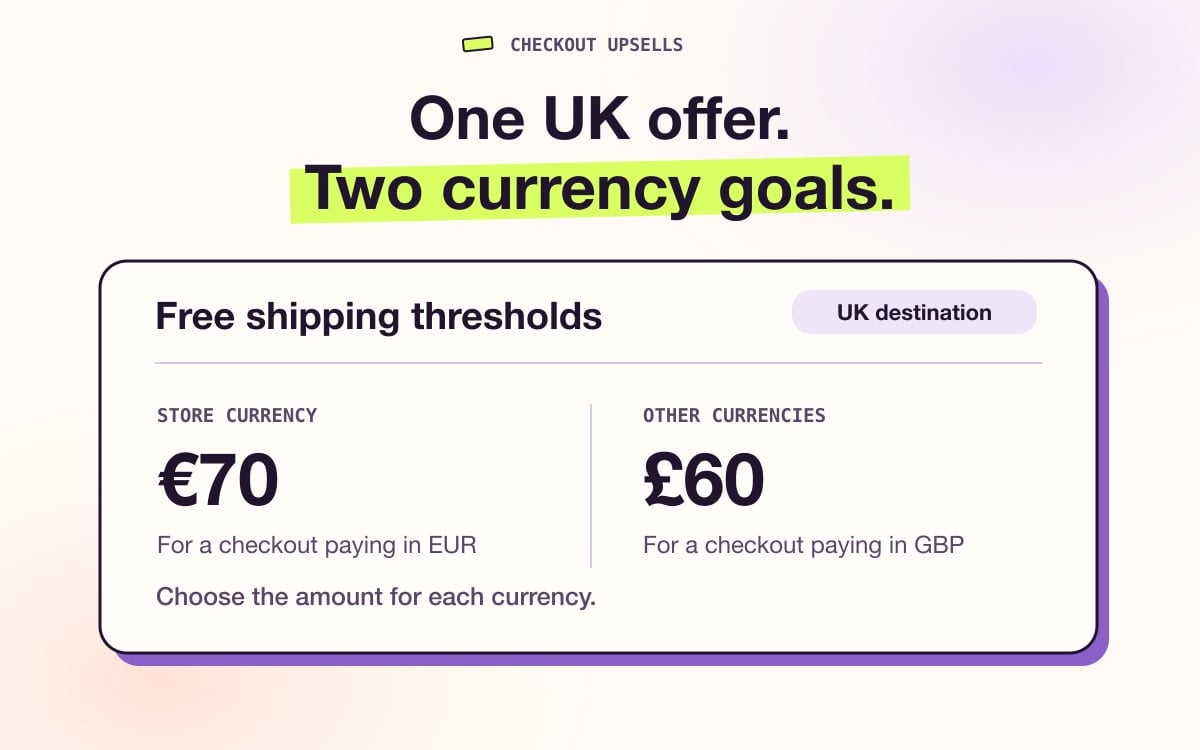
Use Minimum order for free shipping to set the £60 goal so the bar can show progress below that amount. Cart subtotal is a separate offer condition and can restrict which checkouts see the bar.
Run different bars in different markets
Create a separate offer for each bar. Give each offer its own conditions, currencies, and threshold. In Upsell, drag more specific offers above broader ones. Revize shows the first eligible free shipping bar in priority order.Test your offer
- Open the checkout configuration you saved and use a cart and shipping address that match the offer.
- Start below the threshold. Check that the bar shows the amount left to spend. Reach the threshold and verify the shipping charge in the order summary.
- Repeat in each target currency. Try a different shipping country to confirm the right offer appears.
- For product offers, add and remove an item. Check its price and any automatic discount in the order summary.
Frequently asked questions
Can I show a free shipping bar on its own?
Can I show a free shipping bar on its own?
Yes. You can show the bar by itself or add product recommendations below it to help customers reach the threshold.
Which amount do I enter for a different checkout currency?
Which amount do I enter for a different checkout currency?
Enter the store-currency amount in Minimum order for free shipping. In Other currencies, enter the threshold you want for each checkout currency. See the GBP example for a EUR store.
Why isn't my offer appearing at checkout?
Why isn't my offer appearing at checkout?
Check that the offer is Active, its schedule includes the current time, and the matching Revize block is in the checkout configuration you are testing. Check the shipping country, cart, and currency against the offer conditions. If several free shipping bars match, Revize shows the highest-priority eligible one.
Why is Shopify still charging for shipping?
Why is Shopify still charging for shipping?
Check Free shipping setup in Revize. If you selected My store’s shipping settings, verify that Shopify offers free shipping at the configured amount for the destination.
Related Revize features
- Product stars in checkout offers
- Shopify upsell playbook: choose an upsell placement and decide how to measure it
- Content blocks: add delivery information, trust badges, and custom fields to checkout
- Upsell A/B testing: compare a change to an existing offer