

Revize offers 32 content blocks across Shopify checkout, Thank you, and Order status pages. Show delivery details and trust badges before payment, then add a survey, next-order coupon, or tracking link on an eligible page after purchase.
Before you start
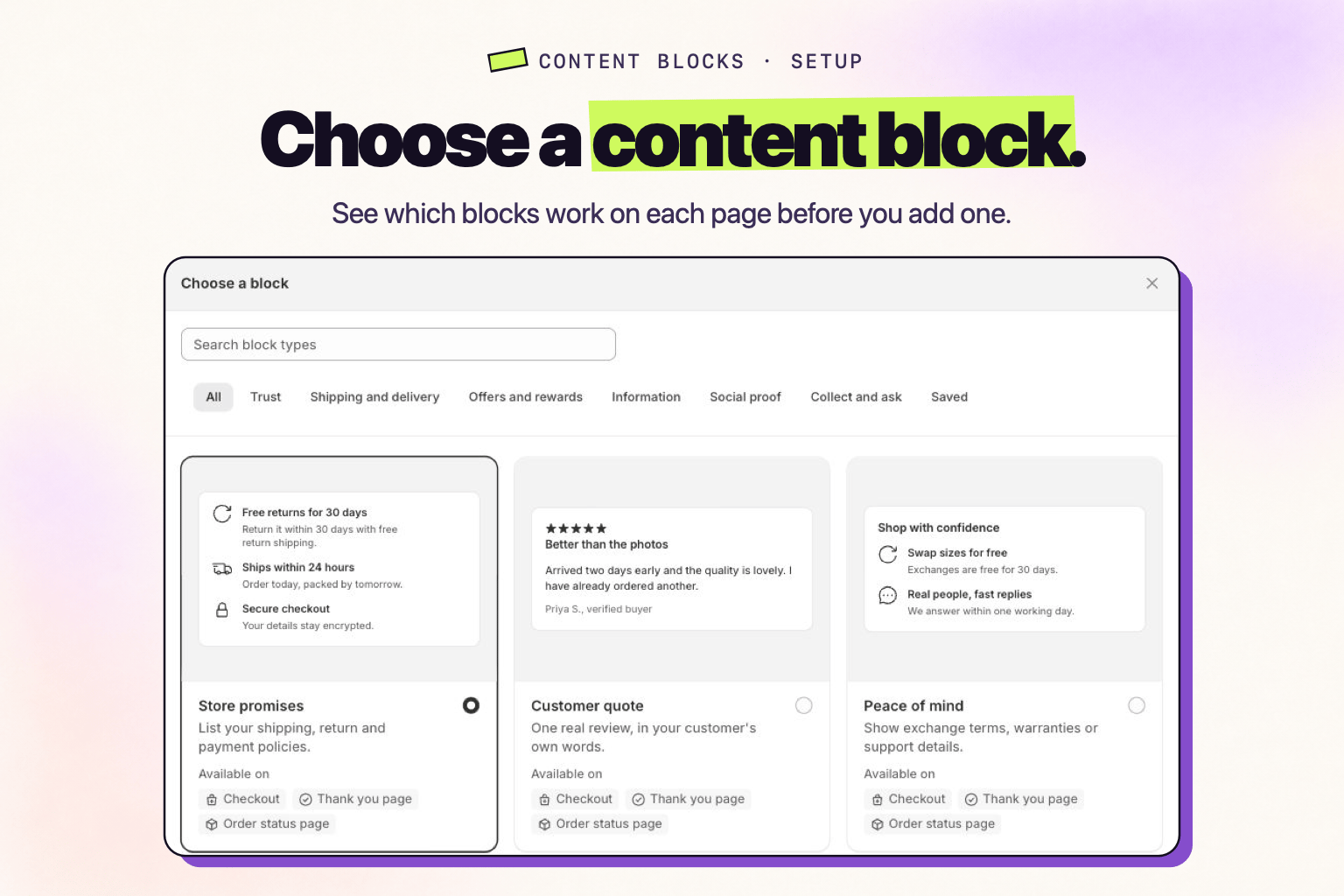
Content blocks require Revize Pro. The block picker shows the placements supported by each block. Shopify checkout app availability.
Choose a block
Select Content blocks in Revize and click Create block. The block picker shows which pages each block supports.
For a paid add-on such as gift wrap or shipping protection, set up the product and pricing in Checkout upsells.
If you use Shopify’s Checkout Blocks app for an order or shipping discount, see Checkout Blocks discounts after checkout to match the offer when customers edit an order.
Example layouts for checkout and after purchase
Shopify Plus checkout with delivery details and gift wrap
Place a review score or trust badges near the total and a delivery estimate near shipping. Add a free shipping progress bar or gift wrap where it helps shoppers decide. Use Revize checkout upsells to configure the free shipping goal or gift-wrap price.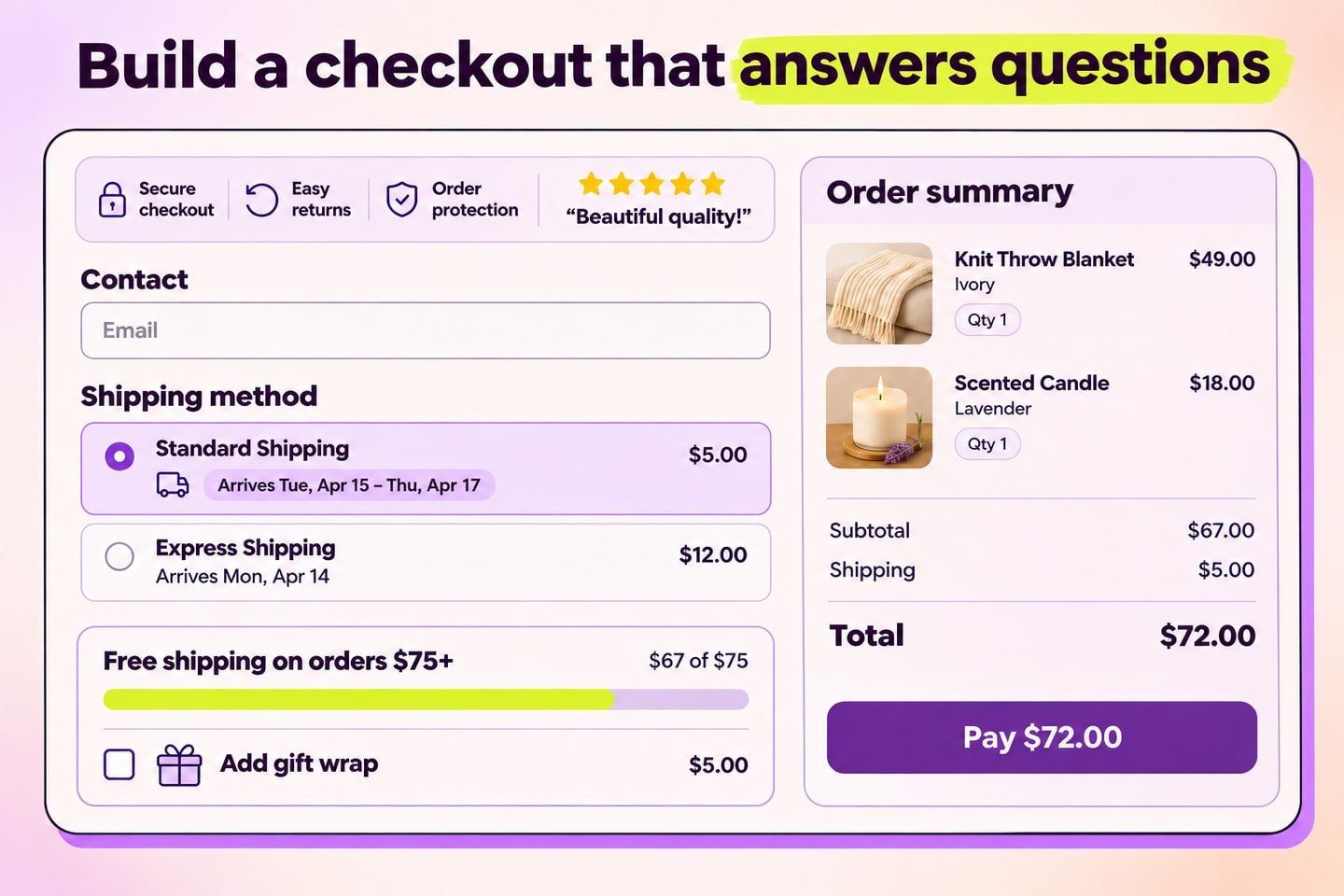
Thank you survey and Order status tracking
Use the Thank you page to ask how the shopper found you and offer an incentive for their next order. Add the tracking link to the Order status page, where customers can return to check delivery. These examples work with eligible blocks on Shopify Basic or higher.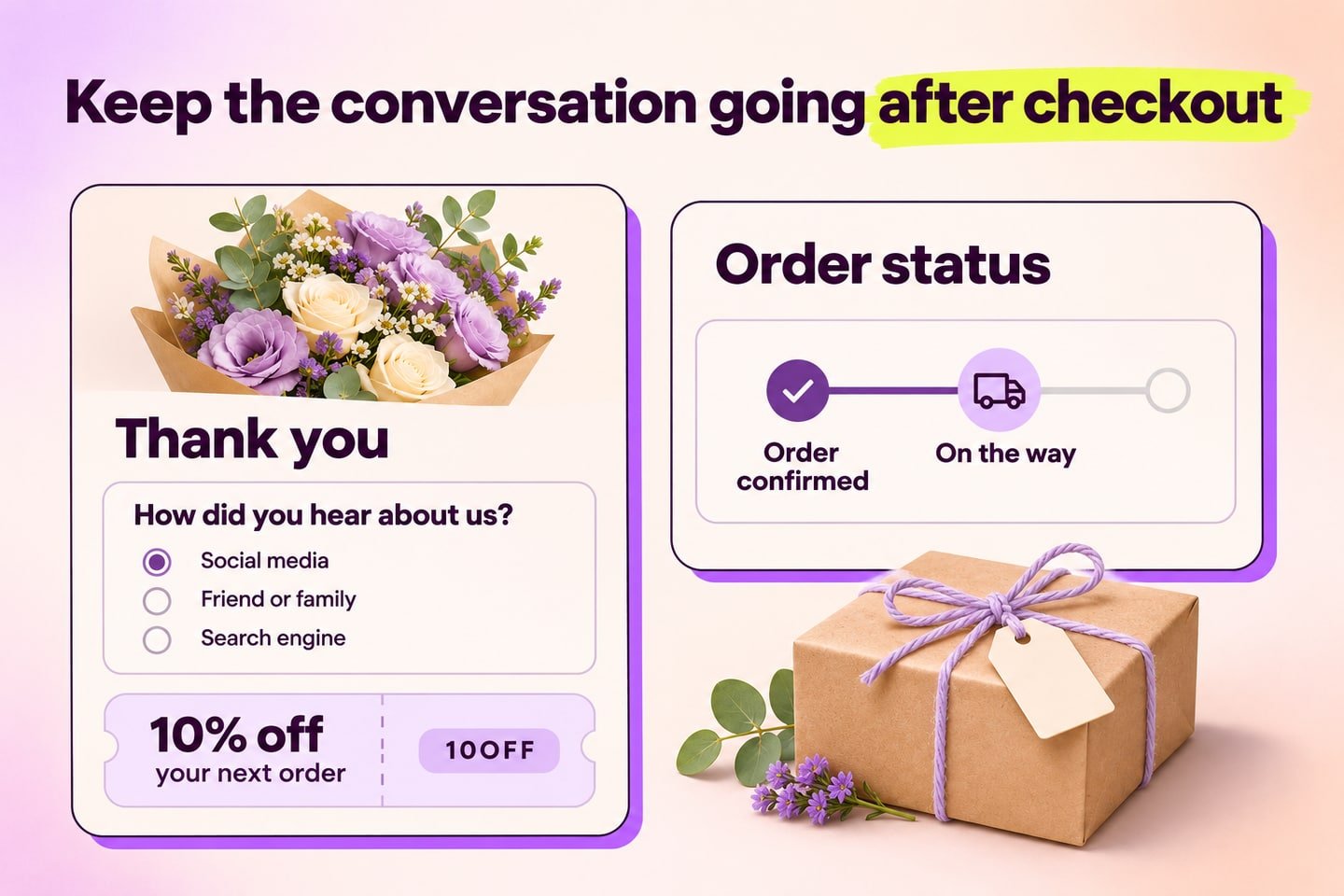
Create and place a block
1
Write the content and choose where it shows
Give the block a name and fill in the content customers will see. Choose Checkout, Thank you page, or Order status page from the pages available for that block. Set any country or scheduling options you need and use the preview to check the result.
2
Add the matching Revize block in Shopify
Use the setup prompt in Revize or open Settings → Checkout → Customize in Shopify. Switch to the page you want to edit and add the matching app block. Use Content block for general content, Forms and survey for forms or surveys, and Product label for labels under matching products. For Content block, use the same slot in both editors.
3
Save and test
Save the Shopify checkout configuration and the block in Revize. Open the customer page you selected and check the placement, appearance, and any links. If you target more than one country or language, test each version you plan to show.
Collect and review survey responses
Create a Survey block on the Thank you page or Order status page. Add the question and choices, then install Forms and survey on that page in Shopify. Place a test order, answer the survey, and check the results in Revize Analytics.Translate a block
Set the default text in the block editor, then add translations for the customer-facing text in Revize. Preview the translated content on the relevant page, including labels, buttons, and any text that takes up more space in another language.Frequently asked questions
Do I need Shopify Plus for Revize content blocks?
Do I need Shopify Plus for Revize content blocks?
You need Shopify Plus for blocks on checkout itself. On Shopify Basic or higher, you can add eligible Revize blocks to the Thank you and Order status pages. Check the block picker for the exact placements the block supports.
Can I add the same block to more than one page?
Can I add the same block to more than one page?
Check which pages the block picker lists for that block. Add the matching Revize app block in the Shopify editor for each page. For general content, set the slot for each page in Revize and match it in Shopify.
Why isn't my block appearing?
Why isn't my block appearing?
Save both editors and open the right checkout configuration and page. Confirm that the selected block supports that page, the matching Revize app block is installed, and the slots match where applicable. Review the block’s status, schedule, and country conditions.
Related Revize features
- Checkout upsells and free shipping bars: add a paid product offer or a free shipping progress bar
- Address validation: show a shipping address warning at checkout
- Translations: manage translated customer-facing text