

The shipping rules engine is live. Use it to decide what shipping costs and which delivery methods appear after a customer edits a Shopify order. The Revize team creates and tests rules in the Shipping rules dashboard today. Merchant access to the editor is coming.
Choose how to handle shipping after an edit
For Shopify stores using market-driven shipping, test each market with a matching delivery address. Rates can differ by destination, products, and delivery configuration. Test the original shipping charge and the new total before and after saving a representative edit.
Recreate a shipping discount from checkout
Record the original offer, including its minimum spend, currency, eligible destinations, and delivery methods. For example, if you offer free standard shipping over $100, decide whether to grant it when an edit crosses that threshold and what charge to restore if the order falls below it. For example, suppose Standard costs 8 USD, Express costs 18 USD, and only Standard should be free on US orders of 100 USD or more. Send those rate names, the currency, and the threshold to Revize support. The team configures the rule in the shipping rules dashboard.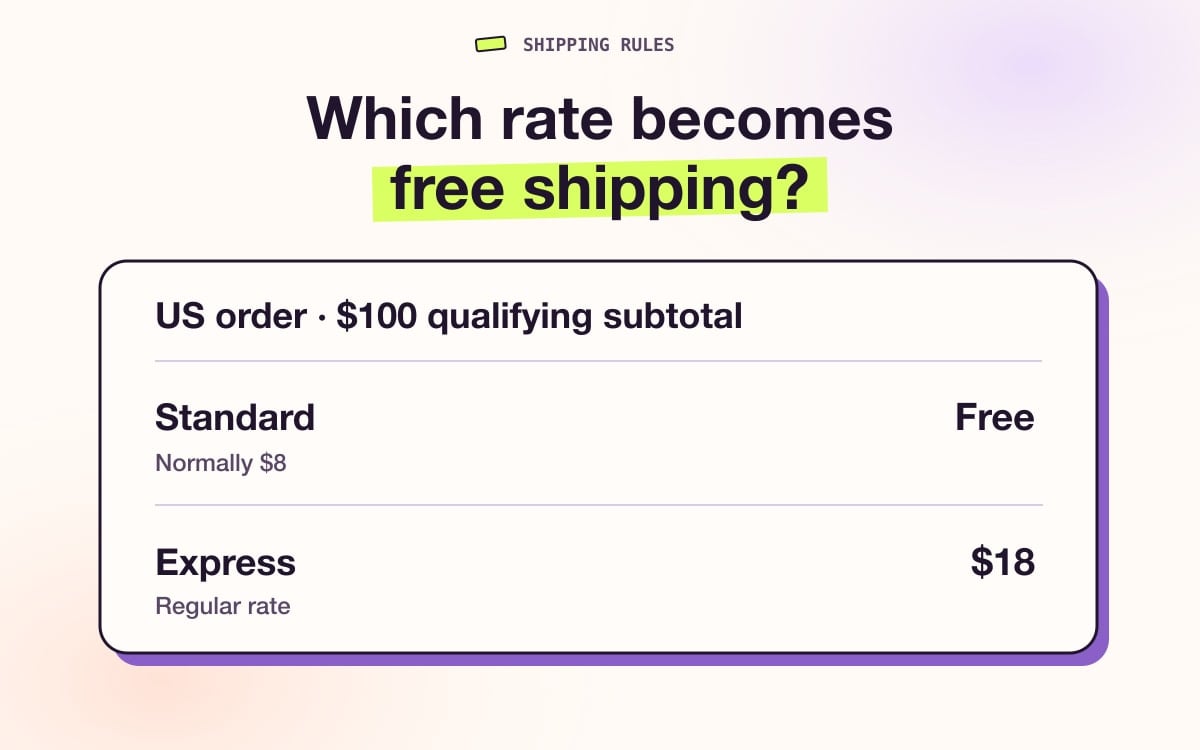
- Set the destination and minimum subtotal conditions. Include the order at exactly 100 USD if that is what your checkout promises.
- Choose Discounted shipping rates, select Shipping rate by names, enter Standard, and set its fixed shipping price to zero. Express keeps its regular rate. Use the exact name from your store.
- Place this rule above any broader rule that also matches US orders. The engine uses the first matching enabled rule. Check whether Keep shipping as charged at checkout is on, because that setting preserves the original charge.
- In the dashboard simulator, check one order above and one below the threshold. Then use a test order to confirm the options, shipping line and final total in Shopify. Below the threshold, the next matching rule or your regular rates determine the charge.
Test your shipping policy
1
Place an order in the market you want to test
Note the delivery address, shipping method, currency, and charge on the saved Shopify order.
2
Make the kind of edit your customers will make
Add or remove a product, change the shipping address, or select another shipping method if your settings allow it. Check the available options and the amount shown before confirmation.
3
Check the order your warehouse receives
Confirm the edited order in Shopify and verify the shipping method and charge in your fulfillment system before enabling the workflow for customers.
Related guides
- Upgrade shipping after Shopify checkout: let customers select a new rate
- Shopify Checkout Blocks discounts and delivery rules
- Discount rules: recreate savings on products or the order
- Fulfillment sync: check when changes reach the warehouse
- Shipping with ShipHero: confirm how Shopify edits and holds flow to ShipHero