

When Shopify records the products in a bundle as one group, Revize can show them together on the Order status page. Customers change the number of complete bundles. Revize keeps the quantities of the products inside each bundle in proportion.
What changes when a customer edits a bundle?
Suppose your skincare set contains one cleanser and two refills. A customer orders one set and a separate refill. The separate refill belongs to its own order line even though it has the same SKU as a component.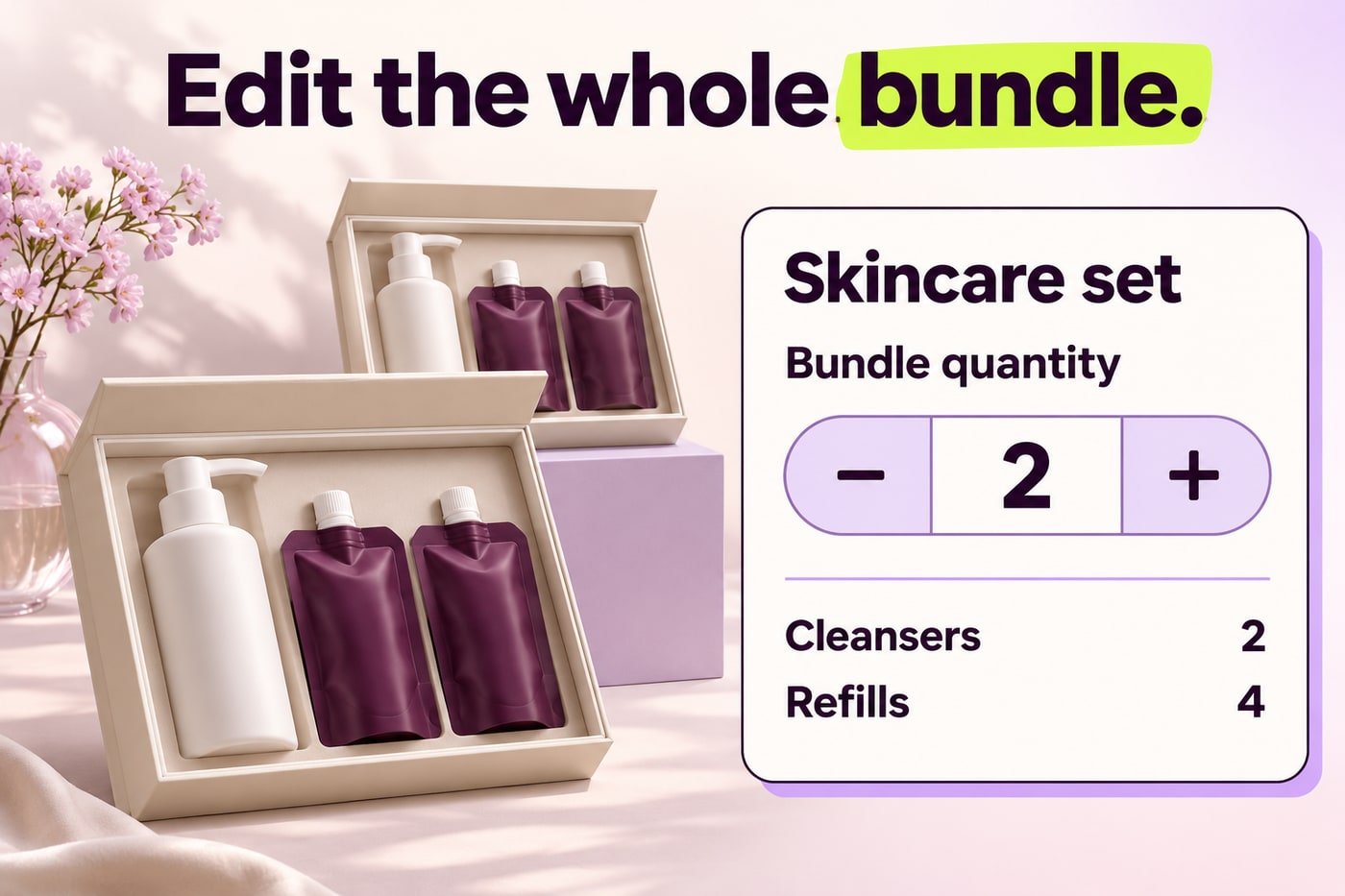
Check a bundle on your store
1
Start with a bundle that Shopify groups together
Place a test order with the bundle through your usual storefront. Open it in Shopify admin and check that its component lines belong to a bundle. A quantity break or a discount on several independent products uses discount rules and can appear differently in the editor.
2
Open the Order status page during the editing window
Make sure the relevant quantity or replacement edits are enabled. Expand the bundle to see its components, change the number of complete sets, and review the price difference.
3
Confirm the edit and compare the component quantities
Complete the payment, refund, or confirmation step shown for that order. Compare the updated bundle and any separately purchased items in Shopify before your warehouse starts picking.
Frequently asked questions
Does this work with every bundle app?
Does this work with every bundle app?
Check how the app writes the bundle to Shopify. Revize uses Shopify’s bundle grouping to identify which components belong together. If the order contains only separate lines or the group is incomplete, share an example with Revize support before offering bundle edits to customers.
Why can't a customer replace just one component?
Why can't a customer replace just one component?
An individual swap would change what is included in the set. If the customer wants a different set, use whole-bundle replacement when available or ask your team to help.