

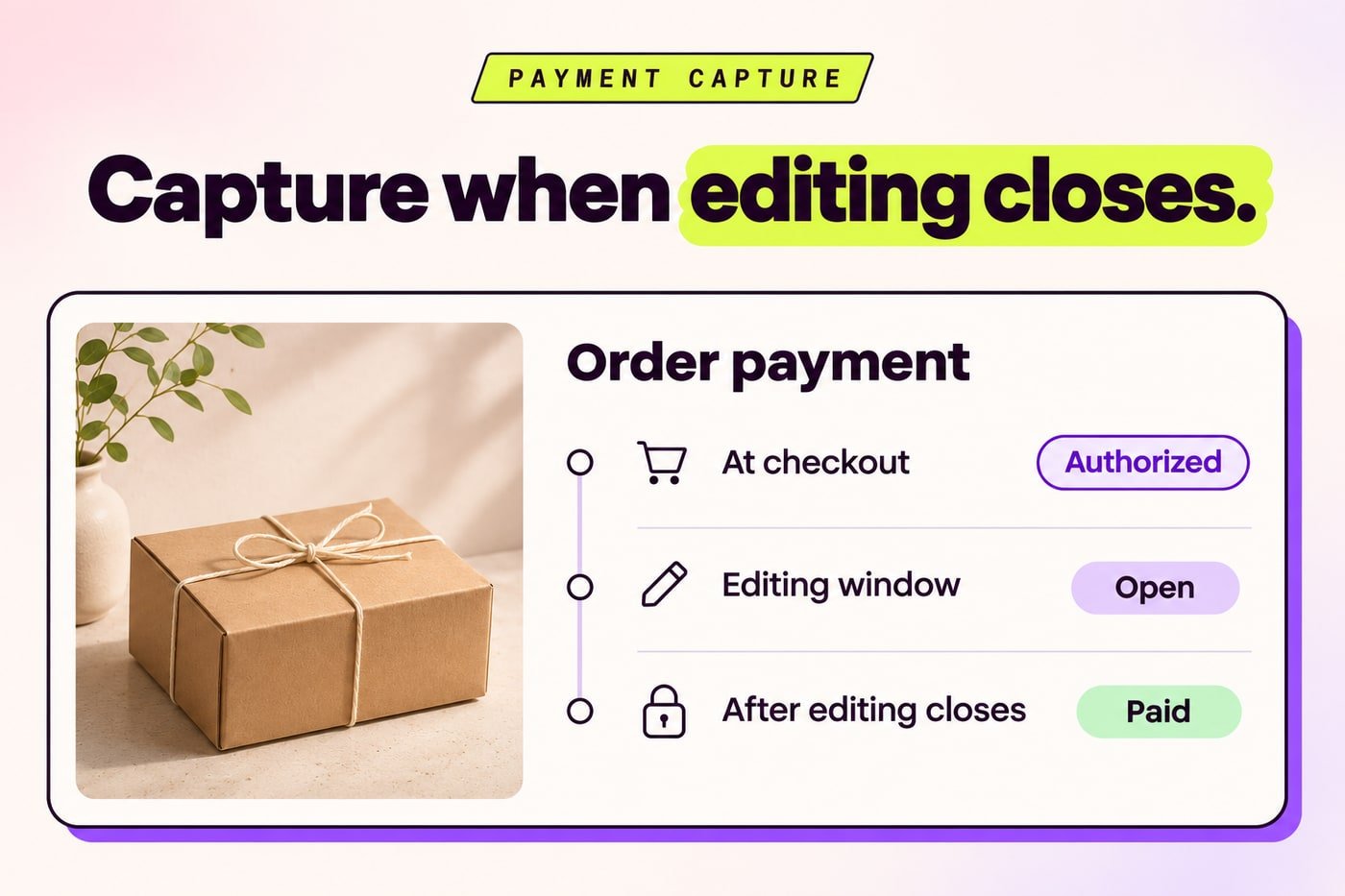
With delayed payment capture, Shopify authorizes the customer’s payment at checkout. Revize captures the eligible payment once editing closes. Your warehouse can use Shopify’s Paid status to decide when the updated order is ready to process.
Before you start
- Check that your payment provider supports manual capture. The authorization must still be valid when capture runs. You can check its expiration on the Shopify order.
- Use a timed editing window. Until fulfillment has no timed cutoff for capture. If your warehouse waits for payment, use a cutoff that occurs before it needs to pick.
- Decide whether your warehouse needs to import unpaid orders to reserve stock or can wait for payment. Set up its payment-status rules as part of the same rollout.
Set up delayed payment capture
1
Set Shopify to manual capture
In Shopify admin, go to Settings → Payments → Payment capture method and select Manually. Check Shopify’s payment capture settings for your provider. Coordinate the change with your fulfillment team because this is a store-wide setting.
2
Turn on capture at the edit deadline
In Revize, go to Order Editing → Editing policy → Fulfillment while editing. Turn on Capture payment when editing closes, review What Revize will do, and save. Choose Hold orders or Skip hold based on how your warehouse handles Shopify holds.
3
Set up your warehouse handoff
Find your warehouse or ERP setup guide. Confirm that orders awaiting payment stay out of the picking queue, even if your partner imports them to reserve stock.
4
Test before you rely on it
Place an order with an eligible payment method. Check that Shopify shows Authorized, then change a product or shipping address. Verify that Shopify shows Paid after capture and that your warehouse sees the final items and address before picking. Repeat with an order that the customer leaves unchanged.
Check orders that are still awaiting payment
An order can stay Authorized, Pending, or Partially paid after editing closes. Check the Shopify order timeline for the authorization, a pending capture, or an unpaid balance from an edit. Wait for Shopify to confirm the payment before treating a pending capture as settled. Use the Revize Payment capture failed Shopify Flow trigger to alert your team when a capture attempt needs follow-up.Frequently asked questions
Does Revize capture payment if the customer makes no edits?
Does Revize capture payment if the customer makes no edits?
Yes. With Capture payment when editing closes enabled, Revize attempts capture when editing closes even if the customer leaves the order unchanged. Your capture exclusions still apply.
When does the capture wait apply?
When does the capture wait apply?
If a restriction tag or an editing rule turns editing off, Revize uses Wait before capturing a restricted order. You’ll find it in the Settings section when Capture payment when editing closes is on. The default is one hour. For an order closed by a restriction tag, an earlier edit deadline takes precedence.
What happens to Shopify orders flagged for fraud review?
What happens to Shopify orders flagged for fraud review?
Revize skips automatic capture for medium- and high-risk orders by default. Review the order in Shopify and follow your store’s fraud-review process before collecting payment or shipping.
Do all payment methods follow this workflow?
Do all payment methods follow this workflow?
The workflow applies to eligible, uncaptured authorizations. If you accept cash on delivery, pay-later terms, or methods that collect payment at checkout, test how those orders enter your warehouse workflow.
Related Revize features
- Order processing explains Shopify holds and release tags.
- 3PL and warehouse holds helps you choose what keeps an order out of picking during editing.