

The discount rules engine is live on Revize Pro. When a customer edits an order, it evaluates the updated order against the promotion you configured. The Revize team manages rules in the Discount rules dashboard today. Merchant access to the editor is coming.
Choose the discount you need
Choose the rule type in the discount editor
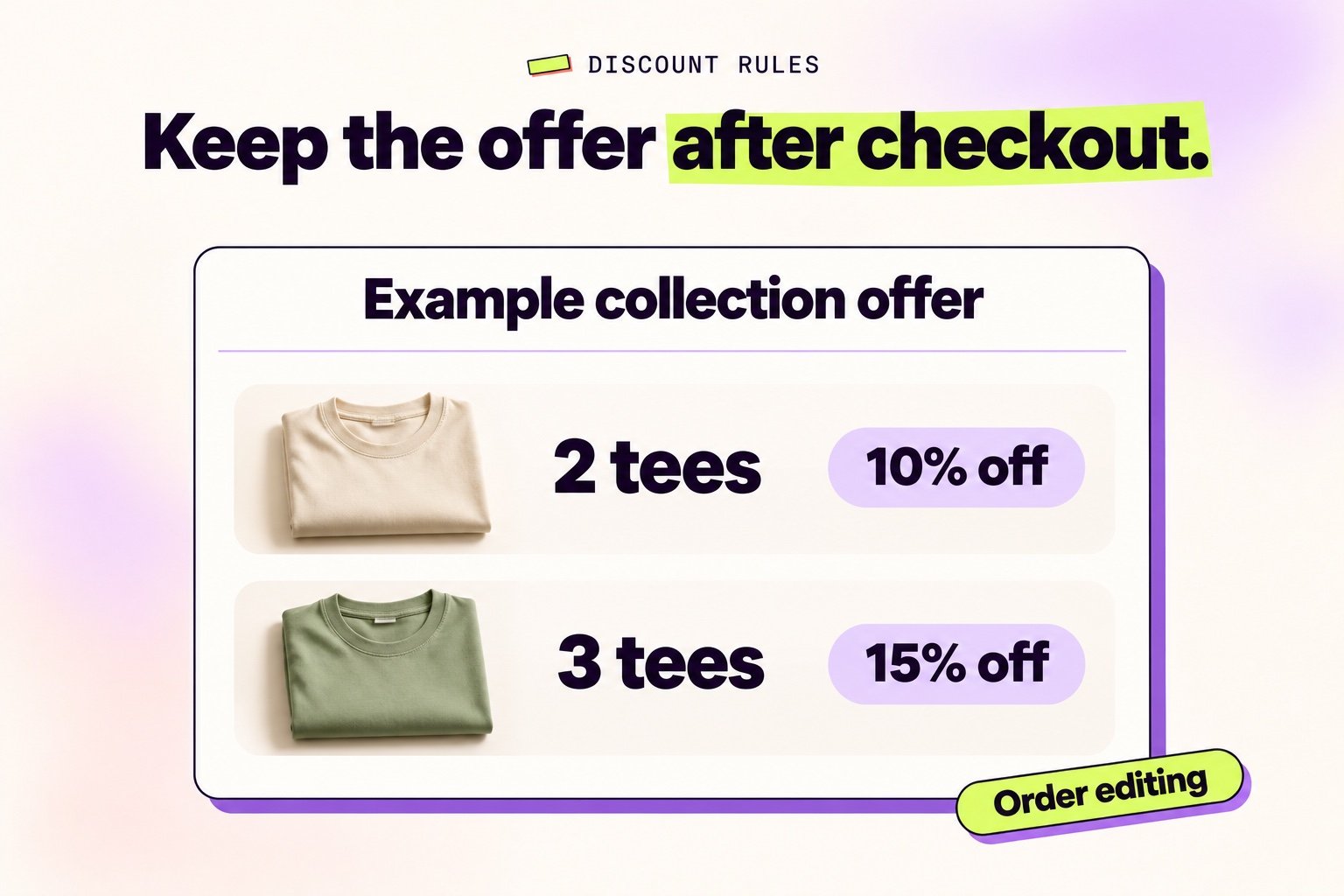
Set the conditions and savings
In the dashboard, the team names the rule, chooses its type and enters the reward. Conditions can use quantities, eligible product collections, customer tags, shipping country, currency, or a discount code on the order. Conditions in the same group must all match. Use a second group for an alternative way to qualify. For example, to give one free pouch with a purchase from your skincare collection, identify the pouch variant as the reward and the skincare collection as the qualifying items. Set the qualifying spend, make the pouch 100% off and cap the reward at one. Include the campaign dates and combination settings so a second code behaves the way you intend. To request setup or change a live promotion, send Revize support its name as it appears on a Shopify order, the campaign settings, and one example on either side of the qualifying threshold. For a gift that’s free on orders of $200 or more, configure the rule to remove the gift discount when the edited order drops below the threshold. Test that the gift line shows its regular price and that the total reflects the customer’s changes before they confirm. Use the Shopify Functions and third-party discounts guide for a custom app promotion, or the Shopify Checkout Blocks guide for a rule created with Checkout Blocks.Test a minimum-spend promotion
1
Place an order that qualifies
Use the same products, customer conditions, currency, and shipping destination that the promotion expects. Record the original discount and Shopify order total.
2
Make an edit that changes eligibility
For example, reduce the quantity so the order drops below the gift threshold. Check the preview, then confirm the edit on a test order and review the gift line, the discount, and the final total in Shopify.
3
Check the opposite case
Increase the quantity again, and check what you expect when the order qualifies. Repeat with any discount code or automatic discount that can combine with the promotion.
Frequently asked questions
Should I compare the result with Shopify checkout or Shopify's order editor?
Should I compare the result with Shopify checkout or Shopify's order editor?
Check a fresh checkout to understand your promotion’s eligibility. Check Shopify’s order editor and the saved order to understand how Shopify handles the existing discount after an edit. Use the Revize rule to define the outcome you need where supported.
Related guides
- Apply discounts after checkout: let customers enter a code on an eligible order
- Payments and refunds: choose how customers pay or receive a refund when the total changes