

Turn on Test mode to let your team try Revize on your store before you open order editing to customers. Revize checks customer tags in Shopify. A customer who has any one of your test tags can try the editing experience on an eligible order.
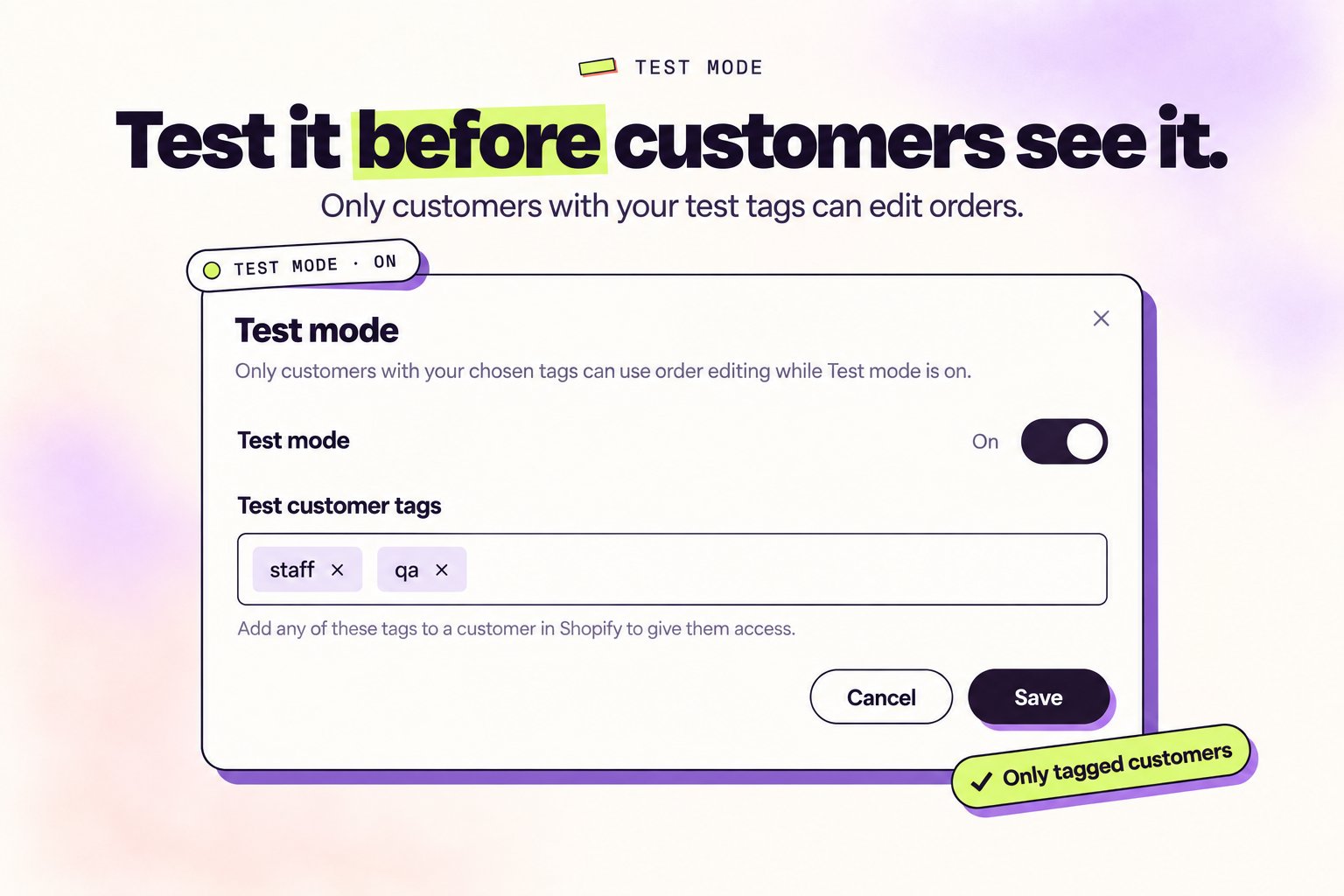
Turn on Test mode
1
Choose who can test
Open Test mode in the top bar of Revize. Turn it on, keep the staff tag or enter a tag just for this test, such as revize-qa, and click Save. Keep at least one tag.
2
Tag the customer before creating the order
In Shopify admin → Customers, open the profile you’ll use at checkout. Add the same tag and save. The whole tag must match. Uppercase and lowercase letters are treated alike. A tag on the order itself does not qualify the customer.
3
Enable Revize and install the order page blocks
Check Settings → App status in Revize. In Shopify’s checkout and accounts editor, check that the Revize blocks you want to test are on the correct Thank you or Order status page and that the configuration is published. Follow the Quickstart for block setup.
4
Create a fresh order for the tagged customer
Place an order using the tagged customer profile, or create a Shopify draft order and convert it to an order. Open that order’s status page while the editing window is open. Start with an enabled edit that keeps the total the same, such as changing to an equally priced size. Confirm it and check the updated variant in Shopify.
Check both customer experiences
Use a second customer profile without a test tag for the last column. The Shopify block editor can show a design preview even when a shopper would see nothing. Verify visibility on the actual order pages. EU withdrawal follows its own eligibility and placement settings during testing.
Finish testing and go live
When both customers see what you expect, open Test mode, turn it off, and click Save. Keep App status on. Check a new order from an untagged customer inside your editing window. That customer should now see the edits allowed by your store’s rules.Frequently asked questions
I added the tag, but my test order has no editing options. What should I check?
I added the tag, but my test order has no editing options. What should I check?
Confirm the order belongs to the Shopify customer you tagged. Check that App status is on, the Order status block is published, the order is eligible, and the editing window is open. Reload the page. To test the fulfillment hold, create another order after tagging the customer because Revize evaluates the hold when the order is placed.
Can I test without making an order available to the warehouse?
Can I test without making an order available to the warehouse?
Use a test product and check which event your fulfillment provider uses to import orders. A tagged test order follows your configured fulfillment workflow, including release when the editing window closes. See test your warehouse handoff.