

Use Revize to compare two versions of a Shopify upsell with different groups of eligible customers. Variant A is your current offer and Variant B is the version you’re trying. You can start with a shorter heading or a different layout.
Before you start
- You need access to Revize upsells and an eligible offer. Checkout tests also require Shopify Plus.
- Open the test setup to see the placements and test types available for the offer you choose.
Set up a test
1
Choose the offer
In Revize, open Upsell → A/B tests → Run A/B test and choose an eligible offer. You can also open an offer and use Run A/B test there. For checkout, make sure the offer is active at the placement you want to test and has finished syncing.
2
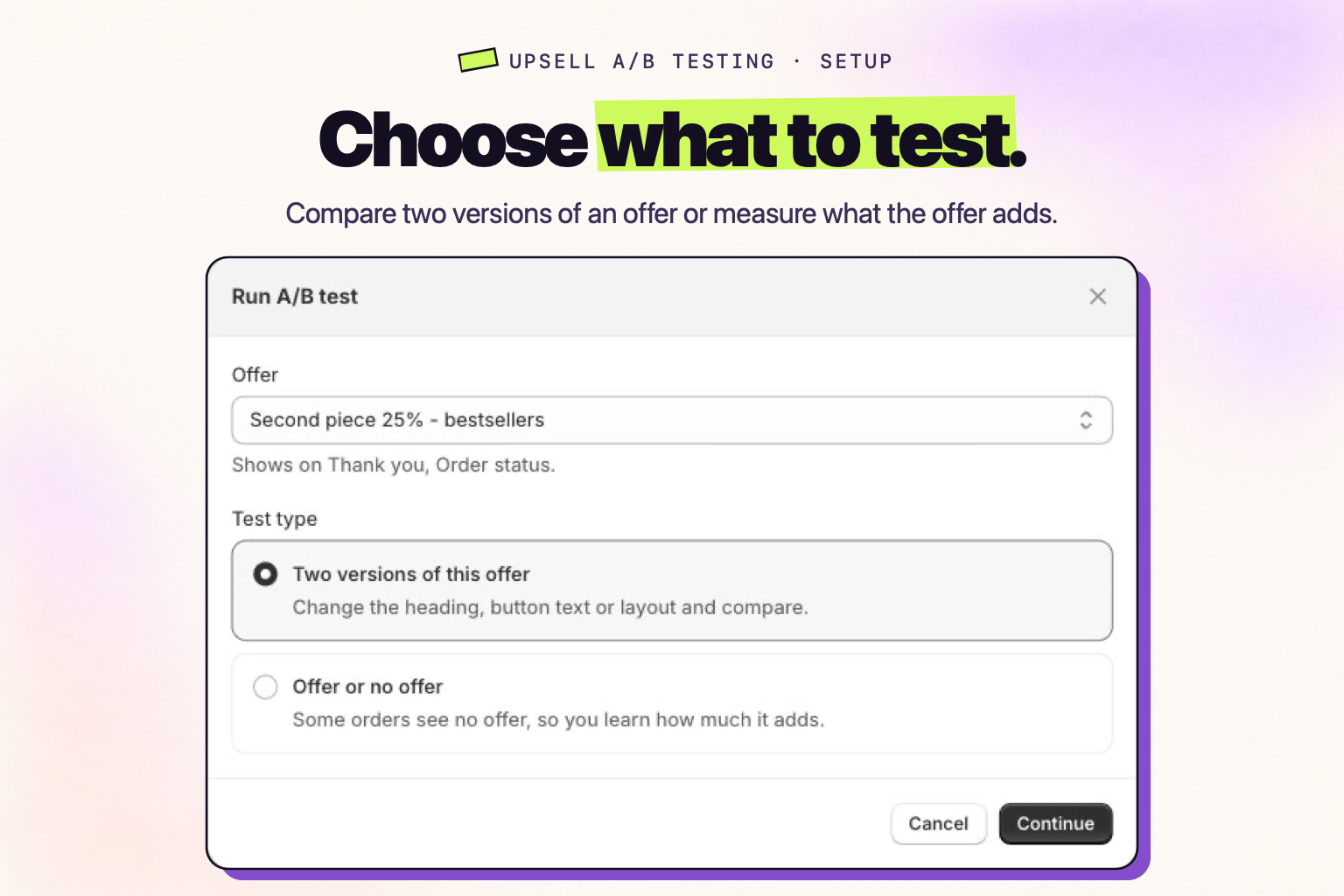
Choose what to compare
Choose Two versions of this offer or, when available, Offer or no offer, then click Continue. To compare two versions, choose one change for Variant B. For a first test, keep the products and pricing the same and change the heading. If you choose Offer or no offer, some eligible orders see no offer so you can measure what the offer adds. Available changes depend on the offer and placement.
3
Set the traffic split, goal, and length
A 50/50 split assigns each version a similar share of eligible traffic. Choose a primary metric from the options shown. Use Upsell conversion if your goal is for more customers to add the offer. Choose a test length that gives both versions time to collect paid orders.
4
Review the versions and start
Preview both versions and confirm the settings, then click Start test. Revize keeps each measured checkout or order in its assigned version while the test runs. If the offer is still syncing, wait for sync to finish before starting.
Read the results
Go to Upsell → A/B tests and open the test. Review measured checkouts or orders, paid upsell orders, revenue, and your primary metric. Checkout conversion is the share of measured checkouts that become paid orders containing an item from the offer. Checkout measurement uses analytics permission, and late payments can take time to appear.- Collecting data means the test is still measuring results. Wait until it finishes and late checkouts complete before acting on early differences.
- Not enough data means the test ended without enough measured orders to choose a winner.
- No clear winner means the results didn’t show a reliable improvement on the primary metric. You can keep Variant A and try another test.
- Results need attention means you should check the explanation in the results before applying a variant.
Apply the winner or end a test
For a manually managed test, review the result and apply Variant B if you want to use it for new customers. If you chose to apply a winner automatically, Revize follows the rules shown in the test setup. Ending early keeps the results collected so far and sends new traffic to Variant A. A test ended early cannot choose a winner.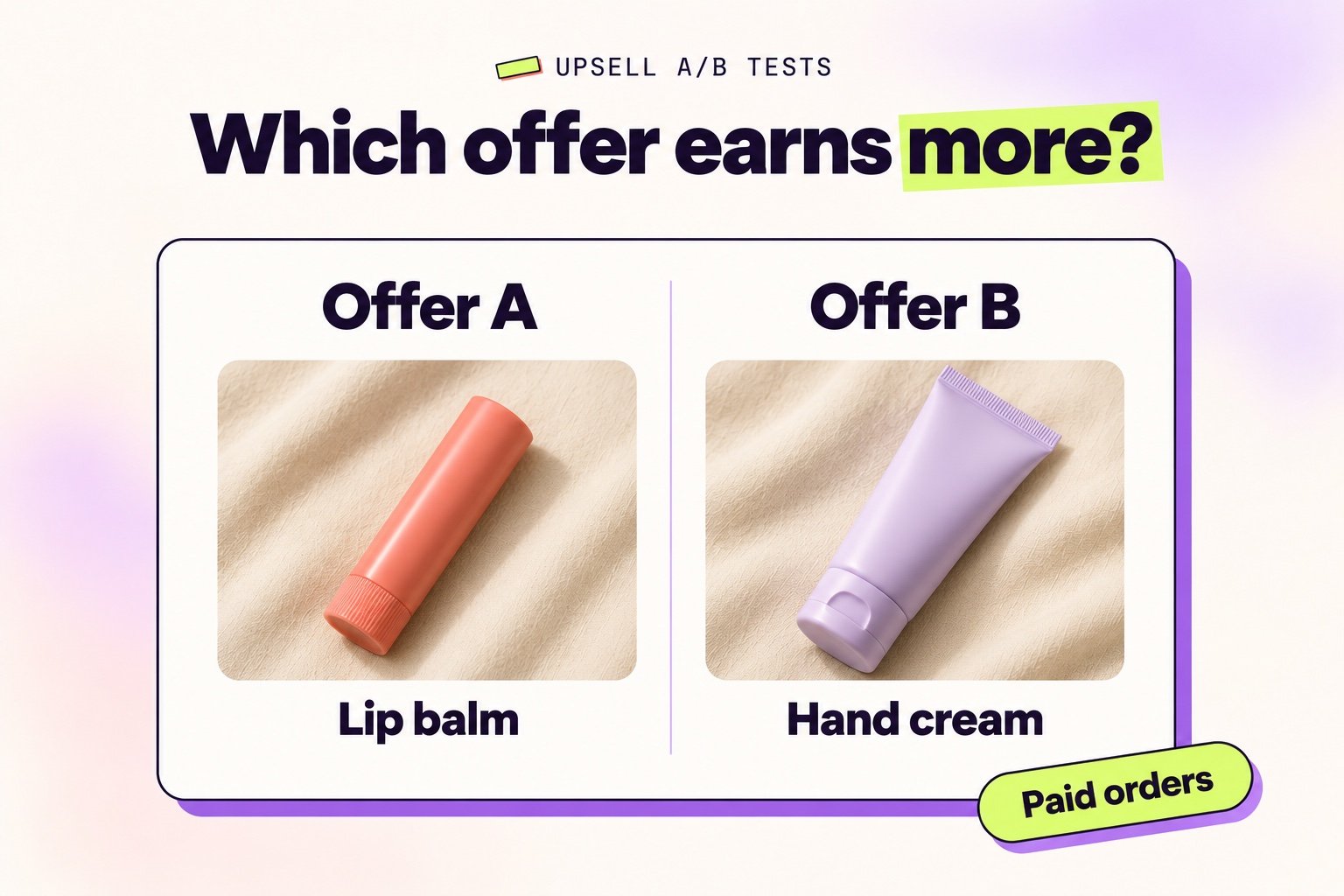
Example: Compare two checkout headings
Try “Last-minute add-ons” as Variant A and “Add chocolates to your gift” as Variant B. Keep the products, prices, layout, and order summary placement the same. Use Upsell conversion as the primary metric and compare the paid-order results when the test ends.Frequently asked questions
Can I compare the offer with showing nothing?
Can I compare the offer with showing nothing?
Choose Offer or no offer when the test setup offers it. Some eligible orders see no offer, so you can measure what showing the offer adds.
Can I act on the result while the test is collecting data?
Can I act on the result while the test is collecting data?
Wait for the test to finish and for late payments to appear. Early differences can change. If the test ends with Not enough data or No clear winner, you can keep your current offer.
What happens if I end a test early?
What happens if I end a test early?
Revize keeps the results collected so far and sends new traffic to Variant A. A test ended early cannot choose a winner.
Related Revize features
- Shopify upsell playbook: decide which placement and metric to start with
- Checkout upsells and free shipping bars: create an offer shoppers see before paying
- Post-purchase upsells: let customers add products to their existing order after they pay
- Upsell analytics: check paid revenue and activity outside the test