

Use Revize to let customers edit an eligible Shopify order placed through STOQ before it ships. STOQ manages the preorder offer, payment schedule, and its fulfillment holds. Revize applies the editing window and actions you choose for the Shopify order.
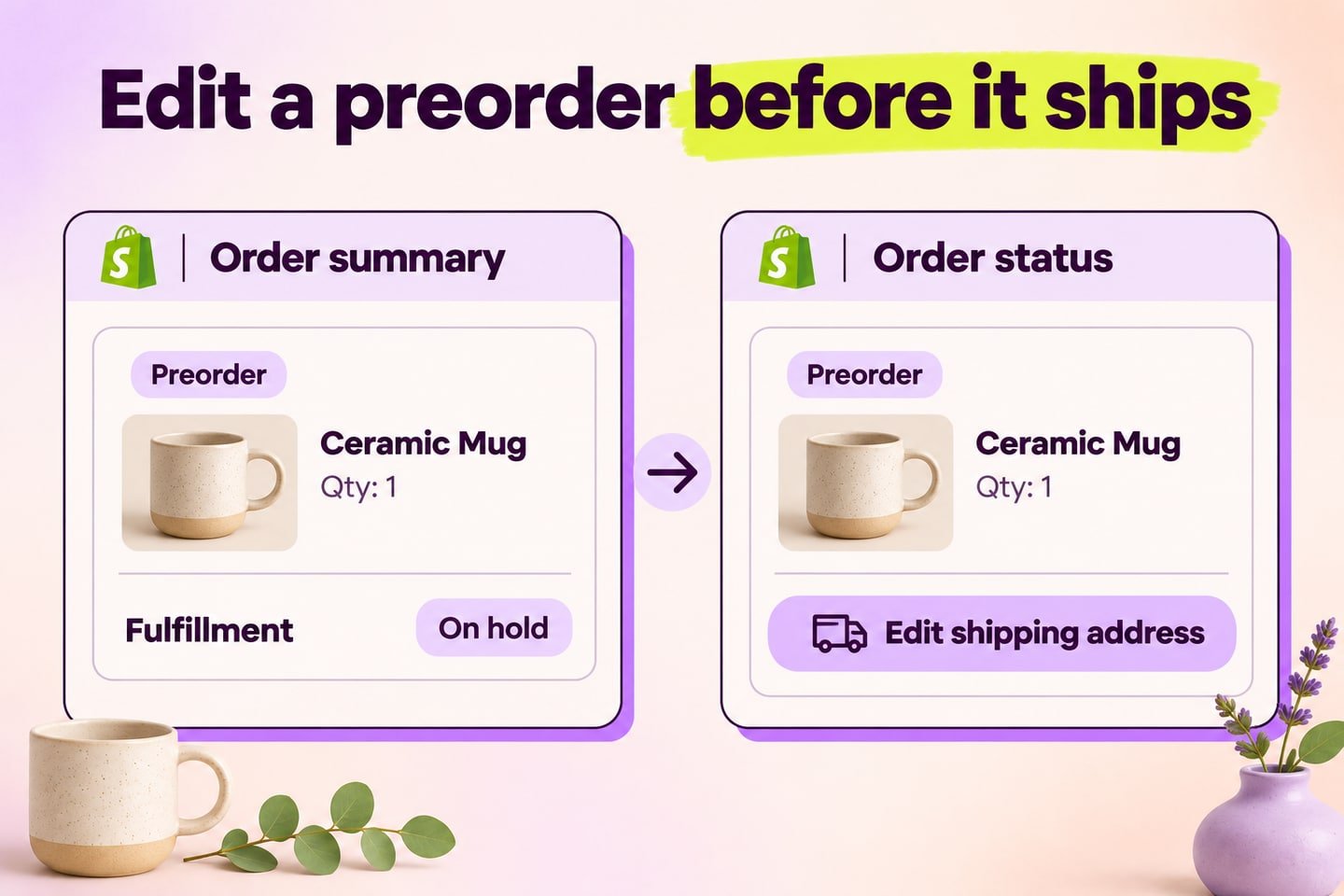
Set up a separate editing window for STOQ preorders
- In STOQ, open Preorders → Offers, select your offer, and find Order tags under Limits & terms. Confirm the tag you use, such as
STOQ-preorder. STOQ adds the tag shortly after checkout. Set preorder tags in STOQ. - In Revize, open Order Editing → Customer edits and choose which edits to offer. Start with shipping address edits. On Revize Pro, use an editing rule for your preorder tag or product collection if preorders need a different deadline.
- Set the edit deadline before your warehouse begins picking. If a tag arrives after checkout, check the deadline and available edits once the tag appears. A mixed cart can carry the preorder tag even when some items ship earlier.
Test one order before enabling the workflow
Use STOQ’s configured release workflow for STOQ holds. Confirm that closing the Revize editing window leaves the preorder hold in place until your store is ready to release it. STOQ fulfillment holds · STOQ separate orders.
Frequently asked questions
Can I give STOQ preorders more time to edit?
Can I give STOQ preorders more time to edit?
Yes. On Revize Pro, create an editing rule matching the preorder tag or collection. Test the cutoff on a new order and leave time for your team to review the edit before fulfillment.
Can the customer change preorder quantities or add items?
Can the customer change preorder quantities or add items?
Check which actions Revize shows on a test order with the same payment and fulfillment setup. If an action is unavailable or it changes the balance or fulfillment unexpectedly, keep that action off for the affected orders and share a test order with Revize Support.