

Reverse Unpaid Edits restores an order to its last paid state when a customer abandons an additional payment. Revize releases the fulfillment hold only after Shopify confirms that the balance is settled.
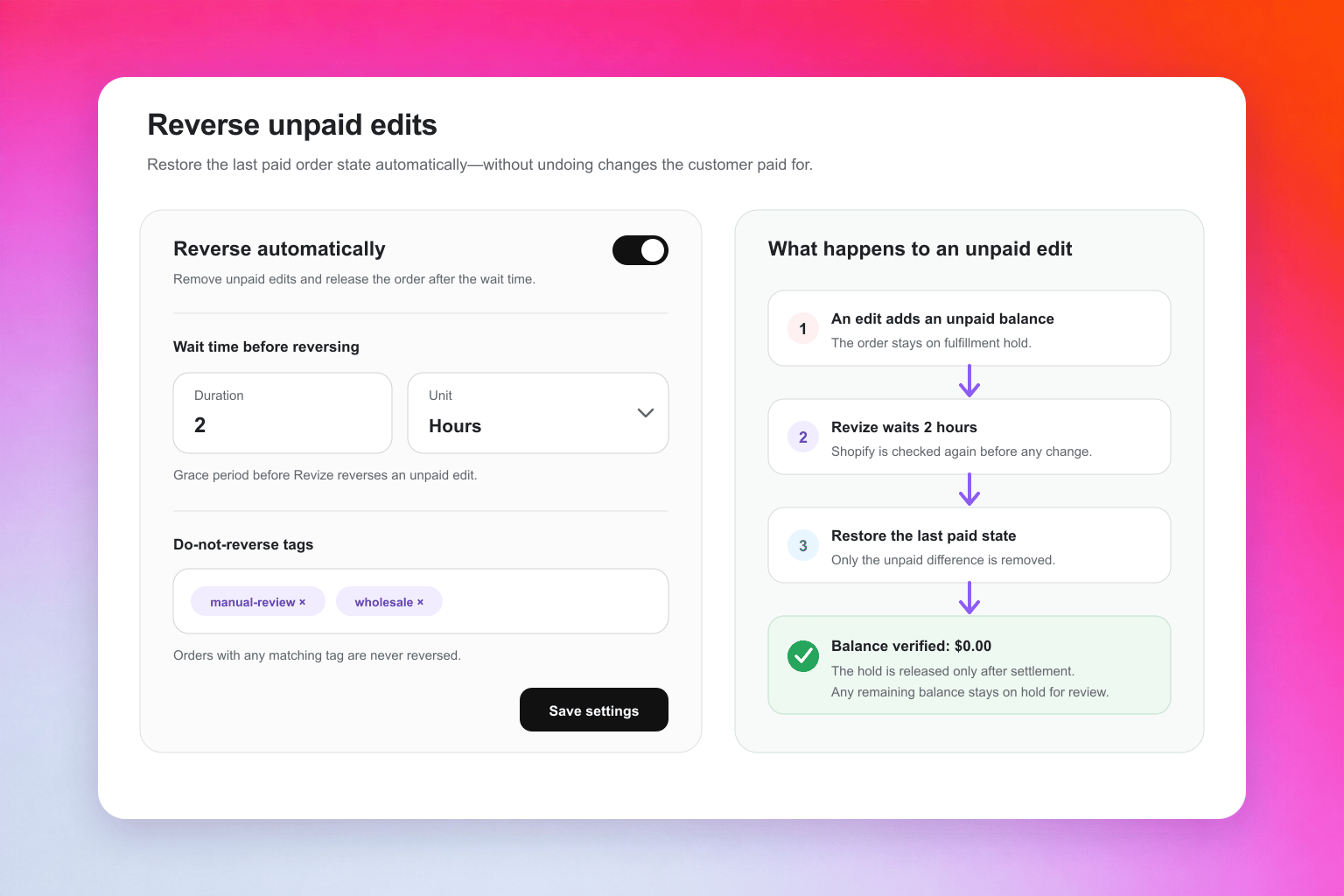
What changes when you enable it
When a customer adds a product, upgrades shipping, or makes another change that increases the order total, Shopify creates an additional balance. Revize holds the edited order from fulfillment while the customer pays. Without automatic reversal, an unpaid order can remain on hold after its editing deadline and later trigger a payment-incomplete email for merchant action. With Reverse Unpaid Edits enabled, Revize waits through your grace period, removes the unpaid change, verifies the live Shopify balance, and releases the order automatically.Revize does not reset the whole order. If a customer paid for one edit and abandoned a later one, only the later unpaid difference is reversed.
When the grace period starts
Set a positive duration in minutes or hours. The timer behaves differently depending on your order-editing window:- Fixed editing window
- Edit until fulfillment
For deadlines such as 15 minutes, 60 minutes, or Saturday at 4:00 PM, the grace period starts only when the editing deadline ends.Example: if editing ends at 4:00 PM and the grace period is 30 minutes, Revize checks the unpaid order at 4:30 PM.
What Revize restores
Revize returns line items, quantities, shipping, and any payment-causing address change to the newest paid or authorized version of the order. A harmless address correction is preserved when it did not create the unpaid balance. If the restored order becomes overpaid, Revize schedules a refund for the difference. If Shopify still reports money owing after the rollback, the order stays on hold for review—it is never released with a remaining balance. Revize skips automatic reversal when the order:- Has already been paid or cancelled
- Already matches its last paid state
- Uses cash on delivery or another manual or offline payment method
- Has one of your Do-not-reverse tags
Enable Reverse Unpaid Edits
1
Open the setting
Go to Settings → General → Reverse unpaid edits and turn on Reverse automatically.
2
Set the wait time
Enter a duration of at least
1, then choose Minutes or Hours. This is the grace period described above.3
Add optional exclusion tags
Add any order tags that should keep a matching order out of the automation. Matching is case-insensitive.
4
Save
Save the settings. New eligible unpaid edits will now be reversed and released automatically after the grace period.
Before changing or releasing anything, Revize checks the live Shopify order again. Successful reversals add the
revize:reverse_unpaid tag and remove the unpaid change from captured-revenue reporting.Related Revize features
- Post-purchase Upsells: add products to an existing order and collect only the difference
- Order Editing Window: control how long customers can edit their orders
- Fulfillment Sync: hold edited orders until they are ready to ship
- Payments & Refunds: understand Shopify’s additional-payment and refund handling
- Analytics: measure captured added revenue and post-purchase edits